Travel connectivity guide
Samsung Galaxy S20 Ultra 256GB eSIM: Setup Guide
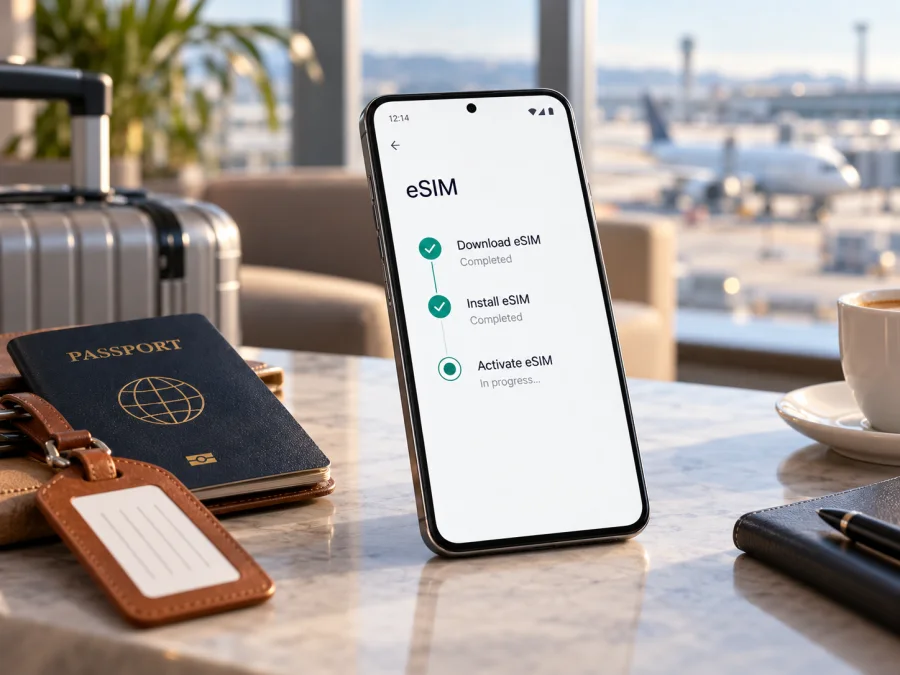
Samsung Galaxy S20 Ultra 256GB eSIM: compatibility and setup
The Samsung Galaxy S20 Ultra 256GB belongs to a Galaxy S20 family that Samsung lists as supporting eSIM. That is a useful starting point, but it does not prove that every phone sold under this name can add an eSIM: Samsung notes that support may depend on the country of origin and carrier, and the exact regional model and software matter. The 256GB storage capacity does not by itself enable or disable eSIM.
For your particular phone, look for an EID and an Add eSIM option in Settings before choosing a travel plan. If both are present, the device is likely ready for eSIM setup, subject to being unlocked and the plan being supported. If they are missing, ask Samsung or the seller to confirm the exact model code and regional configuration. Do not rely on the product name or storage listing alone.
Does the Samsung Galaxy S20 Ultra 256GB support eSIM?
Samsung’s published support information lists the Galaxy S20 Ultra among eSIM-capable S20 models. Samsung’s UK SIM guidance also lists eSIM for the S20 Ultra and describes using a physical SIM and microSD card alongside an eSIM, with a limit of two active SIMs at once. Its broader support guidance cautions that eSIM may not be available depending on the country of origin, and that carrier support varies.
This means the practical answer is yes for supported regional versions of the Galaxy S20 Ultra, but check your exact 256GB phone. “256GB” describes internal storage; it is not a complete model identifier. Galaxy S20 Ultra phones were sold in different markets and network configurations. Some may have different firmware or SIM capabilities, and a carrier-supplied handset may have restrictions. The existence of an eSIM feature on one market’s version should not be treated as proof for a different country’s handset.
Keep three questions separate: the market where the handset was originally sold, the country or territory where you plan to use the eSIM, and the local network available through the specific plan. Samsung’s device guidance addresses model-family eligibility; it does not confirm that every network operator in every destination will accept every imported handset. Because no destination or operator is specified here, check the plan’s destination list and any device or network requirements for your itinerary.
| Check | What to know |
|---|---|
| Device name | Samsung Galaxy S20 Ultra 256GB |
| eSIM family support | Samsung lists the Galaxy S20 Ultra in its S20 eSIM guidance |
| Exact 256GB SKU | Confirm on the phone; storage capacity alone does not establish eSIM support |
| Regional availability | Can vary by country of origin, model code, firmware and carrier configuration |
| Operator lock | A locked phone may reject a profile from another provider; ask the original carrier to confirm unlock status |
| Best on-device checks | EID in phone status information and Add eSIM in SIM settings |
| Travel use | A compatible, unlocked device can use a supported travel data profile; check the plan’s destination and terms |
The exact model code is usually printed on the original box and can also be found in Settings → About phone. Record it before contacting support. You do not need to publish your EID or share it in a public forum. The EID is a device identifier, not a QR code or a mobile number.
How to check your exact phone
Run these checks on the phone itself. Menu labels can vary slightly with One UI version, country and language, so look for the equivalent SIM manager or status page if the wording differs.
- Check for an EID. Open Settings → About phone → Status information (on some software versions the EID appears directly under About phone or Status). An EID is a long identifier associated with the embedded SIM hardware. If there is no EID in the phone or its original packaging, that is a reason to verify the regional model with Samsung before proceeding.
- Look for the eSIM controls. Open Settings → Connections → SIM manager. Check for Add eSIM, Add mobile plan, or Add plan. The name can differ after a software update. If the menu only offers physical SIM settings, do not assume an eSIM profile can be installed just because the Galaxy S20 Ultra family supports it elsewhere.
- Check the software. Install available official system updates, restart the phone, and revisit SIM manager. An older firmware version or carrier-customized software may affect which controls are displayed. If the option remains absent after an update, confirm the result with Samsung for the exact regional model.
- Confirm that the phone is unlocked. If the device was sold by a mobile carrier, ask that carrier whether it is network-unlocked and whether eSIM provisioning is permitted. The menu can exist even when the handset is restricted to a particular network.
- Ask for a model-specific answer if anything is unclear. Give Samsung Support or the seller the complete model code, country of sale and software version. Ask whether that specific unit has an EID and supports adding a third-party travel eSIM. Avoid relying only on a generic “S20 Ultra compatible” answer.
A menu entry and an EID are strong signs that the phone can store an eSIM profile, but the plan still needs to be accepted by the device, and the phone must be unlocked for the intended network.
Compatibility checklist before choosing a travel eSIM
A model name is only one part of compatibility: regional hardware, software, carrier unlock and the plan all matter. Check the handset you will take on the trip, and keep its model code nearby. Check your device before choosing a plan. Verify the handset, unlock status and travel needs before payment. Confirm the EID and Add eSIM menu on the actual handset, and ask the original carrier whether it is unlocked. Then verify that the plan covers every destination, that its data allowance and validity match your itinerary, and when its validity begins. Plan terms may start the clock at installation, activation or first network connection.
Travel eSIMs are often data-only. Unless the plan explicitly includes them, do not expect a regular phone number, cellular calls or SMS; messaging and calls through apps can use mobile data. Read whether installation is allowed before departure, whether the QR code is single-use, and whether data roaming must be enabled for the eSIM. Keep your home SIM’s roaming and data settings separate.
Kaspersky eSIM Store is an app and website where you can choose, arrange and activate an eSIM plan for mobile data during an international trip. Review the destination, allowance, validity and price shown for the plan; availability and conditions vary. Kaspersky eSIM Store is not a mobile network operator and does not itself provide network coverage.
Add and activate an eSIM on the Galaxy S20 Ultra
Samsung’s eSIM setup guidance describes adding a plan by scanning a QR code, entering an activation code or using an automatically assigned plan when the provider supports that method. Exact labels can differ across software releases. Follow the steps supplied with your plan if they differ from the general flow below.
- Prepare a connection. Connect the Galaxy S20 Ultra to Wi-Fi or another working data connection. Keep the plan’s QR code or activation details open on a second device, or print the QR code so that the phone camera can scan it.
- Open SIM manager. On the phone, go to Settings → Connections → SIM manager. Tap Add eSIM or the equivalent option. If there is no add option, stop and verify the regional variant rather than repeatedly attempting installation.
- Choose the provider’s method. Select Scan QR code and point the camera at the code. If your provider gave you an activation code instead, choose manual entry if that option is available and enter the supplied details exactly. Do not reuse a QR code or code from another device or plan.
- Wait for the profile download. Keep the phone connected until the download and setup finish. Approve the on-screen prompts and give the new line a clear name, such as “Travel data,” so it is easy to distinguish from your home SIM.
- Choose when to enable it. You can usually leave the travel profile switched off until you are ready to use it, if the plan instructions permit this. Installing a profile and starting its validity period are not necessarily the same event; check the plan’s terms rather than guessing.
- Select the data line. In SIM manager, set the travel eSIM as the mobile-data SIM when you want to use it. Keep calls and texts assigned to your preferred line if those services are needed. Review the selection again after landing because the phone may retain its previous data choice.
- Enable data roaming for the travel profile if required. Some travel plans need roaming enabled on their eSIM to connect to a partner network. Turn it on only for the travel profile and follow the plan instructions. This setting is separate from the home SIM’s roaming setting.
- Check the connection. Once the plan should be active, wait for the phone to register on a supported local network. Open a simple webpage with Wi-Fi turned off. If there is no connection, check the troubleshooting section below before deleting the profile.
For the general Android flow, see Android eSIM installation instructions. The iOS guide is available at iOS eSIM installation instructions; its menu steps are for Apple devices, so use the Android path on this Samsung phone.
Keep your home SIM and travel eSIM straight
On supported variants, the Galaxy S20 Ultra can use a physical SIM and an eSIM, but combinations differ by region and software. Samsung’s UK guidance says no more than two SIMs can be active at once. After adding a profile, use SIM manager to choose the line for mobile data and, if needed, keep the home line for calls or texts. On arrival, recheck the data selection and enable roaming only for the travel profile if the plan requires it. Your home provider’s charges still apply to use of the home SIM.
Using the eSIM for mobile data while travelling
Install the profile over a reliable connection when the plan allows it. Keep its instructions available offline, and protect the QR code or activation details because they may be single-use. After landing, disable Wi-Fi briefly, confirm the travel profile is enabled and selected for mobile data, and test a webpage. If the profile registers but data does not work, check activation, remaining allowance and validity. Follow the plan’s instructions for roaming, APN details or manual network selection; do not copy settings from an unrelated provider.
Estimate your usage before choosing an allowance. Download maps and tickets over Wi-Fi, avoid large updates on mobile data, and monitor usage in Android settings and the plan account if available. A data-only plan will not replace ordinary calls or SMS, though supported messaging and calling apps can work over data. For multi-country travel, check every stop, coverage terms and whether validity continues between countries. Signal and speed depend on the local network, location and plan conditions.
Common problems and what to check
There is no EID or “Add eSIM” setting
Check Settings → About phone → Status information and Settings → Connections → SIM manager after restarting. Install available official updates and check again. If the EID or add option is still absent, give Samsung or the seller the full model code, country of sale and software version. Storage size alone cannot confirm support; do not purchase a plan until the exact variant is verified.
The QR code will not scan or profile download fails
Use a working Wi-Fi connection, raise the brightness of the screen displaying the code, and hold the phone steady. Confirm that the code belongs to this plan and has not already been used. If installation fails, check the provider’s instructions and exact error before trying again. Some codes are single-use or tied to one device; contact support rather than deleting a partially installed profile or reusing another plan’s code.
The eSIM is installed but there is no data
In SIM manager, confirm that the profile is enabled and selected for mobile data. Check that you are in a covered destination and that the plan’s validity has started and data remains. Enable roaming for that eSIM only if instructed. If a signal appears but pages do not load, follow the plan’s APN or network-selection instructions and test with Wi-Fi off. A signal icon alone does not confirm data access.
The home SIM uses data unexpectedly
Recheck which line is selected for mobile data and turn off automatic data switching if you do not want the phone to fall back to the home SIM. Verify roaming settings on both lines separately. Contact the home carrier about charges or a network lock.
Can I delete or move the profile?
Check the plan’s transfer and reinstall rules first. Deleting a profile may prevent reuse of its QR code, and removing it from the phone does not necessarily cancel the plan. Ask the plan’s support team for help if you are changing devices or need a replacement code.
Practical travel scenarios
Short city break: Check the destination and validity, install over Wi-Fi if permitted, then select the travel profile for data when you arrive and test a webpage.
Keep your home number: Leave the home SIM enabled if you need it, but select the travel eSIM for data. Check the home line’s roaming terms and disable automatic data switching if needed.
Several countries: Confirm every destination is included and check how validity works across borders. Arrange another connectivity option for any stop not covered by the plan.
Overseas or second-hand phone: Inspect the model code, EID, Add eSIM menu and unlock status on the actual phone. If support is absent or uncertain, verify the variant before travel or use a confirmed-compatible unlocked device.
Frequently asked questions
Does the 256GB version support eSIM?
Samsung lists the Galaxy S20 Ultra family as eSIM-capable, but 256GB is a storage configuration rather than a full regional model identifier. Check the EID and Add eSIM setting because country of origin, firmware and carrier configuration can affect support.
Does eSIM require 5G?
No. eSIM capability and network generation are separate. Profile installation does not require a 5G signal; actual service depends on the phone variant, plan and local network.
Can I use a physical SIM and eSIM together?
Samsung describes this combination for supported S20 versions and says no more than two SIMs can be active at once. Verify available configurations on your regional variant.
Does a travel eSIM include calls or SMS?
Only if the specific plan says so. Many are data-only; app-based messaging and calls can use the data connection.
What if I see an EID but not “Add eSIM”?
The EID alone does not prove that the current software and regional configuration allow installation. Update and restart, then ask Samsung or the seller to verify the full model code if the option remains missing.
Check first, then choose a plan for your trip
The Samsung Galaxy S20 Ultra 256GB has family-level eSIM support in Samsung’s published guidance, but the exact 256GB handset still needs to be checked. Confirm its EID, look for Add eSIM, verify that the device is unlocked, and make sure the selected plan covers your destination and travel dates. If any of those checks fail, pause and verify the regional model or use a physical SIM or another confirmed-compatible unlocked phone.
When the device checks out, browse destinations and check current eSIM plans in Kaspersky eSIM Store. Review the plan’s data amount, validity and activation rules before you choose. This way, you can prepare a suitable mobile-data option for the trip and know which SIM profile your Galaxy phone should use when you arrive.


