Travel connectivity guide
Samsung Galaxy S21 128GB eSIM: compatibility & setup
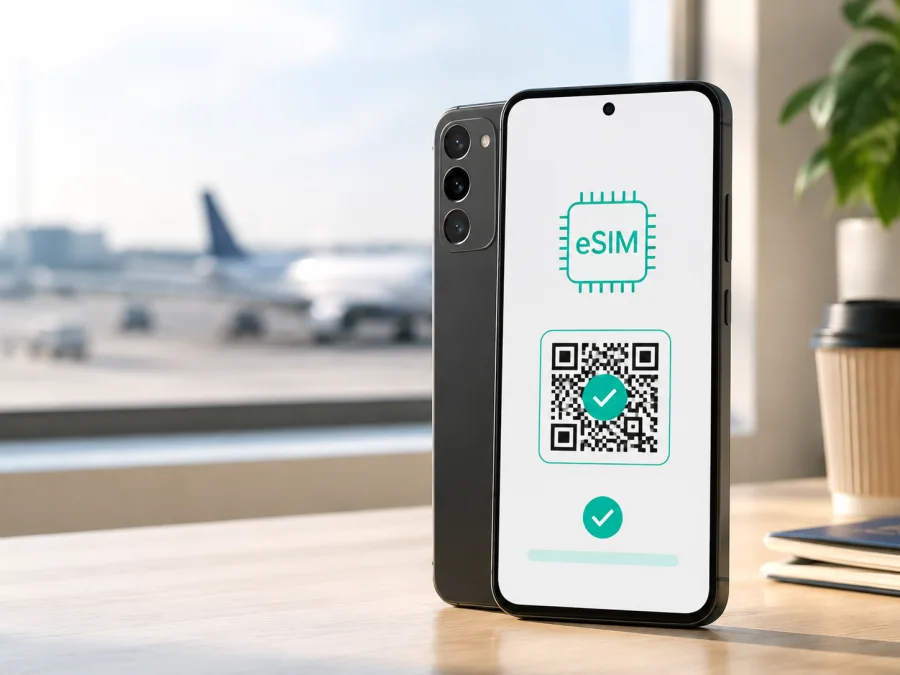
Samsung Galaxy S21 128GB eSIM: compatibility and setup
If you are preparing for an international trip and want to keep your everyday physical SIM, eSIM can add a separate mobile-data profile. This guide covers the exact variant Samsung Galaxy S21 128GB, not another Galaxy S21 modification.
Quick answer
Yes, Samsung Galaxy S21 128GB can support eSIM, but the final result depends on model code, region, carrier and software. Samsung’s official 128 GB specifications include an embedded SIM, and Samsung support guidance says that the S21 family can use eSIM. Samsung also qualifies that the network must support eSIM, so identical retail names do not guarantee identical menus.
The safest answer is conditional: check the phone you own. Look for an EID and an option to add an eSIM before paying for a travel plan. If both are missing, do not assume that another QR code or update will enable it; Samsung notes that an unavailable function cannot simply be enabled by the user.
Samsung Galaxy S21 128GB at a glance
| Item | What to expect |
|---|---|
| Exact device covered | Samsung Galaxy S21 128GB |
| Official family naming | Samsung product pages often call this family Galaxy S21 5G; this page remains about Samsung Galaxy S21 128GB |
| Storage | 128 GB nominal internal storage; available space is lower after system software |
| RAM | 8 GB is listed on official 128 GB specification pages |
| SIM capability | Physical nano-SIM plus embedded SIM in supported configurations |
| eSIM result | Supported on applicable configurations; confirm on the phone and with the network or plan provider |
| Important limitation | Model, region, carrier policy and software affect the visible SIM options |
Storage and RAM do not decide eSIM support. The phone must have the right configuration, be unlocked and work with the chosen network. Do not transfer another S21 model’s result to this variant.
Does Samsung Galaxy S21 128GB support eSIM?
The manufacturer answer is positive with an important qualification. Samsung’s official S21 support material describes eSIM as available on the family and says dual-SIM use can combine one nano-SIM with an eSIM. Its 128 GB specification lists 128 GB storage, 8 GB RAM and a SIM slot with an embedded SIM.
Availability can depend on network, region, service provider and model. European, US carrier and imported handsets may show different menus. The retail name alone does not identify the model code or guarantee a carrier eSIM profile.
In practice:
- If Settings shows Add eSIM and the phone displays an EID, the device configuration is ready to receive an eSIM profile. You still need an eligible service and an unlocked phone.
- If SIM manager exists but Add eSIM and the EID are absent, treat the handset as a regional or carrier configuration that may not have active eSIM support. Ask the seller or original carrier to confirm the model code.
- If Add eSIM is present but a profile will not download, check the network, plan eligibility, internet connection, activation status and carrier lock before blaming the 128 GB variant.
Regional, carrier and software differences
The Galaxy S21 family was released in many markets with different model codes and carrier relationships. Regional specifications and carrier eSIM provisioning can therefore differ even when phones look alike.
Check these points before purchase:
- Region of sale. An imported model may have a different eSIM policy or may not be accepted by a local carrier.
- Model code. Open Settings → About phone and record it; this is more reliable than a marketplace label such as “international.”
- Carrier lock. The phone may need to be SIM-unlocked before a different eSIM service can be used.
- Software. Menu wording can change between One UI versions. An update may improve compatibility, but it is not proof that a missing regional feature will appear.
- Destination and plan. Phone compatibility and plan coverage are separate checks; the profile must cover every country on your route.
An eSIM-capable phone can still reject a particular plan. Before payment, verify the model number, unlock status, eSIM menu and country coverage.
Verify your phone before purchase
Use the handset as the first source of truth. Samsung menu names vary slightly; the usual path is:
Settings → Connections → SIM manager
Look for Add eSIM, Add mobile plan, Scan QR code or similar wording. You only need to confirm that the control exists; do not scan a real activation code during the check. Then look for the EID in one of these places:
- Settings → About phone → Status information, alongside IMEI details;
- the device information screen under Settings → About phone;
- the original box or purchase documents, if the EID is printed there.
An EID identifies the embedded SIM component. It is not the IMEI or QR code. Avoid sharing it or the activation code publicly. If the menu and EID are present, the device is a strong candidate, but the plan and network must still accept it.
Compatibility checklist
- [ ] The phone is exactly Samsung Galaxy S21 128GB and its model code is recorded.
- [ ] SIM manager shows Add eSIM or an equivalent control.
- [ ] An EID is visible in the phone information or status screen.
- [ ] The phone is not blocked by a carrier lock.
- [ ] Reliable Wi‑Fi is available for downloading the profile.
- [ ] The chosen plan covers the destination or full route.
- [ ] The data allowance, validity period, activation conditions and refund rules are understood.
- [ ] You know which line will handle calls and texts and which will provide mobile data.
Check your device before choosing a tariff. This separates a device problem from a plan or network problem.
<a id="kesim-device-compatibility"></a>
Choose a travel eSIM plan
After the device check, choose a plan for the journey rather than for storage size. Kaspersky eSIM Store is an app and website that helps you choose, arrange and activate an eSIM with a suitable tariff for mobile internet during an international trip. Review the destination, data allowance and validity period; availability and conditions depend on the destination and current offer.
Maps, translation, transport apps, messaging and browsing usually need less data than video calls or streaming. For a multi-country itinerary, verify coverage for every border crossing.
The eSIM in this travel context is intended for mobile internet. It does not automatically provide a new ordinary number, traditional voice calls or SMS unless the specific plan says so. Your physical SIM can remain responsible for those services, while messaging and calling apps can use the active data connection.
Install and activate the eSIM
Install before departure over stable Wi‑Fi if possible. Airport Wi‑Fi may be unreliable, so keep activation details on another screen. If validity starts on installation, timing matters.
For platform-specific guidance, see the Android installation instructions and the iOS installation instructions. The steps below are for Samsung Galaxy S21 128GB.
1. Prepare the connection
Connect to reliable Wi‑Fi and charge the phone. Keep the QR code or manual activation details on another screen, read the activation window, and do not post the code publicly.
2. Open SIM manager
Open Settings → Connections → SIM manager and choose Add eSIM. If the option is missing, stop and return to the compatibility check.
3. Scan the QR code
Tap Scan QR code and point the camera at the code on another device. Avoid glare. If it is displayed on the same Samsung Galaxy S21 128GB, use a manual code if supplied or show it on a computer or second phone.
4. Download the profile
Confirm the plan details and start the download. Wait for installation to finish; do not repeatedly scan the code or power off while it runs. Many codes are intended for one installation.
5. Name and enable the line
Give the profile a label such as Travel data and enable it in SIM manager. Choose deliberately which line handles calls, messages and mobile data.
6. Select mobile data
In SIM manager, set the travel eSIM as preferred for Mobile data. Keep the everyday SIM for calls and texts if needed. Disable automatic data switching unless you understand its effect.
7. Check roaming for the travel profile
Open the travel eSIM settings and check Mobile data and Data roaming. Many travel profiles require roaming through a partner network. Enable it only as required, and check the home SIM separately.
8. Test the connection
Turn Wi‑Fi off briefly and open a webpage or map. Confirm that the intended profile supplies data, then turn Wi‑Fi back on. Test when you want validity to begin.
Installation and activation are not always identical: downloading puts the profile on the phone, while activation may depend on first network registration. Follow the plan conditions.
Using eSIM while travelling
Keep your home number. Leave the physical SIM active for calls or messages, select the travel eSIM for data, and ask the home carrier about roaming charges.
Short city break. Install over Wi‑Fi, delay enabling if the terms allow it, then use the profile for maps, transport and messaging. Monitor its allowance.
Multi-country route. Confirm coverage for every destination. If a new profile is needed, change the data line and check reinstallation rules before deleting the old one.
Work trip and hotspot. Check whether tethering is allowed and watch the allowance because laptops can consume data quickly.
Return home. Set the everyday SIM back as the data line and turn off travel-profile roaming. Do not delete a profile just to tidy the menu.
Common problems and troubleshooting
QR code will not scan
Increase screen brightness, remove glare, clean the lens and hold the phone steady. Confirm SIM manager → Add eSIM → Scan QR code. Ask support about a used code.
The profile will not download
Try reliable Wi‑Fi, leave any captive portal, set date and time to automatic, and confirm activation eligibility. Check carrier lock, destination and model. Do not delete other profiles first.
The eSIM is installed but there is no data
Confirm that the travel eSIM is enabled and selected under Mobile data. Check Data roaming if required, toggle airplane mode, and wait for registration. Use automatic network selection unless support says otherwise.
The home SIM is using data
Set the travel profile as preferred for data and disable automatic data switching. Check the status bar. The home line can still incur charges for its own services.
Data is slow or stops
Check allowance, validity and signal. Speed depends on network, congestion, location and settings. A 5G-capable Galaxy S21 family radio does not guarantee 5G; 4G LTE may be normal.
Calls or SMS do not work through the travel eSIM
That may be expected. A data-focused travel eSIM normally provides mobile internet, not a regular number, voice or SMS. Keep the home line or use internet calling and messaging apps.
The profile disappeared after a reset
A factory reset or manual removal can erase an eSIM. Keep activation details private and contact plan support before trying again; a QR code may not be reusable.
FAQ
Is Samsung Galaxy S21 128GB compatible with eSIM?
Yes, applicable Samsung Galaxy S21 configurations support eSIM, and Samsung’s official 128 GB specification lists an embedded SIM. Confirm the phone through Add eSIM and EID because region, carrier and software can change availability.
Does 128 GB storage affect eSIM support?
No. Storage capacity does not enable or disable the embedded SIM. The decisive checks are the model configuration, EID, SIM manager menu and network eligibility.
Can I use a physical SIM and eSIM together?
Usually, the S21 family supports one physical nano-SIM with an eSIM where the configuration and network allow it. Use SIM manager to select the data line.
Can I activate it before travelling?
Often you can install over Wi‑Fi before departure, but the validity start depends on the plan. Read its activation terms before enabling the profile.
Can I move the travel eSIM to another phone?
Not automatically. Some profiles are bound to the first device or cannot be transferred. Ask support about reissue options before deleting it or scanning the old code again.
Is Kaspersky eSIM Store a mobile operator?
No. Kaspersky eSIM Store is an app and website that helps you choose, arrange and activate an eSIM with a suitable tariff for mobile internet on an international trip. It is not the network owner or the provider of mobile coverage; service depends on the selected plan and its underlying network arrangements.
Final device check and trip eSIM
Samsung Galaxy S21 128GB is a plausible eSIM device, and Samsung’s official information supports eSIM for the Galaxy S21 family and applicable 128 GB configurations. The responsible final check is to confirm the model code, find the EID, open Settings → Connections → SIM manager, and verify Add eSIM on the phone in your hands. Then confirm that the handset is unlocked and that the chosen tariff covers the countries on your itinerary.
When those checks pass, install over reliable Wi‑Fi, select the travel eSIM for data, enable roaming only as required, and test at the right time for the plan’s activation rule. Keep the physical SIM available and do not delete a profile while troubleshooting. Before paying, check your device once more, then use Kaspersky eSIM Store’s app or website to choose an option matching your destination and validity period.


