Travel connectivity guide
Samsung Galaxy S21 256GB eSIM: Compatibility & Setup
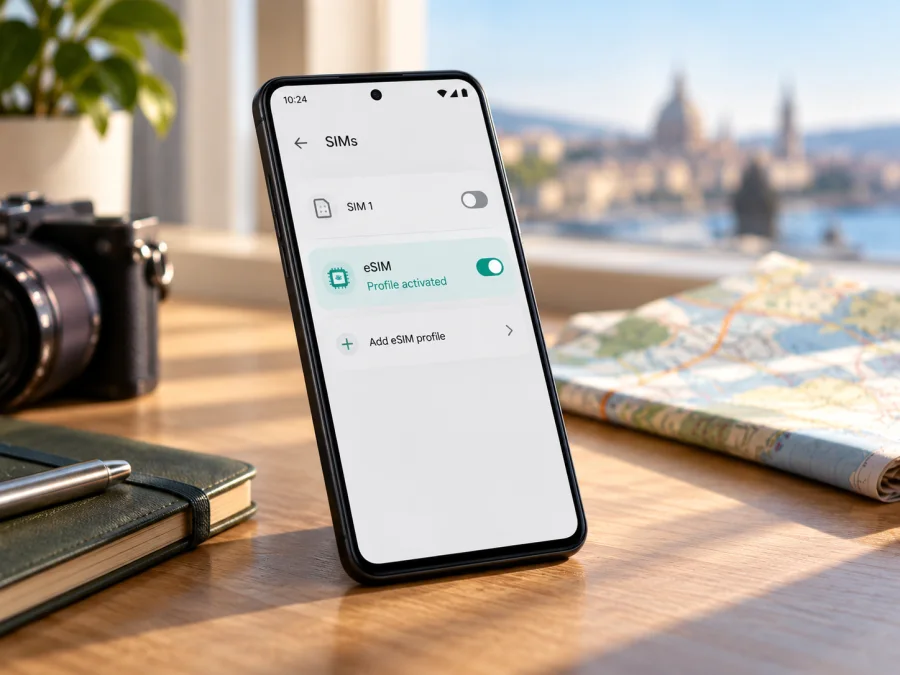
Samsung Galaxy S21 256GB eSIM: compatibility and setup guide
The Samsung Galaxy S21 256GB can use eSIM on supported regional versions. Samsung lists the Galaxy S21 family among its eSIM-capable devices, but it also cautions that a handset’s country of origin, carrier and software can affect whether eSIM is available. “256GB” describes storage capacity; it does not identify the phone’s sales region or prove that its eSIM feature is enabled. Check the phone itself before choosing a travel plan.
Look for an EID and Settings → Connections → SIM manager → Add eSIM. If these checks fail, verify the exact model code and sales region with the seller or Samsung support before buying a plan.
| Item | What to know |
|---|---|
| Device named in this guide | Samsung Galaxy S21 256GB |
| Storage variant | 256GB; the storage amount alone does not determine eSIM support |
| eSIM status | Supported by the Galaxy S21 family in eligible markets and versions; confirm on the individual phone |
| Main on-device checks | EID in phone status information; Add eSIM in SIM manager |
| Travel use | A compatible, unlocked phone can use an eSIM plan for mobile data where the plan has service |
| Main caveats | Region, carrier configuration, software and plan terms can affect availability and activation |
Does Samsung Galaxy S21 256GB support eSIM?
Often, yes, but the storage label is not enough to give an unconditional yes. Samsung’s current support information includes Galaxy S21, S21+ and S21 Ultra in its Galaxy eSIM-capable device family. Samsung’s S21 guidance also describes eSIM use when supported by the mobile network. At the same time, Samsung’s regional compatibility guidance says eSIM may not be supported in some countries of origin even when a device family is listed. This means the family-level answer is verified, while the answer for an unspecified 256GB unit depends on its exact regional model and software configuration.
The seller’s country, the phone’s original market and its current network are separate details. An imported device may have a different model code or carrier configuration from a local unit. A carrier-branded or locked phone can have restrictions that an unlocked handset does not; storage capacity reveals none of these details.
Do not infer support from 5G, dual-SIM capability or another owner’s experience. Check this phone’s EID and SIM manager, then confirm that it is unlocked and accepted by the plan provider.
Regional and carrier versions
Samsung lists eSIM by model family and warns that country of origin matters. “Samsung Galaxy S21 256GB” does not uniquely identify the configuration. The full model code (the base Galaxy S21 family commonly begins with SM-G991) can help identify the market; read it in Settings → About phone, on the box or purchase record rather than relying on a partial listing.
The provider must also support activation for the device and destination. A carrier lock may prevent use of another provider’s plan. Updates can change menus or carrier behavior, but cannot add eSIM hardware to a physical-SIM-only variant. For a used or imported phone, confirm its original market and unlock status.
Device capability and plan availability are separate checks: the phone must expose eSIM capability, and the provider must support the device and destination. Review the route coverage and plan terms as well.
Check compatibility before you buy
Use the phone’s menus rather than relying only on a model-name search. Menu labels can vary a little by Android or One UI version, language and carrier. Keep the handset connected to Wi-Fi while checking and have the exact model code available if you need to ask Samsung or the seller.
Compatibility checklist
- [ ] Open Settings → About phone and note the complete model name and model number.
- [ ] In Settings → About phone → Status information, look for an EID. On some software versions, EID is shown under About phone or on the retail box instead.
- [ ] Open Settings → Connections → SIM manager and look for Add eSIM. If the option appears, the device software recognizes eSIM functionality.
- [ ] Check that the phone is not carrier-locked. Ask the original carrier or seller if the status is unclear.
- [ ] Install available official software updates, restart the phone, and check SIM manager again.
- [ ] Confirm with the plan provider that the precise Galaxy S21 variant is accepted, and read the supported-country and activation conditions.
An EID is an identifier for an eSIM-capable device, separate from its IMEI or serial number. Samsung says it can appear in status information or on the box. Dialer codes vary by model and software; if *#06# shows IMEIs but no EID, also check Settings and SIM manager.
Interpret the checks together. An EID is a device identifier; Add eSIM shows that the current software exposes profile installation. If both appear, continue with the unlock and plan-provider checks, since activation still depends on the provider and destination. If only one appears, record the full model code and confirm it with Samsung or the seller. A software update may restore an outdated menu, but cannot add missing eSIM hardware. For a used phone, ask the seller to show these screens on the actual handset before payment. Do not post the EID publicly; share it only through a trusted support channel when requested. The original sales market and unlock status can help support teams explain regional limitations.
If Add eSIM is missing, do not try random dialer codes, unofficial firmware or a QR code purchased for another phone. Confirm the model code and original sales region, check for updates, and ask Samsung support or the seller whether that specific variant supports eSIM. If you still cannot verify support, treat the handset as incompatible for the planned purchase and use another compatible unlocked device or a local physical SIM option where available.
For a quick next step, check your device against the compatibility guidance before selecting a plan. This check is especially important when the phone was imported, bought second-hand or supplied by a mobile carrier.
Prepare a travel eSIM
An eSIM profile is a digital SIM downloaded to a compatible phone. It can provide travel data without removing the physical SIM, subject to dual-SIM behavior and home-carrier settings. Do not assume a travel plan includes a regular number, voice calls or SMS unless its terms say so; messaging and internet calls can use data in supported apps.
Before buying, check destination coverage, trip length, data allowance, validity start, tethering rules and installation timing. Review the full coverage list for regional plans. Estimate use for maps, messaging, video calls and work apps; downloading maps or media in advance can reduce data use.
Kaspersky eSIM Store is an app and website where you can choose, arrange and activate an eSIM with a plan for mobile internet on an overseas trip. It helps you review available travel options and their displayed terms; service availability, coverage and plan conditions depend on the selected offer and destination. The first step remains device compatibility: an app or plan cannot add eSIM hardware to a handset that does not support it.
Once your compatibility checks are complete, you can browse the Kaspersky eSIM Store to review current travel options. The homepage is a general place to explore destinations and plans; it is not a country-specific tariff or a guarantee that a plan is available for every route.
Install and activate eSIM on Samsung Galaxy S21 256GB
The steps below follow Samsung’s Galaxy SIM manager flow. Exact wording may differ with your One UI version, language, carrier and region. Keep a reliable Wi-Fi connection during installation. Have the QR code or activation details from the plan provider ready, and do not scan the same one repeatedly if the provider says it can only be used once.
- Confirm compatibility and unlock status. Check for an EID and Add eSIM as described above. Make sure the phone can use a plan from another provider.
- Review the plan instructions. Check whether installation is allowed before travel, where the plan can be activated, and when its validity starts. Some plans start on installation; others start on first connection in the destination. Follow the terms for the plan you selected.
- Open SIM manager. Go to Settings → Connections → SIM manager → Add eSIM.
- Choose the available installation method. If the provider supplied a QR code, choose the option to scan it and point the camera at the code. If the provider issued a manual activation code, use Scan QR code → Enter activation code, if available, and enter the supplied details exactly. Some providers may offer direct installation through their app; use that option only if it is explicitly offered for your plan and device.
- Allow the profile to download. Keep the phone online and do not close the settings screen until the download completes. If the installation fails, note the exact message before trying again.
- Name the eSIM. Give it a clear label such as “Travel data” so that it is easy to distinguish from your home SIM. Avoid deleting the profile after installation unless the provider instructs you to do so.
- Choose the line for mobile data. In SIM manager, select the travel eSIM as the mobile data SIM when you want to use it. Keep calls and texts on your usual SIM if that is your preference and your device/carrier allow it.
- Enable data roaming for the travel profile if required. Some travel eSIMs need data roaming enabled to connect to a partner network. Enable it for the travel eSIM only when the plan instructions say to; check that roaming remains off for your home SIM if you want to avoid unexpected charges.
- Connect at the right time. If the plan should begin at the destination, leave the travel line installed but turn it off until you arrive, where the provider’s instructions allow this. At the destination, enable the line and mobile data, then allow it time to register.
- Confirm the connection. Check the network indicator and open a simple webpage. If the phone shows signal but no data, verify the selected data SIM, roaming setting and any APN instructions from the provider.
Samsung describes the Galaxy setup flow through SIM manager and the QR-code or manual-code options. For a general walkthrough from Kaspersky eSIM Store, see the Android eSIM installation instructions. The iOS installation instructions are for iPhones and are included as a reference if you are preparing a second device; they do not describe Galaxy settings.
Before departure and after arrival
If permitted, download the profile over Wi-Fi before departure, but check when the plan’s validity actually begins. Keep the QR code on another screen or in a printed copy; to install a code shown on the phone itself, use another device or manual entry if offered. After landing, enable the travel line and select it for data. If service does not appear, wait briefly, toggle airplane mode once or restart. Do not delete the profile while troubleshooting; ask the provider about pending activation or redownloads.
Use the eSIM for mobile data on a trip
In destinations covered by the plan, the travel profile can handle mobile data while your usual SIM remains available for calls or texts, depending on the handset and carrier. Choose the data line before travel to reduce accidental use of home-plan roaming data.
For a short city visit, you might keep the travel eSIM disabled until you arrive, then turn it on for maps, transport, reservations and messaging. For a multi-country itinerary, confirm that the chosen plan lists every destination. For a work trip, check tethering rules and estimate data use for video meetings or file uploads. If you need to receive a bank verification SMS, keep your regular number available if your carrier supports it, but remember that roaming charges may apply to your home line.
Use Wi-Fi for large downloads and monitor usage in Android settings or your provider account. Per-app data controls can limit background use but do not change a plan’s validity or coverage. If data runs out, check whether a top-up is permitted or another plan is needed.
Kaspersky eSIM Store helps users choose, arrange and activate a travel eSIM through its app and website. The mobile network and coverage depend on the plan and the local networks it can use. A compatible phone is necessary, but it cannot guarantee reception in every location, indoor area or route. Check the plan’s stated destination coverage and service conditions before purchase.
Common problems and checks
“Add eSIM” is not shown. Check the full model number and country of origin. Install available software updates and restart. If the option is still missing, ask Samsung or the seller about that exact regional variant; do not assume that storage size or the S21 family name proves support.
There is no EID. Look in Settings → About phone → Status information and check the original box. Make sure you are reading EID rather than IMEI. An absent EID together with an absent Add eSIM option is a strong reason to pause the purchase and verify the model with Samsung or the seller.
The QR code cannot be scanned. Increase screen brightness, clean the camera lens, move the code closer, and check that the code belongs to the plan being installed. If the code is displayed on the Galaxy itself, open it on another screen or use manual entry if the provider gives an activation code. Do not share the code publicly.
The profile will not download. Use stable Wi-Fi and verify the activation details. Check whether the QR code is expired, already used or intended for another device. Contact the provider with the error and order details if it may be single-use.
The profile installed, but there is no service. Check that the eSIM line is switched on and selected for mobile data. Confirm the plan is valid for your current country and that the activation time has arrived. If required by the plan, enable data roaming on the travel profile. Check any APN details supplied by the provider and allow time for network registration.
Signal appears, but apps cannot connect. Turn Wi-Fi off briefly, confirm the travel eSIM is selected for data and airplane mode is off. Check the allowance and account status; restart or toggle airplane mode once to refresh registration. For app-specific failures, review that app’s data permissions.
The home SIM is using data or roaming. In SIM manager, select the travel eSIM for data and review roaming for both profiles. If billing is unclear, disable data on the home line and ask your carrier about roaming.
The profile was deleted or the phone was reset. The QR code may not be reusable. Ask the provider whether a replacement is needed before deleting a profile or resetting the handset.
FAQ
Does every Samsung Galaxy S21 256GB have eSIM?
No. Samsung lists the S21 family as eSIM-capable, but it warns that support can vary with country of origin and carrier. The 256GB storage label does not identify the regional variant. Check the EID and Add eSIM on your individual phone.
Is an EID enough to guarantee a travel plan will work?
No. Also confirm Add eSIM, unlock status, and support for the model and destination. Carrier restrictions or plan terms can still prevent activation.
Can I keep my physical SIM in the phone?
Samsung describes eSIM use alongside a physical SIM on supported S21 configurations. Dual-SIM behavior varies by model, region and carrier; check SIM manager and roaming terms.
Does a travel eSIM include calls and text messages?
Not necessarily. Many travel plans are for mobile data only and do not include an ordinary phone number, voice service or SMS. Check the plan details. Internet-based calls and messages may work through compatible apps when data is available.
Should I turn on data roaming?
Only if the plan instructions require it for the travel profile. Review the home SIM separately to avoid unintended roaming.
Can I install the eSIM before I travel?
Often, if allowed. Installation and validity may start at different times; follow the selected plan’s terms.
What if the phone is carrier-locked?
A lock may prevent another provider’s eSIM from working. Ask the original carrier about unlocking and support for your exact model before purchase.
Does the 256GB version work differently from another storage size?
Storage capacity is not evidence of eSIM support. Regional model code, carrier configuration and software determine availability.
Final check: verify the phone, then choose a travel eSIM
For Samsung Galaxy S21 256GB, the reliable answer is conditional: Samsung documents eSIM support for the Galaxy S21 family, but the exact 256GB unit must be checked because country of origin and carrier configuration can affect availability. Find the EID, confirm Add eSIM in SIM manager, check the full model code and make sure the phone is unlocked. Then verify destination coverage, data allowance, validity start and installation rules for the plan you are considering.
If any device check is unclear, ask the seller, carrier or Samsung support to verify the exact model before purchase. Once compatibility is established, use the Kaspersky eSIM Store website or app to review current options for your trip and compare their stated conditions. A careful check before payment makes setup more predictable and helps you know which SIM line should handle mobile data after arrival.


