Travel connectivity guide
Samsung Galaxy S21 eSIM Compatibility Guide
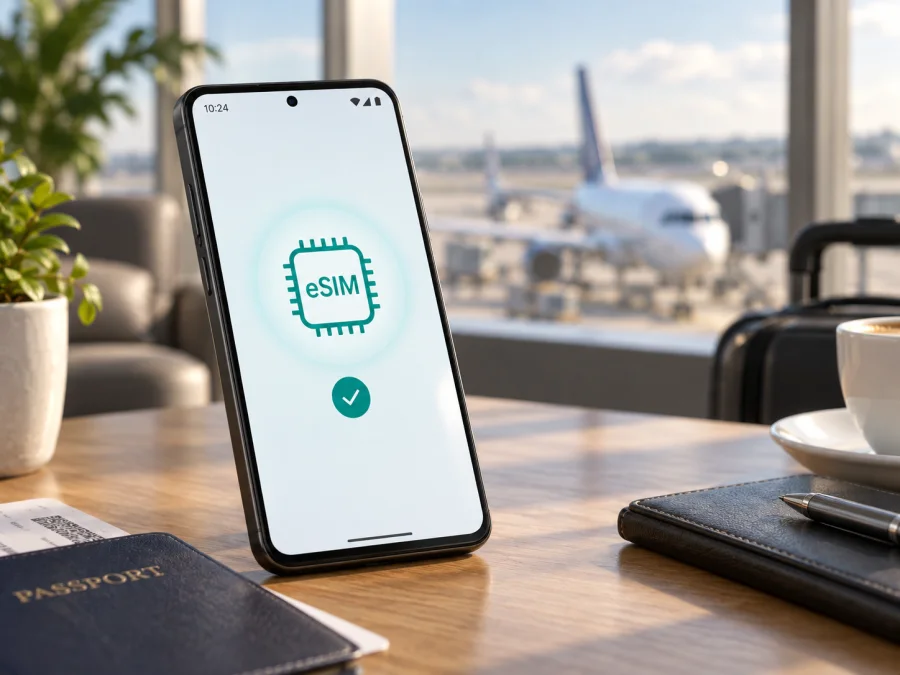
Samsung Galaxy S21 eSIM compatibility and travel setup
The Samsung Galaxy S21 supports eSIM on versions where the feature is enabled for the device’s market, firmware and carrier. Samsung includes the Galaxy S21 family in its current eSIM guidance, and its support instructions describe adding a profile through Settings → Connections → SIM manager → Add eSIM. That family-level listing is not a guarantee for every handset sold under the Galaxy S21 name: regional hardware and software variants, carrier restrictions and firmware can affect availability. An individual handset must expose the feature in its own settings for the profile to be installable.
In practical terms, the answer is yes for supported versions, with a device-level check required. If your Galaxy S21 shows an EID and an Add eSIM option, and it is not carrier-locked in a way that prevents another profile, you can generally install a compatible travel eSIM. If either signal is missing, contact Samsung or the carrier that supplied the phone before purchasing a plan. The standard model name by itself cannot settle an individual unit’s compatibility.
Samsung Galaxy S21 at a glance
| Item | What to know |
|---|---|
| Device covered here | Samsung Galaxy S21 (the standard S21 model) |
| eSIM status | Supported on eligible regional and carrier versions; verify on the handset |
| Physical SIM | Nano-SIM support is available; dual-SIM behavior depends on the exact variant and configuration |
| Where to check | Settings → Connections → SIM manager; look for Add eSIM |
| Device identifier | EID, when available, is shown in device information or SIM status screens |
| Travel use | A compatible travel profile can provide mobile data in the destination covered by its plan |
What eSIM support means on the Galaxy S21
An eSIM is a digital SIM profile added through the phone?s SIM settings, often by scanning a provider?s QR code. On eligible Galaxy S21 versions, it can be selected for mobile data alongside a physical SIM, subject to device and plan limits.
Two Galaxy S21 phones can differ because of the sales market and model code, carrier firmware or network lock, software version, and local eSIM availability. Samsung notes that service varies by country and carrier. An imported or carrier-sold phone may therefore expose different settings from another unit with the same retail name. A used or imported Samsung Galaxy S21 should be identified by its full model code and on-device menus; a generic seller statement or a list without regional details cannot establish the configuration.
Compatibility signals on the exact Galaxy S21
Use these checks on the phone itself. A positive result for both EID and Add eSIM is a strong indication that the handset has eSIM capability, while the final activation still depends on lock status, software and plan compatibility.
- Update and restart. Connect to Wi-Fi, install available official system updates, then restart the phone. This helps ensure you are checking the current SIM menus.
- Open SIM Manager. Go to Settings → Connections → SIM manager. The exact wording may vary slightly by One UI version or language.
- Look for Add eSIM. If the button appears, open it only far enough to confirm that the phone offers eSIM setup. You do not need to scan or install a plan during this check.
- Look for an EID. Open Settings → About phone → Status information or the SIM status/device information area and see whether an EID is displayed. Menu labels vary by software version. You can also try the Samsung-supported device information screen if available on your firmware.
- Check for a network lock. If the device came from a carrier or another country, ask the original carrier whether it is unlocked for other eSIM profiles. A working physical SIM from one operator does not prove that the device is unlocked.
- Confirm the exact variant. Compare the model code in About phone with Samsung support for the country where the phone was sold. Ask Samsung or the selling carrier when the model code or menu result is unclear.
Compatibility checklist
- [ ] The handset is the standard Samsung Galaxy S21, not a different S21-family model.
- [ ] Add eSIM is visible in SIM Manager after updating the phone.
- [ ] An EID is displayed in the device’s status or SIM information.
- [ ] The phone is not locked in a way that blocks the eSIM you intend to use.
- [ ] The planned eSIM provider supports this device and the activation method offered.
- [ ] The plan covers the destination and the intended dates of travel.
Check your device’s eSIM compatibility before placing an order. If the EID and Add eSIM controls are absent, pause and confirm the model code with Samsung or the carrier. Do not buy a data plan expecting that a software update will necessarily enable a feature that the particular regional variant does not expose.
Install and activate an eSIM
Prepare the profile before departure when possible. You generally need a stable internet connection during download, access to the activation details, and enough time to complete setup without closing the instructions. The profile provider’s steps take precedence if they differ from the general process below.
For the device menus, follow Samsung’s Android-oriented flow and the Android eSIM installation instructions. The iOS eSIM installation instructions are intended for iPhone users and are included here only as the corresponding platform guide. A Galaxy S21 uses Android; do not follow iOS menu steps on it.
Before installation
- Check EID and Add eSIM, confirm the handset is unlocked, and review coverage, data, validity and activation timing in the plan terms.
- Keep the QR code or manual details available on a second screen, connect to reliable Wi-Fi and charge the phone. Avoid deleting profiles unless the provider confirms they can be restored.
- If keeping a home SIM active, note the current calls, messages and data assignments.
Add the profile from a QR code
- Open Settings → Connections → SIM manager → Add eSIM.
- Choose Scan QR code (or the equivalent option shown by your software). If prompted, allow the camera to scan the activation code.
- Point the camera at the QR code supplied for your plan. Keep the QR code private; activation codes may be single-use or tied to one device.
- Follow the prompts to download the profile. Leave Wi-Fi connected and wait for the phone to confirm that the eSIM has been added. Do not scan the same code repeatedly if the first attempt appears delayed; check the provider’s instructions or status first.
- Give the line a clear label, such as Travel data, so you can distinguish it from your home SIM in SIM Manager.
- Choose which SIM should be used for mobile data. You can usually keep your primary number enabled for calls or messages while selecting the travel eSIM for data, but dual-SIM behavior depends on the specific version and network conditions.
- Follow the provider’s activation instructions. Some profiles can be installed before travel but should be enabled or selected as the data line only when you are ready. Validity may start at installation, first connection or another event defined by the plan.
If you received manual details
In Add eSIM, select the option to enter activation details manually if it is offered. Carefully enter the SM-DP+ address and activation code exactly as provided. Do not add spaces or change punctuation. If the phone requests a confirmation code, use the separate code from the provider. If manual entry is not available, ask the provider for a compatible QR code or supported setup method; do not try to convert activation details yourself.
Confirm activation
After the profile downloads, return to Settings → Connections → SIM manager and make sure the eSIM is listed and turned on when appropriate. Select the eSIM for mobile data if the plan is intended for data use. At the destination, enable mobile data for that line and, if the plan instructions require it, turn on data roaming for the travel eSIM. Roaming is a setting that lets the profile connect to partner networks; it is not the same as enabling roaming on your home SIM. Keep data roaming off for the home SIM if you want to avoid unexpected home-carrier charges.
A profile can be installed without its plan being active yet. Installation means the credentials are on the phone; activation and the start of the plan’s validity follow the provider’s rules. Check the plan’s terms instead of assuming that scanning a code starts, or does not start, the validity period.
Practical travel scenarios
For a single-country trip, you can install the profile over Wi-Fi before departure, then enable it on arrival if the plan’s rules allow. Set the travel eSIM as the mobile-data line and keep the home SIM available only if you need its number and understand any roaming charges.
For a route across several countries, confirm that each destination is covered. A regional plan’s partner networks and service rules may vary at borders. After landing, give the phone time to register; if it does not connect, check the provider’s network-selection guidance. A data-only plan generally supports maps, messaging and bookings over the internet, but does not automatically include regular calls, SMS or a local phone number.
Kaspersky eSIM Store is an app and website where you can choose, arrange and activate an eSIM with a mobile data plan for an overseas trip. Check this exact Galaxy S21 and the plan’s destination and timing rules before selecting a plan.
Troubleshooting: when eSIM does not work
No Add eSIM option or EID: install available official updates, restart, and check SIM Manager and device status again. Confirm the model code and country of sale. If both indicators remain absent, ask Samsung or the original carrier to confirm whether this variant supports eSIM before buying a plan.
QR code will not scan: display it on another screen, raise that screen’s brightness, and keep the full code steady in view of the Galaxy S21 camera. If scanning fails, use manual entry only if the provider supplied the required details. Check whether the code is expired or already used.
Profile download fails: confirm Wi-Fi access and that the activation details are valid. Try a trusted network and restart the phone. Avoid repeated scans if the code may be single-use; contact the provider with the activation reference if it reports that the code was used.
Profile installed, but no service or data: make sure the eSIM is enabled and selected for mobile data. Confirm that the plan covers your current country and is within its validity period. Turn on data roaming for the travel line if required, check automatic network selection, and verify any APN details supplied by the provider. Toggle airplane mode briefly or restart to reconnect.
Wrong line or activation error: review SIM Manager assignments for calls, messages and data, and check whether the phone is carrier-locked. Do not delete a profile or reset network settings as a first step; either may make recovery harder. Ask the provider whether the profile can be reissued and ask the original carrier about unlocking.
Frequently asked questions
Does every Samsung Galaxy S21 support eSIM?
Samsung lists the Galaxy S21 family among eSIM-capable Galaxy devices, but availability varies by country and carrier. Check EID and Add eSIM on your own phone and confirm that it is unlocked.
Does a travel eSIM include a phone number?
A travel data plan generally provides mobile internet and does not include ordinary calls, SMS or a local number unless its terms specifically say so. Internet calling and messaging apps can use the data connection.
When does the plan start, and can I reinstall it?
Validity may start at installation, first connection or another event specified by the provider. Activation codes can be single-use or tied to one device, so follow the plan instructions and ask the provider before deleting a profile.
What does EID tell me?
EID identifies the embedded SIM hardware and is a useful compatibility signal. It does not guarantee that a carrier lock, regional restriction or plan requirement will allow activation. Check for Add eSIM as well.
Key points
The Samsung Galaxy S21 supports eSIM on eligible versions, and Samsung’s current guidance lists the S21 family. Market, model code, carrier lock and firmware affect an individual handset. Check for both EID and Add eSIM, then verify the phone is unlocked and the plan supports its activation method.
Install through SIM Manager, follow the plan’s rules for activation timing, and select the travel line for mobile data in a covered destination. Check roaming and line assignments before use. A data-only eSIM may not provide calls, SMS or a local number.
Check your device and choose a trip eSIM
Before buying, check the EID and confirm that Settings → Connections → SIM manager → Add eSIM appears on this exact Samsung Galaxy S21. Verify the phone’s lock status and ask the eSIM provider whether its profile works with your model and activation method. Then match the plan’s destination coverage, data allowance, validity and activation rules to your itinerary. Kaspersky eSIM Store’s app and website let you choose, arrange and activate an eSIM plan for mobile data on an overseas trip. Keep setup instructions available until the profile connects.


