Travel connectivity guide
Samsung Galaxy S21+ 256GB eSIM: Compatibility & Setup
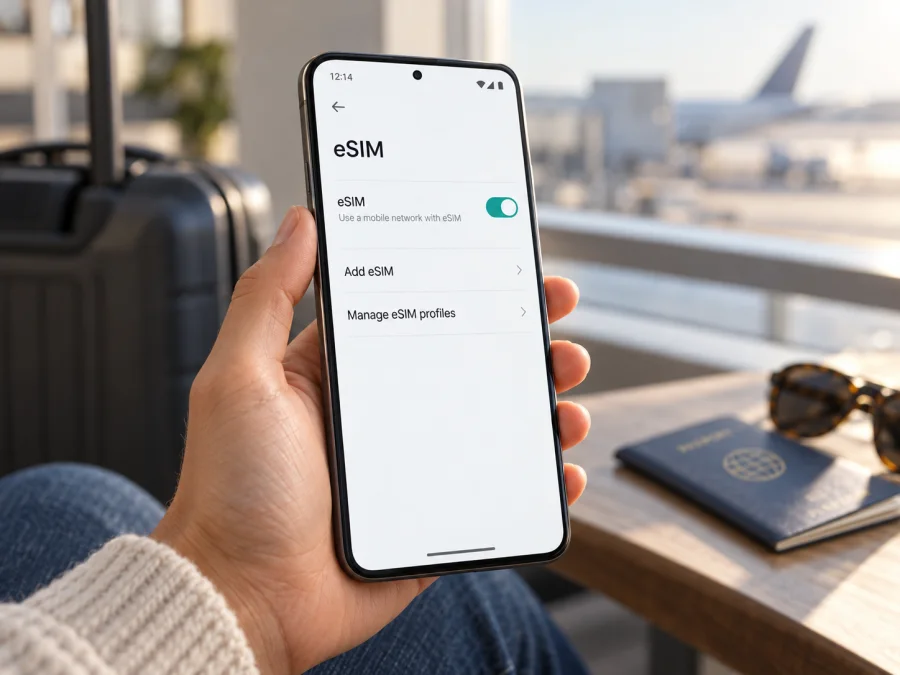
Samsung Galaxy S21+ 256GB eSIM: compatibility and setup guide
The Samsung Galaxy S21+ 256GB can use eSIM when it is an eSIM-enabled regional and carrier variant. Samsung lists eSIM for the Galaxy S21+ family and specifies “SIM 1 + SIM 2 or eSIM” on its 256 GB European SM-G996B product configuration. Samsung’s US support listings also describe embedded SIM on certain SM-G996U/U1 variants. However, “256GB” alone does not identify the phone’s model code, country of sale, software configuration, or carrier restrictions. Check the exact handset before you choose a travel plan.
That distinction matters if you bought the phone second-hand, imported it, or received it through a mobile operator. Two Galaxy S21+ phones with the same storage can have different regional firmware and SIM capabilities. An eSIM option in Settings and an EID are the most useful first checks; the local carrier or plan provider must also support activation for that device and market.
At a glance
| Item | What to know |
|---|---|
| Device covered here | Samsung Galaxy S21+ 256GB |
| eSIM answer | Supported on eSIM-enabled regional and carrier versions; confirm the individual phone before buying a plan |
| Common model family | SM-G996, with suffixes such as B, U, or U1 indicating different sales configurations |
| Samsung-listed 256 GB configuration | Samsung’s European SM-G996B product page lists 256 GB and “SIM 1 + SIM 2 or eSIM” |
| SIM setup | Physical nano-SIM plus an eSIM profile may be available; exact dual-SIM behavior can depend on the model and software |
| First checks | Look for an EID and Settings > Connections > SIM manager > Add eSIM |
| Network access | The eSIM plan, the phone’s carrier lock status, local coverage, and device bands all matter |
The storage capacity does not determine eSIM compatibility. It only identifies the storage configuration. To confirm the radio and SIM setup, check the model number shown in Settings > About phone and compare it with the label or purchase documentation. Record the complete model code, not only “Galaxy S21+.” A suffix such as SM-G996B, SM-G996U, or SM-G996U1 helps identify the hardware and sales market, but the suffix is not by itself proof that eSIM is enabled on your specific handset.
Does Samsung Galaxy S21+ 256GB support eSIM?
Yes, some versions do. Samsung’s published specification for a 256 GB Galaxy S21+ SM-G996B configuration includes an embedded SIM option alongside its SIM-slot information. Samsung’s Galaxy eSIM compatibility guidance also includes the S21+ series. The answer for your particular Samsung Galaxy S21+ 256GB depends on its full model code, country or market of origin, firmware, and carrier status. If you cannot find EID or Add eSIM, treat the phone as unconfirmed until Samsung or the original carrier confirms its configuration.
Do not infer that every S21+ sold around the world has the same feature. Samsung explicitly notes that eSIM service varies by country and carrier and that a device listed as compatible may not support eSIM in its country of origin. Product names and storage sizes are shared across markets, while the underlying model and software can differ. A device made for one operator can also carry network or SIM restrictions that affect activation elsewhere.
Why the market and carrier matter
A product listing is tied to a specific configuration. For example, Samsung’s European business listing for SM-G996B 256GB reports an eSIM option. Samsung’s US support catalogue identifies separate unlocked and carrier-specific SM-G996U/U1 configurations and lists embedded SIM for some of them. These examples show that the model family includes eSIM-capable versions; they do not establish that all devices sold in Europe, the United States, or another market are identical.
There are three separate questions to settle:
- Does this handset have eSIM hardware and support enabled in its regional configuration? Check the EID and eSIM controls on the phone, then confirm the full model code with Samsung for the country of origin.
- Is the handset unlocked for the network you intend to use? A phone can support eSIM and still reject a profile from another provider because it is locked to its original carrier or subject to a market restriction.
- Can the selected provider activate its plan on this device in your destination? Availability, activation methods, and network access depend on the provider and destination market. Ask the provider about the exact model if its compatibility information is unclear.
Geography in this context means where the device was sold or configured, not simply where you are standing now. A phone purchased in one country and used while travelling in another retains its original hardware and firmware variant. The destination’s mobile networks and the plan’s roaming footprint determine whether it can connect there. Check both sides: device origin and travel destination.
Check your exact phone before buying
Use the phone itself as the first compatibility check. The screens can vary slightly between Android and One UI versions, so look for the named items rather than relying on an identical screenshot.
Quick compatibility checklist
- [ ] Open Settings > About phone and note the complete model number, including its suffix.
- [ ] Open Settings > About phone > Status information and look for an EID. On some software versions it may appear under another status or SIM information screen.
- [ ] Open Settings > Connections > SIM manager and look for Add eSIM. If present, tap only far enough to confirm that the setup screen is available; you do not need to install a profile to test the menu.
- [ ] Install available system updates, restart, and check SIM manager again if the menu is missing.
- [ ] Ask the original carrier whether the handset is unlocked and whether it has any eSIM or activation restrictions.
- [ ] Confirm with the plan provider that it accepts this model and that the plan covers the destination or route.
An EID is the identifier associated with the device’s embedded SIM capability. Samsung notes that it can be found in the phone’s status information, though the precise screen can vary by software. An EID is a strong indication that an eSIM component is present, but it does not guarantee that a particular plan will install or connect. Likewise, seeing “Add eSIM” is useful evidence of software support, but activation can still depend on the provider, account eligibility, country, and carrier lock. Keep the EID private and share it only when a provider or carrier specifically needs it to activate service.
If both EID and Add eSIM are absent, do not assume a factory reset will add eSIM support. First check the model code, update status, and country of origin. Then ask Samsung support or the seller to confirm whether eSIM is enabled for that exact configuration. A menu may also be unavailable because of the installed software build or operator customization. Do not buy a plan on the basis of the “Galaxy S21+” name alone.
Check your device’s eSIM compatibility before paying for a travel plan. The check should cover the exact variant, carrier lock, and destination—not only the product family name.
Install and activate an eSIM
Before starting, connect to reliable Wi-Fi, make sure the phone has enough battery, and have the plan’s QR code or manual activation details ready. Follow the provider’s instructions about when to install and when to turn on the line: downloading a profile and starting the plan’s validity period are not always the same event. If installation is intended for your destination, wait until the provider’s instructions say to install it there.
Samsung Galaxy S21+ setup steps
- Confirm compatibility. Check the EID, the Add eSIM control, the full model code, and the phone’s unlock status.
- Open SIM manager. Go to Settings > Connections > SIM manager.
- Choose Add eSIM. Select the option to scan a QR code or use another activation method offered by the provider. Menu labels may vary by software version.
- Scan the provider’s QR code. Keep the QR code on another screen or printout so the phone can scan it. If the provider supplies manual activation details instead, enter them exactly as instructed.
- Wait for the profile to download. Keep the phone connected to Wi-Fi and do not close the setup process. Follow any prompt to restart the phone.
- Name the line. Use a clear label such as “Travel data” so you can distinguish it from your home SIM.
- Choose the data SIM. In SIM manager, select the travel eSIM for mobile data when you are ready to use it. Keep your primary line selected for calls or texts if that is what you want.
- Check the plan’s activation instructions. Some plans activate when installed; others begin when they first connect to a supported network or at another time specified by the provider.
- At your destination, enable the eSIM. Turn on the profile and select it for mobile data. Enable data roaming for that eSIM only if the provider’s instructions require it.
- Confirm connection. Wait a few minutes, then check the signal indicator and load a simple webpage. If there is no connection, use the troubleshooting steps below.
Samsung’s generic Galaxy menu path is Settings > Connections > SIM manager > Add eSIM. For more device-specific help, see the Android eSIM installation instructions. The iOS eSIM installation instructions are included for travellers who are preparing a second device in their group; iPhone menu names differ from Samsung’s.
Kaspersky eSIM Store’s app and website help you choose, arrange, and activate an eSIM plan for mobile data on an overseas trip. Confirm that the exact variant passes the checks above and that the plan suits your itinerary.
Use the eSIM for mobile data while travelling
A travel eSIM is commonly used as a data line while a physical SIM remains available for the traveller’s usual number. On the S21+, open Settings > Connections > SIM manager and select which line handles mobile data. You can keep your home line available for calls or messages if your carrier and plan allow it, but check its roaming terms to avoid unexpected charges. The travel plan described here is for mobile data; it does not automatically provide a standard phone number, voice minutes, or SMS unless the plan’s terms say otherwise. Internet-based messaging and calls can work through apps when the data connection is active.
Before departure, decide whether you want to install the profile in advance or wait until you arrive. An advance installation can make setup easier if the provider permits it and if you have stable Wi-Fi. Keep the QR code and activation details accessible on a separate device, because many QR codes are single-use or tied to a specific account. Do not delete an installed eSIM to troubleshoot without checking with the provider: in some cases, a profile cannot simply be scanned and restored.
When you reach the destination, check that the travel eSIM is switched on, is selected as the mobile-data line, and has data roaming enabled if required by its instructions. If your home SIM remains active, review its settings separately. Galaxy dual-SIM behavior and the number of lines that can be active at once may vary by model and software. The SIM manager screen shows the available controls for your actual phone.
For a multi-country itinerary, confirm that every destination is covered and that the plan’s validity fits the route. The plan’s stated coverage and radio-band compatibility both matter. The destination’s networks—not the phone’s original sales region—determine where it can connect.
Troubleshooting: common eSIM problems
“Add eSIM” is missing
Check the full model code and country of origin. Install system updates, restart, and check Settings > Connections > SIM manager again. If EID is also missing, ask Samsung or the original seller whether eSIM is enabled for this exact version. If EID appears but the menu does not, ask whether the firmware or operator configuration limits the feature.
The QR code will not scan or the profile fails to download
Make sure the code is fully visible on another screen and is not blurred or cropped. Keep the phone connected to Wi-Fi. Use manual activation details only if the provider supplies them. If the QR code says it has already been used, or the phone rejects a profile, contact the provider before retrying; a profile may be limited to one installation.
The profile installs but there is no internet
In SIM manager, confirm the eSIM is enabled and selected for mobile data. Check that mobile data is on, airplane mode is off, and your current country is included. Enable data roaming for the travel eSIM if its instructions require it. Wait a few minutes for network registration, then restart if needed.
There is signal, but apps do not load
Temporarily turn off Wi-Fi to test the mobile connection. Check the plan’s validity and data balance in the provider’s account area. If an APN is required, use only the details supplied by the provider. Do not copy settings from an unrelated phone or destination.
The phone reports a network lock or the home SIM behaves differently
Ask the original carrier whether the handset is unlocked. A phone may support eSIM but reject another provider’s profile while locked. In SIM manager, review which line handles data, calls, and messages; these defaults can be different. Check your home carrier’s roaming terms before leaving that line active.
If the phone is still offline, restart it, try an area with better reception, and confirm the plan is active. Keep the exact error, model code, software version, and time of the issue for support. Do not share passwords or one-time security codes.
Practical travel scenarios
A short city break. Check compatibility at home, choose a plan for the destination, and install it as instructed. Switch mobile data to the travel eSIM when you are ready to use maps, bookings, and messaging.
A work trip. If you need your usual number, keep the primary SIM available if permitted and select the eSIM for data. Review roaming terms and test the line settings before departure.
A multi-country route. Confirm all stops are covered, save instructions offline, and allow time for network registration when crossing a border.
An imported or second-hand phone. Ask for the complete model code and sales market. Check EID, Add eSIM, and carrier unlock status; the device name and storage alone do not show its SIM configuration.
Frequently asked questions
Is Samsung Galaxy S21+ 256GB eSIM compatible?
It can be. Samsung lists eSIM on supported Galaxy S21+ variants, including a 256 GB SM-G996B configuration. Storage alone does not identify the regional version. Check EID, Add eSIM, the complete model code, and unlock status.
Does every Galaxy S21+ 256GB have an EID?
No. Regional versions and software can differ. Check Settings > About phone > Status information and Settings > Connections > SIM manager. Confirm with Samsung or the original carrier if both EID and Add eSIM are missing.
Can I keep a physical SIM and use eSIM at the same time?
A compatible S21+ may support a physical SIM alongside an eSIM, but active-line behavior depends on the model, software, and carrier. Review the controls in SIM manager before travelling.
Will eSIM work if the phone is locked?
Not necessarily. A carrier lock may prevent another provider’s profile from activating even when the device has eSIM hardware. Ask the original carrier about unlocking before purchase.
Do I need data roaming, and does the plan include calls?
Enable roaming for the travel eSIM only if its instructions require it. A mobile-data plan does not automatically include a phone number, standard calls, or SMS; check the plan terms. Internet-based calls and messages can use data through apps.
Can I delete the profile and install it again? When does the plan start?
Ask the provider before deleting an installed profile; some are limited to one installation or device. Installation, activation, and the start of validity may be separate events, so follow the plan’s instructions about whether to install before departure or after arrival.
Before you choose a travel eSIM
Start with the complete model code, EID, and Add eSIM option on your own Samsung Galaxy S21+ 256GB. Confirm the country of origin and whether the original carrier has unlocked the phone. Then check that the plan provider accepts the exact variant, covers every destination on your route, and explains when activation and validity begin.
Once compatibility is confirmed, Kaspersky eSIM Store’s app and website can help you choose, arrange, and activate an eSIM plan for mobile data on an overseas trip. Review the plan’s destination, data allowance, validity, and activation instructions before purchase, and keep those details available while travelling. A few checks before you leave can make setup more predictable and help you select the right data line when you arrive.


