Travel connectivity guide
Samsung Galaxy S21+ 5G 8GB RAM eSIM
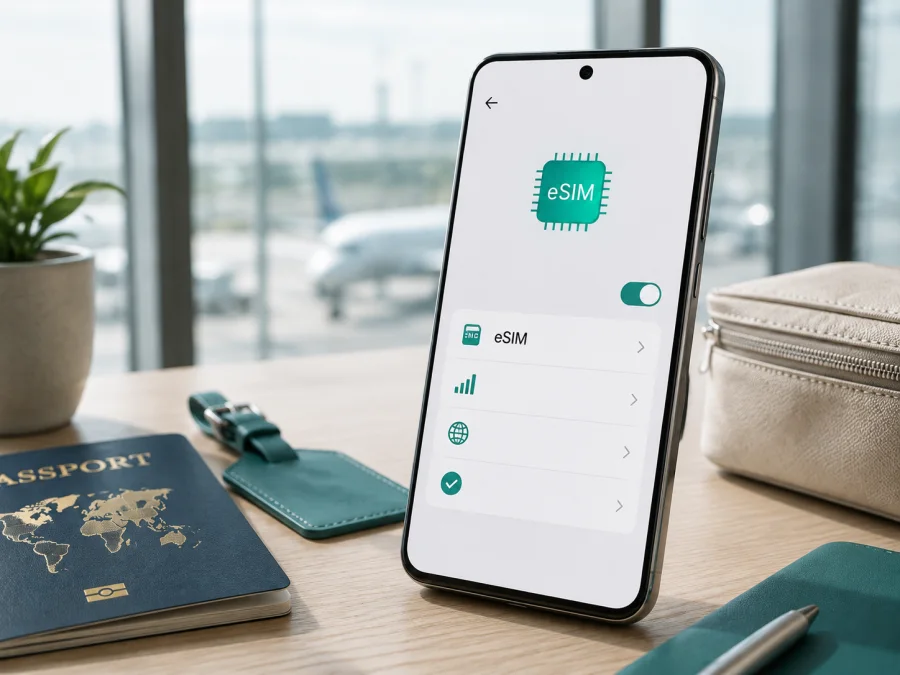
Samsung Galaxy S21+ 5G 8GB RAM eSIM: compatibility and setup
If you have a Samsung Galaxy S21+ 5G 8GB RAM and want mobile internet during an overseas trip, eSIM is a realistic option on many official versions of this phone. Samsung’s current eSIM guidance includes the Galaxy S21+ family, and regional specifications for the 8 GB model list an embedded SIM alongside the nano-SIM. The important qualification is that the name alone does not identify the exact market or carrier edition. Samsung also notes that eSIM availability can depend on the country of origin, the software version and the mobile operator.
The safest answer for this exact device name is: many versions support eSIM, but verify the handset itself before you pay. A 5G radio, 8GB RAM or dual-SIM label is not proof that the eSIM menu is enabled.
Quick answer: does Samsung Galaxy S21+ 5G 8GB RAM support eSIM?
Usually, yes on supported regional and unlocked variants. Samsung regional product specifications for Galaxy S21+ 5G models with 8 GB of RAM describe the SIM configuration as nano-SIM plus an embedded SIM, or nano-SIM plus eSIM. Samsung’s official support information also lists Galaxy S21+ among Galaxy phones that support eSIM. These are strong indicators for the device family, but not a guarantee for every retail or carrier configuration.
For your handset, treat eSIM as compatible only when both checks pass:
- The phone shows an EID or an option such as Add eSIM, Add mobile plan or Add mobile plan using QR code.
- The selected eSIM plan is available for your destination and can be used by your carrier-locked or unlocked version.
The 8GB RAM modifier identifies the memory configuration, not a separate eSIM standard. Likewise, 5G describes supported cellular networks and does not by itself prove that eSIM is active. The exact model code, market and carrier firmware matter more than the memory label.
Samsung Galaxy S21+ 5G 8GB RAM: what is confirmed
The table separates published device information from checks that must be made on your own phone.
| Item | What it means for eSIM use |
|---|---|
| Device variant | Samsung Galaxy S21+ 5G 8GB RAM, preserved exactly as supplied for this page |
| Product family | Galaxy S21+ 5G; Samsung’s current support list includes the S21+ family among Galaxy eSIM devices |
| Memory | 8GB RAM; this does not determine whether eSIM is enabled |
| Cellular generation | 5G support; 5G and eSIM are separate features |
| SIM design on supported regional versions | Nano-SIM with an embedded SIM/eSIM option is shown in Samsung regional specifications |
| Carrier requirement | The operator must support eSIM activation for the plan; a locked phone may reject another provider’s profile |
| Final device check | Look for EID and the SIM manager’s add-eSIM control on the actual handset |
Samsung’s information is deliberately regional. An imported phone may therefore behave differently from one sold locally, and a missing eSIM menu is more useful evidence than a generic store listing.
Why the region and carrier version matter
Galaxy S21+ 5G phones were released through several markets and carriers. The same marketing name and 8GB RAM description can hide different model codes, software and activation rules. Samsung warns that country of origin can change eSIM availability, while the operator can control plan activation.
Before travelling, remember:
- An imported or carrier-branded phone may show a different SIM manager or require carrier approval.
- An update can change menu wording, but cannot add eSIM hardware. Keep the phone updated, then check again.
- “Unlocked” removes one carrier restriction; it does not guarantee every travel plan. The plan must also cover your destination.
Find the EID and the eSIM menu before buying
The EID is an identifier associated with the embedded SIM. Samsung says it can appear on the box and in the phone’s status information. Labels vary with One UI version and region.
Check for EID
- Open Settings.
- Tap About phone.
- Open Status information or Status.
- Look for EID.
An EID is a positive sign, but also check the add-profile control and plan requirements. If it is missing in Settings, compare the box model number with About phone and install any available update.
Check the SIM manager
- Open Settings.
- Select Connections.
- Tap SIM manager or SIM card manager.
- Look for Add eSIM, Add mobile plan, Add using QR code or a similar control.
If the menu offers the add option, the phone can accept a profile, subject to the operator and plan. If it is absent, do not force installation with a QR code. Confirm the model code, country of sale and software version, and ask whether the edition is supported. Do not send your EID to an untrusted person.
Compatibility checklist before selecting a travel plan
Use this checklist while the phone is connected to Wi-Fi and before payment:
- [ ] The About phone or Status screen displays an EID.
- [ ] SIM manager contains an add-eSIM or add-mobile-plan option.
- [ ] The phone is not locked to a carrier that blocks another provider’s eSIM.
- [ ] The phone’s software is current enough for the available SIM manager options.
- [ ] The travel eSIM is intended for Samsung Galaxy Android devices and supports QR-code or manual activation as required.
- [ ] The plan covers the country, region or route on your itinerary.
- [ ] The data allowance and validity period fit the trip rather than only the arrival day.
- [ ] You have Wi-Fi or another internet connection available for installation.
- [ ] You understand whether data roaming must be enabled for this eSIM after arrival.
- [ ] You have a backup way to view the QR code, such as a second screen or a saved activation page.
This list is especially important for a device described only as Samsung Galaxy S21+ 5G 8GB RAM. The description preserves the requested memory and network variant, but it does not reveal a country suffix or carrier model code. If one of the first two checks fails, treat compatibility as unconfirmed and resolve it before selecting a plan.
<a id="kesim-device-compatibility"></a>
For a quick pre-purchase routine, check your device and record the result.
How to install an eSIM on Samsung Galaxy S21+ 5G 8GB RAM
The Galaxy S21+ 5G uses Samsung’s Android SIM manager. Menu names can differ by One UI version. Start with Wi-Fi, a charged phone and the activation QR code or details. Some activation codes are single-use.
1. Prepare the phone
Confirm the EID and Add eSIM control. Make sure a screen lock is configured if the phone requires one for SIM changes.
2. Open SIM manager
Go to Settings > Connections > SIM manager. Tap Add eSIM or Add mobile plan. Continue only when the plan and destination are correct.
3. Scan the QR code
Choose Add using QR code and scan the code supplied for your selected eSIM plan. If the code is displayed on the same phone, use another screen or the manual activation flow. Keep the QR code private.
4. Use manual activation when needed
If the plan supplies an activation code, choose Add using activation code and enter it exactly. Do not replace the activation code with the EID: the EID identifies the phone.
5. Wait for the profile to download
The phone may show a downloading or activating status. This can take several minutes. Do not restart the phone or repeatedly scan the code while it is running.
6. Name the eSIM
Give the profile a clear label such as Travel data and leave your everyday SIM with a separate label. Clear names help prevent accidental changes when both lines are active.
7. Choose the mobile-data line
In SIM manager, select the newly installed eSIM as the preferred line for Mobile data when you are ready to use it. Keep your regular line for calls or messages if you need it, but check its roaming settings so it does not create unexpected charges.
For additional guidance, see the Android eSIM installation instructions or the iOS eSIM installation instructions. Android is the relevant guide here.
Choose when the eSIM should become active
Installing before departure gives you reliable Wi-Fi and time to correct a compatibility problem. Installing after arrival may preserve validity but leaves you dependent on airport Wi-Fi. Read the plan’s activation rule, save the details securely and follow its wording if it differs from this general sequence.
Use the eSIM for mobile internet while travelling
When you land, open Settings > Connections > SIM manager and confirm that the travel profile is enabled. Set it as the mobile-data SIM. On some travel eSIMs, Data roaming must be enabled for that profile because the plan uses a partner network in the destination. Do not automatically enable it on your home SIM.
Turn off automatic mobile-data switching if your One UI version offers it. Otherwise the phone might move data back to the everyday line when the travel profile has a weak signal. If you want to keep receiving calls or texts on your normal number, review the home line’s roaming options and your home operator’s charges first.
For a data-only travel eSIM, ordinary carrier calls and SMS are not included unless the selected plan says otherwise. You can continue to use messaging, maps, email and calling apps over mobile data. A data-only profile also does not replace your existing phone number; it simply supplies the data connection allowed by the plan.
Kaspersky eSIM Store is an app and website that helps you choose, arrange and activate an eSIM with a suitable mobile-internet plan for an overseas trip. It is not a mobile operator, network owner or mobile-internet provider. Availability and conditions come from the selected plan and its local network arrangements.
Common problems and practical checks
“Add eSIM” is missing
Check the model number in Settings > About phone, confirm the country of origin and install an available official update. Samsung’s family-level list cannot override a regional restriction. If there is no EID and no add-plan option after updating, treat the handset as not ready for eSIM.
The QR code will not scan
Increase brightness, clean the camera lens and keep the full code in view on a second screen. If manual activation is offered, enter the supplied details exactly. Do not reuse a code that has already completed installation.
The profile will not download
Reconnect to reliable Wi-Fi and retry from SIM manager. Check automatic date and time and confirm that the plan is unused. If the code was consumed, repeated scans will not create a second profile; contact support with the order details.
The eSIM is installed but there is no data
Verify that the travel eSIM is on and selected under Mobile data. Check the destination, signal and APN instructions. If required, enable data roaming for the travel profile only. Disable automatic data switching and restart the connection. A local outage or unsupported partner network can also affect service.
Data is using the wrong SIM
Return to SIM manager and set the travel profile as the mobile-data line. Disable mobile data on your home SIM or turn off its roaming option if you do not want it used abroad. Test with Wi-Fi off only after the correct line is selected.
The phone is locked
An eSIM from another provider may not activate on a carrier-locked handset. Ask the original carrier about unlocking before purchase. An EID does not mean the device is unlocked.
FAQ
Is Samsung Galaxy S21+ 5G 8GB RAM compatible with eSIM?
Often, yes. Samsung lists Galaxy S21+ among its eSIM-capable Galaxy devices, and supported regional specifications include an embedded SIM. The exact result depends on country of origin, model code, software and carrier. Confirm EID and the Add eSIM control on the handset before buying.
Can I keep my physical SIM and use eSIM together?
On supported versions, the phone can use a physical nano-SIM with an eSIM profile, but the exact combination and simultaneous-data behavior depend on the model and carrier. Set one line as the mobile-data SIM and review the other line’s roaming settings.
What should I do if the phone still will not connect?
Confirm the correct data line, enable the required roaming setting for the travel eSIM, check APN instructions, restart the connection and verify the destination. If the profile and plan are correct but service is still unavailable, contact support with the phone model code and order details. Never share a QR code publicly.
Final device check before the trip
Before you commit to a travel eSIM, return to the actual Samsung Galaxy S21+ 5G 8GB RAM in your hand. Open Settings > About phone > Status and look for the EID. Then open Settings > Connections > SIM manager and confirm that an option to add an eSIM or mobile plan is present. Check that the handset is not carrier-locked, the software is current, the destination plan is valid for your route and you have a reliable connection for installation.
Once those checks pass, select a plan by destination, traffic allowance and validity period. Kaspersky eSIM Store helps you review and activate it through its app or website; it does not operate the mobile network. Install it when the plan terms and timing make sense, select it for mobile data after arrival, and control your everyday SIM’s roaming settings.
For the trip, use this sequence: check the EID, confirm Add eSIM, verify the region and carrier lock, match the plan to the itinerary, install over reliable internet, select the travel profile for data, and monitor the allowance. If any device check is missing, pause the purchase and confirm compatibility first.


