Travel connectivity guide
Samsung Galaxy S21+ 5G eSIM: Compatibility & Setup
Samsung Galaxy S21+ 5G eSIM: compatibility and setup guide
Short answer: Samsung includes the Galaxy S21+ in its Galaxy devices that support eSIM, and Samsung’s S21-series guidance also describes eSIM use. However, the name “Samsung Galaxy S21+ 5G” alone does not identify the exact sales-region model or carrier software. Samsung cautions that eSIM may not be available in every country of origin, and carrier-specific variants can differ. Before choosing a travel plan, check the phone itself for an EID and an Add eSIM option. If either is missing, confirm the exact model code and software with the seller or carrier before paying for an eSIM plan.
An eSIM is a digital SIM profile built into a compatible phone. You download a profile instead of inserting another plastic SIM card. For travel, this can make it easier to prepare mobile data in advance while keeping your usual physical SIM available, provided the device and plan support the combination.
Does Samsung Galaxy S21+ 5G support eSIM?
Samsung lists the Galaxy S21+ within its eSIM-capable Galaxy S21 family, but the name alone cannot confirm support on every handset. Samsung also notes that eSIM availability may depend on the country of origin. The exact sales-region model, carrier software, and installed software therefore matter. Before choosing a travel plan, check the phone itself for an EID and an Add eSIM option.
The 5G label describes cellular network capability; it does not prove that eSIM is enabled. Phones sold under the same name can have different model codes, SIM configurations, firmware, and carrier restrictions. An imported phone may retain the limitations of the market or carrier for which it was made.
| Item | What to know |
|---|---|
| Device named here | Samsung Galaxy S21+ 5G |
| eSIM answer | Listed as supported in the family; confirm the exact version and market |
| On-phone checks | EID and Settings → Connections → SIM manager → Add eSIM |
| Possible differences | Country of origin, model code, carrier software, and software version |
| Before purchase | Confirm compatibility, no blocking carrier lock, and destination-plan terms |
Regional and carrier versions
Find the exact model code in Settings → About phone and compare it with the seller’s or carrier’s eSIM confirmation. Do not rely on labels such as “global,” “unlocked,” “dual SIM,” or “5G”: none alone guarantees eSIM. An unlocked phone may still lack eSIM on its regional version, while a carrier configuration may restrict available SIM functions or require an update.
Device support and destination support are separate. A phone may be capable of adding eSIM while a particular plan or destination does not support the required activation or network access. Confirm the destination list and terms for the plan you intend to use.
Check compatibility before you buy
Use this checklist before paying for a travel eSIM. Menu names may vary slightly by Android or One UI version; search Settings if needed.
- [ ] Find the model number: go to Settings → About phone and confirm the code with the seller or carrier.
- [ ] Look for an EID: check About phone → Status information or search Settings for “EID.” Keep this device identifier private.
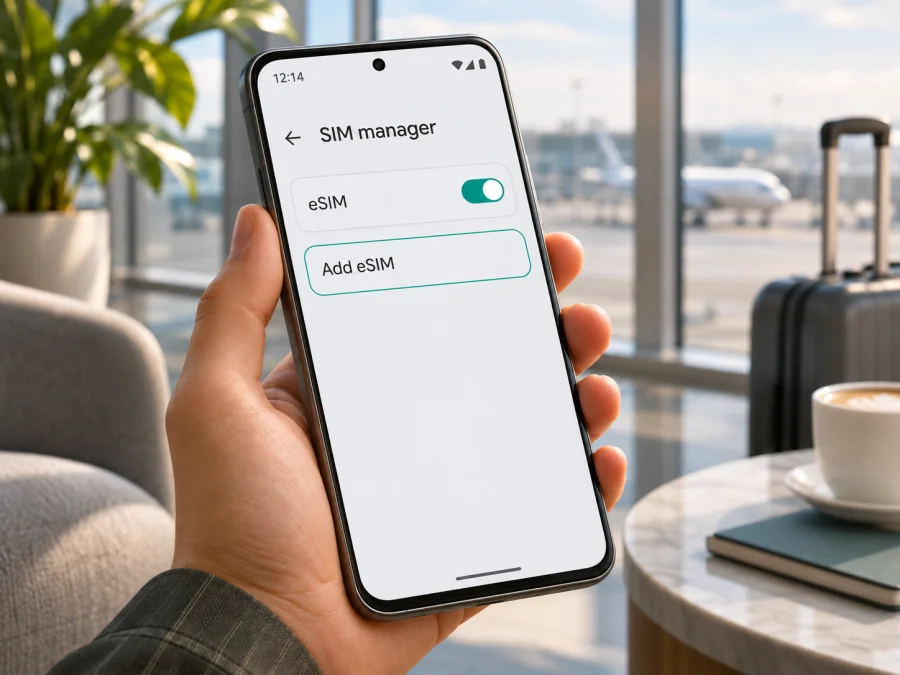
- [ ] Check SIM manager: open Settings → Connections → SIM manager and look for Add eSIM or a similar option.
- [ ] Confirm the phone is unlocked: ask the original carrier or seller whether another provider’s eSIM can be used.
- [ ] Update and restart: install available software updates, then check SIM manager again.
- [ ] Read plan terms: verify destination, data allowance, validity, activation timing, and whether the plan is data-only.
- [ ] Prepare internet access: profile download generally needs Wi‑Fi or another working connection.
An EID and an eSIM menu answer different parts of the check. The EID is a device identifier associated with eSIM; Add eSIM shows that the current software exposes an installation route. Neither one confirms that a phone is unlocked or that a specific travel plan is accepted. Check the model code and provider terms as well. If you are buying a used phone, ask the seller to demonstrate the SIM manager in person and confirm the device’s original market rather than relying on a listing title.
How to find the EID or eSIM menu
Open Settings → Connections → SIM manager and look for Add eSIM or an existing eSIM profile. If the label is different, search Settings for eSIM or SIM manager. To look for the EID, try Settings → About phone → Status information, or search Settings for EID. The exact route depends on software and region.
An EID is a long device identifier, not an activation code or QR code. Keep it private and share it only through a legitimate activation process. Read the results as clues, not as a guarantee:
- EID and Add eSIM are present: the phone exposes an eSIM route; still confirm unlock status and plan requirements.
- EID is present but the menu is missing: regional or carrier software may hide the function. Update, restart, and ask about the model code.
- Menu appears but no EID is visible: check Status information and ask Samsung or the seller to verify the configuration.
- Neither appears: eSIM support is not established for this handset. Do not buy on the basis of the family name alone.
A provider must also confirm that its profile can be installed on the phone. For imported or second-hand devices, ask the seller to identify the original market and software configuration.
Check your device before choosing a plan. If EID and Add eSIM are both absent, treat support as unconfirmed and ask Samsung or the seller about the exact model code. A family-level listing is not a substitute for that check.
What to prepare before installation
Set up over reliable Wi‑Fi and keep your order details, QR code, and any manual activation instructions available. A phone cannot scan a QR code shown on its own display, so use a second screen or paper. Treat the code as private because it may authorize profile installation.
Check the plan’s instructions for when to install, enable, and start using it; timing differs by plan. Have enough battery, update the phone, and make sure you can access the account that holds your eSIM details. Kaspersky eSIM Store is an app and website where you can choose, arrange, and activate an eSIM with a data plan for an overseas trip. Compare the destination, allowance, validity, and start conditions before selecting a plan.
How to install an eSIM on Samsung Galaxy S21+ 5G
These are common Samsung steps; wording can vary by software and market. Begin only after confirming Add eSIM is available and the phone can use the selected plan.
- Connect to Wi‑Fi. Keep it on until the profile downloads.
- Open SIM manager. Go to Settings → Connections → SIM manager.
- Tap Add eSIM. If it is missing, stop and recheck compatibility.
- Choose an installation method. Select Scan QR code or manual entry if your provider supplied activation details.
- Scan or enter the profile details. Display the QR code on another screen or paper and follow the prompts. Do not share it.
- Wait for download and activation. Keep the connection active; registration may take several minutes.
- Label the profile. For example, use “Travel data” to distinguish it from your usual SIM.
- Set the data line when ready. Before departure, follow the plan’s guidance on whether to leave the travel profile off. At the destination, select it for mobile data.
- Check roaming and connection. Enable data roaming for that eSIM only if the plan instructions require it, then test a webpage or messaging app.
See the Android eSIM installation guide for store-specific details. The iOS eSIM installation guide is for an iPhone, not this Samsung phone.
Install before travel or after arrival?
Advance installation can reduce setup after landing, but first check when the plan’s validity begins. If its instructions say to wait until arrival, keep the profile inactive. Otherwise, store the QR code and directions somewhere accessible offline. On arrival, select the travel eSIM for data and follow its roaming instructions. Check your home SIM’s roaming settings separately.
Use the eSIM for mobile internet while travelling
A travel eSIM can provide mobile data for maps, bookings, messaging, email, or work apps away from Wi‑Fi. Choose a plan that covers every destination on your itinerary and lasts for the trip. A regional plan may suit a multi-country route, but check its destination list rather than assuming nearby countries are included.
At your destination, open Settings → Connections → SIM manager and select the travel eSIM for mobile data. Keep calls or texts on your usual SIM if desired, while checking your home carrier’s roaming terms. A data-only plan does not add a conventional phone number or ordinary calls and SMS unless its terms say otherwise; internet calling apps may use the data connection.
Some profiles require data roaming to be enabled for the travel eSIM. Follow the plan’s instructions and check the selected data line so your home SIM does not use data unexpectedly. The roaming switch is a device setting; plan coverage and charges are defined by the plan terms.
Monitor data use: video calls, cloud backup, streaming, and automatic updates can consume an allowance quickly. Android’s data-usage screen or the plan account can help you track it. Check top-up availability and terms before relying on it.
Common problems and what to check
“Add eSIM” is missing
Search Settings for eSIM, EID, or SIM manager. Update and restart the phone, then confirm the exact model number with the seller or carrier. If EID and the add option remain absent, treat support as unverified. A factory reset should not be the first step; it can erase data and cannot add a feature missing from a device version.
The QR code will not scan
Show the full code on another screen, increase its brightness, clean the camera lens, and hold the phone steady. If scanning still fails, use manual entry only if your provider supplied activation details. Do not repeatedly try a code described as single-use.
The profile will not download
Check Wi‑Fi by opening a webpage, turn off airplane mode, and verify the activation details. The code may already have been used. Save the exact error and contact the party that issued the profile. Do not delete an installed profile unless its instructions or support team advise it; a one-time code may not work again.
The eSIM is installed but has no service
Confirm that the profile is enabled and selected for data, the destination is covered, and the plan is active under its terms. Follow its roaming guidance, restart, and allow a few minutes for registration. Return network selection to automatic unless the provider instructs otherwise.
Apps have no internet or the home SIM uses data
Check that mobile data is enabled for the travel eSIM and that the plan has remaining data and validity. If the instructions provide an APN, compare it under Settings → Connections → Mobile networks → Access Point Names; enter only the values for your plan. To avoid home-SIM data use, check the selected data line and disable automatic switching if available. Review the home carrier’s roaming settings separately.
It works at home but not abroad
Recheck destination eligibility, activation timing, data selection, roaming, APN instructions, carrier lock, and plan validity. If it still fails, contact plan support with the model code, destination, time, and error message. Do not post a QR code or EID publicly.
Practical travel scenarios
Short city break: Check the model code and eSIM menu before departure. Choose a plan for the destination and trip length, install over Wi‑Fi if permitted, then select it for data after arrival.
Multi-country route: Compare the coverage list with every stop, and note when validity begins. A regional plan may cover several countries but should not be assumed to include every border crossing.
Keeping your home number: Leave the physical SIM enabled for the services you need, choose the travel eSIM for data, and review roaming settings to avoid unexpected charges. Your home carrier may charge for calls or texts.
Work trip with hotspot: Check that both the phone and plan permit tethering. Laptop updates and video meetings count toward the data allowance, so test the connection and monitor use.
Frequently asked questions
Can every Samsung Galaxy S21+ 5G use eSIM?
Not necessarily. Samsung lists the family, but country of origin and carrier configuration can affect support. Check EID, Add eSIM, the model code, and seller or carrier confirmation.
Does 5G mean eSIM is supported?
No. 5G is a network capability; eSIM is a separate feature that can depend on the exact version and market.
Can I use a physical SIM and eSIM together?
Some compatible S21+ configurations support this combination. Confirm your exact model and carrier restrictions in SIM manager; choose the data line in settings.
Does a travel eSIM include calls and texts?
Many travel plans are data-only. Check the selected plan’s terms for a number, voice, or SMS. Internet-based calling and messaging apps can use data.
Should data roaming be on?
Only as required by the plan. Some eSIM profiles need it to connect. Review roaming on the travel eSIM and home SIM separately.
Can I move the eSIM to another phone?
Do not assume so. Transfer and reinstallation rules depend on the profile; some QR codes are single-use. Check before installation or deletion.
What if my phone has no EID?
Search Settings, check About phone → Status information, update the software, and confirm the model number. If EID and Add eSIM remain absent, ask Samsung or the seller to verify the regional version before purchase.
Check your phone, then choose a travel eSIM
Before buying, confirm that your Samsung Galaxy S21+ 5G shows an EID or an Add eSIM option, and verify that the exact handset is unlocked for the plan you want to use. Then compare the destination, data allowance, validity, activation timing, and roaming instructions for your trip. A family-level compatibility listing is helpful, but the phone’s own settings and its exact model code determine what you can install.
Kaspersky eSIM Store is an app and website for choosing, arranging, and activating an eSIM with a mobile-data plan for an overseas trip. You can browse the Kaspersky eSIM Store to check the currently listed destinations and plan terms. The homepage is a general store entry point, not a specific country tariff. Confirm your device compatibility before choosing a plan, and keep your usual SIM’s roaming settings in mind while travelling.


