Travel connectivity guide
Samsung Galaxy S21+ 8GB RAM eSIM Compatibility
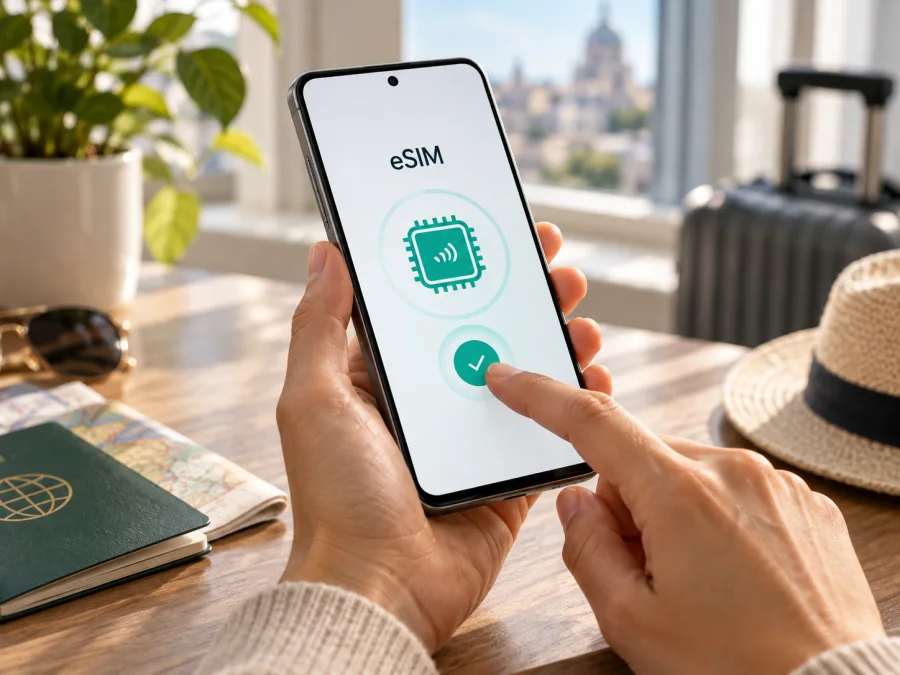
Samsung Galaxy S21+ 8GB RAM eSIM: compatibility and setup
Short answer: Samsung lists Galaxy S21+ among Galaxy devices that support eSIM. That makes eSIM a possibility for the Samsung Galaxy S21+ 8GB RAM, but it is not a guarantee for every individual unit. Samsung notes that support can depend on the country of origin, and carrier or software restrictions can also affect the eSIM menu. Check the phone itself for an EID or an option to add an eSIM before choosing a travel plan.
Does the Samsung Galaxy S21+ 8GB RAM support eSIM?
Generally, yes: There are regional and carrier-specific variants of Galaxy phones. A phone bought in one country may have a different model number, firmware or network configuration from a similarly named phone sold elsewhere. Some carrier-sold devices can have features disabled or be locked to that carrier. Updates may change the menus available on a device, but an update cannot add eSIM hardware support to a version that lacks it. RAM capacity is unrelated to the eSIM function.
| Detail | What it means for eSIM |
|---|---|
| Device name | Samsung Galaxy S21+ 8GB RAM; keep this exact variant in mind when checking compatibility. |
| eSIM status | The Galaxy S21+ family appears on Samsung’s current supported-device list. |
| Regional availability | Samsung says availability can depend on country of origin; verify the specific unit. |
| RAM | 8GB RAM does not confirm or prevent eSIM support. |
| Carrier status | A network lock or carrier restriction may affect adding or using another profile. |
| Best confirmation | Look for an EID and “Add eSIM” in Settings; then confirm with the seller or carrier if uncertain. |
If you are buying a used or imported unit, ask for the full model code and confirm support for that code and its original market. A listing title or the presence of two physical SIM slots does not prove eSIM availability.
Check your device before buying a plan
Run this short compatibility check while connected to Wi-Fi:
- Open Settings → About phone and note the model name and model number.
- Open Settings → About phone → Status information (wording may differ) and look for an EID, a long identifier associated with the embedded SIM.
- Open Settings → Connections → SIM manager and look for Add eSIM, Add mobile plan or a similarly named option. Menu wording can vary by One UI version and region.
- Confirm that the phone is not carrier-locked. If it was purchased through a mobile operator, ask that operator whether it can accept another eSIM profile.
- Check that the destination and the plan support the device’s network bands and that the plan can be used on an unlocked Android phone.
- Keep the phone connected to reliable Wi-Fi during setup, and install available system updates before travel.
If you do not see an EID or an eSIM option, do not assume that installing a travel profile will work. Restart once, check for a system update, and recheck both Settings locations. If they remain absent, contact Samsung support or the seller with the model number and country where the phone was sold. If you do see them, that is a strong sign that the handset can store an eSIM, but carrier lock, profile eligibility and destination coverage still matter.
The EID and the eSIM menu answer related but different questions. The EID identifies the embedded SIM capability in the handset; the add-profile option shows that the software exposes a way to install a profile. Neither confirms that the phone is unlocked, that a specific provider will accept it, or that a travel plan covers your destination. Treat these as several checks rather than a single yes-or-no indicator.
The model number helps resolve differences hidden by the retail name. On Galaxy phones, the code can include letters or digits that identify a particular market or configuration. Record the complete code exactly as shown, then compare it with Samsung information for the country where the phone was originally sold. A phone imported from another region may have a familiar Galaxy S21+ name while its firmware or carrier settings differ from a locally sold unit.
If a seller says the feature is supported, ask them to demonstrate the EID screen and SIM manager on the actual Samsung Galaxy S21+ 8GB RAM being offered. For a sealed phone, request confirmation for its full model code and original market before purchase. If the phone was supplied by a carrier, ask that carrier whether it is unlocked and whether the eSIM function is enabled. These checks are especially useful for refurbished devices, since replacement boards or software changes can make an old listing description unreliable.
When the checks disagree—for example, Samsung lists the family but the phone shows no EID—use the phone’s model code and country of origin to resolve the mismatch. Do not infer that the eSIM is absent solely from a missing menu until you have checked software updates and the correct settings path. Equally, do not buy a plan solely because a menu exists: verify that the device is unlocked and that the plan can be used on it.
For a quick recap, check your device against these points before choosing a plan.
How to install and activate an eSIM
The exact labels can differ slightly across software versions. On many Galaxy phones, eSIM controls are in Settings → Connections → SIM manager. Start only after confirming that the Samsung Galaxy S21+ 8GB RAM is compatible and unlocked, and after you have the QR code or an available installation flow for your plan.
- Connect to Wi-Fi. Keep the phone online throughout profile download and installation.
- Open SIM manager. Go to Settings → Connections → SIM manager.
- Choose the add option. Tap Add eSIM, Add mobile plan, or the closest available wording.
- Scan the QR code. Use the phone camera or the scanner presented by the setup screen. If the QR code is on the same phone, use the provider’s manual activation details or an available app-based installation flow instead of trying to scan the display itself.
- Confirm the download. Follow the prompts to download and add the profile. Avoid closing Settings or disconnecting from Wi-Fi while it is being installed.
- Name the profile. Choose a label such as “Travel” so you can recognize it alongside your physical SIM.
- Choose when to enable it. If you are setting up before departure, you can leave the profile installed and switch it on when the plan instructions say to do so. Deleting a profile can make it difficult or impossible to reinstall without a new activation code.
- Set the data line. In SIM manager, select the travel eSIM for mobile data when you are ready to use it. Keep calls and texts assigned to your preferred line if the phone and plan allow that arrangement.
- Follow the plan’s activation timing. Some plans start when installed; others begin when they first connect in the destination. Check the terms rather than assuming one rule applies to all plans.
- Wait for connection. After arrival, give the phone a few minutes to register. If the plan requires it, enable data roaming for that eSIM and make sure mobile data is on.
For screenshots and version-specific steps, see the Android eSIM installation instructions and iOS eSIM installation instructions. The iOS guide is included as a general reference for travelers who manage more than one device; the Samsung Galaxy S21+ 8GB RAM uses Android settings.
Using the eSIM for mobile data on a trip
At the destination, open SIM manager and select the travel profile for mobile data. If the plan requires data roaming, enable roaming for that eSIM only. Keep your home SIM assigned to calls or messages if you need it, but check its roaming settings and your home carrier’s charges. Many data-only travel plans do not include a regular phone number, standard voice calls or SMS. Internet calling and messaging apps can work over data when their own requirements are met.
Practical examples:
- One destination: Install the profile over Wi-Fi before leaving, then select it for data after landing. Confirm that the destination is listed in the plan.
- Several countries: Choose a plan that explicitly includes each stop and covers the travel dates.
- Arrival late at night: Set up in advance, keep booking details available offline, and follow the plan’s activation timing.
- Keep the home number reachable: Leave the physical SIM available for calls or messages if needed, and set the travel eSIM as the data line. Check roaming settings on both lines.
- Save data or use a hotspot: Use Wi-Fi for large downloads; check whether the plan allows tethering before sharing the connection.
Kaspersky eSIM Store is an app and website where travelers can choose, arrange and activate an eSIM with a mobile data plan for an international trip. The local network depends on the plan and destination. Review the plan details, including whether it is data-only and when validity starts.
Troubleshooting common eSIM issues
There is no “Add eSIM” option. Check the model number, region of origin and current software version. Restart the phone and inspect SIM manager again. If there is still no option and no EID, ask Samsung or the seller to verify whether this exact regional device variant supports eSIM. A family-level compatibility listing cannot override a regional limitation.
The QR code will not scan. Increase brightness on the display showing it, clean the camera lens and check that the code is unused and intended for this device. Use manual or in-app installation if provided. Keep the QR code private because it can contain profile credentials.
The profile download fails. Check Wi-Fi and available storage, then see whether the profile already appears in SIM manager. Some codes are single-use; contact plan support before deleting a partial profile or retrying repeatedly.
The eSIM is installed but there is no service. Make sure the profile is on, selected for data and in a covered destination. Enable its data roaming if required, then toggle airplane mode or restart. Try manual network selection only if the plan instructions recommend it.
The phone connects but apps have no internet. Check mobile data assignment, remaining allowance and validity. Change the APN only if the plan instructions specify one; avoid other advanced changes without guidance.
The eSIM works at home but not abroad. Some travel profiles are designed to connect only within their destination. Confirm that the phone has arrived in a covered country and that the profile’s roaming setting matches the plan instructions. Check for an outage or coverage limitation with the plan support channel if the basic settings are correct.
Calls or SMS do not work on the travel profile. Many travel eSIM plans are for mobile data only. Keep the home SIM for ordinary calls and texts if necessary, or use internet messaging apps over data. Check plan terms before expecting a phone number or SMS service.
A carrier lock may be blocking the profile. Ask the original carrier whether the phone is unlocked for eSIM use. An EID indicates eSIM capability but does not remove a lock or guarantee acceptance of another provider’s profile.
Frequently asked questions
Does the 8GB RAM version have a different eSIM function?
The RAM amount is not the eSIM control. Samsung lists the Galaxy S21+ family as supporting eSIM, while also noting that availability depends on country of origin. Confirm the model number and eSIM menu on the individual unit.
How can I find the EID?
Look under Settings → About phone → Status information. The exact route can vary. You can also check for Add eSIM in Settings → Connections → SIM manager. If neither appears, ask Samsung or the seller to check the full model code.
Can I use a physical SIM and an eSIM together?
Check SIM manager on your regional version; available combinations can vary. Confirm with your carrier before relying on two lines at once.
Should I install the eSIM before travelling?
Often it is convenient to install over Wi-Fi before departure, but activation timing varies by plan. Read when validity begins. If it begins at installation, wait until the appropriate time; if it begins on first connection in the destination, follow the provider’s setup instructions.
Does an eSIM plan replace my usual phone number?
Usually not. Many travel eSIM plans provide mobile data only. Keep your normal line active for calls or SMS if needed, and use internet-based calling or messaging over data where appropriate.
What if I change or reset my phone?
Check reinstallation rules before resetting or replacing the phone. Do not erase a working profile until you know whether it can be installed again.
Final check: device first, trip plan second
Before choosing an eSIM for travel, confirm that your Samsung Galaxy S21+ 8GB RAM has an EID or an Add eSIM option, verify that it is unlocked, and check its model number against its sales region. Then choose a plan that covers every destination and matches your expected data use and travel dates. Read the activation and roaming instructions, install over reliable Wi-Fi, and select the correct profile for mobile data when you are ready to connect.
If any compatibility detail is unclear, pause and check the exact device with Samsung, the seller or the carrier before arranging a plan. Once confirmed, Kaspersky eSIM Store lets you use its app or website to choose, arrange and activate an eSIM data plan for your international trip.


