Travel connectivity guide
Samsung Galaxy S21 Ultra 12GB RAM eSIM Support
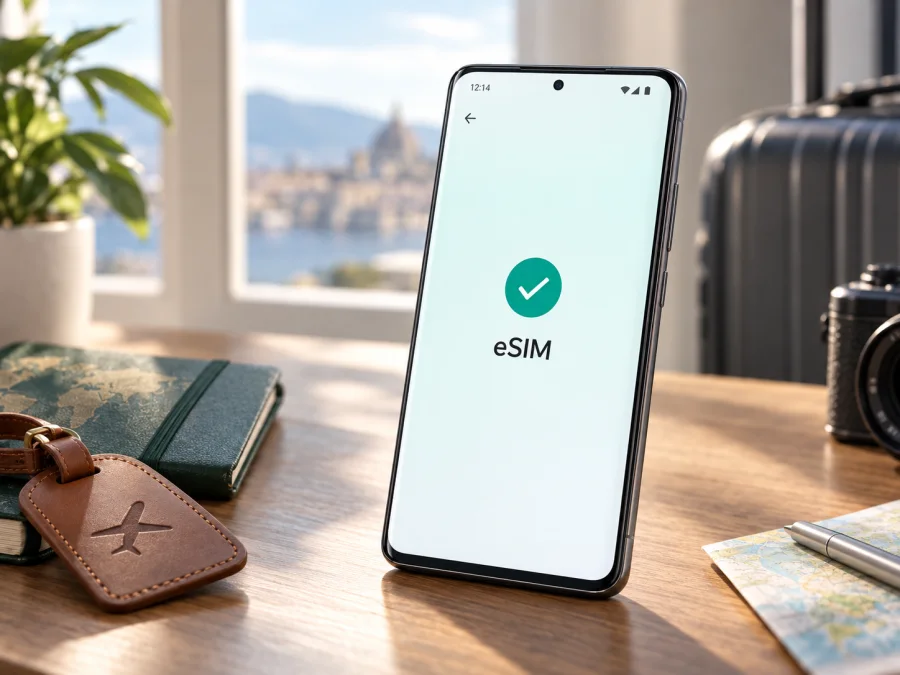
Samsung Galaxy S21 Ultra 12GB RAM eSIM: compatibility and setup
The Samsung Galaxy S21 Ultra 12GB RAM can use eSIM when the specific regional and carrier version includes the feature. Samsung lists the Galaxy S21 Ultra among eSIM-capable Galaxy devices, but warns that availability may vary by country of origin and carrier. The 12GB RAM specification alone does not confirm eSIM support. Check the model code, phone settings and EID on the actual handset before choosing a travel plan.
An eSIM is a digital SIM profile stored in the phone. It can add a mobile data line for a trip without replacing the physical SIM already in the device. On a compatible, unlocked phone, you may keep your usual SIM available while selecting a travel eSIM for data. The exact line combinations and service depend on the regional model, software, plan and destination networks.
Samsung Galaxy S21 Ultra 12GB RAM at a glance
| Item | What to know |
|---|---|
| Device variant | Samsung Galaxy S21 Ultra 12GB RAM |
| eSIM capability | Supported on compatible versions; verify the individual handset |
| SIM arrangement | Physical SIM and eSIM options depend on exact model and market |
| Travel data | A travel eSIM may be selected as the data line where plan coverage allows |
| 5G | Network bands and 5G access vary; 5G does not prove eSIM support |
| Main checks | SIM manager, EID, model code, carrier lock and plan requirements |
“12GB RAM” identifies memory configuration, not regional model or software setup. Phones with the same name may differ in firmware, carrier customisation or eSIM availability.
Does the Samsung Galaxy S21 Ultra 12GB RAM support eSIM?
Generally, yes. Samsung’s official Galaxy eSIM compatibility information lists the Galaxy S21 Ultra. However, Samsung also says that eSIM availability can depend on the country where the device was sold and the carrier. So this family-level support does not guarantee that every Samsung Galaxy S21 Ultra 12GB RAM unit will display the same menu or accept every eSIM plan.
Regional and carrier versions matter. A model intended for one market may have eSIM disabled or unavailable in another. Carrier software can affect which activation methods appear, and a carrier-branded device may be network-locked. A lock is separate from eSIM capability: a phone can have an EID but reject a profile from another provider. Samsung notes that settings may also vary with model and software version.
The RAM amount, 5G label, SIM tray and “dual SIM” wording in a shop listing cannot settle these questions. Ask for the model code shown in Settings > About phone or printed on the original box. Check that code with Samsung support for the country of sale, and confirm that the phone is unlocked. For a used handset, ask the seller to show the SIM manager and About phone screens. If these details cannot be checked, treat compatibility as unconfirmed.
The eSIM, network and plan checks are separate. An installed profile may have no service if the plan excludes the destination, roaming is off or the local network is incompatible. A 5G-capable device may still use 4G, and 5G availability does not establish eSIM support. Check the handset’s regional radio bands and plan coverage as well as its eSIM capability.
How to check eSIM on your phone
Open Settings > Connections > SIM manager and look for Add eSIM or Add mobile plan. On many Galaxy phones, this is the standard route for adding a profile. Menu wording can vary by One UI version, region and carrier software, so also compare the model code with Samsung’s documentation.
Next, look for the EID, the identifier associated with the embedded SIM. Open Settings > About phone > Status information and find EID. Depending on software, it may also appear directly under About phone or in SIM status. Another option is to enter *#06# in the phone app; supported devices can show the EID alongside IMEI numbers. Keep these identifiers private and share them only with a trusted support channel if needed.
Use this checklist before buying a travel plan:
- [ ] The handset is the intended Samsung Galaxy S21 Ultra 12GB RAM; its model code is recorded.
- [ ] Add eSIM appears in SIM manager, or Samsung confirms eSIM for that model and sale region.
- [ ] An EID is visible in settings or the phone’s identifier screen.
- [ ] The phone is carrier-unlocked, or its carrier confirms another provider’s eSIM can be used.
- [ ] The software is current and the phone can connect to the internet for profile installation.
- [ ] The selected plan covers the destination and the phone supports compatible local bands.
- [ ] You know when the plan starts and whether it requires data roaming.
If EID or Add eSIM is missing, restart the phone, check for a system update and verify the exact model code and region. Contact Samsung or the original carrier if the menu remains absent. An update cannot add missing hardware support or remove every regional restriction. A factory reset is not a first-line check; it may erase data without changing compatibility.
To check your device, confirm the exact model and regional version before purchase. The settings check is useful, but the plan’s device, unlock and destination requirements still apply.
Installing and activating a travel eSIM
Before setup, connect to reliable Wi-Fi or another working internet connection. Keep the QR code and activation details on another screen or on paper because the phone usually cannot scan a code displayed on itself. Check when the plan starts: validity may begin at installation, activation or first connection to a supported network.
A common Galaxy setup is:
- Open Settings > Connections > SIM manager.
- Tap Add eSIM and choose QR scanning, if offered. Scan the code supplied with your plan.
- If scanning is unavailable, choose manual entry only when the provider has supplied the details. Enter the SM-DP+ address and activation code exactly as given.
- Follow the prompts to download the profile. Keep the phone online until setup finishes.
- Label the line “Travel data” or with the destination to distinguish it from your usual SIM.
- In SIM manager, select the eSIM for Mobile data if that is your intended setup. Review the home SIM’s data-roaming setting.
- At the destination, switch on the eSIM, enable its mobile data and turn on its data roaming only if the plan instructions require it.
- Allow time for network registration, then test a webpage or map. Follow the plan’s validity start rule.
Samsung’s menu labels can vary by software version. See the general Android eSIM setup instructions. For a companion using an iPhone, the iOS eSIM setup instructions explain that process. Follow your plan’s activation details if they differ from the general guide.
An eSIM profile is usually intended for one device. Do not delete a working profile unless the provider confirms it can be installed again; some QR codes are single-use. Ask about transfer or reissue before changing phones or resetting the Samsung Galaxy S21 Ultra 12GB RAM.
Choose the data line
SIM manager lets you assign uses to available lines. You may keep the home SIM on for calls or verification messages and use the eSIM for data. Calls and texts depend on your carrier, plan and roaming settings. Treat a travel eSIM as data-only unless its terms include voice, SMS or a number. Internet calling and messaging apps can use data, subject to their own requirements.
Review roaming for each line before departure. Ask your home carrier whether incoming calls, voicemail or background activity can incur fees. Disable automatic data switching if you do not want the phone to fall back to the home SIM when the eSIM signal is weak. Test the preferred arrangement before leaving.
Using the phone for mobile data on a trip
A travel eSIM can help with maps, transport apps, messaging, boarding passes, translation and email. Choose a plan that covers every country on your itinerary, has enough data for your needs and remains valid for your travel dates. For a multi-country route, check each stop in the plan’s coverage details rather than relying on its title alone.
You might install the profile at home over Wi-Fi and leave it switched off until landing. On arrival, select it for data and follow any roaming instructions. If validity starts on first network connection, keep the line inactive until you reach the destination. Installation and activation are not always the same event; follow the stated start rule.
For navigation and messaging on the Samsung Galaxy S21 Ultra 12GB RAM, download offline maps over Wi-Fi and review background data. Video calls, backups and streaming use data quickly. Monitor use in phone settings and check the provider’s app or account for remaining allowance.
If service drops, confirm that the eSIM is active and selected, then briefly toggle airplane mode or retry automatic network selection. After crossing a border, allow time to register. Coverage, speed and 5G access depend on local networks, device bands and plan; 5G is not guaranteed everywhere.
Kaspersky eSIM Store is an app and website where you can choose, arrange and activate an eSIM with a mobile data plan for an international trip. Review the destination and plan conditions before deciding. Kaspersky eSIM Store is not a mobile network operator and does not own the networks that provide service; coverage and performance depend on available networks and the selected plan.
Troubleshooting: what to check first
“Add eSIM” is missing. Confirm the model code and country of origin, then check for an EID. Restart and update the phone if possible. If absent, ask Samsung or the original carrier whether that regional model supports eSIM. A setting cannot unlock unsupported hardware.
The QR code will not scan or the profile will not download. Check internet access, code visibility and whether the profile was already used. Enter details manually only when supplied by the provider. If the code is invalid, contact support.
The profile is installed but there is no service. Make sure the eSIM is on and selected for data, its plan is active and covers your country, and roaming is enabled if required. Toggle airplane mode or restart. If it will not register, contact the provider with the error and model code.
There is service but apps have no internet. Check that mobile data is enabled for the eSIM and the home SIM is not selected for data. Review allowance, expiry and destination coverage. If only one app fails, check its mobile-data permission.
Data is slow or the phone stays on 4G. A 5G phone may use 4G when local coverage, plan or bands do not support 5G. Check signal and automatic network selection; 4G alone does not mean the eSIM failed.
The home SIM is using data too. Check the default data line, automatic switching and roaming settings. Your carrier may still charge for calls, texts or voicemail abroad.
The profile disappeared after deletion or reset. Some profiles cannot be restored with the same QR code. Ask the provider about reissue or reinstallation. Avoid deleting the profile as a routine fix and keep the installation email until the plan is no longer needed.
Common questions
Does 12GB RAM guarantee eSIM?
No. RAM capacity does not determine eSIM support. Samsung lists the Galaxy S21 Ultra family as compatible, but region, carrier software and country of origin can affect availability. Check the EID and Add eSIM entry on the exact phone.
Can I use physical SIM and eSIM together?
Combinations depend on model, firmware and carrier. Check SIM manager and confirm roaming charges if you need your usual number while using travel data.
Does a travel eSIM give me a phone number?
Treat it as data-only unless the plan terms explicitly include voice, SMS or a number. Internet calling and messaging apps can work over data but have their own account requirements.
Should I install it before leaving?
Home Wi-Fi is convenient, but validity may start at installation, activation or first connection. Check the terms.
Can I move it to another phone, or use it everywhere?
Do not assume a profile can move or that a plan works in every destination. Ask the provider about transfer or reissue. Check destination coverage, regional model bands and activation requirements; speed also varies with local congestion.
Prepare before you go
Record the model code and EID, confirm Add eSIM appears and verify the handset is unlocked. Update software over Wi-Fi, keep installation instructions accessible and review roaming for each line.
Before choosing a plan, match its coverage and validity conditions to the destination and travel dates. Remember that 5G branding does not replace an eSIM check. If the device or region remains uncertain, confirm with Samsung or the original carrier before purchase.
Final device check and trip eSIM
On the exact Samsung Galaxy S21 Ultra 12GB RAM, open Settings > Connections > SIM manager and confirm Add eSIM. Find the EID under About phone or status information, verify the model code and carrier-unlock status, and compare them with Samsung’s regional support information. If a check fails or remains unclear, contact Samsung or the original carrier before buying a plan.
After confirming the device and destination, use Kaspersky eSIM Store’s app or website to choose, arrange and activate an eSIM data plan for the trip. Read its activation and roaming instructions, install the profile while connected to the internet and select it as your data line at the appropriate time. This final check helps ensure both the handset version and the plan fit the journey.


