Travel connectivity guide
Samsung Galaxy S21 Ultra 5G 256GB eSIM Guide
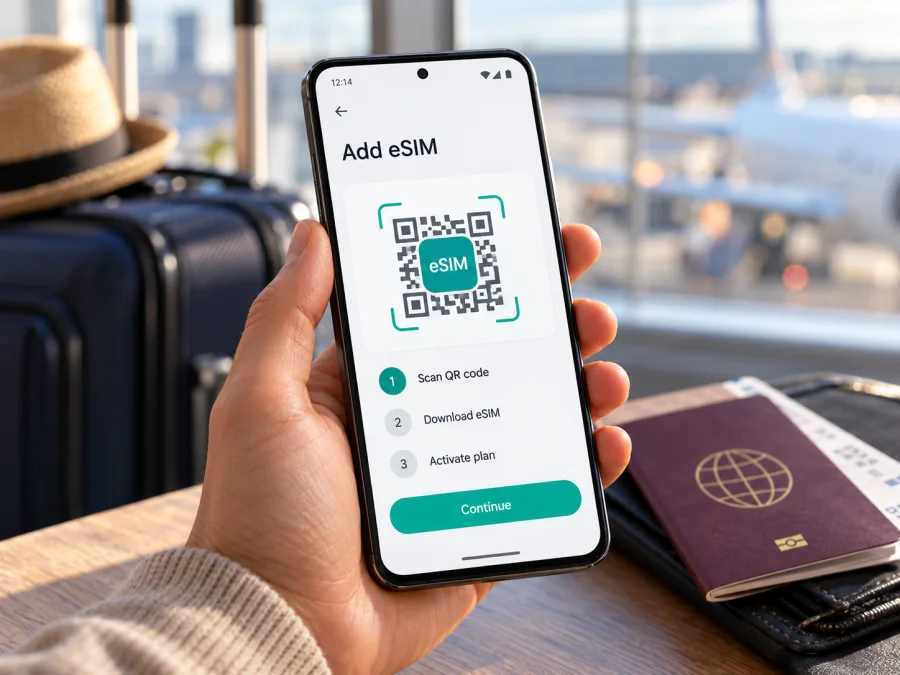
Samsung Galaxy S21 Ultra 5G 256GB eSIM: compatibility and setup
Short answer: Samsung lists the Galaxy S21 Ultra among Galaxy phones that support eSIM. That confirms support for the model family, but it does not prove that every regional or carrier version sold as Samsung Galaxy S21 Ultra 5G 256GB has eSIM enabled. The 256GB label describes storage capacity; it does not identify the phone’s sales market or firmware. Check the exact handset before choosing a travel plan: look for an EID and an option to add an eSIM in Settings. If either is missing, ask Samsung or the seller to confirm eSIM support for the model code and country of origin.
A travel eSIM can be useful when you want mobile data abroad without removing your regular physical SIM. The practical decision is not based on the product name alone: it depends on the hardware and regional software in your individual phone, its carrier lock status, and the terms of the plan you intend to use. The steps below help you verify those points before purchase and set up the profile with fewer surprises.
Samsung Galaxy S21 Ultra 5G 256GB eSIM at a glance
| Check | What to know |
|---|---|
| Device named in this guide | Samsung Galaxy S21 Ultra 5G 256GB |
| eSIM status | The Galaxy S21 Ultra series is listed by Samsung as eSIM-capable; individual regional versions may differ. |
| Storage variant | 256GB is the storage configuration in the search query. Storage size alone does not confirm eSIM capability. |
| Main on-device check | Look for an EID and Settings → Connections → SIM manager → Add eSIM. Menu wording can vary by software version. |
| Travel use | A compatible, unlocked version can use an eligible eSIM profile for mobile data abroad. Plan availability and network access depend on the selected plan and local network. |
| Before purchase | Confirm eSIM support on this actual handset and check that it is not locked to a carrier. |
Does the 256GB version support eSIM?
Samsung’s current Galaxy eSIM support guidance includes Galaxy S21, S21+ and S21 Ultra. This is useful evidence that eSIM was designed for the series, but the manufacturer also cautions that a listed device may not support eSIM depending on the country where it originated. This distinction matters when buying a used or imported phone: “Samsung Galaxy S21 Ultra 5G 256GB” is not a complete regional model identifier.
The 256GB storage label does not identify the sales code, firmware or carrier provisioning. Do not infer eSIM capability from the box name, 5G support or physical SIM tray.
On the phone, an EID together with Add eSIM in SIM manager is strong evidence that eSIM is available. If either is missing, check the full model code in Settings → About phone with Samsung or the seller before purchase; an update cannot be assumed to add a missing feature.
Regional and carrier versions
The Galaxy S21 Ultra 5G was sold in multiple markets and through different carriers. The exterior name can be identical while the model code, firmware, available network features and carrier settings vary. Samsung’s regional support pages list the S21 Ultra series but state that eSIM availability depends on the device’s country of origin. In other words, an Australian or European support page is useful confirmation for the family, but it does not by itself certify a handset originally sold in another market.
Hardware support, carrier acceptance and plan coverage are separate checks. Confirm that eSIM is enabled, the phone is unlocked, and the plan covers your destination.
For an imported, refurbished or carrier-used phone, note its model code and original market. A reset does not remove a carrier lock, and a dual-SIM tray may use two physical SIMs rather than eSIM.
Check the EID and eSIM menu
Use this checklist before buying a plan:
- Open Settings → About phone → Status information and look for an EID. On some software versions, the EID may appear on a SIM status screen or by dialing
*#06#; the display can vary. Treat an EID as a useful clue, then confirm the add-eSIM menu too. - Open Settings → Connections → SIM manager. Look for Add eSIM. Samsung’s exact labels can change slightly with One UI version, language and carrier software.
- If needed, dial
*#06#to view device identifiers. Do not share your EID or IMEI publicly. - Check Settings → About phone for the full model code, then verify eSIM availability for that code and its original market with Samsung or the seller.
- Confirm that the phone is unlocked. If unsure, ask the original carrier or seller; a reset does not remove a network lock.
- Install available official system updates while connected to Wi-Fi, restart the phone, and check SIM manager again. An update can refresh settings, but it cannot guarantee support if the regional hardware or firmware does not include eSIM.
Before buying, compare the model code on the phone with the seller’s listing and any invoice or box label. If the code and sales market do not match, ask the seller to explain the difference and confirm the eSIM feature for the handset you will actually receive. For a used phone, test the SIM manager in person if possible; a product description copied from another regional listing is not enough. If there is no access to the phone before purchase, make the return conditions clear and get written confirmation against the exact model code. Do not send the seller your full EID or IMEI in a public listing or chat; the model code is usually the information needed for a compatibility enquiry.
This extra check is particularly useful when a phone has been imported or resold, because its retail name may remain unchanged even when the regional software and SIM options differ. Check your device before buying. If the EID and Add eSIM option are both present, proceed to check the plan’s country coverage, validity, data allowance and installation conditions. If one is missing, get confirmation for the exact model variant first. The menu test confirms device capability; it does not guarantee that every eSIM plan, carrier or destination will work.
What to check before choosing a travel eSIM
A phone that supports eSIM still needs to meet the plan’s requirements. Before payment, review the destination or region, data amount, validity period, start-of-use rules, installation window and any network selection or APN instructions. Travel plans commonly focus on mobile data; do not expect an ordinary phone number, standard voice service or SMS unless the plan terms explicitly say those are included. Messaging and internet calls can work through apps when data is available.
Check that you have a stable internet connection for installation. Downloading an eSIM profile is different from using it for data: you may be able to install the profile at home and leave it switched off until travel, depending on the plan’s instructions. Some plans begin validity or data use at installation or first network connection, so read the specific activation terms rather than assuming all plans start at the same time.
Decide whether to keep your current SIM active for calls or texts while using the travel eSIM for data. Dual-SIM behavior varies, and choosing the travel line for data does not automatically prevent charges on your home line; check its roaming terms.
Kaspersky eSIM Store is an app and website for choosing, arranging and activating an eSIM plan for mobile data on an international trip. Verify compatibility and unlock status first, then review plan conditions. For current destination and plan details, visit the Kaspersky eSIM Store homepage, a general browse page rather than a country-specific tariff.
How to install an eSIM on Samsung Galaxy S21 Ultra 5G 256GB
Menu names may differ by One UI version. Keep the confirmation email or installation details available, and make sure the phone can access Wi-Fi before you begin. Do not delete a downloaded eSIM profile just to retry a QR scan; some profiles can only be installed once or may require support to reissue.
- Confirm compatibility and unlock status. Check for the EID and Add eSIM in SIM manager. If the option is missing, stop and confirm the exact regional model before purchasing or attempting installation.
- Choose the plan for your trip. Compare the destination, data allowance, validity and activation rules. Confirm that the plan uses a supported eSIM installation method and that the phone is unlocked.
- Open SIM manager. On the phone, go to Settings → Connections → SIM manager → Add eSIM. If your software uses a slightly different label, search Settings for “SIM manager” or “eSIM”.
- Add the profile. Choose Scan QR code and scan the code supplied with your plan. If the provider gives a manual activation code or a direct installation option, follow those instructions instead. Keep the QR code on another screen or printed page; the phone cannot scan a code displayed on its own screen.
- Wait for installation to finish. Keep the device connected to the internet and do not close the setup screen mid-download. Follow any on-screen prompt to confirm that the profile has been added. If the plan says to install before departure and activate later, follow those exact instructions.
- Name the profile. Choose a clear label such as “Travel” so you can distinguish it from your usual SIM in SIM manager. The label is for your own reference and does not affect the plan.
- Set the data line when ready. In SIM manager, turn on the travel eSIM and choose it for mobile data when you want to use it. Keep your regular SIM selected for calls or texts if that suits your needs and the phone’s dual-SIM settings allow it.
- Set roaming and APN only as instructed. Some travel eSIMs require data roaming on for their profile. Turn it on for the travel eSIM when the plan instructions say to do so. If an APN is provided, enter that exact value under Settings → Connections → Mobile networks → Access Point Names. Do not guess an APN.
- Test the connection. When you are ready to use the plan, make sure mobile data is assigned to the eSIM, airplane mode is off and the eSIM is enabled. Allow a few minutes for network registration, then test a webpage or app.
For the Samsung-specific Android flow, see How to install an eSIM on Android. The iOS installation guide is for Apple devices and does not apply to Samsung Galaxy, but it is available for readers setting up an eSIM on an iPhone.
Installation versus activation
Installing a profile and starting its validity may be different events. Follow the specific plan’s activation rules, especially if you install before departure. Do not delete or transfer a profile unless its instructions allow it; a replacement code may be needed.
Using the eSIM for mobile data while travelling
Before travel, label the SIM profiles and choose how to divide calls, messages and data in Settings → Connections → SIM manager. On arrival, enable the travel profile, select it for mobile data and turn on roaming for that profile if the plan requires it. If data fails, verify activation and APN details; use manual network selection only if the plan instructs you to.
Maps, video, backups and updates can use data in the background. Pause large syncs and compare the phone’s data counter with the plan account, since they may update at different times.
For multi-country trips, confirm that the plan covers every stop. Successful installation does not prove that a profile includes each destination.
The eSIM is a data connection, not a replacement for your regular phone number unless the plan specifically includes voice or SMS. Internet messaging and voice apps can use the data connection, subject to the app and network conditions. Keep your physical SIM if you rely on it for calls, verification messages or other services, and check your home carrier’s roaming settings to avoid unexpected use.
Troubleshooting common problems
“Add eSIM” is missing
Confirm the full model code, original sales market and software version. Restart after installing available system updates and check Settings → Connections → SIM manager again. If there is still no EID or add-eSIM menu, contact Samsung or the seller with the model code. The series-level listing cannot override a regional or carrier-specific limitation.
The QR code will not scan
Increase screen brightness on the device displaying the code, clean the camera lens and move the display farther away if it is out of focus. Use a second device or printed copy to display the code. Check that you are scanning from Add eSIM → Scan QR code, and use manual entry only if the plan supplies an activation code. If the QR code has already been used, do not repeatedly try it; contact the plan provider to check whether it can be reissued.
The eSIM is installed but there is no signal
Enable the eSIM, switch off airplane mode, confirm the destination and activation conditions, then restart and allow time for registration. Select a network manually only if the plan instructs you to; availability varies by location.
The phone has signal, but mobile data does not work
Check that the travel eSIM is selected under SIM manager → Preferred SIMs → Mobile data. Turn on data roaming for that eSIM if required by the plan, and verify the APN exactly as supplied. Check that mobile data is on and that the plan has available data and has not expired. If you use a VPN or private DNS and connectivity appears blocked, temporarily test a normal connection, then restore your preferred settings.
The phone is locked to a carrier
An eSIM menu does not necessarily mean the phone is unlocked. A network-locked phone may refuse an eSIM from another provider or may limit which profiles can be used. Ask the carrier that sold the handset to confirm the lock status and unlock it if eligible before travel. A factory reset does not remove a carrier restriction.
Data seems to stop too soon
Compare the plan account with the phone’s counter, pause large background transfers and check whether hotspot use is allowed. Contact plan support if the recorded balance looks incorrect.
Frequently asked questions
Does Samsung Galaxy S21 Ultra 5G 256GB support eSIM?
Samsung lists the Galaxy S21 Ultra series as eSIM-capable, but availability can depend on the country of origin and exact carrier or firmware variant. The 256GB capacity does not identify that variant. Check the phone’s EID and Add eSIM menu before buying a plan.
Is 5G required for eSIM?
No. 5G and eSIM describe different capabilities: 5G is a mobile network technology, while eSIM is a digital SIM profile. A phone’s 5G branding alone does not prove it supports eSIM. The specific model and regional configuration determine whether eSIM is available.
Can I use an eSIM and a physical SIM at the same time?
The Galaxy S21 Ultra may support dual-SIM use through a physical SIM and eSIM where eSIM is enabled. Available combinations and simultaneous use can vary by market, software and carrier. Check SIM manager on your device and review your carrier’s rules before relying on a particular setup.
Can I install the eSIM before travelling?
Often you can install over Wi-Fi before departure, but activation timing depends on the plan. Follow its instructions.
Does a travel eSIM replace my phone number?
Usually, travel data eSIMs provide mobile data rather than a standard voice number or SMS. Your existing number may remain on the physical SIM if you leave it active. Check the exact plan conditions and your home carrier’s roaming charges.
What if there is an EID but no “Add eSIM” option?
An EID is evidence of eSIM hardware, but settings or carrier software may still restrict activation. Update and restart the device, check SIM manager again, then contact Samsung or the carrier with the model code and country of origin. Do not assume that a plan can be installed until the add-eSIM flow is available.
Before your trip: verify the phone, then choose a plan
For Samsung Galaxy S21 Ultra 5G 256GB, the family-level answer is that Samsung lists the S21 Ultra as supporting eSIM, while regional availability remains conditional. Use the device’s EID and Add eSIM menu to verify your own handset, and confirm that it is unlocked. Then choose an eSIM plan for the countries on your itinerary and check its data allowance, validity, activation timing and installation requirements.
Kaspersky eSIM Store’s app and website help you choose, arrange and activate an eSIM plan for mobile data on an international trip. The Store homepage is a general starting point for checking current destinations and plan details; it does not represent a specific country tariff. Complete the compatibility check before purchase, keep the installation details available, and follow the plan’s instructions when enabling mobile data abroad.


