Travel connectivity guide
Samsung Galaxy S21 Ultra 5G 512GB eSIM
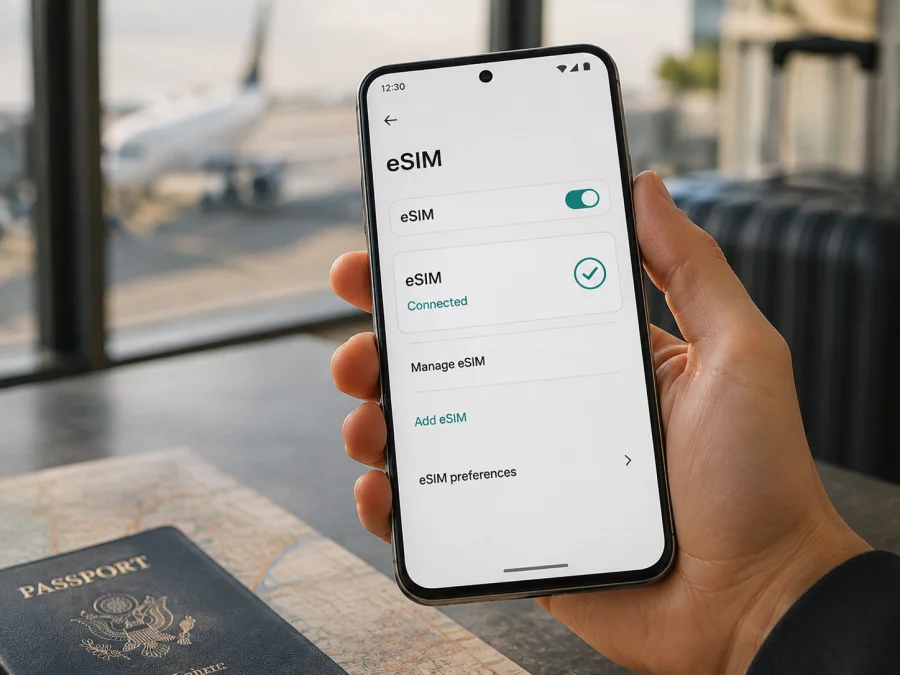
Samsung Galaxy S21 Ultra 5G 512GB eSIM: compatibility and setup
If you own the Samsung Galaxy S21 Ultra 5G 512GB and need mobile internet abroad, an eSIM can add a travel data plan without replacing your physical SIM. This is a specific 512GB variant, so its eSIM status should be checked on the phone rather than inferred from the Galaxy S21 family name. Samsung lists this configuration with 16GB of RAM and an embedded-SIM option in some regional specifications. The market of origin, exact model code, carrier configuration and software still matter.
Quick answer
Yes, the Samsung Galaxy S21 Ultra 5G 512GB can support eSIM when the particular regional and carrier version includes the embedded-SIM function. Samsung’s official specification for a 512GB/16GB version shows Nano-SIM plus an eSIM option, and Samsung’s current Galaxy eSIM support guidance includes the Galaxy S21 series. That confirms the capability for supported versions, not every imported or operator-branded handset.
The practical answer for your own phone is simple: look for an EID and an Add mobile plan or Add eSIM control. If both are present, the device is ready for the relevant eSIM workflow. If they are absent, do not assume that 512GB storage, a 5G modem or a software update guarantees eSIM.
Exact variant and key specifications
The target name Samsung Galaxy S21 Ultra 5G 512GB is distinct from the 128GB or 256GB versions and other S21 models. Samsung identifies the 512GB configuration with 16GB RAM. Neither storage nor RAM replaces the EID check.
| Item | Samsung Galaxy S21 Ultra 5G 512GB | Relevance to eSIM |
|---|---|---|
| Device variant | Samsung Galaxy S21 Ultra 5G 512GB | Use this complete name when checking the plan and model listing. |
| Storage | 512GB | Storage does not by itself enable eSIM. |
| RAM | 16GB in Samsung’s 512GB specification | A useful variant clue, not proof of eSIM availability. |
| Mobile technology | 5G, 4G LTE and other supported bands | Local bands and the plan’s partner network must match the trip. |
| SIM arrangement | Nano-SIM plus embedded SIM on supported versions | A physical SIM and eSIM may be configurable together. |
| Software | Android with Samsung One UI | Menu names can vary by version, market and update. |
| Travel use | Mobile data abroad | A travel eSIM is normally data-only unless its plan says otherwise. |
Regional pages can differ in bands and SIM descriptions even when the commercial name is similar. The 5G label does not prove that every market version has the same eSIM menu.
Regional and carrier differences
The Galaxy S21 Ultra was released across multiple markets and through different operators. A European model, an imported model and an operator-specific model can have different model codes, supported bands, provisioning rules or software. Samsung’s eSIM guidance warns that availability can vary by country or region, model, service provider and software version.
Keep these distinctions in mind:
- Country of origin. A listed model may lack eSIM in a particular country, so imported stock needs an on-device check.
- Model code. Find it in Settings > About phone and compare it with the box or seller’s record.
- Carrier and provisioning. A carrier lock or unsupported market can block a plan even when an EID exists.
- Software. One UI wording and controls can change; check any missing menu with the EID and model code.
So the accurate conclusion is conditional: this 512GB/16GB hardware configuration is eSIM-capable in supported markets, while your exact phone must show the function and accept the selected plan. Do not combine it with another memory or regional variant when making a purchase decision.
Check compatibility before buying
<a id="kesim-device-compatibility"></a>
Use this pre-purchase test on the actual phone, especially for used or imported stock.
- [ ] The name and model code match Samsung Galaxy S21 Ultra 5G 512GB, not another storage capacity or S21 model.
- [ ] An EID appears under Settings > About phone > Status or an equivalent status screen.
- [ ] Settings > Connections > SIM card manager contains Add mobile plan, Add eSIM or similar wording.
- [ ] The phone can reach Wi-Fi or mobile data during profile installation.
- [ ] The phone is unlocked, or the original carrier confirms that the intended eSIM is allowed.
- [ ] The software is updated through official device settings where an update is available.
- [ ] The plan covers every country or region on your itinerary.
- [ ] Its data allowance, validity, start condition and roaming requirement suit your use.
- [ ] You understand whether it is data-only. A travel eSIM does not automatically provide a new phone number, voice calls or SMS.
If there is no EID, do not substitute the IMEI or serial number: the EID is a separate embedded-SIM identifier. If only physical-SIM controls appear, ask Samsung, the seller or the original carrier about the exact model code before payment. Keep this checklist with the phone details and repeat it if the handset, software or country of purchase changes. It is worth making the check before every new plan, because a familiar device name does not remove regional or carrier conditions. For a final comparison, Check your device before selecting a plan.
Find the EID and eSIM controls
Menu wording can vary slightly, but Samsung’s current guidance gives two practical routes.
Find the EID
- Open Settings.
- Tap About phone.
- Tap Status or Status information.
- Look for EID.
Samsung also notes that the EID may be printed on the original box. Use it only for activation or support, and avoid publishing a photo that exposes other identifiers.
Find the add-plan option
- Open Settings.
- Tap Connections.
- Tap SIM card manager.
- Look for Add mobile plan, Add eSIM or an equivalent control.
An EID plus an add-plan control is the clearest on-device indication that the Samsung Galaxy S21 Ultra 5G 512GB can receive a profile. It does not override a carrier restriction or prove every plan is supported. If the menu is missing, restart, check for an official update and recheck the model code. If it remains absent, treat eSIM as unconfirmed.
Prepare the phone
Set up while reliable Wi-Fi or another data connection is available. Before installing:
- confirm destination coverage and when validity begins;
- keep the QR code or activation details on another screen, email or in the Kaspersky eSIM Store app;
- charge the phone and allow time for registration;
- decide whether to keep the home SIM for calls and messages;
- turn off home-line data roaming to avoid unintended charges;
- confirm that the phone is not carrier-locked.
Kaspersky eSIM Store is an app and website where you can choose, arrange and activate an eSIM with a plan for mobile internet during a trip abroad. It is not a mobile operator, network owner or mobile-internet provider. The selected plan and the networks available in the destination determine coverage and conditions.
Install and activate an eSIM
Samsung’s supported Galaxy workflow uses the SIM manager. Depending on the plan, you may use a QR code, a pre-assigned plan or manual activation details.
1. Confirm the conditions
Verify eSIM support, the EID and the phone’s unlock status. Connect to Wi-Fi or working mobile data. Keep the QR code or activation code ready.
2. Open the SIM manager
Open Settings. Tap Connections. Tap SIM card manager. If there is no add-plan option, stop and resolve compatibility first.
3. Add the mobile plan
Tap Add mobile plan or Add eSIM. Select the QR-code option when the plan provides a QR code. If the provider has assigned a plan to the EID, choose the automatic option when it appears.
4. Scan the QR code
Point the camera at the code displayed on another device or printed securely. Keep the phone online while the profile downloads. If scanning fails, use manual activation only when the plan explicitly supports it.
5. Approve the profile
Review the plan name and confirm the download. Wait for installation to finish; it can take several minutes depending on the device, connection and provisioning service.
6. Name the line
Label the profile Travel data or with the destination name. A clear label reduces the chance of selecting the home SIM accidentally.
7. Select mobile data
In SIM card manager, choose the new eSIM for Mobile data. Keep the preferred line for calls and messages if needed. Do not enable automatic data switching unless you understand which line may be charged.
8. Enable roaming if required
Open the eSIM’s network settings and enable Data roaming only when the plan instructions require it. Some travel eSIMs use a partner network abroad and need this setting; others may use a different configuration.
For the Android workflow, see the Android installation instructions. The iOS installation instructions are useful if you are also preparing an Apple device; the Samsung Galaxy S21 Ultra 5G 512GB itself follows the Android steps.
Use eSIM for mobile data abroad
Before departure. Install over Wi-Fi if the plan allows advance installation. Leave the travel profile disabled or follow the plan’s activation instructions, so you do not start using it earlier than intended. Save the plan name and conditions offline.
After arrival. Turn on the travel eSIM when ready. Select it under Mobile data, check Mobile networks, and enable data roaming for that eSIM if required. Keep the home line active only when its roaming terms are acceptable. Test with a simple webpage or messaging app.
During the trip. Use the connection for maps, translation, reservations, ride services, messages and work tools. Monitor balance and expiry in the profile or app where the plan was arranged. If data stops while a signal remains, check whether the allowance or validity has ended. At a border, confirm that the plan covers the new country; a country plan is not automatically a regional plan.
For a multi-country itinerary, compare every border with the plan’s coverage. General 5G capability is only one part of the result: the travel plan and local network must support the handset in that destination. The phone may use 4G when local coverage or bands differ.
Common problems and checks
The QR code does not scan
Increase the other screen’s brightness, clean the lens and show the complete code without blur. A used, expired or device-bound code cannot be repaired by repeated scanning. Use a manual method only if the plan offers it, then contact support.
Add eSIM is missing
Check Settings > Connections > SIM card manager, the EID, model code and software. Restart and install an available official update. If the EID is also absent, the regional configuration may not support eSIM. A family-level list cannot replace the country and carrier check.
The profile installs but data is unavailable
Confirm that the travel eSIM is on and selected for Mobile data. Check Airplane mode, mobile data and required roaming. Restart once, then verify destination, activation status, validity and balance. Temporarily disable home-SIM data so the test uses the intended line.
A signal appears but apps are offline
Test one simple webpage. If only one app fails, check its data permissions. If all data fails, use only the plan’s APN instructions; do not invent an APN. Start with automatic network selection and allow a few minutes for registration.
Calls and texts are not as expected
The travel eSIM is for mobile internet unless the plan explicitly includes other services. Keep the home line for calls or SMS when appropriate and use messaging apps over data. Removing a profile does not necessarily cancel its plan.
The phone is carrier-locked
An operator lock can block another eSIM even when the phone has an EID. Ask the original carrier to confirm unlock status. Do not try to bypass the restriction; resolve it before purchasing a travel plan.
Travel examples
Short city break. Check coverage and validity, install over Wi-Fi and select the travel eSIM after landing. Limit automatic backups and video if the package is small.
Work trip with a home number. Keep the home line for important calls or verification messages, select the travel eSIM for data and turn off home-line data roaming. Use hotspot only if permitted.
Multi-country route. Compare a regional option with the itinerary, then verify the travel line after every border. It still has its own coverage, data and validity conditions.
Imported handset. Ask for the model code, EID and Add eSIM screen. If they conflict with the listing, request confirmation before payment.
Frequently asked questions
Does Samsung Galaxy S21 Ultra 5G 512GB support eSIM?
Yes, supported regional and carrier versions do. Samsung’s 512GB specification shows an embedded-SIM option, and current Samsung support information includes the Galaxy S21 series. The exact phone still needs an EID or add-eSIM control because country, carrier and software can change availability.
Does 512GB guarantee eSIM?
No. Storage and RAM identify the configuration but do not guarantee the feature in every market. Check the EID, SIM manager and model code on the phone.
Can I use a physical SIM and eSIM together?
On supported versions, the dual-SIM setup can configure a Nano-SIM and eSIM together, subject to the active-line combination. Set the correct line for calls and data.
Do I need Wi-Fi?
You need an internet connection to download the profile. Wi-Fi is simplest, while Samsung also describes mobile data where available. Keep the physical SIM until installation is complete.
Does a travel eSIM provide a phone number?
Not necessarily. A Kaspersky eSIM Store travel plan is generally intended for mobile internet. Voice calls and SMS are not included unless the selected plan says so.
Should data roaming be enabled?
Sometimes. Enable it for the travel eSIM only when the plan requires it, and keep roaming off on the home line when you want to avoid unintended charges.
Can I transfer the profile to another phone?
Do not assume so. Transfer or reissue depends on the profile and plan conditions. Check before deleting it or resetting the device.
Final device check and trip eSIM choice
The Samsung Galaxy S21 Ultra 5G 512GB is an eSIM-capable candidate: Samsung documents a 512GB/16GB version with an embedded-SIM option, and the Galaxy S21 family appears in current Samsung eSIM guidance. The final decision belongs to the exact handset. Check its model code, locate the EID, confirm Add mobile plan or Add eSIM, and verify that the phone is unlocked.
Then follow this order: check the device; choose a country, region or route; compare data allowance and validity; arrange the eSIM in Kaspersky eSIM Store; install it over a reliable connection; select it for mobile data; and enable roaming only when required. Kaspersky eSIM Store helps you choose, arrange and activate an eSIM plan for mobile internet abroad through its app and website. The selected plan and network partners determine coverage and conditions.
If the EID or eSIM menu is missing, stop before buying. If the profile is installed but data fails, check the selected line, roaming setting, destination, validity and balance in that order. This final device check gives you a clear basis for choosing an eSIM for the trip and avoids treating a similar-looking Galaxy variant as the same phone.


