Travel connectivity guide
Samsung Galaxy S22 128GB eSIM: compatibility and setup
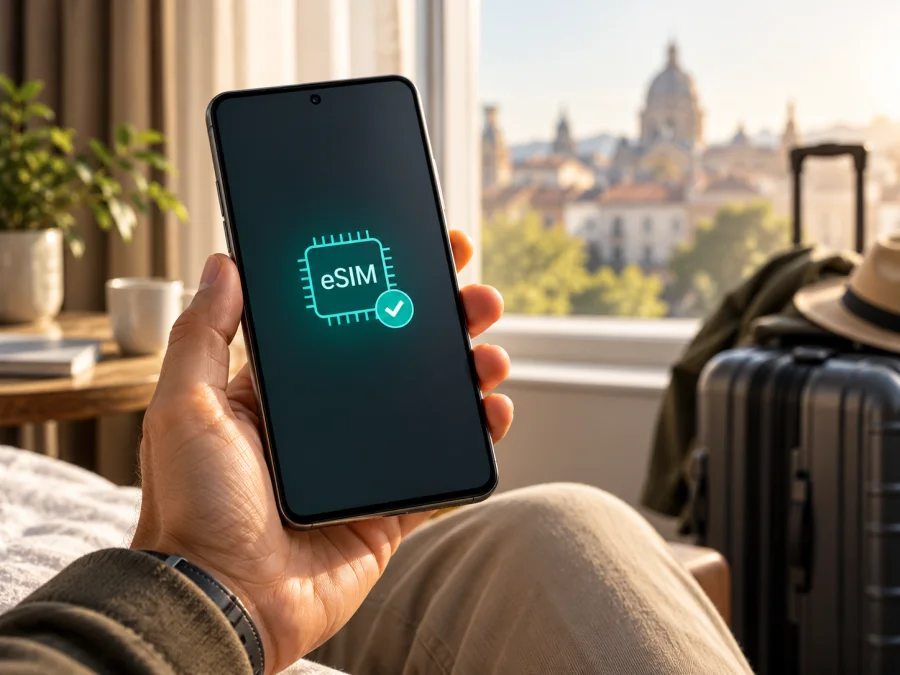
Samsung Galaxy S22 128GB eSIM: compatibility and setup
The Samsung Galaxy S22 128GB can support eSIM. Samsung includes the Galaxy S22 series in its current eSIM compatibility guidance, and an official specification sheet for a 128GB Galaxy S22 configuration lists eSIM as a feature. That confirms support for the family and a documented 128GB configuration, but it does not prove that every phone sold under the name “Samsung Galaxy S22 128GB” has eSIM enabled. Samsung cautions that availability may depend on country of origin, carrier and software version.
Storage capacity is not the same as a regional model code. “128GB” describes capacity; it does not identify the market, carrier build or eSIM configuration. Two phones with the same capacity may therefore behave differently. Check the handset you will use before choosing a travel plan.
This guide covers the compatibility checks, eSIM setup, mobile-data settings for a trip and common fixes. Menu names can vary slightly by software version.
Quick compatibility summary
| Item | What to know |
|---|---|
| Device named here | Samsung Galaxy S22 128GB |
| eSIM answer | Supported on compatible regional versions; confirm the handset |
| Storage capacity | 128GB alone does not determine eSIM availability |
| Regional variation | Samsung says country of origin can affect support |
| Carrier variation | Your phone must accept the profile and the provider must support the plan |
| First check | Settings → Connections → SIM manager → Add eSIM |
| Travel use | Install over reliable internet, then select the eSIM for mobile data |
The direct answer is “yes, on compatible versions.” If the phone’s Settings menu includes eSIM controls, it is a strong sign that it can add a profile. If the option is missing, do not infer compatibility from the storage label: check the model code, market of origin and carrier software, then ask Samsung or the seller.
Does Samsung Galaxy S22 128GB support eSIM?
Samsung’s current support guidance lists the Galaxy S22 series among Galaxy phones that support eSIM. Samsung’s US support instructions also list the S22 series for hybrid eSIM dual-SIM use. In addition, a Samsung US specification sheet for a 128GB Galaxy S22 in the T-Mobile market lists eSIM among its additional features. Together, these official references support eSIM capability for the series and for at least one documented 128GB configuration.
They do not establish that every regional Galaxy S22 128GB has identical SIM hardware, software menus or carrier provisioning. Samsung notes that eSIM may not be supported depending on the country of origin, and that available screens can vary by model, software version and provider. The T-Mobile specification applies to that documented US-market configuration; it is not a guarantee for phones sold elsewhere.
If you are buying an imported or used phone, ask for its exact model code and country or carrier of sale. The code is usually under Settings → About phone and on the original box. Compare it with Samsung’s specifications for that market or ask Samsung support. A carrier-branded phone may have restrictions or an older software build. Network unlocking and eSIM support are separate: an unlocked phone is not automatically an eSIM-enabled version.
Check the phone before buying a plan
Use the Settings menu first, then check the EID and model code if the phone’s origin or configuration is unclear.
Look for Add eSIM
- Open Settings.
- Tap Connections.
- Tap SIM manager.
- Look for Add eSIM. Some software versions may use Add mobile plan.
If the option appears, the phone exposes eSIM support in its software. The plan must still be compatible with the device and destination. If you see only physical SIM controls, update the phone over Wi‑Fi, restart it and check again. If Add eSIM remains absent, verify the model with Samsung or the seller before purchasing a plan.
Check the EID and model code
The EID identifies the phone’s embedded SIM component. On many Galaxy versions, it appears under Settings → About phone → Status information or Status. You can also enter *#06# in the Phone app; on supported versions, the information screen may show an EID. Menu paths vary.
An EID is useful evidence but not a complete compatibility guarantee. Its display does not confirm that a specific provider will issue a plan for the handset. Check for Add eSIM and ask the provider about its device requirements too.
Before purchase, record the model code shown in Settings → About phone, the country of sale and the original carrier if known. Confirm that the exact regional model supports eSIM, the device is unlocked for another provider, its software is current, and the plan covers your destination.
Use this compatibility checklist:
- [ ] Add eSIM appears in SIM manager.
- [ ] The EID is present, if the phone exposes one.
- [ ] The model code matches an eSIM-enabled version for its market.
- [ ] The phone is unlocked for the provider you plan to use.
- [ ] The plan covers your destination and intended travel dates.
If you cannot inspect the phone in person, request a screenshot of SIM manager and the full model code rather than relying on the listing title. For a phone you already own, compare the About phone details with the manufacturer specification for its country. These checks help separate a model-family feature from the feature actually enabled on your handset.
If you are comparing listings, do not rely on a product photo or a generic “dual SIM” label: that may refer to two physical SIMs, or a different market’s feature set. Ask the seller to confirm eSIM on the exact handset and check that it is not carrier-locked. A short check now can prevent arriving abroad with a profile the phone cannot add.
Check your device compatibility before choosing a plan. If the seller calls the phone a “global version,” ask for its model code and verify that code for the relevant market.
Regional versions and carrier markets
Galaxy S22 devices are sold in country and carrier configurations. Model codes, cellular bands, SIM tray arrangements, carrier software and available services can differ. For an individual phone, the local Samsung specification and its own Settings screen are more useful than a broad family name alone.
Samsung documents eSIM on a US-market 128GB Galaxy S22 configuration associated with T-Mobile. Its general support guidance separately warns that country of origin can affect availability. The documented operator market is T-Mobile in the United States; it does not establish the same behaviour for every T-Mobile phone, every US version or every 128GB Galaxy S22 sold in another market.
Check these three things separately:
- eSIM capability: the phone exposes eSIM support.
- Network unlock status: the phone is allowed to use another provider.
- Plan compatibility: the provider accepts the model and the plan covers the destination.
One does not guarantee the others. A phone can support eSIM but remain locked to its original carrier; an unlocked phone can lack eSIM on its regional build; and a compatible profile may not connect outside its coverage area. Check all three, especially for a used or imported handset.
A compatible S22 may support a physical SIM alongside an eSIM, but profile limits and active SIM combinations depend on the version and software. Before a trip, decide which line should handle mobile data, calls and texts. Keep your home number active only if needed, and check its roaming terms.
Install an eSIM on Samsung Galaxy S22 128GB
Before starting, connect to reliable Wi‑Fi, charge the phone and have the provider’s QR code or manual activation details ready. Follow the plan’s instructions: some profiles install through an app, while others use a QR code or activation code. Do not scan a one-time QR code on another phone.
Add the profile with a QR code
- Open Settings → Connections → SIM manager.
- Tap Add eSIM.
- Choose Scan QR code. If the menu says Add mobile plan, continue to the scan option.
- Scan the code from another screen or a printout. If it arrived on this phone, display it on a second device or use the provider’s manual method.
- Follow the prompts to download the profile.
- Give it a label such as Travel so it is easy to identify.
- Leave it off or keep mobile data on your home SIM until you are ready, if the provider allows this.
- Restart the phone if the setup screen or provider requests it.
Samsung’s Android menus vary by region and software. The Android eSIM installation guide explains the Samsung-style QR setup and data settings. The iOS eSIM installation guide is for iPhone users travelling with another device; it is not the setup path for this Galaxy phone.
Add a profile manually
If the provider gives you an activation code, go to Settings → Connections → SIM manager → Add eSIM and choose the manual entry option if available. Enter the code exactly as supplied. If the option is missing, ask the provider for a supported installation method instead of entering details in an unrelated field.
Check the activation timing
Installing a profile and using its data are separate steps. A plan may begin its validity at purchase, installation or first connection, depending on its terms. Check this before setup. If installation in advance is allowed, add the eSIM at home over Wi‑Fi and select it for mobile data after arrival. If the provider says to install only at the destination, follow that instruction.
Do not delete a profile as a troubleshooting shortcut unless the provider confirms it can be installed again. Some activation codes cannot be reused after a profile is added or removed.
Use eSIM data while travelling
After arrival, open Settings → Connections → SIM manager, switch on the travel eSIM and select it for Mobile data. You may keep your home SIM active for calls or texts, but check its roaming charges. To avoid accidental data use, turn off mobile data or data roaming on the home line.
Some travel plans require Data roaming to be on for the eSIM. The control is usually under Settings → Connections → Mobile networks → Data roaming. If your phone offers separate controls, make sure you change the setting for the travel profile. Your home SIM may have separate roaming terms.
A simple arrival sequence:
- Turn on the travel eSIM in SIM manager.
- Select it for mobile data.
- Enable data roaming for that profile if the plan requires it.
- Leave network selection on automatic to start.
- Wait a few minutes for registration.
- Open a web page to confirm that data works.
For a route through several countries, check that each is included in the selected plan. A plan name alone does not prove regional coverage. Review its destinations, data allowance, validity period and activation timing when you choose it. Most travel eSIM plans are for mobile data and may not include a phone number, standard voice calls or SMS. Internet calling and messaging apps can use data when their account and service terms allow it.
Common travel scenarios
One-country holiday: Install over Wi‑Fi before departure if allowed, then select the profile for data after landing. Check when validity begins.
Multi-country route: Compare the included destinations with every stop and border crossing. Check remaining data as you travel.
Work trip with your usual number: Keep the home SIM available for calls or texts if required, but use the travel eSIM for data. Disable home-SIM data roaming if you want to avoid using that allowance.
Hotspot use: Check that the plan and phone support tethering before relying on it. Video calls, cloud backups and map updates can use data quickly.
Troubleshoot common problems
Add eSIM is missing
Check the model code and software version under Settings → About phone. Install available updates, restart, then check Connections → SIM manager again. If the option is still absent, the regional or carrier version may not expose eSIM. Ask Samsung or the seller to confirm the model code; do not assume every 128GB version is compatible.
The QR code will not scan
Increase the brightness of the screen displaying the code, clean the camera lens and hold the phone steady. Confirm the code belongs to the intended plan and has not already been used. If it is on the Galaxy screen, use another display or ask the provider for manual details.
The profile installs but there is no service
Confirm that the plan is valid in your current country and its activation period has started. Switch the eSIM off and on once, then restart the phone. Make sure it is selected for mobile data and enable its data roaming if required. Keep network selection automatic at first. If the provider gave you APN details, enter them exactly; do not guess.
Data is still using the home SIM
Review preferred SIM settings in SIM manager and select the travel eSIM for mobile data. Check the selected line in the quick settings panel. If automatic data switching is available, turn it off to prevent switching back. Check the home SIM’s data settings separately.
Data is slow or stops
Check signal strength, remaining data and plan validity. Toggle airplane mode, then retry with automatic network selection. Test a browser as well as the affected app. Local coverage, congestion and device settings can all affect service; contact the plan provider if the profile is connected but data still fails.
The provider rejects the phone
An eSIM-capable phone can still be locked to its original carrier. Ask that carrier about unlock status and ask the plan provider whether it supports the exact model code. Share the model code and error message, never passwords or verification codes.
FAQ
Does Samsung Galaxy S22 128GB support eSIM?
Yes, compatible regional versions support eSIM. Samsung lists the S22 series in its eSIM guidance and documents a 128GB configuration with eSIM. Country of origin, carrier version and software can affect availability, so confirm Add eSIM in SIM manager on the phone you will use.
Is support determined by 128GB storage?
No. Storage capacity does not identify the regional model or whether eSIM is enabled on that version.
How do I find the EID?
Check Settings → About phone → Status information or a similarly named status screen. On supported versions, *#06# may also display it. Menu availability varies; look for Add eSIM as well.
Can I use a physical SIM and eSIM together?
A compatible version may support both, but available combinations depend on regional model and software. Check SIM manager on your phone.
Do I need data roaming?
Some travel plans require it on the travel eSIM. Follow the plan instructions and make sure the setting applies to that profile, not your home SIM.
Does a travel eSIM include calls or SMS?
Not necessarily. Many travel plans are data-only. Check the specific plan terms; messaging and calls through apps use data.
Can I move the profile to another phone?
That depends on the provider and profile. Some activation codes are single-use. Confirm transfer rules before deleting a profile, resetting the phone or changing devices.
What should I do if setup fails?
Verify eSIM support, unlock status, internet access and activation details. Follow the provider’s troubleshooting guidance, and do not delete an installed profile until support confirms the recovery steps.
Final check before your trip
For Samsung Galaxy S22 128GB, eSIM is supported on compatible regional versions, but storage alone cannot confirm compatibility. Before choosing a plan, check Add eSIM, look for an EID, identify the model code and verify that the phone is unlocked for the provider you intend to use.
Compare plan destinations, data allowance, validity and activation rules with your itinerary. Kaspersky eSIM Store is an app and website where you can choose, complete and activate an eSIM with a mobile-data plan for an international trip. Browse current options on the Kaspersky eSIM Store website, then install the profile over a reliable connection and select it for mobile data when appropriate.


