Travel connectivity guide
Samsung Galaxy S22 256GB eSIM: Compatibility & Setup
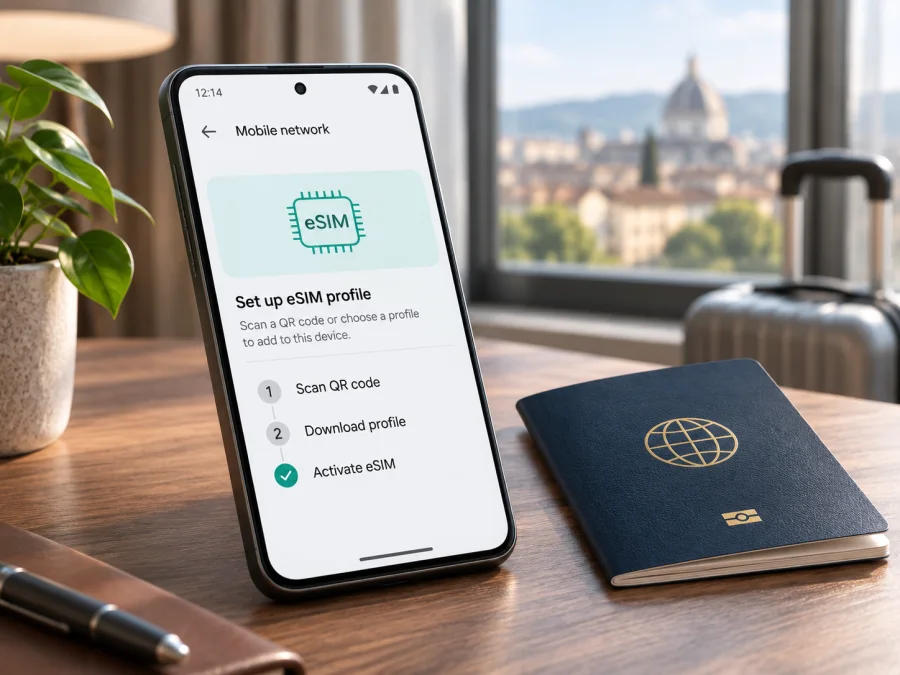
Samsung Galaxy S22 256GB eSIM: compatibility and setup guide
Quick answer
The Samsung Galaxy S22 family supports eSIM, and Samsung lists the Galaxy S22 series among compatible Galaxy devices. That is a useful starting point for the Samsung Galaxy S22 256GB, but “256GB” identifies storage capacity, not the phone’s full regional model number. eSIM availability can depend on the country or market the handset was made for, its exact model code, software and the mobile provider. Treat this variant as a likely match only after checking the individual phone: look for an EID and for Settings → Connections → SIM manager → Add eSIM. If either check is missing, do not assume an eSIM profile will install.
Samsung’s Canadian and US support pages currently list the Galaxy S22 series as supporting eSIM and warn that country of origin can affect availability. Samsung’s US T-Mobile Galaxy S22 specification sheet lists both 256GB storage and eSIM. That confirms the feature for a T-Mobile-specific configuration, not every US or global handset sold under the shorter name “Samsung Galaxy S22 256GB.” The final check is the exact handset in your hands. Samsung support pages reviewed on 4 November 2026.
| Item | What you should know |
|---|---|
| Device named in this guide | Samsung Galaxy S22 256GB |
| eSIM answer | Supported on the Galaxy S22 family, with regional and software qualifications |
| Storage variant | 256GB; storage size alone does not identify the region or SKU |
| Main on-device checks | EID in device information, plus Add eSIM in SIM manager |
| Installation menu | Settings → Connections → SIM manager → Add eSIM (wording may vary) |
| Before choosing a travel plan | Confirm eSIM support, no carrier lock, destination availability, data allowance and validity |
Does the Samsung Galaxy S22 256GB support eSIM?
Usually yes on an eSIM-enabled regional variant, but the capacity label alone cannot guarantee it. Samsung’s current Galaxy eSIM compatibility information includes Galaxy S22, S22+ and S22 Ultra. Samsung’s Galaxy S22 specifications for a US carrier configuration show the 256GB option and list eSIM. The manufacturer also notes that eSIM may not be supported in some devices depending on their country of origin, even when the model family appears on its compatibility list. For that reason, a 256GB S22 purchased in one market should not be presumed identical in this respect to a 256GB S22 from another market.
There are three separate questions to keep clear:
- What is the phone’s regional variant? Samsung may sell the same family name with different model codes, firmware and SIM configurations in different markets. Retail listings sometimes shorten the name and omit the model code. Storage does not reveal the complete variant.
- Does this specific handset have eSIM enabled? The EID and SIM manager are the practical checks. A menu can also be affected by software version or regional firmware, so an absent option deserves confirmation with Samsung support using the model code.
- Will the intended provider or travel plan work in the destination? That depends on the eSIM provider’s supported device requirements and the plan’s destination and network conditions. A phone with eSIM hardware is not automatically unlocked or accepted by every provider.
Do not confuse the phone’s market of origin with your travel destination. The origin market is relevant to the phone’s hardware and firmware variant. The destination and the specific mobile network are relevant to whether a provider can activate a profile and offer service there. An eSIM menu does not promise coverage, a particular speed, or service on every local network. Check the plan terms for the country or region you are visiting.
Samsung’s supported-carrier lists are country-specific and can change. They describe carriers and services Samsung identifies for a market; they do not guarantee that a particular third-party travel plan will work with a locked handset. Ask the seller or provider to confirm any restriction for your exact model code before you pay. If the device is second-hand, imported, refurbished or carrier-branded, perform the checks on the device itself rather than relying on the box, listing title or seller’s general statement.
Check compatibility before you buy
Use this checklist with the actual Samsung Galaxy S22 256GB, preferably before selecting a travel plan:
- [ ] In Settings → About phone, note the full model number and software version. Keep these details available if you contact Samsung or the device seller.
- [ ] Open Settings → About phone → Status information and look for an EID. Depending on the software, EID may also appear when you enter *#06# in the Phone app. The EID is a device identifier; it is not an activation code or a plan.
- [ ] Open Settings → Connections → SIM manager and check whether Add eSIM appears. The label can vary slightly by software version.
- [ ] Check that the phone is not carrier-locked. Ask the original carrier or seller how to confirm unlock status; seeing an EID does not prove the phone is unlocked.
- [ ] Check that Android and Samsung’s software are up to date, then restart and check SIM manager again if the menu is missing.
- [ ] Confirm that the travel eSIM provider accepts your specific device variant and that the chosen plan includes your destination.
- [ ] Keep a reliable Wi-Fi connection available for installation and save the provider’s installation instructions before travelling.
An EID is strong evidence that the handset has an eSIM component, while an Add eSIM option confirms that the current software exposes the installation flow. Check both when possible. If the phone has an EID but no menu, the model’s firmware or regional configuration may be limiting the feature. If a menu appears but an EID cannot be found, stop before buying and ask Samsung support to check the exact model number. Neither condition should be “fixed” by installing unofficial firmware or changing the phone’s region: those steps can cause other problems and are not a reliable compatibility test.
Check your device before purchasing a plan. Verify the exact model, EID, SIM manager option, carrier-lock status and destination. If a seller advertises only “Samsung Galaxy S22 256GB,” request the full model code and confirm the return policy in case the handset does not have the promised feature.
Prepare for a trip with a data eSIM
A travel eSIM can provide mobile data abroad without removing your physical SIM. Kaspersky eSIM Store is an app and website where you can choose, arrange and activate an eSIM with a mobile-data plan for an international trip; it is not a mobile operator or network. Read the current plan details for destination, data amount, validity, activation conditions and device requirements. Do not assume a data plan includes a regular phone number, voice calls or SMS unless its terms say so.
Before installing, decide whether you want your regular SIM available for calls or messages and which line should use mobile data. Check your home carrier’s roaming terms. Installation, profile activation and the start of validity can be separate events, so follow the exact plan instructions rather than assuming when the clock starts.
After checking your device, you can browse current eSIM options for your trip. Choose your destination and compare the current plan details. This is the general store homepage, not a page for a particular country tariff.
How to install an eSIM on Samsung Galaxy S22 256GB
Samsung’s standard route is Settings → Connections → SIM manager → Add eSIM. Names can vary by software or region. Use stable Wi-Fi and have the provider’s QR code or activation details ready. Follow the provider’s own app or link if it specifies a different method.
- Confirm that the handset has an EID, shows Add eSIM, is unlocked, and meets the plan’s requirements.
- Open SIM manager → Add eSIM. If the option is missing, stop and recheck the exact model rather than continuing through another menu.
- Choose the method supplied by the provider: scan a QR code, use a carrier setup, or enter activation details manually. Never guess missing information.
- Review the plan shown on screen, then confirm the download. Keep the phone powered on and online until the profile is added.
- Label the new line clearly, such as “Travel data.” Keep the existing profile unless you intend to remove it.
- Follow the provider’s activation timing. Some plans can be installed before departure; others have different requirements.
- In SIM manager, select the travel eSIM for mobile data when appropriate. Enable data roaming for that line only if the plan instructions require it.
For additional guidance, see Android eSIM setup instructions. If you are helping someone with an iPhone, use the iOS eSIM setup instructions; that is not the setup route for this Samsung phone.
A QR code may be limited to one installation or device. Do not delete a working profile just to repeat setup: first ask the provider whether reinstallation or transfer is allowed. Keep activation details private because they may grant access to the profile.
Use the travel eSIM for mobile data
In SIM manager, select the travel eSIM as the mobile-data line. If you keep your home SIM active, choose which services it should handle and check any roaming charges with that carrier. A phone can keep more than one line available, but data is assigned to a selected line. Disable automatic data switching if you do not want the phone to move data to another SIM.
At your destination, turn on the travel line and mobile data. Some travel profiles need Data roaming enabled on that eSIM to reach a partner network. Follow the plan instructions and avoid enabling roaming on a home SIM unless you accept its charges. Internet calling or messaging apps may work over data, but their requirements differ; tethering or hotspot use should also be checked in the plan terms.
If your itinerary crosses borders, confirm that every destination is included. After a flight or border crossing the phone may need time to register again. Check the selected line, roaming setting and plan instructions before removing the eSIM. Service depends on the plan’s supported networks and local availability.
Common problems and checks
“Add eSIM” is missing
Check the full model code, software version, EID and country of origin. Restart after updating, then open SIM manager again. If the EID or menu remains missing, ask Samsung to confirm support for that exact model. A 256GB label, “dual SIM” listing or another S22’s compatibility is not enough.
The QR code will not scan
Use a clear, bright image displayed on another screen, and confirm that it belongs to the plan and has not already been used. If available, try the provider’s manual method. For an invalid or expired code, contact its issuer before repeated attempts or deleting anything.
The profile is installed, but there is no service
Check destination and activation conditions, confirm the eSIM is switched on and selected for mobile data, and enable its data roaming if the provider requires it. Toggle mobile data once and wait briefly. Use manual network selection only as directed by the provider; the plan may be limited to specific partner networks.
The phone connects, but apps do not load
Confirm that mobile data is assigned to the travel line, automatic switching has not moved it, and no data limit is blocking use. Check the plan’s remaining allowance in the provider’s account. Test a basic webpage; if only one app fails, the issue may be app-specific.
A home SIM works, but the travel eSIM does not
A working physical SIM does not prove that the handset is unlocked or that its eSIM feature is enabled. Verify carrier-lock status, EID, model number and plan requirements. Ask the original carrier about unlocking and the travel provider about device acceptance.
You need to reinstall or move the eSIM
Do not assume a QR code can be reused or that a profile can be copied to another phone. Ask the provider whether it supports transfer or reissue before deleting the profile; removal may not release the activation.
Practical scenarios
You bought an imported or refurbished Samsung Galaxy S22 256GB. Ask which market it came from and record the model code. Verify EID and Add eSIM on the handset; do not infer regional support from the listing or storage size. Ask Samsung or the seller to clarify if those checks disagree.
You want to keep your usual number. Keep the physical SIM available for the services you want, assign mobile data to the travel eSIM, and check roaming charges with your home provider. Turn off data roaming on the home line if you want to avoid using it for data abroad.
You cannot confirm compatibility before purchase. Ask the seller or provider to check the exact model code. If it remains uncertain, use another verified eSIM device or consider a physical SIM option after checking destination rules and device compatibility. Keep Wi-Fi or offline navigation available for arrival.
FAQ
Is every Samsung Galaxy S22 256GB eSIM-compatible?
Samsung lists the Galaxy S22 family as eSIM-capable, but 256GB does not identify the regional variant. Check the actual phone for an EID and Add eSIM; contact Samsung with the model code if uncertain.
Does 256GB mean the phone is unlocked?
No. Storage, eSIM capability and carrier lock are separate. Verify unlock status with the original carrier or seller.
Can I install the profile before I travel, and when does validity begin?
This depends on the plan. Follow its instructions and do not assume installation and activation happen at the same time.
Will the eSIM provide calls and messages?
Not necessarily. Travel plans may be data-only; check the specific plan terms for a number, voice and SMS.
Should I enable data roaming?
Only as instructed for the travel eSIM. Avoid enabling it on a home SIM unless you accept that carrier’s roaming charges.
Before you go: verify the phone, then choose the plan
For the Samsung Galaxy S22 256GB, use the exact handset—not the storage label—as your final compatibility check. Confirm its model code, EID, Add eSIM option and unlock status. Then compare the travel plan’s destination, data amount, validity, activation instructions and any device restrictions. A supported phone and an eligible plan are both needed; neither one alone guarantees service in a particular place.
Once those checks are complete, use the Kaspersky eSIM Store app or website to choose and arrange an eSIM plan for mobile data on your trip. Review the current plan details and follow its installation and activation instructions. If the Samsung Galaxy S22 256GB does not expose an EID or Add eSIM, ask Samsung or the seller to verify the regional model before purchasing, or consider a different connectivity option you have confirmed will work. A few minutes spent checking before departure can make the setup much easier when you arrive.


