Travel connectivity guide
Samsung Galaxy S22+ 128GB eSIM Guide
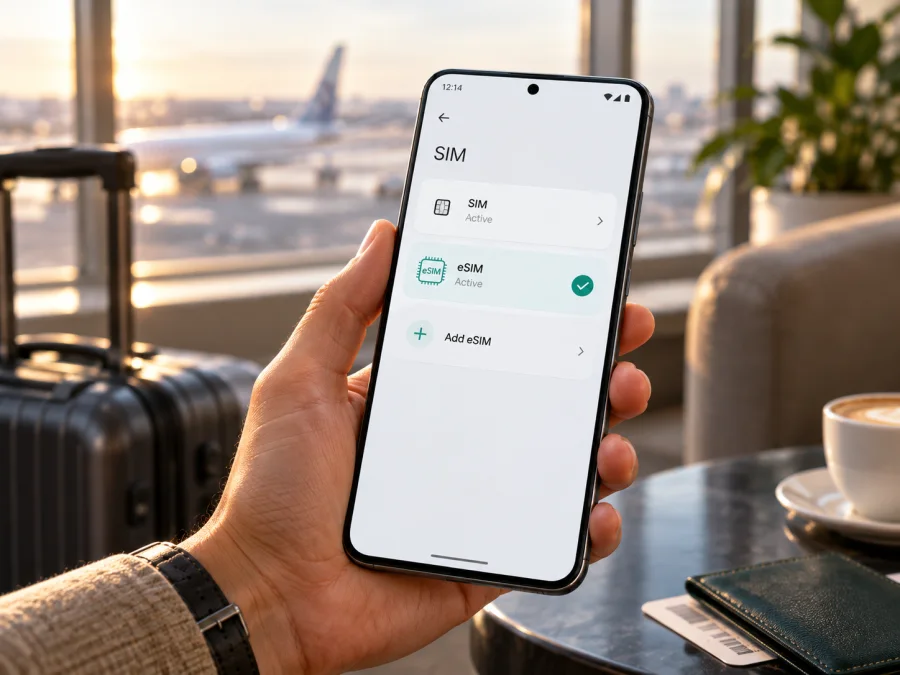
Samsung Galaxy S22+ 128GB eSIM: Compatibility and Setup
Short answer: Samsung Galaxy S22+ 128GB can use eSIM when the exact regional model supports it. Samsung lists the Galaxy S22+ among Galaxy devices with eSIM, and Samsung product specifications for some 128GB variants list an embedded SIM. However, Samsung also states that eSIM use can depend on the region, service provider and model. The storage label “128GB” is not enough to confirm support. Check the model code and the phone’s own settings before you choose a travel plan.
This distinction matters if you bought the phone abroad, bought it used, or received it from a carrier. Galaxy S22+ versions can share the same product name and storage capacity while differing in SIM hardware and regional software. A compatible model also needs to be unlocked for the network you plan to use. The steps below help you establish what your particular handset can do before you pay for an eSIM plan.
Does Samsung Galaxy S22+ 128GB support eSIM?
For a Samsung Galaxy S22+ 128GB with an eSIM-capable regional model code, yes. Samsung’s Galaxy S22+ specifications list embedded SIM on supported versions, and Samsung’s eSIM support information includes the S22+ family. But “Samsung Galaxy S22+ 128GB” is a retail description, not a full hardware identifier. The exact model number, sales market, software and carrier status determine whether eSIM is available on your phone.
Samsung’s regional specifications illustrate why the model code is important. For example, Samsung lists eSIM in specifications for certain SM-S906B 128GB models sold in European markets. By contrast, the Hong Kong SM-S9060 specification lists two nano-SIM slots and does not list an embedded SIM. That example is not a claim about every phone sold in either region; it shows that similar Galaxy S22+ names and capacities can describe different SIM configurations. A carrier-branded variant may have additional restrictions or a different menu.
| What you are checking | What it means |
|---|---|
| Product name | Galaxy S22+ identifies the phone family, but not the full regional configuration. |
| Storage | 128GB is internal storage capacity. It does not confirm whether an eSIM component is present or enabled. |
| Model number | The code shown in About phone, such as an SM-S906-series code, helps identify the hardware and sales variant. Check the full code against the seller’s documentation or Samsung support for your market. |
| SIM manager | An available “Add eSIM” or “Add mobile plan” option is a useful on-device confirmation that the feature is exposed by the current model and software. |
| EID | An EID is an identifier associated with an eSIM-capable device. Its presence is a strong additional check; its absence should be investigated with Samsung or the seller. |
| Carrier lock | An eSIM-capable phone can still reject a plan from another provider if the device is network-locked or otherwise restricted. |
The 128GB version is not a separate eSIM technology standard. Samsung has sold 128GB Galaxy S22+ configurations in more than one market, and their device codes and SIM specifications can differ. Do not rely on a listing that says only “Galaxy S22+ 128GB,” a photograph of the SIM tray, or another owner’s experience with a different country variant. Confirm your own phone.
Regional and carrier versions
Samsung warns that eSIM availability can depend on region, service provider and model. These factors are distinct:
- Regional variant: Samsung’s Hong Kong SM-S9060 specifications list SIM 1 + SIM 2 and nano-SIM, while some European SM-S906B 128GB specifications list an embedded SIM option. Similar product names therefore do not guarantee identical SIM hardware.
- Carrier version: A carrier-sold phone may be locked or have carrier-specific eSIM settings. Ask the original carrier whether it is unlocked and supports adding another provider’s profile.
- Plan market: The eSIM provider must support the phone and the destination. Hardware support alone does not mean every plan or carrier will work.
A software update can change menu wording, but it cannot add missing eSIM hardware to a model that lacks it. If the phone was imported or is carrier-branded, confirm the full code with Samsung support or the seller in the market where that variant was sold.
Check compatibility before buying a plan
Use these checks while you still have a reliable internet connection. They help distinguish a device limitation from a carrier-lock or setup problem later.
- Find the model number. Open Settings → About phone and note the complete model number. Keep the full suffix if it is shown; regional product codes can matter. You can also compare it with the original box or purchase receipt.
- Look for an eSIM control. Open Settings → Connections → SIM manager. Look for Add eSIM, Add mobile plan, or a similar option. If the item is present, open it only far enough to confirm that the phone offers an eSIM setup path. You do not have to install a plan yet.
- Check for an EID. In Settings → About phone → Status or a similarly named status screen, look for EID. The exact label can vary by software version. Samsung also says the EID may be printed on the original box. Do not share a screenshot of identifiers publicly.
- Confirm network-unlock status. If the phone came from a carrier, ask that carrier whether it is unlocked for use with another provider’s eSIM. A visible EID does not remove a network lock.
- Check the plan’s conditions. Confirm that the plan covers your destination and that its installation method works for your device. Check the data allowance, validity period, activation rules, hotspot terms and support channel before payment.
For a second check, check your device’s eSIM compatibility using the model number and on-device settings together. If the menu is missing or the EID is not displayed, do not treat the retail product name as confirmation. Update the phone if an update is available, restart it, and ask Samsung support or the seller to verify that exact model code. A missing menu can result from regional firmware or carrier configuration, but it can also mean that the handset does not support eSIM.
Compatibility checklist
Before selecting a plan, confirm each point:
- [ ] You know the complete model number, not just “Galaxy S22+ 128GB.”
- [ ] Settings offers Add eSIM or Add mobile plan, or Samsung confirms support for the exact code and market.
- [ ] An EID is visible when the model/software exposes it.
- [ ] The phone is unlocked for the intended provider.
- [ ] Wi-Fi is available for setup, and the plan covers your destination.
- [ ] You understand the plan’s data allowance, validity, activation and hotspot terms.
If any of the first four points is uncertain, resolve it before purchase. A checked list does not replace the provider’s compatibility terms.
How to install an eSIM on Samsung Galaxy S22+ 128GB
Install the profile while connected to stable Wi-Fi, and keep the eSIM QR code or activation details available on another screen. If the QR code is displayed on the S22+ itself, you will need another device or a manual entry option to read the code. Some profiles can be installed through an app or a carrier-provided activation flow instead. Follow the instructions supplied for your particular plan.
Step-by-step setup
Follow these steps, using the method provided by your eSIM provider.
- Prepare the phone. Charge it, connect to Wi-Fi, install available updates, and confirm the model and eSIM option.
- Open SIM manager. Go to Settings → Connections → SIM manager and tap Add eSIM or Add mobile plan.
- Choose an installation method. Scan the provider’s QR code, use its app flow, or enter activation details as instructed.
- Add the profile. Follow the prompts and keep the phone online until the download completes. Do not remove the profile during setup.
- Label the line. Use a clear name such as “Travel data.”
- Set mobile data. Select the travel profile for data. Keep your normal SIM for calls or texts if desired and supported.
- Set roaming if needed. Enable data roaming for the travel eSIM only if the plan’s instructions require it.
- Test when active. After the plan should be active, turn off Wi-Fi briefly and open a lightweight webpage. Registration can take several minutes.
Samsung menu names vary by software. For detailed steps, see the Android eSIM installation instructions and iOS eSIM installation instructions. The iOS page is for Apple devices; use the Android guide for this phone.
Using the eSIM for mobile data on a trip
You can install a travel eSIM before leaving and select it for data when you arrive, or complete setup after arrival if the plan supports that process. The key settings are the active eSIM line, the preferred mobile-data SIM, and data roaming for the travel profile when required. You can usually leave your home SIM active for calls and messages while directing mobile data through the travel eSIM, but confirm the behavior and charges with your home provider.
Before departure, review the plan’s destination, coverage area, allowance, validity, activation instructions and hotspot conditions. “Europe” or “regional” plans can cover a specific list of countries, not necessarily every place on an itinerary. A data-only plan may not provide a new phone number or ordinary SMS. Keep your primary line available for account verification if needed, and check its roaming settings and charges separately.
Practical travel scenarios
- Before departure: If the plan allows, install over Wi-Fi and label the line. Check when validity starts: installation, first connection and activation can be separate events. Save setup instructions for later.
- After landing: Enable the travel profile, choose it for mobile data and follow the provider’s roaming instructions. Wait a few minutes for service. If needed, toggle Airplane mode once and recheck the selected line.
- Keep your regular number: If you need calls or verification texts, leave your home SIM enabled if your carrier and phone allow it. Set the travel profile as the data line, review automatic switching and check home-line roaming charges separately.
- Several countries: Confirm each destination is included. For a regional plan, review the actual country list and validity terms. Switch the selected data profile when needed along the route.
Kaspersky eSIM Store is an app and website where you can choose, arrange and activate an eSIM with a plan for mobile data during an international trip. Travel plans are generally for data; a phone number, ordinary calls or SMS are included only if the plan explicitly says so. Messaging and calling apps can use the data connection.
Common problems and what to check
“Add eSIM” is missing. Check for Add mobile plan in SIM manager, restart and install any available update. Compare the full model code with Samsung’s specifications for that market. If the phone is imported or carrier-branded, ask Samsung or the original carrier about that exact variant.
No EID appears. Check About phone → Status information or Status, and compare with the EID printed on the original box if available. Make sure you are not confusing EID with IMEI. If neither EID nor an eSIM menu appears, confirm the hardware version; do not infer an EID from another identifier.
The QR code will not scan. Show the entire code on another screen, increase its brightness, clean the camera lens and hold steady. If the code was used before, ask the provider whether it can be recovered before deleting a profile.
The profile installs but has no service. Confirm the line is enabled, selected for data and valid in the destination. Enable data roaming only if instructed. Try Airplane mode once, then wait for registration. Return network selection to automatic unless the provider says otherwise.
Data uses the wrong SIM or does not work. In SIM manager, select the travel eSIM for mobile data and review automatic data switching. Check that Mobile data is on, the plan is active and its allowance remains. Change APN only when the plan instructions provide a value.
The phone is locked, or installation stops. A carrier lock must be resolved with the original carrier. If download stalls, reconnect to stable Wi-Fi and restart once. Some profiles are single-use; ask the provider about recovery before removing the profile or scanning again. Avoid sharing a full EID or QR code publicly.
Frequently asked questions
Does every Samsung Galaxy S22+ 128GB support eSIM?
No. Many versions support it, but Samsung says availability depends on the region, carrier and model. Storage capacity does not identify the SIM configuration.
Is it eSIM-ready because it has 5G?
No. 5G and eSIM are separate features. A 5G phone may have two physical SIM slots, depending on its regional version.
Can I use a travel eSIM and my normal SIM together?
Often the normal SIM can remain active for calls or texts while data uses the eSIM. This depends on carrier and phone settings; check the selected data line and roaming conditions.
Does a travel eSIM provide a phone number?
Only if the specific plan says so. Many travel plans are for mobile data; check the plan details for voice and SMS.
Should I install before traveling?
You may install in advance if allowed and Wi-Fi is available. Check when validity begins, since installation and first network connection may be separate steps.
Can I move the eSIM to another phone?
Do not assume so. Transfer and reinstallation depend on the profile and provider. Check the terms before deleting it or changing devices.
Final check: confirm the phone, then choose a trip plan
Samsung Galaxy S22+ 128GB is eSIM-compatible only when the exact regional and carrier variant supports the feature. Before you select a plan, note the model number, look for an EID and check Settings → Connections → SIM manager for Add eSIM or Add mobile plan. If any check is inconclusive, ask Samsung or the seller to confirm the exact code and verify that the phone is unlocked.
Once compatibility is clear, choose an eSIM plan for your destination and compare its data allowance, validity, activation rules and hotspot terms with your itinerary. Kaspersky eSIM Store’s app and website help you choose, arrange and activate an eSIM with a mobile-data plan for an international trip. Review the plan conditions before payment, install it using the Android instructions, and select the correct line for mobile data when you are ready to connect.


