Travel connectivity guide
Samsung Galaxy S22+ eSIM: compatibility and setup
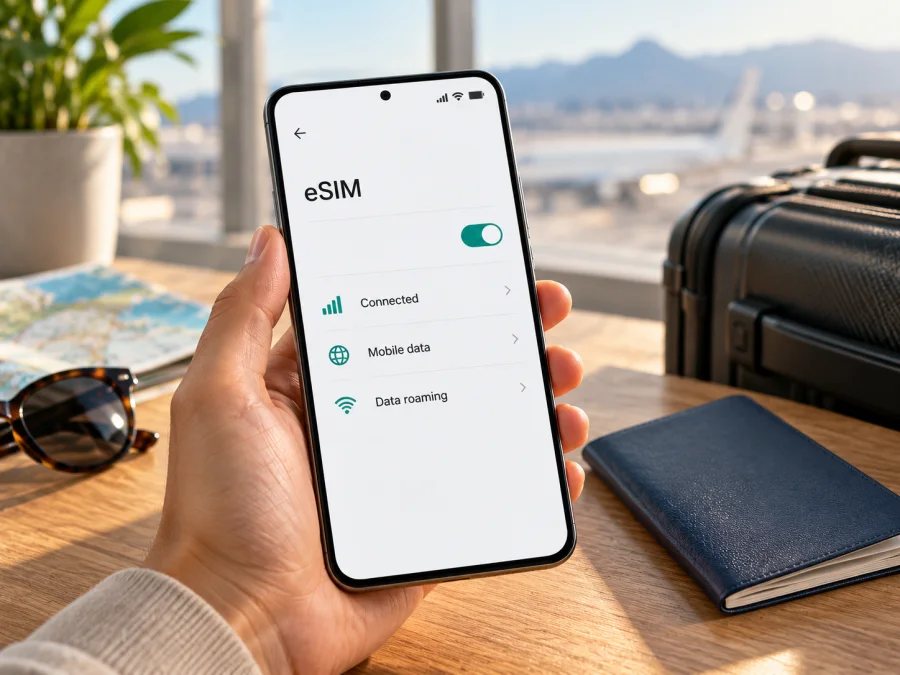
Samsung Galaxy S22+ eSIM: compatibility and setup
Short answer: some Samsung Galaxy S22+ versions support eSIM, but the family name alone does not confirm the feature on every regional or carrier version. Check the exact phone’s EID, SIM manager, and unlock status before choosing a travel plan. Samsung says availability can vary by region, service provider, or model.
Does Samsung Galaxy S22+ support eSIM?
Some versions do. Samsung lists Galaxy S22+ among eSIM-capable Galaxy devices and provides setup instructions for the S22 Series. Samsung New Zealand’s specification for its regional SM-S906EIDGXNZ version also lists eSIM. This confirms support in the family and that specific version, not every handset sold under the name.
Samsung warns that availability may depend on region, service provider, or model. The name Samsung Galaxy S22+ alone does not identify the sales region, full SKU, or carrier configuration. Check the exact phone’s EID, SIM manager, and unlock status before choosing a plan.
Samsung’s “How do I install a nano-SIM card and activate eSIM on Galaxy S22 Series” was updated 27 April 2026. Its instructions and caveat, the “Galaxy eSIM and supported network carriers” page, and the New Zealand specification were checked on 17 October 2026. Support information for one market does not establish compatibility in another. Confirm where your phone was sold and whether your operator allows another eSIM profile.
| Question | Verified guidance | What to check |
|---|---|---|
| Does the S22+ family support eSIM? | Samsung lists it and documents setup. | Verify your regional model. |
| Does every version support it? | Not guaranteed; region, provider, and model can matter. | Look for EID and an eSIM menu. |
| Does 5G or “+” prove support? | No. | Check the phone itself. |
Check the exact phone before buying a plan
Use these checks in order. Menu names can differ a little with Android and One UI versions, and Samsung notes that its device screens may vary by model and software version.
1. Find the model number and sales region
Open Settings → About phone and note the model number. Also check the box, purchase record, or seller listing if you still have it. A full product code can include a longer sales suffix; record what appears on your own phone rather than substituting a code from a different country. If the phone was bought second-hand, ask the seller which market it was originally supplied for and whether it has been modified or refurbished.
The model identifier helps Samsung or a carrier distinguish regional hardware and firmware. Do not use another owner’s experience as proof for your handset: two Galaxy S22+ phones can have different market configurations even when their front and back look similar.
2. Look for an EID
An EID is an identifier associated with the phone’s embedded SIM capability. On many Samsung phones, you can check Settings → About phone → Status information and look for EID. You can also open the phone dialler and enter *#06#; on versions that show it, the resulting device identifiers include an EID. If a dialler code does not work, use Settings instead; carrier software or local configuration may change what appears.
An EID is a useful positive sign, but it does not confirm that the handset is unlocked or that a particular carrier or travel plan will activate. If you cannot find it, check the next step rather than trying to install a QR code repeatedly. Send the model number and a screenshot of the SIM settings to Samsung support or the seller and ask them to confirm eSIM availability for that sales region.
3. Check the SIM manager
Open Settings → Connections → SIM manager. Look for an option such as Add eSIM, Add mobile plan, or Add carrier plan. On Samsung’s S22 Series support instructions, the route is Settings → Connections → SIM card manager → Add mobile plan; the wording and available choices can vary by software and region.
If you see an eSIM setup option, that is another useful sign. You do not need to scan a QR code just to check the menu. If the option is missing, update the phone using its normal software update settings, restart, and check again. If it remains absent, pause before purchase and ask Samsung or the retailer to verify the full model code. A generic guide for a different Galaxy model or region cannot override what your handset actually shows.
4. Confirm the carrier and plan conditions
Ask the seller or current operator whether the phone is unlocked and can accept another eSIM. Check the travel plan’s destinations, installation method, activation timing, and roaming instructions.
Compatibility checklist
- [ ] Model number matches the information from Samsung or the seller.
- [ ] EID appears in Settings or the identifier screen.
- [ ] SIM manager offers eSIM setup.
- [ ] The phone is not locked against another profile.
- [ ] The plan covers each destination on your route.
- [ ] Wi-Fi is available for installation; plan timing and roaming are understood.
You can also use Check your device. Verify the EID, carrier status, and plan conditions as well.
What to understand about regional versions
The retail name does not identify the exact sales configuration. Samsung’s New Zealand listing confirms eSIM for SM-S906EIDGXNZ, while general support warns region, provider, and model can matter. Check three layers: phone capability (regional SKU, EID, and SIM manager); carrier status (whether the phone is locked); and destination service (whether the plan covers your route). The handset’s sales country can affect its eSIM feature; your destination determines where the selected plan is intended to work. One country’s carrier list does not establish support in another.
Before you install an eSIM
Use stable Wi-Fi and keep the phone charged. Have a QR code on another screen or paper; a phone cannot scan a code displayed only on itself unless the provider offers another method. Some codes are one-use, so do not share them or delete an installed profile casually. Check plan terms: installation and validity start may be different.
Kaspersky eSIM Store is an app and website where you can choose, arrange, and activate an eSIM with a mobile-data plan for an international trip. It is not a mobile operator. A data plan does not automatically include a regular number, calls, or SMS; check the offer terms.
How to install and activate eSIM on Samsung Galaxy S22+
Samsung’s S22 Series path is Settings → Connections → SIM card manager → Add mobile plan. Wording may differ by market and software; follow the chosen plan’s steps if its flow differs.
- Connect to Wi-Fi and keep the phone online.
- Open SIM manager: Settings → Connections → SIM card manager.
- Tap Add mobile plan or the equivalent eSIM option.
- Choose QR setup if the provider supplied a code.
- Scan the QR code from another screen or paper. Enter manual details only when provided.
- Wait for the profile download and follow the prompts.
- Label the line clearly, for example “Travel data”.
- Select the mobile-data SIM in SIM manager.
- Enable the profile according to the plan’s activation timing.
- Turn on data roaming for that eSIM only if its instructions require it.
- Test mobile data in a covered destination with Wi-Fi briefly off.
See the Android eSIM installation instructions for a visual walkthrough. The separate iOS eSIM installation instructions are for iPhone users, not Galaxy S22+.
Keep control of your primary SIM
Before travelling, check which line the phone has selected for mobile data. If you want the travel eSIM to carry data, select that profile in SIM manager and disable automatic data switching if you do not want the phone to fall back to your home SIM. You can usually keep your main line available for calls and messages, subject to your carrier’s roaming charges and dual-SIM behavior.
If your home plan charges for roaming, check its terms before leaving. Turning off mobile data for the home line or disabling that SIM can help avoid accidental use, but it may also affect calls, texts, or verification messages. Choose the settings that suit your needs, and confirm them in the phone rather than relying on a generic menu screenshot.
Using the eSIM for mobile data on a trip
Select the travel eSIM under Settings → Connections → SIM card manager for mobile data. In a covered destination, enable it and allow time to register. Turn on roaming for that profile only if the plan requires it; extra charges depend on its terms.
For a multi-country trip, verify each stop: a “regional” label alone does not define included destinations. Choose data allowance and validity based on your itinerary. If you need your home number, check primary-SIM settings and roaming costs. Disable automatic data switching if you do not want the phone to fall back to the home line.
Kaspersky eSIM Store helps you choose, arrange, and activate a mobile-data eSIM for a trip. Its English homepage is a general place to browse current destinations and plans, not a country-specific tariff.
Common problems and what to check
“Add eSIM” is missing
Check the full model number, EID, and SIM manager after an official update and restart. If the option remains absent, ask Samsung or the seller to verify that regional SKU before purchase.
The QR code will not scan
Show the whole code on another screen or print it, increase brightness, and hold steady. Confirm Wi-Fi works; use manual details only if your provider supplied them.
The profile will not download
Check Wi-Fi, activation rules, and whether the code was already used. Retry after restarting. If it still fails, contact the plan provider with the error text and model number.
There is no signal or data
Confirm the destination is covered, the eSIM is on, and it is selected for mobile data. Restart and allow time to register. Enable roaming or set an APN only if the plan instructions say so.
The phone says it is locked or rejects the profile
Ask the carrier or retailer that supplied the phone whether it accepts another eSIM. Share the model number and error with support.
The primary line or a deleted profile is unavailable
Check SIM manager and your home operator’s roaming conditions. Do not assume a deleted profile’s QR code can be reused; ask the plan provider about reinstallation.
Practical travel examples
- One destination: Check compatibility and validity rules, install over Wi-Fi if allowed, and enable the profile according to the plan’s timing.
- Several countries: Check each stop against the plan’s conditions; recheck if the route changes.
- Keep your home number: Select the travel eSIM for data and keep the main SIM configured for calls or messages only if you accept its roaming terms.
- No eSIM option: Verify the model code and EID with Samsung or the seller before buying. If unresolved, use a confirmed compatible unlocked phone or ask your carrier about another travel-data option.
Frequently asked questions
Is every Samsung Galaxy S22+ eSIM-compatible?
No. Samsung lists the S22+ family, but availability depends on region, provider, or model. Check your individual phone.
Does an EID guarantee my plan will work?
No. The phone must also be unlocked, accept the profile, and be used in a covered destination.
What if there is no EID?
Check Status information and, if available, the *#06# identifier screen. If EID and Add eSIM are both missing, ask Samsung or the seller to verify the model number.
Can I use a physical SIM and eSIM together?
Samsung describes dual-SIM use for the S22 Series, but combinations and carrier behavior may vary. Choose the data line in SIM manager.
Does a travel eSIM replace my phone number?
Usually not. A data plan does not automatically include a standard number, calls, or SMS. Check the plan terms.
Should I turn on data roaming?
Only when the plan instructions require it, and for the travel eSIM profile.
Can I install after arrival or transfer the eSIM?
Installation may be possible over Wi-Fi, but follow provider rules. Do not assume a profile can be transferred or reused; check reinstallation terms before deleting it.
Final check before your trip
For Samsung Galaxy S22+, eSIM support is confirmed at the family level, but your specific regional model and carrier configuration decide whether you can use it. Look for the EID and an Add eSIM or Add mobile plan option, confirm the handset is unlocked, and verify the travel plan’s coverage and activation conditions for every destination on your route.
When those checks pass, Kaspersky eSIM Store is an app and website where you can choose, arrange, and activate an eSIM with a suitable mobile-data plan for your trip. Start at the Kaspersky eSIM Store homepage to browse current destinations and plan details, then install the profile on the compatible Galaxy S22+ and select it for mobile data when appropriate. If any device check remains uncertain, confirm the exact model with Samsung or the seller before purchase.


