Travel connectivity guide
Samsung Galaxy S22 Ultra 512GB eSIM: Setup
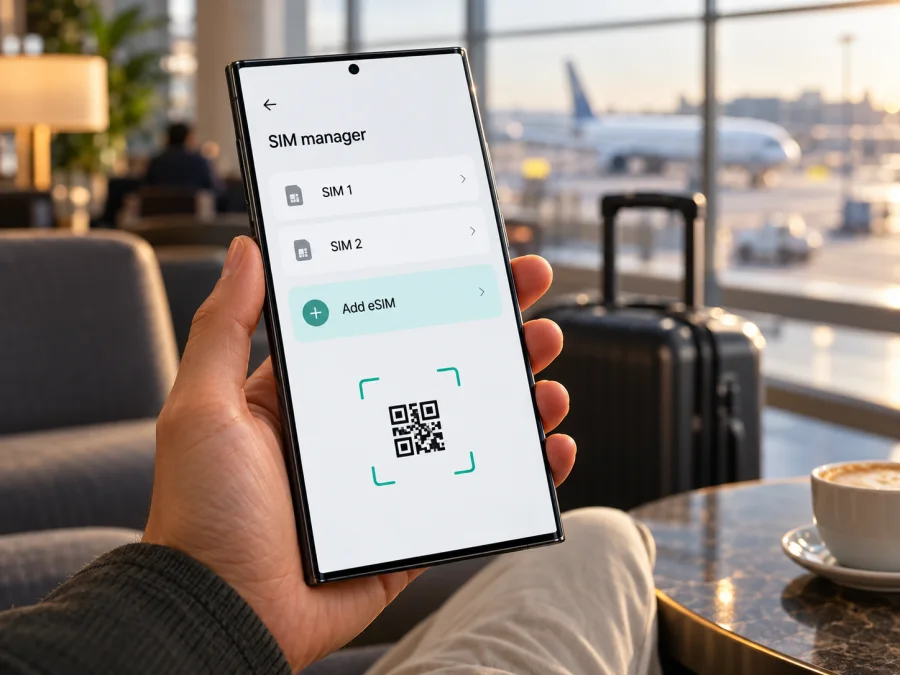
Samsung Galaxy S22 Ultra 512GB eSIM: compatibility and setup
Short answer: Samsung lists the Galaxy S22 Ultra among Galaxy phones that support eSIM, and Samsung has published a 512GB version of this model. That makes eSIM a reasonable expectation for many S22 Ultra 512GB variants, but the storage capacity by itself does not confirm that a particular phone has eSIM enabled. Samsung also says eSIM availability can depend on the country or region, the device model, software version and service provider. Check the handset itself before choosing a plan.
This distinction matters when buying a used or imported phone. “512GB” describes storage, while the model code, sales market, firmware and carrier status determine what connectivity features are available. Two phones with the same model name and capacity can therefore need different compatibility checks. The reliable answer for your handset comes from its EID and SIM Manager, followed by confirmation that the phone is unlocked and the eSIM plan can be used on that model in the destination.
Does Samsung Galaxy S22 Ultra 512GB support eSIM?
The Galaxy S22 Ultra family supports eSIM on compatible regional versions. Samsung's device lists include Galaxy S22, S22+ and S22 Ultra, and its S22-series setup guidance describes adding an eSIM. Samsung also warns that eSIM may not be available depending on the region, service provider or model. In other words, the family-level support is confirmed, but the exact answer for an individual Samsung Galaxy S22 Ultra 512GB depends on its specific hardware and software configuration.
The “512GB” suffix is not a separate radio or SIM specification. A 512GB phone does not gain or lose eSIM merely because of its storage size. Look for the complete model number in Settings > About phone and compare that exact device with the seller's regional specification. A listing title, box sticker, or the word “Ultra” alone cannot establish that the eSIM menu is enabled.
| Item | What it means for eSIM |
|---|---|
| Device family | Samsung lists the Galaxy S22 Ultra as an eSIM-capable Galaxy model. |
| Storage tier | 512GB is storage capacity; it does not independently prove eSIM support. |
| Regional version | The country where the handset was made for sale can affect feature availability. |
| Software | Menu names and availability can vary with software and device configuration. |
| Operator status | A carrier-locked phone may restrict use of another provider's plan. |
| Travel plan | The eSIM provider must support the handset and offer service in the destination. |
Regional model and operator are different checks
Start by identifying the phone's sales-market variant, not simply where you are standing now. Samsung's support guidance notes that a Galaxy model can be on the supported-device list and still lack eSIM depending on its country of origin. A phone bought abroad may keep that regional configuration when used at home or while travelling. A change of country does not turn on a missing eSIM function.
Then check the operator market. This is the mobile operator whose SIM is currently in the phone, or the carrier that sold and locked it. Operator support affects whether a plan can be provisioned and whether the handset is unlocked. It is a separate question from the phone's country-of-origin variant. For example, a compatible model can still reject a travel plan if the device is carrier-locked, while an unlocked handset can still lack eSIM if its regional variant does not expose the feature.
Finally, check the destination market for the plan you intend to use. Destination coverage and local network support depend on the plan's terms and partner networks. They do not establish that the phone has an eSIM, and a supported phone does not guarantee service in every country. Confirm both sides before purchase: this exact handset can add eSIM, and the selected plan covers the country or route you need.
Check the EID and Add eSIM option
An EID is the identifier associated with a device's embedded SIM hardware. It is a useful check, but confirm it alongside the menu rather than relying on a single label. On the phone:
- Open Settings.
- Tap About phone.
- Open Status information or Status and look for EID. The exact menu wording can differ by software version.
- Return to Settings > Connections > SIM manager.
- Look for Add eSIM, Add mobile plan, or a similar option.
You can also dial *#06# in the Phone app on some software versions to display device identifiers. If an EID is shown, record it only for a carrier or provider that specifically needs it; do not post it publicly. If there is no EID and no Add eSIM option, treat compatibility as unconfirmed. Restart the phone, install available software updates, and check again. If the option remains absent, ask the seller or original operator to confirm eSIM support for the full model code and sales region before buying a plan.
Use this quick checklist before you pay for a travel eSIM:
- [ ] The full model number and original sales region are known.
- [ ] An EID appears in Status information or another system identifier screen.
- [ ] SIM Manager offers Add eSIM or Add mobile plan.
- [ ] The handset is unlocked for use with another provider, if required.
- [ ] Android and carrier settings are up to date.
- [ ] The plan supports Samsung Galaxy devices and covers the destination.
- [ ] You have Wi-Fi or another internet connection for installation.
For another handset, check your device. Ask the retailer or current operator to verify the exact model code if any item is uncertain.
What to check before buying an eSIM plan
Before checkout, confirm the phone is unlocked for another provider, then review the plan's destination, data allowance, validity, activation timing and device limitations. Check when validity starts: at installation, first connection or another event stated in the terms. Keep the QR code accessible on a second screen and use Wi-Fi during installation. Some codes are single-use, so do not delete a profile unless the provider confirms it can be installed again.
Read the plan details for the country or region, data allowance, validity period, activation timing and any device or tethering limitations. Check whether validity begins when you install the profile, when it first connects to a supported network, or at another stated point. This detail determines whether installing the eSIM at home will start its validity before your trip. Follow the plan's own activation instructions, because providers may use different rules.
Make sure you can reach the installation code or instructions on a second screen, or save them somewhere accessible before beginning. Most QR codes cannot be scanned from the same phone display that contains them. Keep a Wi-Fi connection available until the profile has downloaded and the plan's activation steps are complete. Do not delete a profile just to troubleshoot unless the provider confirms it can be installed again; some QR codes are single-use.
Kaspersky eSIM Store is an app and website where you can choose, arrange and activate an eSIM with a mobile-data plan for an international trip. Check the destination and plan terms before choosing.
How to install eSIM on Samsung Galaxy S22 Ultra 512GB
Before you start, confirm the EID and Add eSIM option, unlock status, and plan compatibility. Connect to Wi-Fi, keep the QR code or activation details ready, and make sure you know when the plan validity begins. Menu labels differ slightly across Android and One UI versions; if your screen uses different wording, follow the closest SIM Manager option.
- Open SIM Manager. On the phone, go to Settings > Connections > SIM manager.
- Start adding a profile. Tap Add eSIM or Add mobile plan. If Samsung offers more than one method, select the one supplied with your plan.
- Scan the QR code. Choose Scan QR code or Scan carrier QR code, then point the camera at the code displayed on another screen or printed on the provider's instructions.
- Enter details manually if offered. If scanning is unavailable, use manual activation only when the provider has supplied the required activation information. Do not guess server addresses or codes.
- Review and download. Follow the on-screen prompts to download the eSIM profile. Keep the device connected to Wi-Fi and do not close the setup flow while it is installing.
- Name the line. Give the profile a label such as “Travel” or the destination name so you can distinguish it from your primary SIM.
- Choose how to use each line. Keep your usual SIM selected for calls and texts if needed, and select the travel eSIM for mobile data when the plan should begin. Check the provider's activation timing before switching it on.
- Enable roaming if required. Some travel plans need data roaming enabled on the travel eSIM. Enable it only for that profile if the plan instructions say to do so; avoid changing the roaming setting for your primary line by mistake.
- Confirm connection at the right time. When the plan is valid and you are in a supported destination, check that the travel profile is enabled and that mobile data uses it. Allow a few minutes for registration, then test a webpage.
Samsung describes QR-code setup in its Galaxy guidance. If the phone's screens differ, use the illustrated Android eSIM installation instructions. The iOS installation instructions are available for people travelling with a different device; they do not apply to setup on this Samsung phone.
Keep your main SIM available
An eSIM plan for travel is commonly intended for mobile data. Check the exact plan terms rather than assuming it includes a normal local phone number, voice calls or SMS. If you keep your home SIM active, your phone may still receive calls or messages on that line, subject to your operator's roaming charges and settings. The eSIM does not automatically disable those charges.
Before departure, decide which line should handle mobile data, calls and messages. Turn off automatic data switching if the phone might otherwise move data to your home SIM when the travel profile has a weak signal. If you rely on two active lines, verify the behavior on your software version: dual-SIM availability and simultaneous use can vary. Avoid making a test call or using data on the home line abroad unless you understand its roaming terms.
Using eSIM for mobile data while travelling
A simple travel routine reduces surprises. Install the profile over reliable internet at the time allowed by its validity rules. If validity starts on first connection, you may be able to install it before departure and leave it off until arrival; if validity starts at installation, wait until the appropriate time.
After arriving, open Settings > Connections > SIM manager and enable the travel eSIM. Set Mobile data to that line. If the plan requires roaming, enable Data roaming for the travel profile. Then check that the network name or signal indicator appears and open a lightweight webpage. A successful profile download only confirms that the eSIM installed; it does not prove that the plan has connected to a network or that data is being routed through it.
For a multi-country itinerary, confirm that the plan covers every stop; a country-specific plan may stop working after a border crossing. Check included destinations and validity rather than relying on the plan name.
Track data use during the trip: maps, photo backups, video and app updates can use data quickly. Download maps over Wi-Fi, limit background backups if appropriate, and check the phone's data-usage screen.
Common problems and what to check
“Add eSIM” is missing
Confirm the model code and sales market, then look for EID. Restart and update the phone; if the option is still missing, ask Samsung support, the seller or original operator about that regional model.
The QR code will not scan
Increase the QR screen brightness, clean the camera and hold it steady. Check that the code is current and for the selected plan. If it is on the S22 Ultra display, show it on another device or use the provider’s manual method.
The profile does not download
Connect to stable Wi-Fi, turn off Airplane mode and check for software updates. Confirm the code is valid and unused. If setup stops, wait for an error message and share it with the provider; do not remove a partial profile unless instructed.
The eSIM is installed but there is no signal
Check destination coverage, enable the travel line and select it for mobile data. Toggle Airplane mode or restart the phone. Follow provider instructions for network selection or APN. Some plans connect only after arrival.
The phone connects, but data does not work
Select the travel eSIM for Mobile data and enable Data roaming for it if required. Check allowance, validity and the provider's APN, then briefly turn off Wi-Fi to test. If it fails, give the provider your destination, model code and software version.
The travel plan is rejected or the home SIM takes over
Check that the phone is carrier-unlocked and that the plan accepts this device and its regional variant. Review SIM Manager to ensure the travel eSIM is active and selected for data. Turn off automatic data switching if it sends data to the home SIM. If a message says the plan cannot be added, ask the seller or operator about the lock and ask the plan provider whether that QR code can be used again.
FAQ
Is eSIM support confirmed for every Samsung Galaxy S22 Ultra 512GB?
No. Samsung lists the S22 Ultra family as eSIM-capable, but warns that availability can depend on country of origin, model, service provider and software. Check the EID and Add eSIM option on your own phone.
Does 512GB mean the phone has eSIM?
No. Storage capacity is separate from the eSIM hardware and regional configuration. A 512GB label cannot replace the model-code, EID and SIM Manager checks.
Can an imported S22 Ultra use a travel eSIM?
Possibly, if that specific regional variant supports eSIM, the device is unlocked, and the plan is valid for the destination and model. Confirm each condition with the seller, current operator or plan provider before purchase.
Can I install the eSIM before my trip?
Often, but the right timing depends on the plan. Some plans start their validity when the profile is installed; others start on first network connection or at another defined event. Read the plan instructions and install it at the appropriate time while you have Wi-Fi.
Will the travel eSIM replace my normal number?
Usually a data-focused travel eSIM supplies mobile data, not a regular voice number or SMS service, unless its plan terms say otherwise. You may keep a physical SIM active for calls and messages, but check your home operator's roaming charges.
Should I delete an eSIM that is not connecting?
Not as a first step. Some activation codes cannot be reused after a profile is removed. Check the selected data line, destination coverage, roaming setting and APN first, then ask the provider before deleting or reinstalling the profile.
Final check: verify the phone, then choose a trip plan
For Samsung Galaxy S22 Ultra 512GB, the correct answer is eSIM support is available on compatible regional versions, but it is not guaranteed by the storage label alone. Confirm the full model code, find the EID, and check that SIM Manager offers Add eSIM. Verify that the device is unlocked and that its software is current. Then compare the intended plan's supported destination, data allowance, validity and activation instructions.
Once those checks are clear, use Kaspersky eSIM Store, the app and website, to choose, arrange and activate an eSIM with a mobile-data plan for your international trip. Prepare the profile at the right time, select it for mobile data on arrival, and keep the plan details available if you need to troubleshoot. A short compatibility check before purchase is the simplest way to avoid choosing a plan your exact phone cannot use.


