Travel connectivity guide
Samsung Galaxy S22 Ultra 8GB RAM eSIM Compatibility
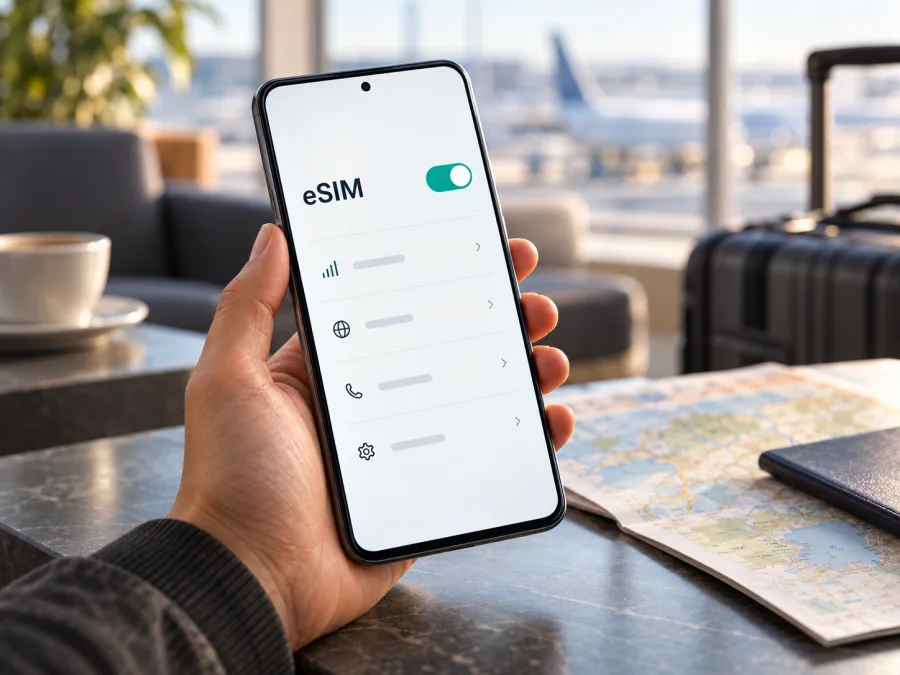
Samsung Galaxy S22 Ultra 8GB RAM eSIM: compatibility and setup
The Samsung Galaxy S22 Ultra 8GB RAM can use eSIM on supported regional versions. Samsung currently includes Galaxy S22 Ultra in its Galaxy eSIM compatibility guidance and describes eSIM setup for the S22 series. However, Samsung also warns that eSIM may be unavailable depending on a phone’s country of origin, model, software, and mobile provider. The “8GB RAM” description identifies a memory configuration; by itself, it does not identify the sales region or prove that the eSIM hardware and software are enabled on a particular handset.
So the practical answer is yes, conditionally: this model family supports eSIM, but confirm the exact phone in its settings before choosing or paying for a travel plan. Look for an EID and an Add eSIM option. If neither appears, do not assume that an update or a different eSIM QR code will add support. First verify the full model code and original sales market with the seller or Samsung support.
Does the Samsung Galaxy S22 Ultra 8GB RAM support eSIM?
Samsung’s current support list includes the Galaxy S22 Ultra. Its guidance also cautions that a listed Galaxy model may not support eSIM in every country of origin. Samsung’s Galaxy S22 Series setup information says eSIM availability can depend on region, service provider, and model. These qualifications matter because “Samsung Galaxy S22 Ultra 8GB RAM” does not specify a country code, carrier edition, or complete model number. RAM capacity is not the compatibility switch.
| Item | What can be said safely |
|---|---|
| Device named in this guide | Samsung Galaxy S22 Ultra 8GB RAM |
| eSIM status | Supported by the S22 Ultra model family in markets and versions where Samsung enables the feature |
| What the RAM detail tells you | It preserves the requested memory configuration, but does not identify the regional variant |
| What determines your handset’s result | Full model code, country of origin, firmware and carrier restrictions |
| Best confirmation | EID shown in phone information and Add eSIM present in SIM manager |
| Typical use | A compatible eSIM profile can provide mobile data for a trip, subject to its plan and local network availability |
A phone can have the same retail family name and RAM amount as another handset while differing in its regional software or cellular configuration. Imported and carrier-sold devices are especially worth checking. A phone may also be network-locked, which can prevent it from accepting a profile intended for another provider even if the hardware supports eSIM. Ask the seller for the complete model code and whether the device is unlocked; do not rely only on a marketplace title, box photo, or generic “dual SIM” label.
Check your exact device before buying
Use the phone itself as the first check. Menu wording can vary with One UI version and language, but the route is usually similar:
- Open Settings.
- Tap Connections.
- Open SIM manager (on some software versions it may be called SIM card manager).
- Look for Add eSIM or Add mobile plan.
- Open Settings → About phone → Status or Status information and look for an EID entry.
Samsung’s support guidance says the EID may also be printed on the phone’s original box. On a device that exposes it, the EID is a long identifier used to identify the embedded SIM; treat it as private device information and share it only when a legitimate setup process requires it. You can also try the dialer code *#06# and check whether the display includes an EID. The code and the menus can behave differently by software version, so use SIM manager and About phone as the primary checks.
Use this checklist before you select an eSIM plan:
- [ ] Add eSIM appears in SIM manager.
- [ ] An EID appears in Status information or the device information screen.
- [ ] The full model code is confirmed, not just the product family name and RAM.
- [ ] The seller or Samsung support confirms that this model code and country of origin support eSIM.
- [ ] The phone is unlocked for use with another provider’s eSIM.
- [ ] The plan covers every country or region on your itinerary and its validity fits your dates.
- [ ] You have a stable Wi-Fi connection for installation and understand when the plan starts using data.
The menu and EID checks are useful evidence, but they are not a substitute for confirming that the chosen plan can be used on your exact handset and in your destination. If the menu is missing, restart the phone, install any available official software update, and check again. Do not flash firmware from another region to force an option to appear: that can create additional problems and does not guarantee eSIM service.
Check your device before purchasing a plan. If you cannot confirm compatibility from the handset, pause the purchase and ask the device seller or Samsung support to check the complete model code and sales region.
Regional versions, carrier editions, and the 8GB RAM label
Samsung lists Galaxy S22 Ultra as eSIM-capable but warns that country of origin can change availability. That is a regional qualification: a handset may retain its original hardware and software configuration when used abroad. The exact “8GB RAM” unit in this task has no country code or complete model number, so the available evidence cannot confirm its market-specific configuration.
RAM capacity alone does not determine eSIM support. Check the full model code, original market, software, and carrier-lock status with the seller or Samsung. Ask whether the unit itself has an EID and Add eSIM in SIM manager. Carrier service is a separate requirement: an eSIM-capable phone still needs a plan that supports its device and destination.
How to install and activate an eSIM
Install the profile over reliable Wi-Fi, with the plan’s QR code or activation details ready. A QR code shown on the same phone usually needs to be opened on another screen or printed unless the provider offers a different setup method.
- Confirm support and unlock status. Check for an EID and Add eSIM; make sure the plan covers your destination.
- Connect to Wi-Fi. Keep the Samsung Galaxy S22 Ultra 8GB RAM charged and online during setup.
- Open SIM manager. Go to Settings → Connections → SIM manager → Add eSIM. Labels can vary by One UI version.
- Add the profile. Choose Scan QR code or the manual activation option and enter the supplied details exactly. Some providers offer direct download.
- Wait for installation. Follow the on-screen prompts until the profile appears in SIM manager. Name it “Travel data” if that helps you identify it.
- Select the data SIM. Choose the new eSIM for mobile data when you are ready. Keep your regular line for calls or texts only if you need it.
- Follow activation instructions. Enable data roaming for the travel profile only if the plan’s instructions require it. Installation, profile activation, and the start of data use may occur at different times.
- Test in the destination. When the plan is ready and you are in a covered location, briefly turn off Wi-Fi and load a page.
See the Android eSIM installation instructions. The iOS eSIM installation instructions are for a separate Apple device, not this Samsung phone. Follow the instructions for your specific plan if their steps differ.
Do not delete an installed profile as a first troubleshooting step. Some activation codes are single-use; if an error says the code has already been used, contact plan support before trying another installation.
Using the eSIM for mobile data on a trip
An eSIM profile and a travel plan may become ready at different times. Read the plan’s activation rules before departure: downloading a profile does not always start its validity or data use. If a scheduled activation option is offered, verify the date and time shown for your plan.
When ready to use it, open Settings → Connections → SIM manager, enable the travel profile, and select it for mobile data. Some plans require data roaming on that eSIM; follow the plan’s instructions and avoid enabling roaming on the home SIM unintentionally. Keep your regular line for calls or messages only if you need it and have checked possible home-provider charges. Dual-SIM behavior varies by device version and software.
A travel data eSIM can support maps, messaging, email, bookings, and other online tasks. Unless a plan explicitly includes them, do not expect a standard phone number, voice calls, or SMS. For a route through multiple countries, confirm that every destination is listed in the current plan terms. Estimate data use for navigation and work, and account for video, backups, hotspot use, and app updates, which can consume more data.
Kaspersky eSIM Store is an app and website where you can choose, arrange, and activate an eSIM with a mobile-data plan for an international trip. Explore Kaspersky eSIM Store to review current destination options and plan terms; this is the store homepage, not a country-specific offer. Check coverage destinations, allowance, validity, activation rules, and device compatibility before purchase.
Common problems and what to check
“Add eSIM” is missing
Check the complete model code and country of origin. Restart the phone, install official updates, and look again in Settings → Connections → SIM manager. If the EID is also absent from About phone → Status, ask Samsung or the seller whether this exact unit supports eSIM. Avoid unofficial firmware changes.
The QR code will not scan or the profile will not download
Check that the code is clear, belongs to the selected plan, and has not already been used. Connect to working Wi-Fi, turn off airplane mode, and display the code on another device if needed. If the error continues, save its exact wording and contact plan support.
The profile is installed, but there is no data
Make sure the eSIM is enabled and selected for mobile data. Confirm the plan covers your location and its activation conditions are met. Toggle airplane mode or restart the phone. Enable roaming for the travel eSIM only if instructed; enter access point details only when the provider gives them.
Signal appears, but pages do not load
Check remaining data, validity, and the selected data line. Retry where reception is better. Signal and performance vary by local network and location, so installation cannot guarantee service everywhere.
The home SIM or plan timing is unclear
Review which SIM handles mobile data and the home line’s roaming setting. Check separately when the profile is downloaded, activated, and starts using data; those events may differ. Contact support before deleting the profile if account details do not match the plan terms.
Practical scenarios
A one-country holiday: Check the country, data allowance, validity, and activation timing. Install over Wi-Fi before departure, then choose the travel eSIM for mobile data when the plan is ready. Keep the home SIM active only if you understand its roaming charges.
A route across borders: Verify every stop in the plan terms or choose a regional option that explicitly includes them. Do not assume that a plan marked “Europe,” “Asia,” or “global” includes a particular destination without checking its current list.
An imported or pre-owned phone: Inspect the unit you are buying. Confirm the model code, EID, Add eSIM menu, and unlocked status; a listing for a different S22 Ultra is not proof about this handset.
Frequently asked questions
Does the Samsung Galaxy S22 Ultra 8GB RAM support eSIM?
Conditionally, yes. Samsung lists the S22 Ultra family, but country of origin, exact model, software, and provider can affect availability. RAM does not identify the region. Check the EID and Add eSIM menu on your own phone.
Where can I find the EID?
Look in Settings → About phone → Status or Status information. Samsung says the EID may also appear on the original box. If it is missing, check for Add eSIM and confirm the regional model with Samsung or the seller.
Can I install the eSIM before travelling?
Often you can install it in advance over Wi-Fi, but profile installation does not always start the plan’s validity. Check the plan’s activation rules before enabling mobile data.
Can I keep my physical SIM and use eSIM as well?
The S22 series supports dual-SIM configurations that may combine a physical SIM and eSIM, though exact options depend on regional settings. Choose the mobile-data line in SIM manager and check home-provider charges before leaving that SIM active abroad.
What if I cannot confirm compatibility?
Wait to purchase until the seller or Samsung verifies the complete model code and market. If the phone has no EID or Add eSIM option after official updates, use another confirmed compatible unlocked device or a physical SIM option for your trip.
Before you travel: verify the phone, then choose a plan
For the Samsung Galaxy S22 Ultra 8GB RAM, Samsung lists the S22 Ultra family for eSIM but warns that country of origin and provider conditions can change what an individual unit supports. Confirm the EID, Add eSIM option, complete model code, and unlocked status before checkout; if any check is unclear, ask Samsung or the seller.
Then choose a travel plan by destination, expected data use, validity, and activation rules. Kaspersky eSIM Store’s app and website help you choose, arrange, and activate an eSIM with a mobile-data plan for an international trip. Review the plan terms, install it on a confirmed compatible phone, and select it for mobile data when ready.


