Travel connectivity guide
Samsung Galaxy S22 Ultra eSIM: compatibility guide
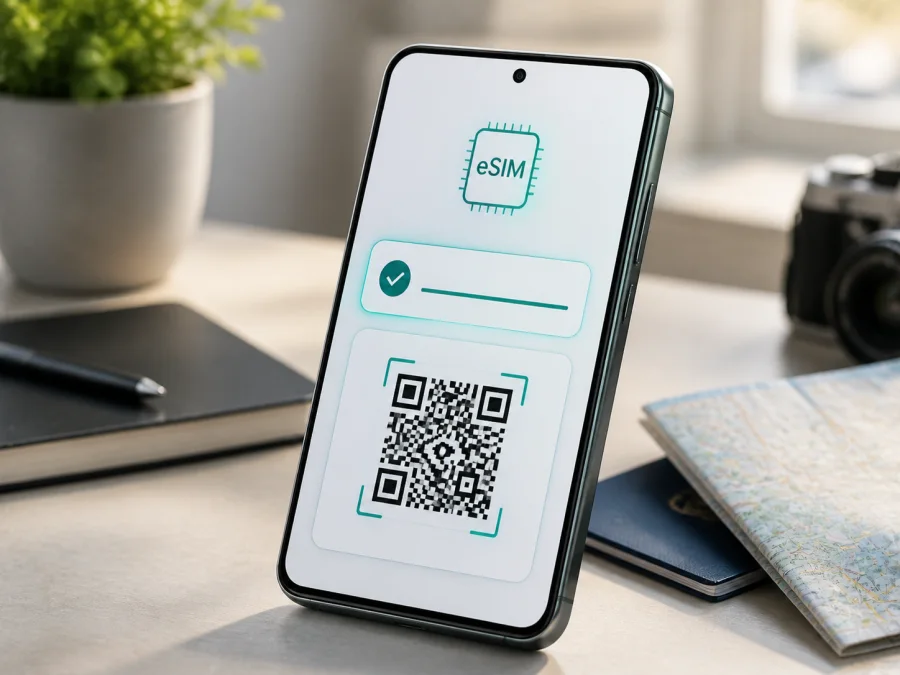
Samsung Galaxy S22 Ultra eSIM: compatibility, setup and travel guide
The Samsung Galaxy S22 Ultra is designed to support eSIM, but the answer for one particular phone is not based on the model name alone. Samsung lists embedded SIM alongside nano-SIM on supported variants and provides an eSIM setup path. It also warns that eSIM availability can depend on region, service provider, model and software version. An imported or carrier-customized unit may differ from a local version.
For the exact Samsung Galaxy S22 Ultra, look for an EID and Add eSIM or Add mobile plan. If both are present, the phone can download an eSIM profile. If neither is present, do not assume a new tariff will make it compatible.
Quick answer: does Samsung Galaxy S22 Ultra support eSIM?
Yes, compatible Samsung Galaxy S22 Ultra versions support eSIM in addition to a physical nano-SIM. The phone can use an eSIM for mobile data and may keep a physical SIM available for another purpose when the model and carrier allow it.
That answer is qualified because:
- The market matters. Regional variants can have different modem, SIM-tray and carrier configurations, so an imported phone may not expose the same eSIM menu.
- The carrier matters. A carrier can restrict activation or decline a profile for a device from another market.
- The software matters. Menu wording changes with One UI updates; a missing option calls for model and software verification.
The practical conclusion is: Samsung Galaxy S22 Ultra is eSIM-compatible when the individual variant exposes an EID and an eSIM installation option. Check before purchasing a travel tariff.
What the eSIM can do on this phone
An eSIM is a digital SIM profile stored in the phone. A travel eSIM tariff is commonly intended for mobile internet; it may not include a phone number, voice calls or SMS unless the tariff says so. Messaging, maps and other online services still work over data.
Supported Galaxy S22 Ultra variants describe a dual-SIM arrangement involving nano-SIM and embedded SIM. The active combination depends on model and carrier; do not infer it from the number of visible tray slots.
| Item | Samsung Galaxy S22 Ultra | Verify |
|---|---|---|
| eSIM | Supported on compatible variants | EID and eSIM menu |
| Physical SIM | Nano-SIM on supported models | Tray and SIM manager |
| Mobile data | Assigned to a selected SIM | Select travel eSIM |
| 5G | Bands vary by market | Network and tariff support |
| Dual SIM | Physical SIM plus eSIM may work | Model, carrier, software |
| Activation | QR, downloaded plan or manual | Supplied method |
| Travel use | Data on a compatible network | Destination and limits |
Storage capacity or colour does not prove eSIM support. The decisive details are model code, sales region, carrier configuration, software and the phone's own EID/menu state.
Regional and carrier differences to understand first
The name Samsung Galaxy S22 Ultra covers regional versions rather than one identical configuration sold everywhere. Samsung's support documentation describes eSIM activation but states that use may not be available depending on region, service provider or model.
An international model may have an eSIM chip but fail to activate a plan because the carrier does not support that device or route. Carrier software and network bands also vary; eSIM compatibility does not guarantee 5G.
Before travelling, open Settings → About phone and record model and software information. Do not publish the IMEI or EID. For an imported or carrier-branded phone, perform the checks below even if the seller says “eSIM ready.”
An operator lock is separate. A phone can contain an EID and still refuse a profile because it is locked. Confirm that it is unlocked and that the tariff covers the destination and network bands; an EID is not a guarantee that every plan will work.
How to check eSIM compatibility before purchase
Complete this inspection while the phone has a connection. Menu labels can vary by One UI version.
1. Find the EID
Open Settings → About phone → Status information and look for EID. On some versions it may appear in SIM or status details. The EID identifies the embedded-SIM function and differs from the IMEI. It is strong evidence of eSIM capability. Keep it private and share it only with a legitimate provider when needed.
2. Look in SIM manager
Open Settings → Connections → SIM manager. A compatible phone commonly shows Add eSIM, Add mobile plan or an equivalent option. View the methods, but do not install a profile until you have chosen the tariff.
The menu may offer a carrier QR code, a downloaded plan or manual activation details. Samsung's official instructions use SIM manager for these methods. If the option is missing or greyed out, check model code, software and carrier lock before buying.
3. Confirm both signs
- [ ] The phone is Samsung Galaxy S22 Ultra, not a similar Galaxy model.
- [ ] An EID is visible in status or SIM information.
- [ ] SIM manager shows Add eSIM, Add mobile plan or equivalent.
- [ ] The phone is not locked against the intended activation.
- [ ] The software is current enough to show the relevant SIM controls.
- [ ] The destination and network type are covered by the travel tariff.
- [ ] You understand whether the tariff is data-only and when validity begins.
- [ ] You have Wi-Fi for installation and will keep the QR code private.
For a second opinion before purchase, check your device compatibility using the exact model and the phone's own settings. This is more useful than a generic list because it accounts for the regional software installed on your handset.
Prepare a travel eSIM with Kaspersky eSIM Store
Once the checks pass, Kaspersky eSIM Store can help prepare connectivity for a foreign trip. It is an app and website where you can choose a destination, review eSIM tariffs, complete an order and activate the selected eSIM for mobile internet abroad. It is not a mobile operator, network owner or mobile-internet provider.
Choose the country, region or route that matches the itinerary. Review traffic, validity, start condition, network type, tethering and fair-use limits.
Keep the activation information accessible. The profile may be delivered through the app, account or QR code. Install it on a stable connection.
How to install and activate eSIM on Samsung Galaxy S22 Ultra
The process follows Samsung's Galaxy eSIM controls, but labels can vary. Keep the physical SIM if you need your home number, and do not delete a working profile until you need to.
Before installation
- Connect the phone to reliable Wi-Fi or another internet connection.
- Charge it if an update is pending.
- Have the QR code or details on another screen; the phone cannot scan its own code.
- Confirm destination, validity and device eligibility.
- Keep the code private; it may work only once.
See the Android eSIM installation instructions. The iOS eSIM installation instructions apply when the same tariff is installed on an iPhone; the Samsung steps below are relevant here.
Install from a QR code
- Open Settings.
- Tap Connections, then SIM manager.
- Tap Add eSIM or Add mobile plan.
- Choose the QR-code or carrier-code option.
- Scan the supplied code. If it cannot be scanned, use manual entry if offered and copy details exactly.
- Wait while the phone downloads the profile.
- Accept terms if shown and label the line, for example “Travel.”
- Choose whether the new eSIM is preferred for mobile data.
- Confirm that the line appears and is enabled; a listed profile is not necessarily the data line.
Configure mobile data for the trip
- Mobile data: select the travel eSIM rather than the home SIM.
- Calls and messages: keep the home SIM for its number if needed, or use messaging apps over the travel data line. Data-only eSIMs do not provide voice or SMS.
- Data switching: consider turning automatic switching off to avoid unexpected home-line roaming charges.
- Data roaming: enable it for the travel eSIM only when instructions require it. Many travel eSIMs use roaming agreements, but the correct setting depends on the tariff.
- Network selection: start with automatic selection. Use manual selection only if the tariff names a supported network.
Turn Wi-Fi off and test a website or map. Check that the data indicator belongs to the travel line. If installed before departure, keep the eSIM disabled until the stated start condition unless installation starts validity.
Practical travel scenarios
Keeping a home number while using travel data
Leave the physical home SIM enabled for its number if its roaming terms are acceptable. Set the travel eSIM as the data line and disable automatic switching. Watch background data on the home SIM.
Activating after landing
If validity starts on first connection, install over Wi-Fi before departure and keep it disabled. After landing, enable it, select it for data, enable roaming if required and wait for registration. If validity starts at installation, follow the purchase conditions.
Moving between countries
Verify that one regional tariff covers every stop. A country-only tariff may stop at a border. Check coverage, data line, roaming and balance when the network changes; do not delete the profile because of temporary loss of service.
Using hotspot
If allowed by the tariff, the Galaxy S22 Ultra can share data. Check the rules because laptop updates and streaming consume much more traffic than navigation.
Troubleshooting eSIM installation and mobile data
The EID is missing
Recheck About phone → Status information, update and restart. If there is still no EID or eSIM option, verify model code and sales region. The handset may be a regional or carrier version without eSIM.
The QR code will not scan
Increase screen brightness and remove glare. Make sure the code is for the intended tariff and unused. If manual activation is offered, enter the SM-DP+ address and activation code exactly as supplied.
The profile downloads but does not connect
In SIM manager, confirm that the eSIM is enabled and selected for data. Check APN only if instructions specify one. Verify roaming and destination coverage.
There is no service abroad
Wait in coverage, toggle airplane mode and retry. Make sure the travel line is active and selected for data. Try only supported networks. Check validity, data and fair-use limits.
Data uses the wrong SIM
Return to Settings → Connections → SIM manager and set the travel eSIM as preferred for data. Disable automatic data switching. Calls and data can use different lines.
Activation fails with a carrier message
The phone may be locked, the profile may already be installed elsewhere, the provider may not support the region, or the network may be unavailable. Save the error, check model and EID privately, and contact support. Do not share the QR code or reinstall repeatedly without guidance.
FAQ
Does every Samsung Galaxy S22 Ultra have eSIM?
No. Samsung states that availability can vary by region, service provider and model. EID and SIM manager checks are essential for imported, refurbished and carrier-branded phones.
Can Samsung Galaxy S22 Ultra use a physical SIM and eSIM together?
Supported configurations may allow nano-SIM and eSIM together. The combination depends on model, carrier and software. Check SIM manager after installation.
Does eSIM mean that 5G works everywhere?
No. eSIM does not add radio bands or guarantee 5G. Coverage, bands, local network, tariff and regional phone variant all matter. LTE may be available even when eSIM works.
Can I keep my home number?
Usually, you can keep a physical home SIM active for its number while selecting the travel eSIM for data. Check roaming charges and disable automatic switching. A data-only eSIM does not replace the home number.
Is a travel eSIM always cheaper than roaming?
Not always. Cost depends on destination, traffic, validity, home-operator conditions and tariff terms. Compare the stated options with your planned use.
Can I move the eSIM to another phone?
Do not assume so. Many profiles are issued for one installation or device. Check support information before deleting the profile or changing phones.
Conclusion: verify first, then choose a travel eSIM
Samsung Galaxy S22 Ultra is a strong candidate for travel eSIM use, with official Samsung documentation describing embedded SIM support on compatible versions. Confirm an EID, find Add eSIM or Add mobile plan, check for an operator lock and verify destination and tariff conditions before payment.
If checks pass, choose an eSIM tariff in Kaspersky eSIM Store for the itinerary. Review data, validity and activation timing, install over a stable connection, select it for data and test it before relying on it abroad. Monitor the balance and contact support if activation fails.
Final device and trip check
- [ ] Your exact Samsung Galaxy S22 Ultra shows an EID.
- [ ] SIM manager shows Add eSIM or Add mobile plan.
- [ ] The phone is unlocked or approved for the selected tariff.
- [ ] Destination, network type, validity and data allowance fit the trip.
- [ ] The eSIM is installed using the supplied QR code or activation details.
- [ ] The travel eSIM is enabled and selected for mobile data.
- [ ] Data roaming follows the tariff instructions.
- [ ] Automatic data switching is disabled if you want to avoid unintended roaming.
- [ ] You have tested mobile data and know where to check balance and support.
Check the device first, choose the eSIM for the trip second, and activate only when the profile and timing match your travel plan.


