Travel connectivity guide
Samsung Galaxy S23 128GB eSIM: Compatibility & Setup
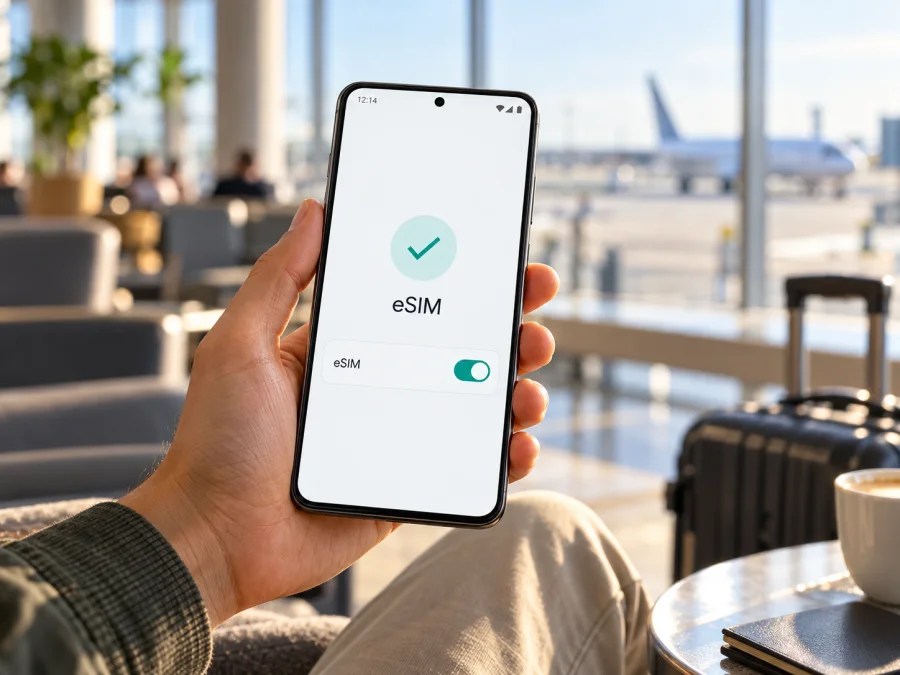
Samsung Galaxy S23 128GB eSIM: compatibility and setup
Short answer: Samsung lists the Galaxy S23 among its eSIM-capable phones, and its US Galaxy S23 business specification sheet includes both 128GB and Nano-SIM/eSIM configurations. That supports a positive answer for the model family: a Samsung Galaxy S23 128GB can use eSIM when the exact regional model, firmware and carrier configuration enable the feature. Storage capacity is not the deciding factor. Samsung’s Galaxy eSIM support guidance (checked 1 November 2026) cautions that availability can depend on the country of origin, so do not assume that every handset sold under this name exposes eSIM. Check the phone itself before buying a travel plan.
Does Samsung Galaxy S23 128GB support eSIM?
Usually, yes—subject to the exact regional variant and carrier configuration. Samsung lists Galaxy S23 as a supported eSIM device, and its US product specifications identify 128GB as a storage option alongside a Nano-SIM/eSIM slot configuration. There is no separate 128GB-specific eSIM limitation in those specifications. Still, a model name and storage size alone cannot establish that a particular unit has eSIM enabled.
| Check | What it tells you |
|---|---|
| Device name and 128GB capacity | Identifies the requested storage version, but not its full regional model or eSIM status. |
| Full model code | Helps Samsung or the seller identify the market-specific hardware and software variant. Find it under Settings > About phone. |
| EID shown in device status | Strong evidence that the phone has an eSIM identifier available. Check Settings > About phone > Status information; menu wording can vary. |
| Add eSIM in SIM manager | The most direct user-facing sign that the installed software exposes eSIM setup. Check Settings > Connections > SIM manager. |
| Network unlock status | Determines whether another provider’s profile can be used. eSIM hardware does not remove a carrier lock. |
| Travel-plan conditions | Confirm the destination, supported device, activation window, data allowance and validity before purchase. |
Regional versions, carriers and the 128GB label
“128GB” describes internal storage; it is not the region or carrier variant. The same retail name can refer to phones distributed through different Samsung country organizations, retail channels or mobile networks. Those units can have different model identifiers and firmware. Samsung’s global support guidance groups the S23 family as compatible but separately notes that origin country may affect eSIM. That regional caveat matters more than the storage amount.
A carrier variant adds another question: whether the handset is unlocked and whether the provider permits the specific eSIM profile. Some carrier configurations can limit SIM features, and a device can reject a travel profile even when the model family has eSIM hardware. Ask the original carrier to remove any lock before departure. Do not assume a new software update can remove a hardware or carrier-market limitation.
If the phone was purchased second-hand, reset, imported or previously used with a carrier, verify these points on the device and with the seller:
- The full model code shown in Settings > About phone matches the listing and sales region.
- EID appears in status information, and Add eSIM appears in SIM manager.
- The phone is not network-locked, blacklisted or still subject to an account or enterprise restriction.
- It runs current official software for its model and can connect to Wi-Fi during profile installation.
- The provider of the eSIM plan accepts that precise model and country variant.
If a seller cannot demonstrate the eSIM menu or provide a clear model code, treat compatibility as unconfirmed. A product listing that combines several S23 variants, a box label alone, or an online compatibility list cannot replace an on-device check. The 128GB part of the name should remain part of your search and comparison, but it should not be treated as proof of compatibility or incompatibility.
How to check your own phone before buying
Run these checks before you choose or pay for a travel data plan. Menu names may differ slightly by One UI version, language or carrier software.
- Find the model code. Open Settings > About phone and note both the model name and model number. Keep the full code when contacting Samsung or the seller; “Galaxy S23” by itself may not identify a market variant.
- Look for an EID. Open Settings > About phone > Status information and look for EID. Samsung also says the EID may be printed on the phone’s original box. Prefer the live handset display, since packaging can be mixed up. An EID is a useful confirmation, but the plan still needs to be accepted by your model and destination network.
- Look for eSIM setup. Go to Settings > Connections > SIM manager. If the device supports the feature in its current configuration, you should normally see Add eSIM or a comparable eSIM option. Don’t start adding a plan just to test the menu.
- Check the lock. Ask the carrier that sold the phone whether it is unlocked for another provider. An EID does not confirm that the device is unlocked.
- Check the plan’s terms. Confirm that it is a data plan for your destination and travel dates, that the exact handset is accepted, and whether installation, activation or first network connection starts its validity period.
- Keep Wi-Fi available. A working internet connection is normally needed to download a profile. Install before travel only if the plan’s instructions allow it and you know when the plan starts.
Check your device before selecting a travel plan. Compatibility involves the actual handset, its lock status and the profile’s requirements—not just a model family name.
What eSIM does on a Galaxy S23
Install and activate an eSIM
Samsung’s support instructions place setup at Settings > Connections > SIM manager > Add eSIM. Depending on the eSIM provider and software, you may scan a QR code, use an activation method provided by the service, or enter details manually. Follow the specific instructions supplied with your plan; activation flows are not identical across providers.
Before you begin
Before scanning, confirm that the phone is unlocked, eSIM controls are present, Wi-Fi works and the plan’s QR code is ready on a separate screen. Check whether the provider recommends installing before departure and when validity starts. Keep the code private: it may be single-use.
QR-code setup
- Open Settings > Connections > SIM manager.
- Tap Add eSIM. If prompted, choose Scan QR code.
- Scan the code supplied for your specific plan. If it is on the same phone, display it on another device or use a manual-entry option if the provider offers one.
- Read the on-screen summary and confirm that you want to add the mobile plan. Wait for the download to finish; do not close Settings or disconnect from Wi-Fi midway.
- Give the new line a clear label, such as “Travel data,” so it is easy to distinguish from your home SIM.
- In SIM manager, select the preferred line for Mobile data. Keep calls and texts on your home SIM if that is what you want.
- Follow the plan’s activation instructions. Depending on its terms, activation may occur during setup, at a scheduled time or when the phone first connects to a supported network. Do not guess the start time.
- Once the plan should be active, check the signal and open a simple web page. Enable data roaming for the travel eSIM only if its instructions require it. Confirm the selected data line before browsing.
Samsung’s current Galaxy eSIM instructions also note that a restart may be needed for a downloaded profile to apply. If prompted, save your work and restart. See the Android eSIM installation instructions for this phone; the iOS eSIM installation instructions are useful if you are helping a traveller with an Apple device.
Choosing the right line after installation
In Settings > Connections > SIM manager, verify that the travel eSIM is switched on and selected as the mobile-data line when you intend to use it. If you keep your home SIM active, disable data roaming on that line if you want to avoid unintended roaming charges. This does not disable the SIM itself, so calls and messages may still arrive according to your home provider’s terms. For the travel eSIM, set data roaming only as directed by its instructions. Providers can route service differently, so a generic rule to turn roaming on or off for every plan is unreliable.
Use Samsung Galaxy S23 128GB for mobile data while travelling
Think of setup in three stages: prepare the profile, choose the correct line, then confirm service in the destination. Installing an eSIM is not the same as having mobile service. The profile must be active under its terms, the phone must be unlocked and compatible, and the visited network must be available to that plan in the place you are using it.
Kaspersky eSIM Store is an app and website where you can choose, arrange and activate an eSIM with a mobile-data plan for an overseas trip. Browse travel eSIM plans to check current options, then select your destination and read the plan details; the homepage is a general entry point, not a specific country tariff. Confirm the data amount, validity and activation terms before deciding.
Common trip patterns call for slightly different checks:
- A weekend in one country: check the plan’s start trigger against your arrival time, and estimate data for maps, messages and reservations.
- A multi-country itinerary: verify each destination is included, and confirm how the plan behaves when the phone connects in a new country.
- Keeping your home number reachable: choose the eSIM for data, keep the home SIM for calls or texts if needed, and check its separate roaming charges with your home provider.
Common problems and checks
“Add eSIM” is missing
First confirm that you are looking under Settings > Connections > SIM manager, not only in the general network menu. Restart the phone and install available official software updates, then check again. Record the exact model code and ask Samsung or the seller whether eSIM is supported for that country-of-origin variant. If the phone is carrier-branded, ask the carrier whether the device is locked or its software restricts eSIM. Do not buy a plan until the device-specific status is clear.
The QR code will not scan or the profile will not download
Increase screen brightness on the display showing the QR code, clean the camera lens and hold the code steady. If the phone cannot scan its own screen, show the code on another device. Check Wi-Fi and verify that the QR code belongs to this purchase and has not already been used. If there is a manual-entry option, enter the details exactly as issued. Do not repeatedly retry an expired or single-use code; contact the plan’s support channel with the order details instead.
The profile is installed, but there is no signal
Confirm that the eSIM is enabled and that you have reached a location included in the plan. Check the activation timing, line selection, airplane mode and whether the plan requires data roaming. Turn airplane mode on briefly and off, or restart the phone if Samsung prompts you to apply the profile. If automatic network selection fails, follow the provider’s directions before choosing a network manually. A phone cannot attach to a network that the plan does not support in that location.
Signal appears, but data does not work
In SIM manager, select the travel eSIM as the mobile-data SIM. Check that mobile data is enabled and that any required roaming setting is enabled for that line. Turn Wi-Fi off for the test, then open a basic website. Review the plan’s allowance, validity and activation status. If a provider supplied an APN setting, compare it character by character with the instructions; do not add a guessed APN. If you use a VPN or a restrictive work profile, temporarily check whether it affects access only if doing so fits your security policies.
The travel eSIM works, but the home SIM does not behave as expected
Review the separate defaults for mobile data, calls and messages in SIM manager. Check whether the home line has been disabled, whether it is roaming, and whether your home provider permits calls or texts abroad. Keep data assigned to the intended line. Remember that the price and availability of calls, SMS and roaming are controlled by the relevant mobile provider, not by the travel data plan unless its terms say otherwise.
Compatibility checklist before purchase
Use this checklist each time you are choosing a travel plan for the Samsung Galaxy S23 128GB, especially if the phone was imported or bought used:
- [ ] EID is visible in the phone’s status information, or Samsung confirms the variant’s eSIM capability.
- [ ] Add eSIM appears in SIM manager on the actual handset.
- [ ] The phone is unlocked for use with another provider’s profile.
- [ ] The seller’s full model code and country of origin are known.
- [ ] The plan’s device requirements include this exact phone configuration.
- [ ] The destination or every country on the route is included in the plan.
- [ ] You understand the data allowance, validity, activation trigger and any required roaming setting.
- [ ] You can connect to Wi-Fi during setup and know how to contact plan support.
If the answer to a key compatibility check is unknown, pause the purchase until Samsung, the original carrier or the seller can confirm it. That is safer than relying on a generic model list and discovering after landing that the exact variant cannot add the profile.
Frequently asked questions
Does the 128GB version support eSIM?
Samsung’s US specification sheet lists Galaxy S23 with 128GB storage and Nano-SIM/eSIM. The 128GB capacity itself is not an eSIM restriction. However, Samsung warns that availability can depend on the phone’s country of origin, so check the exact handset’s EID, SIM manager and model code.
Is eSIM supported on every Samsung Galaxy S23 sold worldwide?
Samsung lists the S23 family as eSIM-capable, but its regional guidance says eSIM may not be supported for some countries of origin. Carrier restrictions and software configuration can also matter. Verify the actual phone rather than assuming every retail variant has identical features.
How do I know if my Samsung Galaxy S23 128GB has eSIM?
Look for an EID in Settings > About phone > Status information and for Add eSIM under Settings > Connections > SIM manager. Confirm that the phone is unlocked. If the menu is absent or the EID cannot be found, give the full model code to Samsung or the seller for a variant-specific answer.
Can I use a physical SIM and travel eSIM together?
A compatible S23 can support a physical SIM and eSIM configuration, but the available active SIM combinations and carrier behavior depend on the model and software. Choose the preferred mobile-data line in SIM manager and check your home provider’s roaming terms before travel.
Final check: prepare the phone and plan together
Samsung Galaxy S23 128GB is part of a model family that Samsung identifies as eSIM-capable, and its US specification sheet lists a 128GB Nano-SIM/eSIM configuration. The remaining question is the exact phone: regional origin, firmware and carrier lock can change what is available. Check the EID and Add eSIM control on your handset, confirm the model code and unlock status, then compare those details with the plan’s requirements before paying. Choose a destination and review current options on the Kaspersky eSIM Store app or website only after these checks.


