Travel connectivity guide
Samsung Galaxy S23 256GB eSIM: Setup Guide
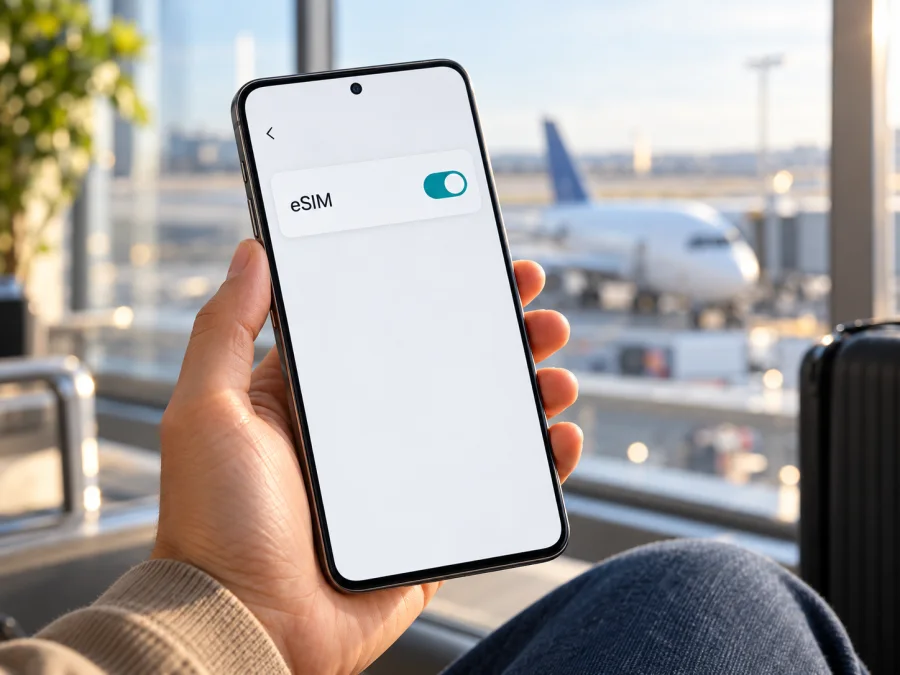
Samsung Galaxy S23 256GB eSIM: compatibility and setup
Short answer: Samsung’s current Galaxy eSIM support information lists the Galaxy S23, and Samsung’s U.S. specification sheet for a 256GB Galaxy S23 configuration identifies its SIM type as Nano SIM/eSIM. That means a Samsung Galaxy S23 256GB can support eSIM in documented markets. It is not a guarantee for every phone sold under that name: Samsung cautions that eSIM availability can depend on the country of origin, and the precise model code, firmware and carrier restrictions matter. Before choosing a travel plan, confirm that the individual phone shows an EID or an Add eSIM option and is not carrier-locked.
The “256GB” in Samsung Galaxy S23 256GB describes storage capacity. It does not identify the country version, carrier variant, or eSIM configuration. If the phone was imported, bought second-hand, or supplied by a mobile operator, check the phone itself rather than relying on the listing title. The steps below help you do that before making a purchase or travelling.
Does Samsung Galaxy S23 256GB support eSIM?
In supported regional configurations, yes. Samsung lists the Galaxy S23 family among eSIM-capable Galaxy devices in its current support guidance. Samsung’s U.S. specification sheet for the Galaxy S23 lists both 128GB and 256GB storage options and “Nano / eSIM” as the SIM slot type. These official details support eSIM use on a 256GB configuration in that market.
The limitation is regional. Samsung’s support pages also state that a listed model may not support eSIM depending on its country of origin. The model name and storage size alone cannot tell you whether a particular handset has the feature enabled. In practice, local regulations, the exact hardware or sales variant, carrier firmware, software version, and the carrier’s own activation policy can affect what you see. A phone can also be locked to its original operator even when its hardware is eSIM-capable.
| Check | What it tells you | What it does not prove |
|---|---|---|
| Product name: Samsung Galaxy S23 256GB | Identifies the phone family and storage capacity as described by the seller | The country variant, carrier lock status, or eSIM availability on this unit |
| Samsung support list includes Galaxy S23 | Samsung recognises the family as eSIM-capable in supported configurations | That every device sold in every country has eSIM enabled |
| U.S. 256GB specification lists Nano SIM/eSIM | An official 256GB Galaxy S23 configuration supports an eSIM alongside the listed SIM type | That an imported or operator-specific unit has the same configuration |
| An EID appears in the phone’s settings | The phone reports an embedded SIM identifier | That a particular travel plan, network, or country is compatible |
| “Add eSIM” appears in SIM manager | The software exposes the eSIM installation pathway | That the phone is unlocked or that a selected plan will work there |
Samsung’s official support and product information was checked on 1 November 2026. The 256GB SIM detail above applies to a U.S. market configuration; verify your own phone’s model code, settings and unlock status.
Why regional versions matter
Galaxy phones can have different model codes and software configurations across markets. Two phones with the same retail name and the same 256GB capacity may have been intended for different countries or sold through different carriers. One may show the eSIM controls while another may not. A local SIM tray is not evidence either way: a phone may accept a physical SIM and also have an embedded SIM, while another configuration may differ.
For a new or used phone, ask for the full model code, original sales country and confirmation that the unit is unlocked and supports eSIM. “Dual SIM,” “5G,” an IMEI or storage size alone are not proof. If the exact variant is unclear, check live settings before committing to a plan.
A carrier may support eSIM but still reject a profile on a locked device or require account-specific activation. Check both handset compatibility and plan eligibility for your model and destination.
Check the phone before buying a plan
Run these checks on the Samsung Galaxy S23 256GB that you will actually take on your trip. They take only a few minutes and can prevent a last-minute setup problem.
- [ ] Look for Add eSIM. Open Settings → Connections → SIM manager. Check for Add eSIM or a similarly named mobile-plan option. Labels can differ by software version and market. You do not have to download a profile just to check whether the option is present.
- [ ] Look for an EID. Open Settings → About phone → Status information or SIM card status and look for EID. On some software versions, search Settings for “EID” or check SIM manager. An EID is the identifier associated with the embedded SIM; it is different from the IMEI and from your phone number. Do not post it publicly.
- [ ] Confirm the exact model. In Settings → About phone, note the model code as well as the displayed product name. Compare it with the packaging or purchase record if available. A seller’s title may omit the regional suffix.
- [ ] Check the network lock. Contact the original carrier or seller and ask whether the device is unlocked for another provider’s eSIM. Seeing an EID does not remove a carrier lock.
- [ ] Update and restart. Install available system updates, restart the phone, then check SIM manager again if the eSIM option was missing. An outdated system or temporary software problem can hide or disrupt setup controls.
- [ ] Check the plan conditions. Confirm that the plan covers every country or region on your route, supports eSIM installation on Android, and states when its validity begins. Check the data allowance and expiry against how you expect to use maps, messaging, browsing and calls over the internet.
- [ ] Keep a connection for setup. Have reliable Wi-Fi or another working data connection available while downloading the profile. Keep the QR code or activation details private and accessible on a separate screen if you need to scan them.
Check your device compatibility before you choose a plan. If both EID and Add eSIM are absent after updating and restarting, do not assume that the phone is defective or compatible based only on the S23 name. Ask Samsung or the seller to confirm the model code and country variant. If the phone is operator-supplied, ask that carrier about its lock and eSIM policy as well.
Set up eSIM on Samsung Galaxy S23 256GB
The menu names below follow the typical Samsung Android pathway. The exact wording can vary with One UI version, region and carrier. Keep the plan’s installation instructions nearby: some providers use a QR code, some offer manual activation details, and some use an app. Do not try to reuse or transfer a profile unless its terms permit it.
For Samsung setup screenshots and additional Android guidance, see Kaspersky eSIM Store’s Android installation instructions. The iOS installation instructions apply to Apple devices; they are included here for travellers setting up a separate iPhone, not for this Galaxy phone.
Install the profile with a QR code
- Prepare the phone. Connect to stable Wi-Fi, install system updates if needed, and make sure the phone has enough battery to complete setup.
- Check the plan details. Confirm that the eSIM is intended for your destination and note whether validity starts when you install it, when it first connects, or on another stated date. These rules depend on the plan.
- Open SIM manager. On the phone, go to Settings → Connections → SIM manager.
- Start adding an eSIM. Tap Add eSIM. If your version uses a different label, follow the option for adding a mobile plan.
- Choose QR scanning. Tap Scan QR code or the equivalent option, then point the camera at the code supplied with your plan. If the QR code is displayed on the S23’s own screen, open it on a second device or print it; the phone cannot scan its own display.
- Confirm the download. Review the on-screen prompts and approve adding the mobile plan. Wait until the profile finishes downloading. Keep the phone connected to Wi-Fi during this step.
- Name the profile. If prompted, give it a clear label such as “Travel data” so you can distinguish it from your regular SIM.
- Check SIM manager. Confirm that the new eSIM appears in the list. Installation places the profile on the phone; it does not always mean the plan has started or that a destination network is available yet.
If the provider gives manual activation details rather than a QR code, use the manual entry option only if it is shown and follow the provider’s exact instructions. Copy the activation address and code carefully. Treat both the QR code and activation code as private: someone else may be able to use them to install the profile. If installation fails, stop before repeatedly retrying a one-time code and contact the plan provider for the correct next step.
Select it for mobile data
- Open Settings → Connections → SIM manager and make sure the travel eSIM is enabled when you are ready to use it.
- Under preferred SIMs or mobile data, select the travel eSIM for Mobile data if the plan is intended for data use.
- Keep your regular SIM selected for calls or messages if you still need it, but review your home carrier’s roaming terms before leaving it active abroad.
- Open Settings → Connections → Mobile networks and enable Data roaming for the travel eSIM only if the plan’s instructions require it. This setting is sometimes needed for a travel eSIM to connect to a partner network. Follow the plan’s own directions.
- If the provider supplied an APN (access point name), enter that value exactly where directed. An APN tells the phone how to connect for data. Do not guess it or copy one from an unrelated plan.
- When you reach the destination, turn off Wi-Fi briefly and load a simple webpage to check mobile data. If it does not connect immediately, wait a few minutes and check the troubleshooting steps below.
Installation and activation may be separate: validity can start at installation, first network connection or a scheduled time. Check the plan’s terms before installing early. If the eSIM will not connect, do not delete it until you have checked whether it can be reinstalled.
Using the S23 for data while travelling
A travel eSIM can provide mobile data while your usual SIM remains available, depending on model and plan. In SIM manager, decide which profile should handle data and whether to keep the regular line active for calls or messages.
Before the trip, match the plan to your route; do not assume that one country’s plan covers nearby destinations. Check data allowance, validity, destination availability and any fair-use or tethering conditions. Navigation and messaging use less data than video calls or streaming, so download maps and travel documents over Wi-Fi if useful.
When you land, select the travel eSIM as the mobile-data SIM. If required by the plan, enable data roaming for that profile. Turn off data roaming on your home SIM if you want to avoid accidental roaming charges, and check your carrier’s terms before making calls or sending SMS. A data-only eSIM does not automatically provide a regular phone number, conventional voice calls or text messages. Internet calling and messaging apps can work over data, subject to each app’s requirements and the plan’s terms.
On a multi-country trip, verify each destination in the plan’s current terms; a “regional” label or map thumbnail alone does not confirm coverage. Select the relevant data profile and allow time for network registration.
Kaspersky eSIM Store is an app and website where you can choose, arrange and activate an eSIM with a suitable plan for mobile data on an international trip. It does not operate a mobile network or provide mobile internet service itself. Use Kaspersky eSIM Store to browse destinations and current plan details, then check the listed conditions against your route and the compatibility checks above before proceeding.
Common problems and what to check
“Add eSIM” is missing
Search Settings for “eSIM” or “SIM manager,” install system updates, restart the phone and look again. Confirm the full model code and country variant with the seller or Samsung. Samsung’s support guidance warns that a listed Galaxy model may not support eSIM in every country of origin. If the option remains absent, treat compatibility as unconfirmed and do not buy a plan on the strength of the family name alone.
There is no EID in Settings
Check About phone → Status information and SIM card status, then search Settings for “EID.” The menu location can vary. If no EID appears and Add eSIM is also missing after an update and restart, ask Samsung or the seller to confirm this exact handset’s configuration. An IMEI is not a substitute for an EID and does not prove eSIM support.
The QR code will not scan
Increase the screen brightness on the device showing the code, clean the S23 camera lens, and avoid reflections or a damaged printout. Keep the complete QR square in view. If the code is shown on the S23 itself, display it on another screen. If the camera reports that the code is invalid, check that it belongs to this plan and has not already been used. Do not share a screenshot of the code in a public forum.
The profile does not download
Confirm that Wi-Fi works by opening a webpage, then retry once from Settings → Connections → SIM manager → Add eSIM. Check for pending system updates and enough battery. If the activation details were entered manually, compare each character with the supplied information. A profile may be limited to one installation; ask the provider whether the code is still valid before deleting anything or repeatedly attempting setup.
The eSIM installs but shows no signal
Check whether the plan is meant to activate only at the destination or on a specific date. Verify that the profile is turned on and selected for mobile data. If instructed, enable data roaming for that profile and allow several minutes for registration. Check that airplane mode is off, restart the phone, and use automatic network selection unless the plan’s instructions specify a different network. Confirm that the destination is included and that the phone is unlocked. If the issue continues, contact the provider with the plan order details; never send your QR code publicly.
The phone connects, but data does not work
Check that the travel eSIM is selected for mobile data rather than the home SIM. Confirm that mobile data is enabled, and that data roaming is enabled for the travel line if required. If an APN was supplied, compare it character by character with the value in the phone’s settings and select the correct saved APN. Turn off Wi-Fi for a short test and open a basic webpage. Check that the plan is active, valid in your current country and has remaining data according to its account information.
The home SIM is using roaming data
Open SIM manager and verify which line is assigned to mobile data. Turn off data roaming for the home line if you do not want it to use mobile data abroad. You may choose to leave that SIM active for incoming messages or calls, but charges and availability depend on your home carrier. Review its terms and keep the travel eSIM assigned to data if that is your intended setup.
It worked on another phone but not this one
An eSIM profile is not necessarily transferable. Some profiles are bound to the first device on which they are installed, and the other phone may have a different country variant, lock status or software. Do not delete and reinstall the profile without checking its reinstallation conditions. Contact the provider that issued the profile and Samsung or the original carrier if you need help confirming device support.
FAQ
Does Samsung Galaxy S23 256GB have eSIM?
It can. Samsung lists Galaxy S23 among eSIM-capable Galaxy devices, and an official U.S. specification sheet for the 256GB configuration lists Nano SIM/eSIM. Samsung also says availability can depend on the country of origin, so verify the EID or Add eSIM option on your own unit before buying a plan.
How do I find the EID on Samsung Galaxy S23 256GB?
Look in Settings → About phone → Status information or SIM card status. Depending on the software, it may also appear in SIM manager or through Settings search. An EID is separate from an IMEI. If it is not visible, check Add eSIM and confirm the country variant with Samsung or the seller.
Can I install the eSIM before travelling?
Often you can install a profile before departure over Wi-Fi, but the timing and validity rules vary by plan. Read whether validity starts at installation, first connection or a specified date. If the instructions say to install only on arrival, follow them.
Before you travel
Samsung Galaxy S23 256GB is eSIM-capable in documented configurations, but the name and 256GB capacity do not establish that every regional or carrier version supports it. Check the full model code, look for an EID and Add eSIM, and confirm that the phone is unlocked. Then review the destination, data allowance, validity, activation timing and roaming instructions for the plan you intend to use.
Once the checks are complete, use Kaspersky eSIM Store—the app and website—to choose and activate an eSIM with a suitable plan for mobile data on your international trip. Keep the QR code private and save the plan instructions.


