Travel connectivity guide
Samsung Galaxy S23 8GB RAM eSIM: Compatibility
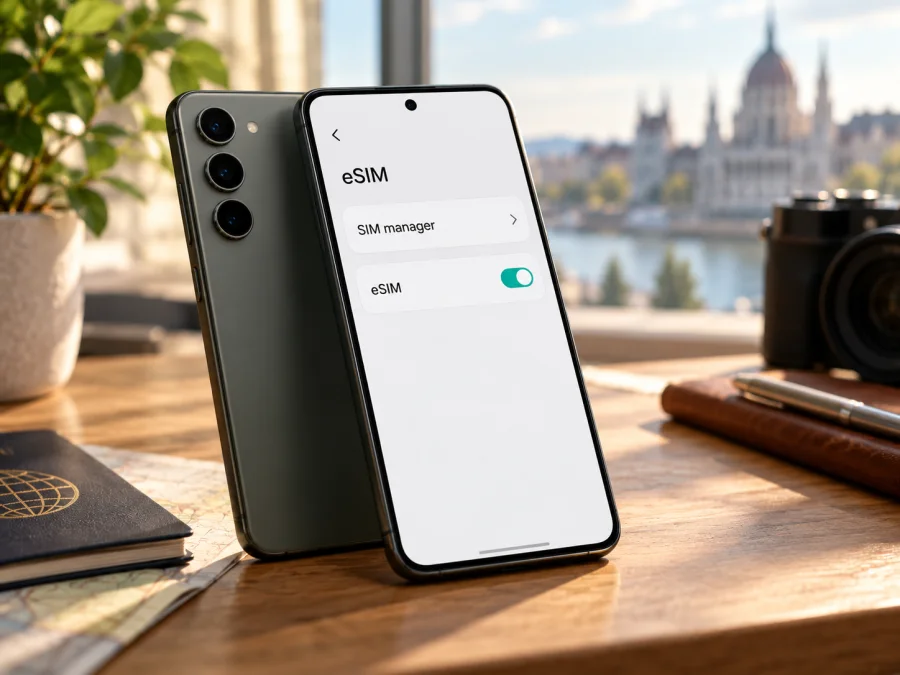
Does Samsung Galaxy S23 8GB RAM support eSIM?
Short answer: generally, yes. Samsung lists the Galaxy S23 family among its eSIM-compatible devices, and an official Samsung specification sheet for a US Galaxy S23 business configuration identifies 8GB memory and a Nano-SIM/eSIM slot type. However, “Samsung Galaxy S23 8GB RAM” does not identify the exact sales region, model code, carrier configuration, or software build. eSIM availability can differ by country of origin, device variant, carrier restrictions, and software. Check the actual phone before choosing or paying for an eSIM plan.
The 8GB RAM modifier describes the phone’s memory configuration; it does not by itself confirm that the particular handset has eSIM enabled. Do not rely only on the product title in a shop listing. Look for an EID and an eSIM option in Settings, and confirm the model code with the seller if you are buying the phone. Samsung’s regional support pages say that availability may vary by country and carrier, and that a device on a supported-family list may still lack eSIM in some countries of origin.
Samsung Galaxy S23 8GB RAM: eSIM at a glance
| Item | What to know |
|---|---|
| Exact device name in this guide | Samsung Galaxy S23 8GB RAM |
| eSIM answer | Supported on compatible regional and carrier variants; verify the individual phone |
| RAM variant | 8GB RAM is confirmed in Samsung’s US business specification for a Galaxy S23 configuration; RAM alone does not identify the market variant |
| Physical SIM | The cited Samsung US configuration lists Nano-SIM alongside eSIM; physical SIM arrangements vary by market and exact model |
| Practical on-device checks | Look for an EID and for Settings → Connections → SIM manager → Add eSIM (labels can vary) |
| Before selecting a travel plan | Confirm eSIM support, carrier unlocking, destination coverage, validity, data allowance, and activation conditions |
What the 8GB RAM name does and does not tell you
The phrase Samsung Galaxy S23 8GB RAM retains an important variant detail, but it is not a complete Samsung model number. The S23 name can refer to devices sold in different countries and through different operators. Those versions may have different model codes, SIM-tray arrangements, firmware configurations, and regional feature availability. Even where the hardware family supports eSIM, the feature may not be available on every regional device.
Check your exact handset before purchase
Use more than one check if the device’s origin is uncertain. A clear EID is a strong sign that the handset has eSIM capability, but you should also confirm that the eSIM controls are present and usable. Conversely, a missing menu or EID can indicate a regional variant without eSIM, but it may also reflect software, carrier configuration, or the location of the menu. If checks disagree, do not assume that the phone is compatible: confirm the model code with Samsung or the seller before buying a plan.
Compatibility checklist
- [ ] Read the full model code under Settings → About phone; do not stop at the marketing name or “8GB RAM.”
- [ ] Look for an EID under Settings → About phone → Status information. On some versions, dialling
*#06#also displays device identifiers; use it only as an additional check. - [ ] Open Settings → Connections → SIM manager and see whether Add eSIM or Add mobile plan appears.
- [ ] If the phone is already with a carrier, confirm that it is not network-locked and that the carrier allows eSIM use.
- [ ] Check that the phone has a working internet connection for profile download and activation.
- [ ] Confirm that the plan covers the destination and that its terms fit your travel dates and data needs.
For imported devices, the market where the handset was originally sold is especially useful; your current location alone does not identify its supported features.
Use each check for a separate question: the model code identifies the variant, EID and SIM manager show eSIM support, the carrier confirms unlocking, and plan terms confirm destination availability.
If you are checking a phone before purchase, ask the seller to show the EID and Add eSIM option on the actual device, not a stock image or another unit. Confirm the complete model code in writing and keep the return terms in mind if the listing does not specify the sales region. For a phone you already own, use the model code and software details when contacting Samsung or your carrier; this helps them distinguish the handset from other Galaxy S23 versions.
Find the EID
On many Galaxy software versions, open Settings → About phone → Status information and look for EID. The original box may also show it. If the identifier is absent, check *#06# where supported and compare the result with the model code; menu labels and available identifiers can vary by market, carrier, and software.
Check the Add eSIM menu
Open Settings → Connections → SIM manager. Look for Add eSIM, Add mobile plan, or an equivalent item. The exact label can change with One UI version, language, and operator customisation. If the control is present, tap only far enough to confirm that the phone offers the eSIM setup flow; you do not need to scan a plan QR code just to check the menu. Do not install an unknown profile as a test.
If the option is absent, restart the phone and check for an available software update over Wi-Fi. Then recheck the model code, EID, and SIM manager. If the device has an EID but no menu, the carrier or software configuration may be limiting the feature. If neither EID nor an add-eSIM control appears, treat compatibility as unconfirmed and get confirmation for that exact model code before purchase. A reset or unofficial firmware change is not a sensible first troubleshooting step and may create new problems.
For a concise next step, check your device’s eSIM compatibility. If you cannot find EID or the add-eSIM control, contact the seller or Samsung support with the exact model code before purchasing a plan. A listing that simply says “Galaxy S23” or “8GB RAM” is not enough to resolve a regional variant question.
How to install and activate an eSIM
Install the profile while you have a stable internet connection, preferably before departure. Keep the QR code or activation details available on another screen or in the account where you received them. A QR code is usually intended for one-time use; do not delete a working profile or scan the code repeatedly unless the plan instructions specifically say that you can reinstall it.
Samsung’s Galaxy setup guidance uses Settings → Connections → SIM manager → Add eSIM and supports scanning a QR code where offered. The wording may differ slightly on a carrier-branded phone or after a software update. Follow the instructions shown by the plan provider if they specify a different activation method.
Step-by-step setup
- Confirm compatibility. Check the EID, the Add eSIM option, the exact model code, and whether the phone is unlocked. Resolve any uncertainty before purchasing.
- Review the plan. Confirm the destination or region, data allowance, validity period, activation deadline, supported network arrangements, and whether the plan begins on installation or on first connection. Conditions differ by plan.
- Connect to the internet. Use reliable Wi-Fi or another connection while downloading the eSIM profile. Keep the phone charged and close to the QR code or activation details.
- Open SIM manager. On the phone, go to Settings → Connections → SIM manager and choose Add eSIM or the equivalent option.
- Choose the installation method. Scan the supplied QR code, install a plan offered directly in the setup screen, or enter details manually if the plan instructions provide that option.
- Follow the on-screen prompts. Give the profile a clear label such as “Travel” so that you can distinguish it from your home SIM. Wait for the download and activation process to finish; it can take several minutes.
- Choose the data line. In SIM manager, select the travel eSIM for mobile data when you want to use it. Keep your regular line selected for calls or messages if that suits your needs and your home carrier’s charges are understood.
- Set data roaming as instructed. Some travel plans require roaming to be enabled for the eSIM to connect to a partner network. Check the plan instructions and turn roaming on for the travel profile only if required.
- Test the connection. When the plan should be active, turn Wi-Fi off briefly and try a web page or map. If the plan starts on first network connection, do this when you are ready for its validity period to begin.
For Samsung-specific setup, see the Android eSIM installation instructions. For an iPhone or another device in your travel group, the iOS eSIM installation instructions provide a separate flow. These pages do not change the need to verify the exact Samsung variant before selecting a plan.
Using Samsung Galaxy S23 8GB RAM for travel data
After installation, select which SIM supplies mobile data. On Galaxy phones, open Settings → Connections → SIM manager and choose the travel eSIM under the mobile data preference. Leave the eSIM switched on when you want it to connect. If the plan is for data only, keep your usual number active for calls and SMS if the handset and your home service allow it. Check home roaming charges before leaving that line enabled; data switching can route data through another SIM and may lead to charges from your home operator.
Troubleshooting: when eSIM is missing or will not connect
“Add eSIM” is not shown
Check the exact model code and country of origin, then look for the EID in Status information and in the *#06# screen. Restart the phone and install official software updates if available. Check with the seller or carrier whether that specific unit supports eSIM and whether the carrier lock or firmware configuration affects it. Do not treat the S23 family name, RAM amount, or SIM tray as proof either way.
The QR code will not scan
Increase screen brightness on the device showing the QR code, clean the Galaxy camera lens, and hold the phone steady at a comfortable distance. Make sure the entire code is visible and not cropped. If the camera cannot read it, check whether the plan provider supplies manual activation details. Do not share the QR code publicly: it may contain information that can install the profile.
The profile download fails
Confirm that Wi-Fi or another working internet connection is available, turn off any temporary connection restrictions, and retry only in line with the provider’s instructions. Check that the QR code or activation details are valid and have not already been used. If you see an error, save the exact wording and contact the plan provider; a failed attempt may need their assistance rather than repeated scans.
The eSIM installs but shows no service
First confirm that the profile is switched on and selected for mobile data in SIM manager. Check that you are in a country included in the plan, that its validity has begun, and that the phone can connect to a supported local network. If the instructions require data roaming, enable it for the travel eSIM. Toggle Airplane mode on and off once, then restart the phone if needed. Network availability depends on local operators, the selected plan, and coverage at your location.
Data works on the wrong SIM or costs appear unexpectedly
Review the mobile-data line in SIM manager and switch off automatic data switching if you do not want the phone to use the other SIM when the preferred line is unavailable. Check the data roaming setting on each profile separately. Your home operator controls charges on your home line, so confirm its roaming terms before travel and monitor usage in the phone and plan account.
Frequently asked questions
Does Samsung Galaxy S23 8GB RAM support eSIM?
Samsung lists the Galaxy S23 series as eSIM-capable, but regional variants differ. Check the exact phone’s EID and Add eSIM menu before buying a plan.
Does 8GB RAM confirm eSIM compatibility?
No. RAM describes the memory configuration. It does not identify the sales region or confirm that eSIM is enabled on a particular handset. Verify the model code and device settings.
Where can I find the EID?
On many Galaxy software versions, go to Settings → About phone → Status information and look for EID. You can also check the phone’s identifier screen by entering *#06# where supported, or inspect the original packaging. Menu names and available identifiers can vary.
Final check before your trip
Samsung Galaxy S23 8GB RAM is in a device family that supports eSIM, and Samsung has documented an 8GB S23 configuration with Nano-SIM/eSIM. Because your exact phone’s market variant and carrier configuration matter, confirm the EID, check Add eSIM in SIM manager, and verify the model code before selecting a travel plan. If the checks are inconclusive, ask the seller or carrier to confirm that exact unit.
Once compatibility is established, choose a plan for the actual countries on your itinerary and compare its data allowance, validity, activation timing, and conditions with your needs. Kaspersky eSIM Store is an app and website where you can choose, arrange, and activate an eSIM plan for mobile internet during an international trip. Check the device before purchase, install the profile over a reliable connection, and select it for mobile data when you are ready to travel.
<section id="kesim-device-compatibility"></section>


