Travel connectivity guide
Samsung Galaxy S23+ 128GB eSIM: Setup Guide
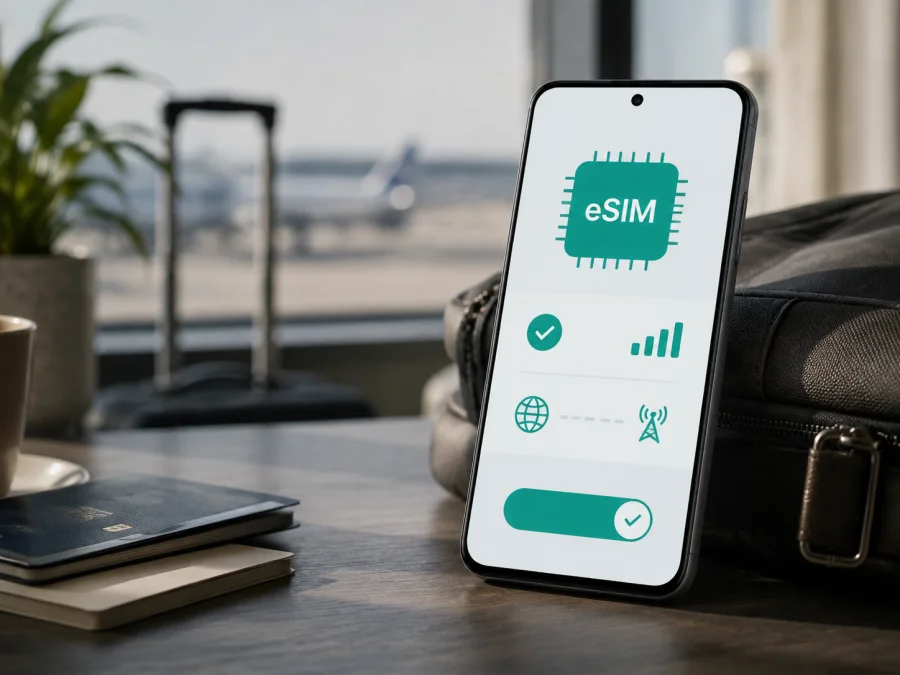
Samsung Galaxy S23+ 128GB eSIM: compatibility and setup
If you are checking whether the exact Samsung Galaxy S23+ 128GB can use eSIM for travel, the short answer is yes, this model family supports eSIM, subject to the regional and carrier configuration of the individual phone. Samsung’s current official material lists the Galaxy S23 series, including Galaxy S23+, among eSIM-capable devices. Samsung also warns that availability can depend on the country of origin, model, software version and service provider.
An eSIM is a digital SIM built into the phone. It adds a mobile plan without another physical nano-SIM. This can let you keep your regular SIM available for its number while using a separate eSIM profile for mobile data abroad. A travel eSIM available through Kaspersky eSIM Store is intended for mobile internet during an overseas trip. It is not automatically a replacement for your phone number: voice calls and SMS are not included unless the selected plan says otherwise.
Quick answer for Samsung Galaxy S23+ 128GB
Samsung’s official Galaxy S23+ specifications list Nano / eSIM as the SIM slot type and identify the phone as Dual SIM. Samsung’s support pages also list Galaxy S23, S23+ and S23 Ultra as supported devices and explain how to add an eSIM. This confirms that the requested 128GB model belongs to an eSIM-capable family.
The same retail name can cover different regional model numbers, carrier versions and firmware. A phone imported from another country may expose different SIM options, so confirm the EID, eSIM menu and lock status on the handset itself. If the EID and add-eSIM control are missing, do not purchase a plan until the configuration is confirmed.
Exact variant and key specifications
The requested device name is Samsung Galaxy S23+ 128GB. Preserve it when comparing listings; do not merge it with the 512GB version, another S23 model, or a different RAM or carrier label.
| Item | What it means here |
|---|---|
| Manufacturer and family | Samsung Galaxy S23+ |
| Storage | 128GB, exactly as requested |
| RAM | Not stated in the requested name; do not infer a different variant from RAM alone |
| Network generation | The family supports 5G, but bands and service depend on market and carrier |
| SIM type | Samsung’s relevant S23+ specification lists Nano / eSIM |
| Regional status | Confirm on the phone; country, carrier and firmware can affect eSIM access |
The 128GB figure describes internal storage; it does not switch eSIM support on or off. Likewise, 5G does not prove that a profile can be downloaded or register abroad. Treat storage, bands, device lock and eSIM access as separate checks.
Does Samsung Galaxy S23+ 128GB support eSIM?
Generally, yes. Samsung’s current support information includes Galaxy S23+ in its eSIM device list, and its specification sheet identifies Nano / eSIM.
For a particular handset, support is conditional. Samsung states that eSIM use may depend on region, service provider or model. Menu wording can vary with One UI and Android: you may see Add eSIM, Add mobile plan, or a QR-code command inside SIM manager.
The accurate conclusion is: the family supports eSIM, but your unit still needs an eligible plan, an unlocked or authorised status and a covered destination.
Regional, carrier and software differences
Galaxy S23+ phones were sold in multiple markets, so model numbers, SIM configurations, firmware and carrier policies can differ. Samsung’s regional support pages list the S23 series but caution that an otherwise listed device may not support eSIM in every country of origin. An imported unit must be checked separately.
A phone may contain eSIM hardware but reject a profile because it is carrier-locked or the plan is not provisioned for that model. Ask for the exact model number, country of sale and lock status.
Compatibility check before buying a plan
Run this checklist on the actual Samsung Galaxy S23+ 128GB:
- Find the EID. Open Settings → About phone → Status information. Depending on software, the entry may be under Status or discoverable by searching Settings for “EID”. The EID identifies the embedded SIM and is different from the IMEI.
- Find the eSIM command. Open Settings → Connections → SIM manager. Look for Add eSIM, Add mobile plan or an equivalent digital-SIM option.
- Confirm the QR path. Check that the add flow offers QR-code or activation-code entry. Do not scan a plan before you have reviewed and selected it.
- Check the lock. Confirm with the seller or carrier that another provider’s eSIM is allowed.
- Update and restart. Connect to Wi-Fi, install available software updates, restart and repeat the EID/menu check.
- Check the destination. Make sure the eSIM plan covers the country, region or route where you need mobile data.
- Read the conditions. Review allowance, validity, activation timing, supported networks, hotspot rules, top-ups and refund terms.
- Keep an installation connection. You need Wi-Fi or another working data connection to download the profile.
Check your device compatibility again before payment if the phone is imported, refurbished, second-hand or supplied by a carrier. An on-device result is more reliable than a broad statement that every S23+ handset is identical.
#kesim-device-compatibility
| What you see | What it indicates | Next step |
|---|---|---|
| EID and Add eSIM are present | The handset appears ready for a digital SIM profile. | Confirm plan, destination and lock status. |
| EID is present but Add eSIM is absent | Hardware evidence exists, but region, software or carrier policy may limit access. | Update the phone and ask the seller or carrier to confirm. |
| Add eSIM is visible but EID is not found | The EID may be on another Status screen, or the configuration may be limited. | Search Settings, restart, update and verify the model number. |
| Neither is visible | eSIM support is not confirmed for this unit. | Do not buy a plan until the configuration is confirmed. |
How to install and activate an eSIM
These steps follow Samsung’s current Galaxy guidance. Labels may vary slightly by software version. Before starting, have the QR code or activation details on another screen or printed page. A stable Wi-Fi connection is recommended.
1. Prepare the phone
Connect the phone to Wi-Fi. Charge it, install available software updates and unlock the screen. Check the destination and conditions of the plan before downloading it.
2. Open SIM manager
Open Settings. Tap Connections. Tap SIM manager. Tap Add eSIM or Add mobile plan. If neither option exists, stop and repeat the compatibility check instead of changing unrelated network settings.
3. Choose a method
Tap Scan QR code or the equivalent carrier QR-code option. Point the camera at the code supplied after the eSIM order. If the plan supports automatic discovery, the phone may find it after you select the add-plan command. If an activation code was supplied, choose manual entry and type it exactly.
4. Download the profile
Check the plan name and destination shown on screen. Confirm the download and keep Wi-Fi active. Do not close the process while the profile is being installed. It can take a few minutes and may require an additional confirmation.
5. Enable and name the line
Give the profile a clear name such as Travel data or the destination. In SIM manager, enable the eSIM. Keep your regular SIM enabled if you need its number, but decide which line will handle calls, messages and data.
6. Select mobile data
Set the travel eSIM as the preferred SIM for Mobile data. Keep automatic data switching off unless you deliberately want the phone to use another SIM when the travel profile cannot connect. Otherwise, the home SIM may start roaming under its own charges.
7. Configure roaming carefully
Some travel plans require Data roaming to be enabled for the eSIM because it connects through a partner network abroad. Follow the selected plan’s instructions. If roaming is not required, leave it off. Check that you have not enabled data roaming on the home SIM by mistake.
For the Android flow, see the Android eSIM installation instructions. The iOS eSIM installation instructions are useful when helping someone on an iPhone or moving between platforms. The Samsung Galaxy S23+ 128GB itself uses Android and Samsung’s SIM manager.
When to activate for a trip
Install before departure over reliable Wi-Fi and keep the profile disabled until arrival, or install after arrival using trusted Wi-Fi. Read the conditions first because validity may begin at installation or first connection; check expiry and reinstallation rules before deleting a profile.
Using eSIM for mobile internet abroad
Before departure, decide which line handles each task. Keep the regular SIM for its familiar number if you need calls, SMS or two-factor messages, and select the travel eSIM for mobile data. This can reduce accidental home-line data roaming, but it does not automatically prevent charges for calls or messages. Review your regular carrier’s roaming rules.
After landing, turn off airplane mode and allow time for registration. Enable data roaming for the travel eSIM only if required. Confirm the mobile-data indicator and open a simple web page or messaging app. Recheck the preferred data line after a restart or SIM change.
For maps, tickets, translation and occasional messages, a smaller allowance may be enough if large downloads use Wi-Fi. Remote work, video calls, backup, updates and hotspot use consume data quickly, so match allowance and validity to the trip and check the phone’s data-usage counters.
Common problems and checks
The QR code will not scan
Increase the code’s brightness, clean the camera lens and use another screen or a printed copy. Select Add eSIM → Scan QR code. If the code was used, expired or assigned elsewhere, contact the plan’s support team.
Add eSIM is missing
Search Settings for “eSIM”, “SIM manager” and “EID”. Verify the model number and market, install updates and restart. If the control remains absent, the regional or carrier configuration is unconfirmed; do not buy a plan until the seller or carrier confirms it.
The profile downloads but does not activate
Reconnect to Wi-Fi and check the profile, unlock status and activation window. If the eSIM is already installed, do not delete it unless support instructs you; deletion can prevent another installation.
The eSIM is installed but there is no service
In Settings → Connections → SIM manager, confirm that the profile is enabled and selected for mobile data. Check airplane mode, signal, destination coverage and network conditions. Enable data roaming only when the plan requires it, then restart after changing the preferred line.
Data uses the wrong SIM
Set the travel profile as preferred for mobile data, turn off automatic data switching and, if needed, disable data on the home SIM. Check the status bar and counters. If the home SIM connected abroad, review possible roaming charges with that carrier.
Calls or SMS do not work
That may be expected for a data-only travel eSIM, which may not include a number, voice or SMS. Keep the primary SIM active for essential messages if allowed, and use internet-based calling or messaging over data.
Frequently asked questions
Is 128GB different from 512GB for eSIM?
Storage alone does not establish a difference. Samsung lists the relevant Galaxy S23+ SIM type as Nano / eSIM, but region and carrier configuration still matter. Check the EID and Add eSIM menu on the exact handset.
Does 5G guarantee that a travel eSIM will work?
No. 5G is a radio capability. It does not prove that the phone exposes an eSIM, is unlocked, accepts the plan or can register on a destination network.
Can I keep the physical SIM and use eSIM?
The Galaxy S23+ can generally use a physical nano-SIM with an eSIM, but combinations vary by configuration and carrier. Set the preferred line and monitor which SIM is roaming.
Will a travel eSIM give me a local number?
Not necessarily. Kaspersky eSIM Store helps prepare an eSIM with a mobile-data plan; voice and SMS are excluded unless the selected plan says otherwise.
Can I move the eSIM to another phone?
Do not assume so. Transfer and reinstallation depend on the plan, and some activated profiles cannot be downloaded again.
What if Samsung lists S23+ but my phone has no EID?
Treat the handset as unconfirmed. Verify model, market and software, search Status screens, and ask the seller or carrier before purchasing.
Conclusion
The safest answer is simple: verify the exact phone first, then choose and activate a travel eSIM for your route.
Final device check and travel eSIM choice
Before payment, complete this sequence:
- Confirm the phone is exactly Samsung Galaxy S23+ 128GB, including its intended regional model.
- Find the EID and Add eSIM or Add mobile plan option.
- Check carrier locking, updates and a reliable Wi-Fi connection for installation.
- Choose a travel eSIM plan covering your country, region or route with suitable data and validity.
- Read when activation begins, whether data roaming is required, and what happens if you delete or transfer the profile.
- Install before departure or after arrival according to those conditions, then select the eSIM for mobile data.
After these checks, Kaspersky eSIM Store can help you choose, arrange and activate an eSIM with a mobile-data plan through its app or website. Verify the device first, then choose the destination and keep the plan conditions available during activation.


