Travel connectivity guide
Samsung Galaxy S23+ 256GB eSIM: Setup & Compatibility
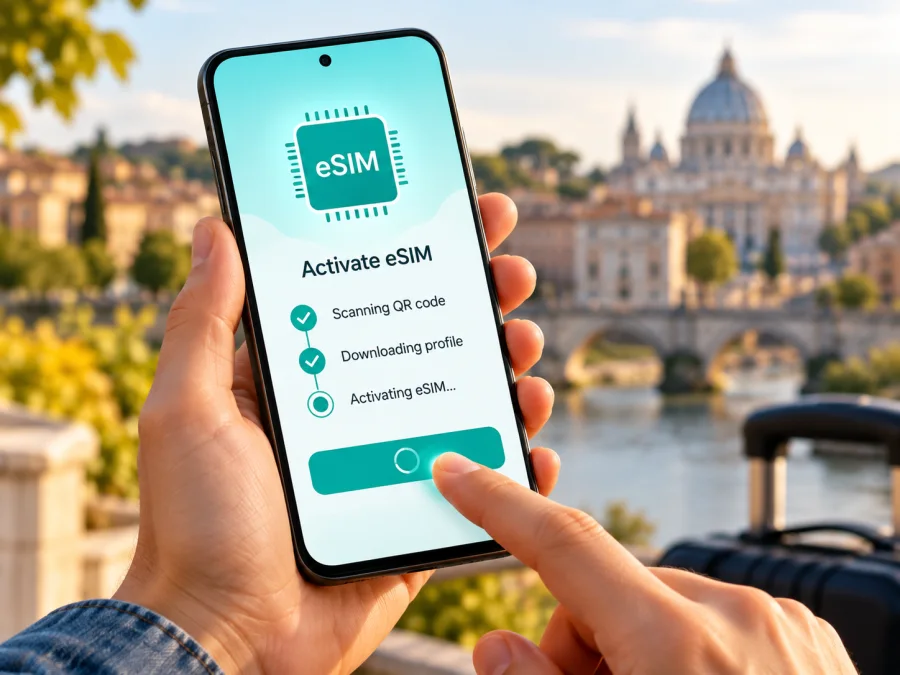
Samsung Galaxy S23+ 256GB eSIM: compatibility and setup
The Samsung Galaxy S23+ 256GB supports eSIM on Samsung-listed versions, and Samsung’s product specifications for 256GB models in several markets identify an embedded SIM alongside nano-SIM. The important qualification is the exact unit: Samsung says eSIM service can vary by country and carrier, and a device’s country of origin can affect feature availability. The name “Samsung Galaxy S23+ 256GB” alone does not identify its regional model number, software build, or carrier status. Check the phone itself before choosing a plan.
If Settings offers Add eSIM and the phone shows an EID, those are strong signs that its software exposes eSIM capability. You also need an unlocked phone and a plan that works in your destination. The 256GB storage capacity does not determine eSIM support; its regional version and configuration matter.
Does Samsung Galaxy S23+ 256GB support eSIM?
Usually, yes, on versions Samsung documents with embedded SIM. Samsung’s current Galaxy eSIM support information lists Galaxy S23+, and its country-specific product pages for 256GB models show “Embedded-SIM” or “eSIM” in the SIM specifications. That is good evidence for supported versions of this exact capacity, but it is not a guarantee for every phone sold under the same retail name worldwide.
| What you are checking | What is known | What to confirm on your phone |
|---|---|---|
| Device family | Samsung lists Galaxy S23+ among Galaxy eSIM-capable phones. | Confirm the precise model number in Settings. |
| 256GB version | Samsung product specifications in multiple markets list 256GB and Embedded-SIM for Galaxy S23+. | Confirm that the individual unit has the same eSIM capability. |
| SIM arrangement | A supported model can use a physical nano-SIM and an eSIM; supported combinations and active-line limits depend on its software and market. | Open SIM manager to see the available controls. |
| Mobile service | eSIM use depends on a compatible plan and an eligible carrier or eSIM profile. | Check that the phone is unlocked and the plan covers your destination. |
| Storage | 256GB describes internal storage capacity. | Do not use storage size as a proxy for eSIM support. |
Regional and operator versions are the reason to verify rather than rely on a model-family list alone. Samsung’s support pages caution that eSIM availability depends on the country of origin and that service may vary by country and carrier. A phone bought abroad, supplied by a mobile operator, refurbished, or configured for a specific market may have different software options or restrictions. Even when the hardware supports eSIM, a carrier lock can prevent activation with another provider’s plan.
Before buying, find the model number and ask the seller or carrier whether that unit can add the intended eSIM. A general “Galaxy S23+” compatibility claim does not confirm eligibility or unlock status for your handset.
What to check before choosing a travel eSIM
Run through these checks while you still have access to the seller, your home carrier, and a reliable Wi-Fi connection:
- Check the model number. Open Settings → About phone. Record the model number exactly as displayed; avoid relying only on the “Galaxy S23+” name on a box or listing.
- Look for an EID. In Settings → About phone → Status information or a similarly named status section, look for EID. The path can differ slightly by One UI version and region. An EID is the identifier associated with an eSIM-capable device, but you should also check the SIM manager because menus can differ.
- Open SIM manager. Go to Settings → Connections → SIM manager and look for Add eSIM. On some software versions the wording may be “Add mobile plan” or another similar option. If there is no eSIM option, update the phone and check again; if it remains absent, ask Samsung or the seller to verify the exact model and market configuration.
- Ask about the carrier lock. An eSIM-capable phone may still be locked to the network that sold it. Ask the original carrier to confirm the device is unlocked for use with another eSIM profile.
- Check the destination and plan terms. Confirm that the selected plan covers the country or region on your itinerary, and that its data amount and validity period fit your trip. Do not infer coverage from the fact that the phone supports eSIM.
- Review the plan’s service type. Travel data eSIMs are generally for mobile internet. A phone number, ordinary calls, and SMS are not included unless the individual plan explicitly says so. You can keep a primary SIM for calls and messages if your carrier and device settings allow it.
- Keep Wi-Fi available for setup. You may need an internet connection to download the profile. Install the eSIM before departure where possible, and read the plan’s instructions about when validity begins.
If you want an additional overview, check whether your device is compatible. Treat the phone’s own menus and the model-specific confirmation from Samsung or the seller as the final check for your unit.
Quick compatibility checklist
| Check | Ready when… |
|---|---|
| Exact model | You have the model number from About phone, not only the retail name. |
| eSIM capability | An EID is present and/or SIM manager offers Add eSIM. |
| Carrier status | The phone is unlocked or the seller confirms the intended eSIM is permitted. |
| Software | Android and One UI are up to date, and the eSIM controls are visible. |
| Destination | The plan’s coverage list includes each country where you expect to use data. |
| Usage | The plan’s data allowance, validity, activation timing, and any top-up rules suit the trip. |
How to install an eSIM on Samsung Galaxy S23+ 256GB
Installation is easiest when you have the profile or QR code, a stable Wi-Fi connection, and enough time to follow each confirmation screen. Menu labels can vary slightly by software version. Samsung’s usual route is Settings → Connections → SIM manager → Add eSIM.
Before you start
- Confirm compatibility. Check the EID or Add eSIM option and make sure the phone is not carrier-locked for your intended plan.
- Get the activation details. Open the QR code or manual activation information provided for your selected plan. Use only the code issued for your own purchase.
- Connect to Wi-Fi. Keep the phone online while the eSIM profile downloads. Do not rely on the eSIM being active before setup finishes.
- Check timing. Read the plan instructions to understand whether validity starts when you install, activate, or first connect in the destination. These details vary by plan.
- Keep the QR code accessible. If it is shown on this phone, use another screen or printed copy so the camera can scan it. If that is not possible, check whether manual entry is offered.
Add the eSIM by QR code
- Open Settings on the Galaxy phone.
- Tap Connections.
- Open SIM manager.
- Tap Add eSIM. If the menu offers a carrier setup flow, choose the option to scan a QR code or add a plan with a QR code.
- Point the camera at the activation QR code and follow the on-screen prompts.
- Wait while the phone downloads and adds the eSIM profile. Keep Wi-Fi connected and do not close the setup screen prematurely.
- When prompted, choose whether to enable the new eSIM now or later. If the trip has not started, leave mobile data on your regular SIM if you want to delay using the travel plan; follow the plan’s validity instructions.
- Give the profile a clear label such as Travel data so you can identify it in SIM manager.
- Select the eSIM for Mobile data when you are ready to use it. If the provider’s instructions require data roaming for that eSIM, enable roaming for that line only.
- After the plan is installed, restart the phone if prompted or if Samsung’s setup screen recommends it.
If you receive manual activation details instead of a QR code, choose the manual entry option under Add eSIM and copy the activation information exactly. Avoid editing the server address or activation code. Some activation codes are single-use, so do not remove a successfully installed profile unless the plan provider confirms that you can install it again.
For general device steps, use the Android eSIM installation instructions or the iOS eSIM installation instructions. The Android guide is relevant to this Galaxy phone; the iOS guide is useful only if you are setting up another device.
Use the eSIM for mobile data while travelling
An eSIM is a digital SIM stored on the phone, so a compatible data plan can work without removing the physical SIM. The active-line combination depends on model, software, and carrier; check SIM manager.
Once you arrive, check these settings:
- Open Settings → Connections → SIM manager.
- Turn on the travel eSIM if it is not already enabled.
- Set the eSIM as the line for Mobile data.
- Keep your home SIM enabled only if you want to receive its calls or messages and understand its roaming terms. If you do not need it, disabling that line can help avoid accidental cellular use on it.
- Enable Data roaming for the travel eSIM only when the plan instructions require it. The setting name and need may vary by plan; confirm the instructions before switching it on.
- Turn Wi-Fi off briefly and load a familiar webpage or app to confirm that mobile data works. Then check the eSIM’s network status and the data usage display.
Estimate data needs from your route and habits: maps and messaging differ from remote work or frequent video calls. Choose an allowance and validity period accordingly. Speed and signal depend on local networks, buildings, congestion, and plan terms.
No destination country or specific operator market is identified here. Verify each stopover against the selected plan’s destination list; a regional plan may cover several places if they are listed. Kaspersky eSIM Store is an app and website for selecting, arranging, and activating an eSIM with a mobile-data plan for an international trip. Service and coverage depend on the plan and its local carrier arrangements.
After compatibility is confirmed, you can browse current plans and check destinations. This is the general Kaspersky eSIM Store page; check the current country or regional plan details there rather than treating it as a tariff page for a specific destination.
Common problems and what to try
“Add eSIM” is missing
Confirm that you are in Settings → Connections → SIM manager, not only the general mobile network menu. Install the latest software update available for the handset and restart it. Check for an EID under About phone or Status information. If neither the EID nor an Add eSIM control appears, the phone may be a regional or carrier-specific version without the feature enabled. Give Samsung support or the seller the model number and ask them to confirm the eSIM capability of that exact unit.
The QR code will not scan
Increase the brightness of the screen displaying the code, clean the camera lens, and hold the phone steady. Make sure the code is not cut off and that you are scanning the current activation code. If it is displayed on the same Galaxy phone, use a second screen or ask whether manual activation is supported. Do not share the code publicly: it may be linked to your eSIM profile.
The profile fails to download
Check the Wi-Fi connection and reconnect if needed. Verify that the phone’s date and time are set automatically, then try once more from SIM manager. Make sure the activation code has not already been used and that the plan was issued for this device or installation attempt. If the phone reports that the code is invalid or already installed, contact the plan support team before deleting or retrying the profile.
The eSIM is installed but there is no mobile data
Open SIM manager and confirm that the eSIM is turned on and selected for mobile data. Check that airplane mode is off, mobile data is enabled, and the phone has registered on a supported network. Follow the plan’s instructions about data roaming for the eSIM. Restart the phone after changing the settings. If you are still offline, check whether the plan has started, whether it is valid in your current country, and whether it has remaining data.
The phone shows a signal but apps cannot connect
Check which SIM is assigned to mobile data; a signal indicator may belong to the home SIM. Temporarily turn off Wi-Fi to test cellular data. Confirm that the plan has remaining allowance and that the selected data line is the eSIM. If the device offers an Access Point Name (APN) setting, change it only when the plan provider supplies specific APN details. Avoid guessing network values.
The eSIM cannot be used because the phone is locked
An eSIM-capable handset can still be restricted to the carrier that sold it. Contact that carrier and ask whether the device is unlocked and eligible for another provider’s eSIM. A factory reset or deleting the eSIM will not remove a carrier lock. Resolve the restriction before purchasing a plan that must work with another network.
Settings look different from the instructions
Samsung may change labels across One UI releases, and carrier software can affect the available menus. Search Settings for “SIM manager” or “eSIM,” install updates, and consult instructions for the exact model and software version. If the eSIM menu is absent or a prompt differs substantially, ask Samsung or the carrier rather than proceeding with a step you cannot verify.
Practical travel scenarios
Install before departure
Check compatibility and unlock status, then install over Wi-Fi if the plan permits advance installation. Read when validity begins before adding the profile. Label it Travel data and leave your regular line selected for data until you are ready to switch. If the plan should be activated only after landing, confirm how to delay activation in its instructions.
Connect after landing
Enable the travel eSIM in SIM manager, select it for mobile data, and enable data roaming for that profile only if the plan instructions require it. Turn Wi-Fi off briefly to test a webpage. If data does not work, reconnect to Wi-Fi and check the plan’s start time, destination eligibility, allowance, and settings before retrying installation.
Travel across borders or need your regular number
For a multi-country route, check each stop and layover against the plan’s destinations and validity. If you need your usual number, ask your carrier about roaming charges and select the travel eSIM for mobile data. A data-only eSIM may not include calls, SMS, or a phone number.
Frequently asked questions
Does the Samsung Galaxy S23+ 256GB have eSIM?
Yes, on versions Samsung lists as eSIM-capable; official 256GB product pages in multiple markets specify an embedded SIM. Because versions can differ, confirm your model number, EID, and Add eSIM menu before buying.
Is eSIM support different between 128GB and 256GB models?
Storage capacity does not establish eSIM capability; check the regional model and software configuration. Samsung documents 256GB Galaxy S23+ models with Embedded-SIM, but verify your handset.
Can I use a physical SIM and an eSIM at the same time?
Supported configurations can use a physical SIM plus eSIM. Active-line options vary by region, carrier, and software; check SIM manager on your phone.
How do I know whether my Galaxy S23+ is unlocked?
Ask the original carrier or retailer. An EID or Add eSIM option does not prove that another carrier’s profile will be accepted; confirm that the phone is unlocked.
Do I need to turn on data roaming?
Follow the plan instructions. If roaming is required, enable it for the travel profile only and check the home SIM’s setting to avoid unexpected charges.
Will a travel eSIM give me a phone number?
Not necessarily. A data eSIM may not include calls, SMS, or a local number. Check the plan description; internet calls and messaging apps use data where available.
Can I move the installed eSIM to a new phone?
Check the plan’s transfer and reinstallation terms first. Some profiles are device-bound or have limited installation attempts, so do not delete one before confirming.
What if the phone has an EID but no eSIM menu?
Update and restart, then check SIM manager again. If the option remains missing, ask Samsung or the seller to confirm the exact model and configuration; an EID alone does not guarantee activation.
Final check before your trip
For Samsung Galaxy S23+ 256GB, the evidence supports eSIM on documented Samsung versions, including official 256GB models with Embedded-SIM specifications. Your individual phone still needs a final check because its market, carrier configuration, software, and lock status are not specified by the retail name alone. Confirm the exact model number, find the EID or Add eSIM control, and make sure the phone is unlocked for the plan you intend to use.
Then match the plan to your trip: verify every destination, the data allowance, validity period, activation timing, and whether data roaming must be enabled for the eSIM. Kaspersky eSIM Store helps you choose, arrange, and activate an eSIM with a mobile-data plan for an international trip through its app and website. Check current plans and destinations after you have confirmed that the handset is compatible. This link opens the general store homepage, where current destinations and plan details can be reviewed.


