Travel connectivity guide
Samsung Galaxy S23 Ultra 128GB eSIM: Setup Guide
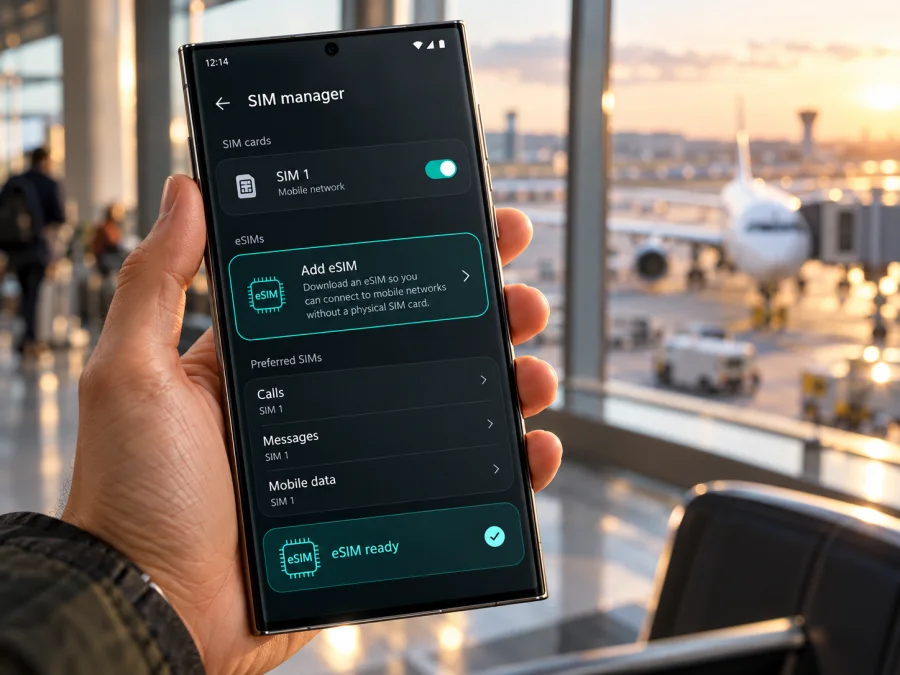
Samsung Galaxy S23 Ultra 128GB eSIM: compatibility and setup
The Samsung Galaxy S23 Ultra 128GB can use eSIM. Samsung’s US Verizon specification for this storage configuration lists 8 GB / 128 GB memory and Nano-SIM/eSIM support, and Samsung’s Galaxy S23 user guide explains how to add an eSIM. There is one important qualification: “128GB” describes storage, not the phone’s sales region or exact hardware and software configuration. Before choosing a travel plan, check the model code and eSIM controls on your own handset. A name in a shop listing cannot confirm that a particular imported or carrier-supplied unit has eSIM enabled.
An eSIM is a digital SIM profile stored in the phone. It can be added by scanning a provider’s QR code or by following another supported activation method. For a trip, this can let you keep your usual physical SIM in place while using a separate profile for mobile data, subject to your model, carrier restrictions and plan terms. It is especially useful when you want to prepare before leaving, keep access to your main number, and avoid looking for a physical SIM at your destination.
What the 128GB name tells you—and what it does not
The storage capacity identifies how much built-in space the phone has for apps, photos, videos and files. It is not an eSIM feature code. Samsung’s range has included several regional and carrier versions, and product pages may use the same family name while showing different model identifiers or network configurations. The storage label alone does not tell you whether a seller’s device is factory unlocked, carrier locked, configured for one or two physical SIM cards, or able to download an eSIM profile in its current market.
This distinction matters most with imported phones and used devices. A handset may have eSIM-capable hardware, yet its software menu or network provisioning can be affected by the original sales region, carrier firmware, device status or available software update. A carrier may also restrict use of another provider’s plan while the phone is locked. These are separate questions: hardware capability, regional software support, carrier permission and the compatibility of the plan you want to install. A “5G” label or a working physical SIM does not prove that all four conditions are met.
Samsung’s user guide for the Galaxy S23 series shows the eSIM controls under Settings → Connections → SIM manager and describes adding a profile with a QR code. Samsung’s current eSIM support information also cautions that service and supported network operators vary by country and carrier, while models and menu sequences can vary according to the place of purchase. Treat that distinction as practical guidance: the general S23 Ultra capability is documented, but the unit in your hand is the final check.
Quick specification check
| Item | Samsung Galaxy S23 Ultra 128GB |
|---|---|
| Device type | Android smartphone |
| Storage named in this variant | 128GB |
| eSIM answer | Supported on documented 128GB configurations; verify the individual unit |
| Physical SIM | Nano-SIM support is listed in Samsung’s Verizon 128GB specification |
| Dual SIM use | A physical SIM with eSIM is a supported arrangement on documented S23 configurations; exact options depend on version and carrier |
| Main identifier to check | Full model code in Settings → About phone |
| eSIM checks | EID in status information and Add eSIM in SIM manager |
| Before buying a travel plan | Confirm eSIM availability, unlocked status, destination support and plan conditions |
Regional versions and carrier restrictions
The Galaxy S23 Ultra is a global product family, not one identical configuration shipped everywhere. Samsung’s own support pages are market-specific and note that supported devices, carriers and menu sequences can differ by location or by where the phone was purchased. Samsung also publishes regional specifications for individual model codes. A product page for one market can confirm what that market’s version supports, but it should not be treated as proof for a phone imported from another market.
For the exact Samsung Galaxy S23 Ultra 128GB name, the US Verizon specification is useful because it lists 8 GB / 128 GB and “Nano / eSIM” together. That establishes an eSIM-capable US carrier configuration with this storage. It does not identify the configuration of every 128GB handset worldwide. If the label says dual physical SIM, do not assume that it means the phone can also download an eSIM; inspect the SIM Manager and EID. If it says eSIM, still check the carrier lock and whether the intended plan’s provider can activate on that handset.
<a id="kesim-device-compatibility"></a>
How to check eSIM on your phone
Start with the menu, then look for the device identifier. No single check is conclusive in every situation: a menu can be hidden by regional firmware or a carrier setting, and a seller’s product description can be incomplete. If you cannot find either check, compare the model code with Samsung’s support for the country where the unit was sold and ask the current carrier to confirm the phone’s status.
1. Look for Add eSIM
- Open Settings.
- Tap Connections.
- Open SIM manager.
- Look for Add eSIM.
If Add eSIM is present, the phone exposes the eSIM setup flow. You can open the option to see which installation methods are available; you do not need to complete an installation just to perform this check. If the button is absent, restart the phone, install any available official software update, and check again. If it remains absent, do not try to bypass the restriction with unofficial firmware. Confirm the full model code, market and carrier status with Samsung or the seller.
2. Find the EID
The EID is the identifier associated with the embedded SIM hardware. On Galaxy phones, check Settings → About phone → Status information and look for EID. Some software versions show a Status page or place EID under another About phone sub-menu. You can also check the original box, if it is available. Samsung’s support guidance uses the phone’s status information or packaging as places to find it.
An EID is a strong sign that the phone has eSIM capability, but it is not a promise that every carrier or plan will work. A device can have an EID while an operator lock, account restriction, regional configuration or unsupported provider prevents activation. Conversely, a missing EID in one menu may reflect the specific regional configuration rather than a fault that can be fixed by changing settings. Use the model code, Add eSIM screen and carrier confirmation together.
If you need a quick general screen for checking the device you already own, check your device’s eSIM compatibility. The steps below help you verify the actual phone rather than infer capability from a product title.
3. Confirm that the phone is unlocked
An eSIM profile can install correctly and still fail to connect if the handset is restricted to its original carrier. Check the phone’s status with the seller or carrier that supplied it. If you bought the device through a carrier, ask whether it is unlocked for use with another provider and whether any account or payment condition remains. A SIM lock and eSIM capability are different things; the presence of Add eSIM does not remove a network restriction.
Compatibility checklist
Before you choose or pay for a travel eSIM, confirm each item:
- Device: the full model code belongs to an eSIM-capable regional version.
- Phone menu: Add eSIM appears in SIM manager.
- EID: an EID is shown in status information, if the provider asks for it.
- Unlock status: another provider’s profile is allowed on the phone.
- Software: Android and One UI are up to date through the phone’s official update screen.
- Installation connection: Wi‑Fi or another working internet connection is available while downloading the profile.
- Destination: the selected plan covers the country or region you will visit.
- Terms: you understand the plan’s data allowance, validity period, activation trigger and any restrictions.
How to install and activate an eSIM
Before starting, make sure you have a compatible, unlocked phone, a working internet connection and the activation details supplied with the plan. Keep the QR code on another screen or print it; the phone cannot scan a code displayed on its own screen. If you only have one device, check whether the provider offers manual activation details or an installation flow inside its app. Keep the QR code private, since it can contain information used to download the profile.
Samsung’s documented route on Galaxy S23 is Settings → Connections → SIM manager → Add eSIM. The precise wording may differ slightly after software updates. For screenshots and model-specific walkthroughs, see the Android eSIM installation instructions or the iOS eSIM installation instructions; the latter is for a different operating system and is included for travellers who also manage an iPhone.
Install by QR code
- Connect the phone to Wi‑Fi or another reliable internet connection.
- Open Settings → Connections → SIM manager.
- Tap Add eSIM.
- Choose Scan QR code.
- Point the camera at the QR code provided for your plan.
- Follow the on-screen prompts to download and add the profile.
- Wait for the phone to finish. The download may take a few minutes.
- In SIM manager, check that the new eSIM appears and is enabled when you want to use it.
Downloading a profile and starting its data package are not always the same event. Read the plan’s instructions to learn whether validity starts when you install, when the eSIM first connects to a supported network, or at another specified point. You can often install before departure and leave the eSIM disabled until you need it, but follow the plan’s activation terms. Do not assume that every plan behaves the same way.
Set the eSIM for mobile data
After installation:
- Open Settings → Connections → SIM manager.
- Confirm the eSIM profile is turned on.
- Tap Mobile data or the preferred SIM option.
- Select the travel eSIM when you want it to carry data.
- Keep your home SIM selected for calls or messages if you need it and your arrangement allows it.
- Check the selected profile’s roaming setting. Enable data roaming for the travel eSIM only if its instructions require it.
A travel data plan may require data roaming on its own profile because it connects through a partner network outside the plan’s home market. This setting is separate from the roaming controls for your home SIM. Verify which line is selected for mobile data before enabling roaming, especially if your home carrier charges for roaming. Disable data switching if you do not want the phone to switch automatically to another SIM for data and potentially use a different plan.
Using the Galaxy S23 Ultra 128GB while travelling
Kaspersky eSIM Store is an app and website where you can choose, complete the purchase for and activate an eSIM with a suitable mobile-data plan for an international trip. The plan terms identify its coverage, allowance, validity and activation conditions. The eSIM is intended for mobile internet; it does not provide a regular phone number, voice calls or SMS unless a particular plan states otherwise. You can use messaging and calling apps over data when they support that use.
A practical setup is to install the profile at home over Wi‑Fi, then leave it off during the flight if its validity rules allow. After landing, enable it in SIM manager and select it for mobile data. Keep your home SIM available for your usual number if you need it, and check its roaming settings before you connect. For a multi-country route, verify that each destination is covered; use the phone’s data-usage screen to keep an eye on consumption.
Common problems and what to check
Add eSIM is missing
Check the full model code, sales region and software version. Install official updates and restart the phone once. If the option is still missing, ask Samsung or the seller to confirm whether this exact unit has eSIM enabled. A carrier-supplied phone may have a restriction. Do not use unofficial firmware or change the device’s region as a workaround; this can create other issues without making the eSIM service available.
The QR code will not scan
Use a stable internet connection, display the entire QR code on another screen and adjust its brightness. Check that the code belongs to the plan you intend to install. If the camera remains unable to read it, ask the provider whether manual entry is supported or whether a replacement activation method is available. Avoid repeated attempts if the provider says the code is single-use.
The profile downloads but there is no service
Confirm that the eSIM is enabled and selected for mobile data. Check the destination and plan coverage, then wait briefly for network registration. If the plan requires data roaming, enable it for that eSIM. Toggle Airplane mode on and off once or restart the phone. If you are indoors or in a weak-signal area, try again where the local network signal is stronger. Contact the provider if the phone still cannot register; include the model code and the error message, but do not post your QR code or EID in a public forum.
Mobile data works on the wrong SIM
Open SIM manager and check the preferred SIM for mobile data. Samsung’s dual-SIM settings can also offer data switching, which may move data to another available profile in some circumstances. Turn this feature off if you want to keep data on the travel eSIM. Then review the home SIM’s roaming settings to avoid unintended charges.
The eSIM installs but data does not work
Check that the plan is active under its terms, the correct profile is chosen for mobile data and the destination is included. Follow the provider’s APN instructions only if they supplied them; do not guess network settings. Confirm data roaming for the travel profile if required. Make sure the phone is not in Airplane mode and that mobile data is enabled. If those checks do not help, ask the plan provider to verify activation and local network availability.
The phone reports that it is locked
The device’s original carrier controls whether it can use another provider’s service. Contact that carrier or the seller to check unlock eligibility. Installing an eSIM does not unlock a phone. Do not delete the eSIM profile while the phone is locked, since removing it may make troubleshooting harder.
Frequently asked questions
Does Samsung Galaxy S23 Ultra 128GB support eSIM?
Yes, Samsung documents a US Verizon Galaxy S23 Ultra configuration with 8 GB / 128 GB and Nano-SIM/eSIM. The storage name alone does not identify every regional variant, so check the model code, EID and Add eSIM option on your specific phone.
Can I use an eSIM and a physical SIM at the same time?
Samsung documents a physical SIM plus eSIM arrangement for supported Galaxy S23 configurations. The exact combination and which profiles can be active depend on the model and market. Check SIM manager for the options available on your unit.
Will an eSIM work if the phone is carrier locked?
Not necessarily. The phone may reject a profile from a different provider even when it has an EID and an Add eSIM menu. Confirm that the handset is unlocked before choosing a travel plan.
Can I install the eSIM before my trip?
Often you can download the profile ahead of time over Wi‑Fi. Whether its validity starts during installation or at first network connection depends on the plan. Read its activation instructions, and leave the travel profile off if you do not want it to connect before arrival.
Can I move the profile to another phone later?
Do not assume that you can. Some eSIM profiles are limited to one installation or one device. Check the plan’s transfer and reinstallation rules before removing it or changing phones.
Before you choose a plan for your trip
Before choosing a plan, confirm that your own phone shows an EID and Add eSIM, and verify its model code and unlock status with the seller or carrier. Then use Kaspersky eSIM Store, the app and website, to choose and activate an eSIM with a mobile-data plan for your destination. Check the plan’s coverage, data allowance, validity and activation conditions against your itinerary before you pay.


