Travel connectivity guide
Samsung Galaxy S23 Ultra 256GB eSIM: Compatibility
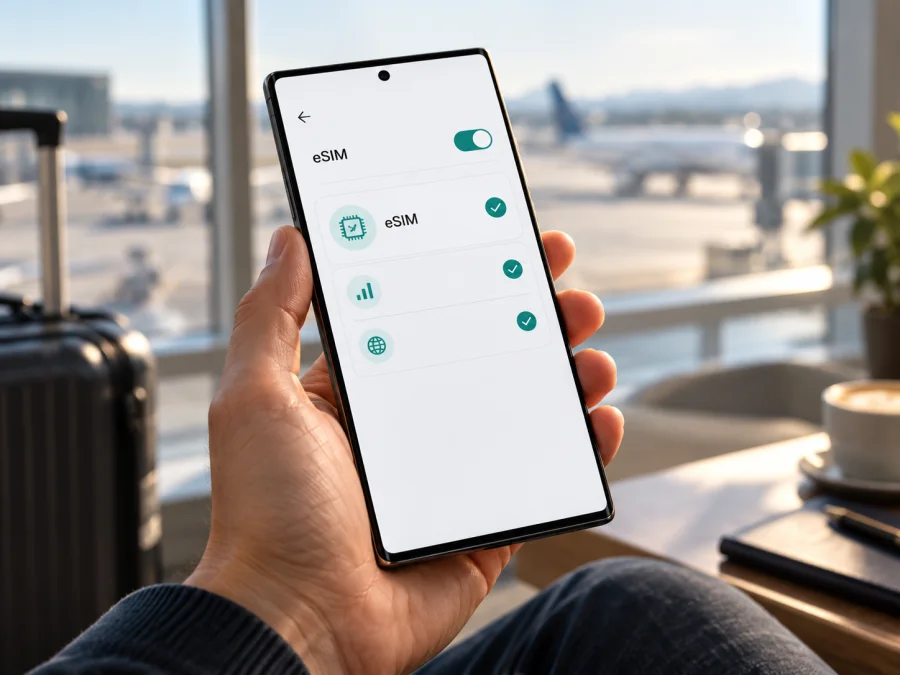
Samsung Galaxy S23 Ultra 256GB eSIM: compatibility and setup
Short answer: Samsung lists the Galaxy S23 Ultra among Galaxy phones that support eSIM, and its published specifications for the 256GB configuration include eSIM alongside a nano-SIM. That is a strong indication that this storage variant can use eSIM. It is not a guarantee for every phone sold under the same name: Samsung says eSIM availability can depend on the device’s country of origin, and mobile plan support depends on the carrier and market. Check the actual phone before buying a plan.
The “256GB” part identifies storage capacity. It does not identify the phone’s regional model code, prove that eSIM is enabled in its firmware, or show that the device is unlocked. If you are buying a used or imported Samsung Galaxy S23 Ultra 256GB, verify its settings and exact model number rather than relying on a listing title alone. The guide below explains what to check, how to add an eSIM, and how to use a travel data plan without changing your primary number.
Does Samsung Galaxy S23 Ultra 256GB support eSIM?
For the Galaxy S23 Ultra family, the answer is yes in Samsung’s supported configurations. Samsung’s documentation lists the S23 Ultra as eSIM-capable, and its S23 Ultra specification sheet identifies nano-SIM and eSIM. Samsung also documents adding an eSIM from the phone’s SIM manager by scanning a carrier QR code. Taken together, this confirms support for the model family and the documented 256GB configuration.
There is an important qualification: the name and storage size do not uniquely identify every regional unit. Samsung notes that a Galaxy device listed as eSIM-compatible may still lack eSIM support depending on its country of origin. Hardware model codes, firmware, carrier customisation and the current software version can differ by market. A device’s compatibility with eSIM is also separate from whether a particular operator offers eSIM service to that device in the country where you intend to activate it.
So, treat “Samsung Galaxy S23 Ultra 256GB” as a promising model match, then confirm the specific handset. Ask the seller for the complete model number and country of sale. On Samsung phones, the model code begins with a family identifier such as SM-S918, followed by letters and numbers that identify a sales configuration. The full suffix matters; don’t infer eSIM support from the first part alone. If you already have the phone, use the checks in the next section.
Quick reference
| Item | What to know |
|---|---|
| Device named in this guide | Samsung Galaxy S23 Ultra 256GB |
| eSIM status for the model family | Listed by Samsung as supporting eSIM |
| Does 256GB prove eSIM support by itself? | No. Storage size does not identify region, firmware or carrier restrictions |
| Where regional differences matter | Country of origin, device model code, firmware and the services offered by the operator in the activation market |
| What confirms the phone in your hand | An EID and an available “Add eSIM” option in Settings; still check for an operator lock and plan compatibility |
| Typical setup route | Settings → Connections → SIM manager → Add eSIM → Scan QR code |
| Travel-plan use | Select the travel eSIM for mobile data when you want it to connect; review the plan’s destination and activation terms |
This is a practical distinction between three questions: does the S23 Ultra model family support eSIM, does this particular regional phone expose that capability, and does the selected operator or travel plan work for this device and destination? A “yes” to the first does not automatically answer the other two. For a phone bought new in its intended sales market, the manufacturer’s stated feature set is a useful guide. For an imported or second-hand unit, the settings check is especially important.
Check your exact phone before buying
You can check the handset without installing a plan. Start with the system settings, then confirm its identity and lock status. If you are still shopping, ask the seller to perform the same checks on the exact phone that will be shipped to you. A product page for another colour, storage option or regional stock unit is not enough to establish the configuration of the handset you will receive.
- Look for an EID. Open Settings → Connections → SIM manager → Add eSIM, then return to Settings → About phone → Status information and look for EID. Menu names can vary slightly with One UI version and market; the EID may also be printed on the phone box. Its presence is a positive compatibility check, but it does not prove that your operator will activate every plan.
- Look for the eSIM control. Open Settings → Connections → SIM manager. Check whether Add eSIM appears. If it does, the phone exposes an eSIM setup route. You do not need to scan a QR code just to test whether the menu exists; stop before activating a plan if you are only checking compatibility.
- Confirm the full model number. In Settings → About phone, note the model number and compare it with the seller’s listing or Samsung support information for the market where the phone was sold. Keep the complete letters and digits. A broad “S23 Ultra” label cannot resolve a regional difference.
- Check for a carrier or network lock. A phone can include eSIM hardware and still be restricted to its original carrier. Ask the original carrier or seller whether the handset is unlocked and whether it accepts eSIM profiles from other providers. Do not assume that inserting a different physical SIM or seeing an EID removes a lock.
- Check the target service and market. Ask the operator or plan provider whether its eSIM can be activated on this exact model code and whether the plan is available in the country where you will install and use it. eSIM availability on a handset, operator provisioning in a local market and coverage where you travel are separate matters.
- Update the phone and use a reliable connection. Install available system updates before setup. Keep the phone connected to Wi-Fi or another working internet connection while downloading a profile, and make sure you can open the activation instructions or QR code on a second screen.
If the EID is present and Add eSIM is available, that is a good indication that this Samsung Galaxy S23 Ultra 256GB can accept a profile. If either item is missing, do not buy a plan on assumption. Check the complete model code and country of origin with Samsung or the seller. A menu can be hidden or named differently by software, so verify the device’s documentation and current settings before concluding that eSIM is impossible. If the phone reports that it is managed by an organisation or locked to a carrier, resolve that restriction with the responsible administrator or operator.
Before purchasing, check whether your device is compatible. The result should be based on the actual phone, not only the model name. Also confirm that the plan is intended for your destination and that you understand when its validity begins. Compatibility does not guarantee coverage in every location, a particular speed, or service from every local network.
Compatibility checklist
Use this short checklist for the phone and the plan together:
- [ ] The handset is actually a Samsung Galaxy S23 Ultra 256GB, not a related model or a listing that combines several devices.
- [ ] You have the full model number and know the country or market for which the phone was sold.
- [ ] An EID appears in the phone’s information, or Samsung or the seller has confirmed eSIM support for this exact configuration.
- [ ] Add eSIM is available in the SIM manager, or the manufacturer has clarified why the menu is absent on this software version.
- [ ] The phone is not carrier-locked, or the original carrier has confirmed that the intended eSIM is allowed.
- [ ] The operator or travel-plan terms support the handset, destination and activation method you will use.
- [ ] You have Wi-Fi or another connection for setup and have checked the plan’s data allowance, validity and activation conditions.
Before you install an eSIM
An eSIM profile is downloaded to the phone, so you need a compatible device, internet access and the activation method supplied for the plan. Most often that is a QR code; some providers also offer a manual code or in-app installation. Keep the code private and use the method issued for your plan. If the QR code is displayed on the S23 Ultra itself, open it on a second screen or use the provider’s manual option.
Check the plan’s activation terms before scanning. Validity may begin at installation, at first connection in the destination or at a scheduled time. You can often install before departure over Wi-Fi, but do not assume that setup and first use are the same event. If you keep your home SIM enabled, choose which line handles calls, texts and mobile data. Data roaming may be needed on the travel eSIM; check that the setting applies to that line, and review your home operator’s roaming terms.
For this Android phone, use the Samsung steps below. Kaspersky eSIM Store also provides Android installation instructions and iOS installation instructions for users setting up a different compatible iPhone.
How to install an eSIM on Samsung Galaxy S23 Ultra 256GB
Keep the phone charged and connected to Wi-Fi. Have the plan’s QR code or manual activation details ready. Menu labels can vary slightly with One UI version and market.
- Open SIM manager: go to Settings → Connections → SIM manager.
- Add a profile: tap Add eSIM. If the option is missing, pause and verify the EID, model code and regional configuration.
- Choose the activation method: select Scan QR code and scan the code supplied for your plan, or enter the manual details exactly as provided.
- Download the profile: follow the prompts and keep the internet connection active. Avoid rescanning while the first attempt is processing.
- Label and configure the line: use a clear name such as “Travel data.” In SIM manager, choose the travel eSIM for mobile data when you want to use it; keep your home line selected for calls or texts if needed.
- Set roaming as instructed: enable data roaming for the travel profile only if the plan’s instructions require it. Check your home SIM’s setting against your operator’s terms.
- Finish setup: restart if requested, then allow several minutes for network registration. At your destination, turn off Wi-Fi for a brief test and confirm that mobile data uses the intended eSIM.
Automatic carrier discovery is not available for every plan or market, so follow the provider’s supplied QR or manual method. If a code is reported as invalid or already used, confirm it belongs to the plan and contact its provider. Avoid deleting a profile as a troubleshooting step unless support directs you to; some codes cannot be used twice. You can also consult Kaspersky eSIM Store’s Android guide.
Using the eSIM for mobile internet on a trip
After installation, open Settings → Connections → SIM manager and confirm that the travel profile is on and selected for mobile data. Leave the home SIM available for calls or texts if you need it, but check its roaming charges. If the travel-plan instructions require roaming, enable it for the travel eSIM. Menu wording can vary by software version.
Check the plan’s destination list, data allowance, validity period and activation conditions. A country plan and a regional plan may cover different places; geographic proximity does not establish that a destination is included. For a multi-stop route, confirm that every country is covered and that validity spans the trip. Compatibility with the phone does not guarantee coverage or a particular speed at every location.
Travel plans may be data-only and may not include a phone number, ordinary calls or SMS. Messaging and calling apps can use the data connection, subject to their own account and service requirements. If you use hotspot, check plan terms and monitor usage; video, cloud backups and app updates can consume data quickly. If you install before departure, confirm whether validity starts at installation or at first connection.
Common problems and checks
- “Add eSIM” is missing: check the EID and full model code, install available updates, restart and confirm the phone’s country of origin. Ask Samsung or the seller about that exact regional configuration before buying a plan.
- The QR code will not scan: increase the code display brightness, clean the camera lens and ensure the image is complete. Use a provider-issued manual method if available. Do not share the code publicly.
- The code is invalid or already used: verify that it belongs to this plan and has not been activated. Contact the plan provider rather than repeatedly retrying or deleting the profile.
- The profile installs but there is no service: check that the destination is included and validity has started. Turn on the eSIM, select it for mobile data, set roaming as instructed, turn off Airplane mode and restart. Registration can take several minutes; local network availability depends on the destination and plan.
- The phone connects but data does not work: make sure mobile data is assigned to the travel line, check allowance and validity, and follow any plan-specific APN instructions. Turn Wi-Fi off for a simple test. Disable data switching if you want to prevent fallback to your home SIM.
- The phone is locked or the profile disappeared: ask the original carrier about unlocking. If the eSIM was removed, check with the provider whether recovery is possible; activation codes are not always reusable.
Frequently asked questions
Is eSIM supported on Samsung Galaxy S23 Ultra 256GB?
Samsung lists the Galaxy S23 Ultra as eSIM-capable and publishes S23 Ultra specifications that include eSIM. The 256GB label does not identify region or carrier restrictions, so check the EID, Add eSIM and model code on the actual phone.
Does storage capacity determine eSIM support?
No. 256GB describes storage, not the regional configuration, firmware or carrier lock. Confirm the exact handset, especially when it was imported or bought used.
Can I keep my regular SIM active?
Often you can use a physical SIM and eSIM together, depending on the handset configuration and operator. Choose the data line in SIM manager and review roaming charges for your home SIM.
Does a travel eSIM include calls and SMS?
Not necessarily. Check the selected plan’s terms. Many travel plans are for data; internet calling and messaging apps may work over data, but they do not add a regular phone number to the plan.
Should data roaming be on?
Follow the plan’s setup instructions. If required, enable it for the travel eSIM line and check that it is not enabled on the home line by mistake.
Can I install an eSIM before flying?
Often yes, if the plan permits advance installation. Check when validity begins; it may start at installation, first connection or a scheduled time.
What if the EID is visible but Add eSIM is absent?
Update and restart the phone, confirm the full model code and ask Samsung or the seller to verify the regional configuration. An EID alone does not confirm that a particular operator will activate its plan.
Check the device, then choose a travel plan
Samsung lists the Galaxy S23 Ultra as eSIM-capable, but the final check is specific to your Samsung Galaxy S23 Ultra 256GB: confirm the EID and Add eSIM, note the full model code and country of origin, and check for a carrier lock. Then confirm that the plan covers your destination and activation timing.
Kaspersky eSIM Store is an app and website where travellers can choose, arrange and activate an eSIM with a suitable mobile-data plan for an international trip. After confirming compatibility, browse current destinations and plans and review the destination, allowance, validity and activation terms shown. If any handset detail is uncertain, ask Samsung or the seller before purchase.


