Travel connectivity guide
Samsung Galaxy S23 Ultra 8GB RAM eSIM Guide
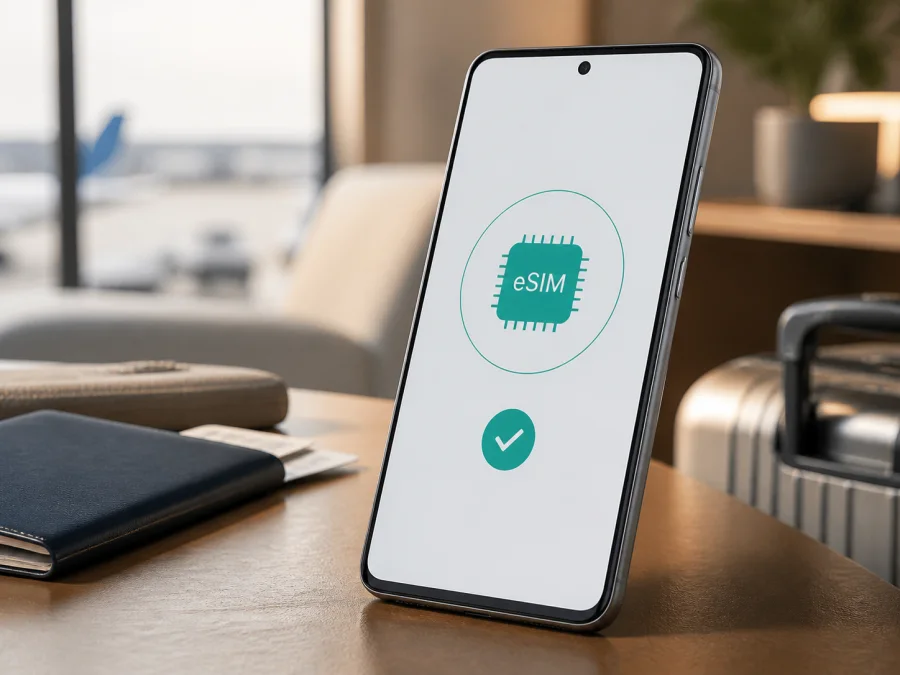
Samsung Galaxy S23 Ultra 8GB RAM eSIM: compatibility and setup guide
If you are checking whether Samsung Galaxy S23 Ultra 8GB RAM can use an eSIM, the practical answer is generally yes on regional versions for which Samsung lists Nano-SIM/eSIM support. The important qualification is that this listing name does not identify the sales market, model code, carrier configuration, or software build. Samsung warns that eSIM availability can vary by country of origin and carrier. The EID and Add eSIM checks below are therefore the final confirmation before you buy a travel data plan.
An eSIM is a digital SIM profile stored in the phone instead of on a removable card. It can add a travel data line while your ordinary SIM remains available, provided the phone is unlocked and the selected plan is compatible. The 8GB RAM detail does not itself enable or disable eSIM: regional hardware, firmware, and carrier policy decide that. This guide is about the exact listing Samsung Galaxy S23 Ultra 8GB RAM, not every S23 Ultra configuration.
Quick answer for Samsung Galaxy S23 Ultra 8GB RAM
Samsung’s official specifications for documented Galaxy S23 Ultra variants describe dual-SIM operation with Nano-SIM and eSIM. Samsung’s current Galaxy support guidance describes adding an eSIM through Settings, Connections, and SIM manager. That is strong evidence that Samsung Galaxy S23 Ultra 8GB RAM can be eSIM-compatible, but it is not a promise that every unit sold under this broad name has the feature enabled.
Before purchase, check the handset itself. If an EID is present, or if SIM manager offers Add eSIM, the current software exposes the embedded-SIM capability. If neither appears, do not assume a reset or a different QR code will create it. Confirm the model code and market with the seller or carrier first.
| Check | What to expect on a compatible unit | Why it matters |
|---|---|---|
| Exact listing | Samsung Galaxy S23 Ultra 8GB RAM | Keeps the requested RAM variant separate |
| SIM capability | Nano-SIM plus eSIM on many official regional variants | Regional specification, not a universal guarantee |
| Android menu | Settings > Connections > SIM manager > Add eSIM, or Add mobile plan | Shows that current firmware exposes eSIM setup |
| EID | EID in About phone > Status information, or on the box | Identifies embedded-SIM hardware for activation checks |
| Network lock | Handset accepts another compatible provider | A locked phone may reject a travel profile |
| Plan | Destination, data allowance, validity, and activation rules match the trip | Device support alone does not guarantee service |
Menu wording can differ after a One UI update or between markets. A missing option may indicate a regional or carrier restriction rather than a hardware failure.
Check your device before buying a plan.
Does Samsung Galaxy S23 Ultra 8GB RAM support eSIM?
For an unlocked regional model that exposes eSIM in its software, yes: Samsung Galaxy S23 Ultra 8GB RAM can install a compatible eSIM profile and use it for mobile data. Samsung documentation for the S23 Ultra family lists Nano-SIM/eSIM dual-SIM arrangements on multiple markets. Samsung also documents QR-code, automatic-plan, and manual activation routes on Galaxy phones.
The word “can” matters. Samsung sells the S23 family in different markets, and the same commercial name can cover different model codes. A carrier-sold, imported, refurbished, or second-hand unit therefore needs an individual check because eSIM may depend on the country of origin and carrier.
Samsung Galaxy S23 Ultra 8GB RAM identifies the RAM configuration supplied in the request, but it does not reveal storage, model code, sales market, or carrier. Keep the exact name when comparing a listing; use the model number from About phone and the box as the next layer of verification. Do not use the 5G badge as proof of eSIM. A phone can support 5G but lack an exposed eSIM menu, while an eSIM may connect over LTE rather than 5G according to the destination network and plan.
Regional, carrier, and software differences
There are three separate questions: does the hardware contain an eSIM component, does the firmware show the controls, and will the chosen carrier or travel plan activate it? A “yes” to only the first is not enough.
The regional version is important. Samsung specification pages for several markets list the Galaxy S23 Ultra with Nano-SIM and Embedded-SIM, while Samsung support says models and settings vary by location and purchase origin. An imported version may differ in SIM tray, supported bands, or eSIM menu.
The carrier can restrict activation, require an unlock, or support eSIM only for particular plans. This is separate from RAM, storage, camera, display, or 5G capability. Ask whether the handset is unlocked and whether a travel eSIM may be added.
Software menus change with One UI. The path may say Add eSIM, Add mobile plan, or offer carrier discovery. Install pending official updates over Wi-Fi and restart the phone, but do not install unverified firmware to force a feature. Finally, the eSIM plan must cover every destination and use a partner network available there. Read its conditions before payment.
Verify your exact device before purchase
Perform this check on Samsung Galaxy S23 Ultra 8GB RAM before buying the plan, especially if the phone was imported or bought second-hand.
- Open Settings > About phone.
- Record the model number, IMEI, and software information. Keep the model number separate from the marketing name Samsung Galaxy S23 Ultra 8GB RAM.
- Tap Status information and look for EID or an eSIM entry. Samsung says the EID may also be printed on the original box.
- Return to Settings > Connections > SIM manager.
- Look for Add eSIM, Add mobile plan, or an equivalent option. You only need to confirm that it exists; do not scan anything yet.
- Check whether the current physical SIM and a preferred data SIM can be selected.
- Confirm that the handset is unlocked. If the status is unclear, ask the original carrier.
Use this checklist before paying:
- [ ] The listing says Samsung Galaxy S23 Ultra 8GB RAM.
- [ ] Model number, country of origin, and storage variant are known.
- [ ] EID is visible in Status information or on the box.
- [ ] Add eSIM or Add mobile plan appears in SIM manager.
- [ ] The phone is not restricted to its original carrier.
- [ ] Android and One UI are updated, and Wi-Fi is available.
- [ ] The plan covers the whole route and its data, validity, start condition, and hotspot rules are clear.
If both EID and the eSIM menu are absent, pause. Contact Samsung, the seller, or the carrier with the model number. If the EID is present but activation fails, investigate the plan, QR code, lock, carrier, or settings rather than assuming the RAM variant is at fault.
How to install an eSIM on Samsung Galaxy S23 Ultra 8GB RAM
Install with stable Wi-Fi, sufficient battery, and the activation details nearby. Show the QR code on another screen or print it if the phone cannot scan a code displayed on itself. Treat the QR code as private and potentially one-time use.
Prepare first
Check whether the plan should be installed before departure or only activated after arrival. Downloading a profile and using its data are not always the same event: some plans begin validity when they connect to a supported network, while others have an activation deadline. Keep your main SIM installed until the travel line is tested unless the instructions say otherwise.
QR-code installation
- Connect Samsung Galaxy S23 Ultra 8GB RAM to Wi-Fi.
- Open Settings > Connections > SIM manager.
- Tap Add eSIM or Add mobile plan.
- Choose the option to scan a QR code from the service provider.
- Scan the code and wait for the profile to download.
- Review the destination and plan details. Cancel if they look wrong.
- Confirm the download and label the new line “Travel data” or another clear name.
- Restart when prompted.
For the Kaspersky eSIM Store setup path, use the Android installation instructions. If you are helping someone on an Apple device, the iOS installation instructions are also available. These references do not override regional compatibility.
Automatic or manual installation
Some providers pre-assign a plan. In SIM manager, choose Add eSIM or Add mobile plan and let the phone search; review the found plan, tap Add, and wait for activation. A carrier may ask for the phone’s EID first.
If the provider supplies an activation code, choose manual entry under Add eSIM or Add mobile plan and enter the address and code exactly. Do not invent an APN, server address, or code. Ask the provider before deleting a profile tied to a used one-time code.
Activate the eSIM for travel data
After installation, open Settings > Connections > SIM manager and select the travel eSIM. Turn it on if disabled. Under Preferred SIMs or Mobile data, choose it for data. Keep your primary SIM for calls and messages if you still need that number.
On arrival, turn on Mobile data and, if the plan requires it, enable Data roaming for the travel eSIM. The profile may use a partner network outside its home network. Do not enable roaming on the primary SIM unless you understand its charges. Disable automatic data switching if you want to prevent the phone falling back to the home line.
Allow a minute for registration. If there is no connection, toggle Airplane mode, restart, and check that the destination is covered, the validity period has started, and a network or signal is shown. Depending on the plan, an eSIM installed at home may activate only after reaching a supported destination.
Travel eSIMs may be data-only. Unless the plan says otherwise, they do not provide a normal phone number, traditional voice calls, or SMS. Messaging and calling apps can work over mobile data; ordinary services remain tied to the selected SIM and carrier.
Using the phone on a trip
One-country break
Install over Wi-Fi at home and leave the profile off until departure if the plan allows. On arrival, select it for data and enable its required roaming setting. Keep the home SIM only when you understand its roaming conditions, and review usage because navigation, backup, calls, and streaming consume data quickly.
Multi-country route
Confirm that the plan covers the whole region, not only the first country, and check whether its validity clock runs continuously. If registration stalls after a border crossing, use Airplane mode and verify the selected data SIM.
Work travel and hotspot
Keep the home number for authentication messages and make the travel eSIM the data line. Turn off data switching if you want a hard safeguard. Samsung Galaxy S23 Ultra 8GB RAM can share data through Mobile hotspot and tethering when the plan permits it; set a password and monitor battery and traffic. Data Saver and limiting background backup can extend a small allowance.
If you wait until landing, you still need a working connection for the download, such as airport or hotel Wi-Fi, subject to charges.
Troubleshooting eSIM problems
Add eSIM is missing. Check About phone > Status information for EID, record the model code, update official software, restart, and check SIM manager again. If EID and the menu are both absent, suspect a regional or carrier variant.
The QR code will not scan. Increase the other screen’s brightness, use the original code, and scan from Add eSIM rather than the ordinary camera. If manual activation is offered, use only the supplied values. A used one-time code may not scan again.
The profile downloads but will not activate. Confirm Wi-Fi or mobile data, automatic date and time, an enabled profile, the destination, and the activation window. Restart. Do not delete the profile before asking the provider what identifiers it needs for diagnosis.
There is no signal. Select the travel eSIM for Mobile data, enable its required Data roaming, turn off data switching, toggle Airplane mode, and verify coverage, validity, and allowance. An outage or exhausted data can resemble an eSIM fault.
The wrong SIM uses data. Recheck Preferred SIMs, Mobile data, Data switching, and each line’s roaming controls. Disable mobile data on the home line if you want a stronger safeguard, while keeping it enabled for calls or SMS only when appropriate.
The phone is locked. eSIM hardware does not remove a carrier lock. Unlock eligibility is decided by the original carrier. Resolve the lock before departure and confirm status with a compatible line if possible.
You need to remove the profile. In SIM manager, select the travel eSIM, turn it off, and choose Remove only when certain. Removing a profile does not necessarily cancel a purchase, and a one-time profile may not be restorable.
FAQ
Is every Samsung Galaxy S23 Ultra 8GB RAM eSIM-compatible?
No universal promise can be made from the product name alone. Samsung documents eSIM-capable S23 Ultra variants, but availability can depend on country of origin, carrier, and software. Confirm EID and Add eSIM on the exact unit.
Can I use a physical SIM and travel eSIM together?
On a compatible dual-SIM configuration, yes, subject to the regional model and carrier. Keep the physical SIM for calls or messages and select the eSIM for data. Only one line is used for mobile data at a time.
Will eSIM provide a second phone number or 5G?
Only a plan that includes voice provides a number; a travel data eSIM usually does not. 5G depends separately on the handset, plan, local network, and coverage. LTE is a normal result even on a 5G-capable phone.
Can I transfer the travel eSIM to another phone?
Not automatically. Many profiles are tied to the first device or use a one-time QR code. Check the plan rules before removing or transferring it; the new phone must also be eSIM-compatible and unlocked.
Kaspersky eSIM Store and travel planning
Kaspersky eSIM Store is an app and website that helps you choose, arrange, and activate an eSIM with a suitable mobile-data plan for an international trip. It is not a mobile operator, network owner, or provider of mobile internet. Coverage, partner access, validity, traffic allowance, and destinations depend on the selected plan and the networks it can use.
The safe order is: verify Samsung Galaxy S23 Ultra 8GB RAM, confirm EID and Add eSIM, check the unlock status, select the destination or region, compare data and validity, then install and activate at the appropriate time. An eSIM may reduce dependence on public Wi-Fi and may be a useful alternative to standard roaming, but it is not automatically cheaper or available everywhere.
Final device check before your trip
- Confirm the device is exactly Samsung Galaxy S23 Ultra 8GB RAM and note its model number and country of origin.
- Open About phone > Status information and confirm that EID is present.
- Open Connections > SIM manager and confirm that Add eSIM or Add mobile plan appears.
- Confirm the handset is unlocked and updated, then connect to reliable Wi-Fi.
- In Kaspersky eSIM Store, choose the country, region, or route and review data, validity, activation timing, and tethering conditions.
- Install the profile, label it, and test SIM manager controls before departure when the plan permits.
- On arrival, select the travel eSIM for data, enable its required roaming, and prevent unwanted switching to the home SIM.
If EID or Add eSIM is absent, pause the purchase and verify the regional version with Samsung, the seller, or the carrier. If both checks pass, this exact Samsung Galaxy S23 Ultra 8GB RAM unit is technically prepared for a compatible eSIM, while the chosen travel plan still needs its own destination and carrier check.


