Travel connectivity guide
Samsung Galaxy S23 Ultra eSIM: Compatibility & Setup
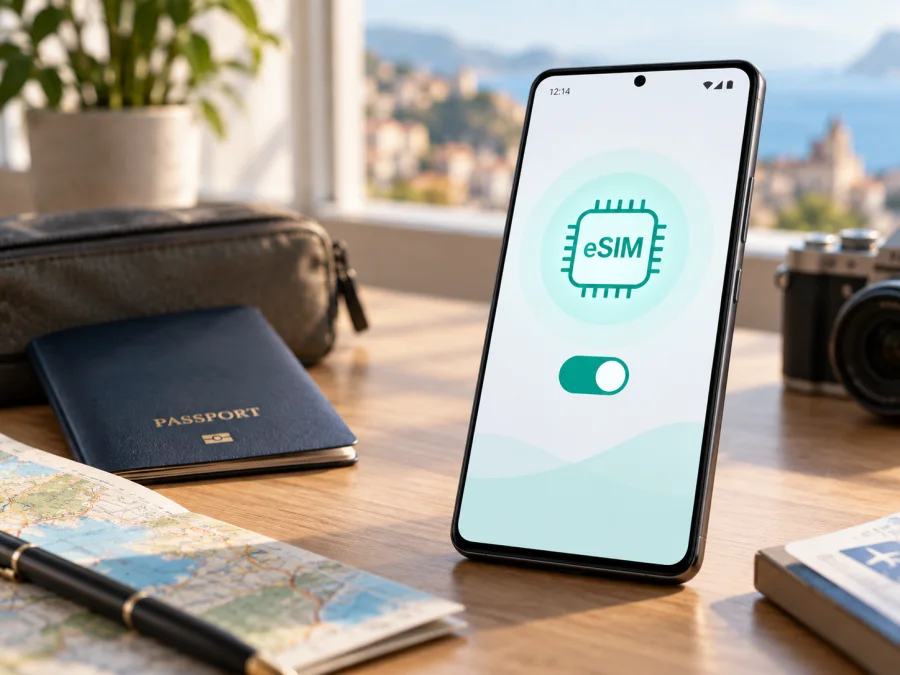
Samsung Galaxy S23 Ultra eSIM: compatibility and setup
The Samsung Galaxy S23 Ultra can use an eSIM for mobile data, but the exact answer depends on the regional and carrier version in your hands. Samsung’s support information includes Galaxy S23 Ultra among the Galaxy phones that support eSIM. It also warns that eSIM availability can vary by country of origin, carrier, device model, and software version. For that reason, the most reliable answer for your particular phone is shown by its own settings: an available EID and an Add eSIM option are the decisive practical checks.
You may keep the regular SIM for your number while using a separate eSIM for mobile internet. Check the exact phone before buying.
Quick answer: does Samsung Galaxy S23 Ultra support eSIM?
Usually, yes. Samsung lists the Galaxy S23 Ultra as an eSIM-capable model, and its official setup guidance describes adding an eSIM from Settings > Connections > SIM manager. When the relevant hardware, firmware, and carrier conditions are present, the phone can use a physical Nano-SIM together with a digital SIM.
The qualification matters. A phone sold for a specific market or operator may have eSIM restricted or unavailable. A carrier may require an unlocked handset or limit which plans can be activated. Software versions can also change menu labels.
| Check | What it means | Next step |
|---|---|---|
| Samsung lists Galaxy S23 Ultra among eSIM-capable devices | The model family supports eSIM in supported markets | Check the actual handset |
| An EID is visible | The phone has an embedded-SIM identity | Confirm unlock and plan conditions |
| Add eSIM appears in SIM manager | Current software exposes eSIM setup | Scan a QR code or enter activation details |
| No EID and no Add eSIM | This unit may be restricted, unsupported, or not fully updated | Do not buy until the version is confirmed |
| Activation is rejected | Device support is not enough for this plan | Ask the carrier or eSIM provider |
Regional and carrier differences
The Galaxy S23 Ultra was sold in multiple markets and through different operators. The name may be identical while the model identifier, SIM configuration, firmware, or carrier policy differs. Samsung’s regional support pages list Galaxy S23 Ultra as eSIM-compatible, but also state that a device can lack eSIM support depending on its country of origin. An imported phone may therefore behave differently from a locally sold unit.
Before you rely on the phone abroad, check these four points:
- Model information. Open About phone and compare the model number with the seller’s description.
- Country of origin. Ask where the phone was intended to be sold; restrictions can survive an import.
- Carrier lock. Confirm that another provider’s eSIM is allowed. An EID can exist on a locked phone.
- Software. Install official updates, restart, and check SIM manager again.
Stored profiles and active lines are not necessarily the same. For travel, the key test is whether the desired profile can be added and selected for mobile data.
How to check eSIM support on your phone
Do this before buying. Connect to Wi-Fi so that you can update the phone and download a future profile without depending on mobile data.
Check the EID
- Open Settings > About phone.
- Open Status information or SIM card status if shown.
- Look for EID, a long identifier associated with the embedded SIM.
Do not post the full EID publicly. An EID is a strong sign of eSIM capability, but it does not override a carrier lock, country restriction, or unsupported plan.
Check SIM manager
- Go to Settings > Connections > SIM manager.
- Look for Add eSIM, Add mobile plan, or a similar entry.
- Confirm that the setup screen offers QR scanning, carrier discovery, or manual entry.
Wording varies with market, language, software, and carrier. If the option is absent, restart the phone, install any pending update, and check again. If there is still no Add eSIM and no EID, pause the purchase and ask Samsung or the seller about the exact regional version. A new QR code cannot add a feature that the current software does not expose.
A dual-SIM tray is only a secondary clue; use settings to test the phone.
Compatibility checklist before buying a travel eSIM
Use this list for the exact Samsung Galaxy S23 Ultra unit, not a different regional handset:
- [ ] An EID is visible in the phone’s information or status screen.
- [ ] Settings > Connections > SIM manager includes Add eSIM or equivalent.
- [ ] The phone is not carrier-locked, or the current carrier confirms the travel profile is allowed.
- [ ] Wi-Fi will be available during installation.
- [ ] The software is updated and the battery has enough charge.
- [ ] You know which SIM handles calls and messages, and whether the plan is data-only.
- [ ] The destination, coverage, allowance, validity, and activation rules match your trip.
- [ ] You know when the plan starts; installation and first network use can differ.
- [ ] QR details will remain private and available until setup is complete.
Compatibility is more than a model label. A ready phone can still be unsuitable if the plan excludes a destination, the handset is locked, or activation begins too early. Read the conditions before payment. Use Check your device before choosing the plan.
What an eSIM changes during a trip
An eSIM is a digital SIM profile stored in the phone, allowing a mobile line to register without a plastic card. A travel eSIM normally supplies mobile internet through a partner network. It does not automatically become your usual phone number or include voice calls and SMS; those features exist only if the plan says so.
A common arrangement is to keep the home SIM for your number, choose the travel eSIM for data, and disable automatic data switching unless you understand fallback behavior. Messaging and calling apps can use the travel connection. Keep roaming off on the home SIM to reduce accidental charges.
Rename profiles “Home” and “Travel data” so you can identify the active data line quickly after landing.
Practical travel scenarios
Before departure. Check when validity begins. Some plans start on installation; others start on first supported-network connection. Install over home Wi-Fi only when the timing suits you, and keep the travel line or its data off if the plan allows it.
At the destination. In Settings > Connections > SIM manager, activate the travel eSIM and set it for mobile data. Enable roaming on that profile only if required, disable automatic data switching if needed, allow registration, and test a small webpage with Wi-Fi off.
On a multi-country route. Check whether one plan covers every country. Do not delete a working profile at a border; it may not be downloadable again.
Kaspersky eSIM Store is an app and website where you can choose, arrange, and activate an eSIM plan for mobile internet during an international trip. It helps you prepare the profile and review its conditions; it is not the mobile network or a substitute for checking the device and carrier conditions.
How to install and activate an eSIM
Prepare the unlocked Samsung Galaxy S23 Ultra, Wi-Fi, battery, the QR code or activation details, and the plan instructions. Keep a one-time code private.
1. Confirm the device and plan
Check the EID and Add eSIM entry. Read the supported destinations, activation period, and data-roaming requirement. If the order is still pending, wait for the profile details rather than scanning an incomplete code.
2. Open SIM manager
Go to Settings > Connections > SIM manager and tap Add eSIM. If the menu is missing, stop and repeat the compatibility checks instead of using an unrelated physical-SIM menu.
3. Scan the QR code
Choose Scan QR code and point the camera at the code on another screen or a printed page. Keep the entire code in frame, increase the source brightness, and avoid glare. Confirm the profile download when prompted.
If the code is displayed on the same Samsung Galaxy S23 Ultra, show it on another device or use supplied manual details. A screenshot may fail if the code was already used.
4. Complete download and select the lines
Some plans use carrier discovery; others provide an activation code. Use only the supplied method and details. Keep Wi-Fi active while the profile downloads and restart if asked. Downloading the profile does not prove destination data works.
Name the profile “Travel data” and choose it for Mobile data. Decide separately which line handles calls and messages. A data-only eSIM usually has no regular phone number.
5. Apply the roaming instruction
Enable Data roaming for the travel eSIM only when required. Keep it off for the home SIM to prevent unintended use, and check the profile name beside each switch.
6. Test at the right time
When the plan should be active, turn on mobile data for the travel profile and open a small webpage. If activation requires a destination network, test after landing; toggle airplane mode or restart once if needed.
For platform-specific help, use the Android eSIM installation instructions and the iOS eSIM installation instructions. The iOS page is useful for a companion’s iPhone or a comparison; the steps above apply to the Samsung Galaxy S23 Ultra.
Troubleshooting common problems
No Add eSIM option
Check the EID, update the software, restart, and confirm the country version and model number. If both EID and eSIM controls are absent, treat the unit as unconfirmed until Samsung or the seller verifies it. A new plan cannot add a feature the firmware does not expose.
QR code will not scan or download
Clean the camera lens, brighten the source, remove glare, and use Add eSIM > Scan QR code. Reconnect to reliable Wi-Fi and verify the activation details belong to this order. If the code was used or expired, contact support. Do not erase a partial profile unless instructed; some one-time profiles cannot be downloaded again.
Profile is installed but there is no service
Select the travel profile for mobile data, confirm the destination is included, and check whether roaming is required. Toggle airplane mode, restart, and allow time for registration. Test with Wi-Fi off so Wi-Fi does not hide the problem.
Data uses the wrong SIM
In SIM manager, inspect the preferred line for mobile data and disable automatic data switching if it can fall back to the home SIM. Keep roaming off on the home SIM unless you intentionally want that line to connect.
The phone shows a network lock
An eSIM-capable phone can still be locked to its original operator. Ask that carrier or seller about unlocking and avoid unofficial procedures. A travel profile can register only when both the phone and plan permit it.
Connection is slow or unstable
Check signal, move to a better location, and confirm that the plan has not reached its allowance or validity end. Speed depends on local coverage, congestion, the partner network, and plan terms; restarting cannot create coverage where none exists.
FAQ
Is eSIM available on every Samsung Galaxy S23 Ultra?
No. Samsung identifies the model as eSIM-capable, but availability can depend on country of origin, carrier, software, and exact version. Check the EID and Add eSIM on your phone.
Can I use a physical SIM and an eSIM together?
Often, yes. Behavior depends on the configuration, software, and carrier. Choose the mobile-data line and confirm which line handles calls and messages.
Does a travel eSIM replace my number, and do I need roaming?
Usually not. A Kaspersky eSIM Store travel plan is generally for mobile internet, without a number, voice calls, or SMS unless its terms say otherwise. Many travel plans require roaming on the travel profile; follow the plan instructions and keep roaming off on the home SIM.
Should I install before flying, and can I move it later?
Check when validity starts before installing over home Wi-Fi. Some profiles are tied to the first device or cannot be downloaded again, so check transfer rules before deleting or moving one.
Is Kaspersky eSIM Store a mobile operator?
No. It is an app and website that helps you choose, arrange, and activate an eSIM plan for mobile internet on an international trip. Access and coverage depend on the plan and destination network.
Key takeaways
- Samsung lists Galaxy S23 Ultra among eSIM-capable devices, but regional and carrier conditions still matter.
- Check the EID and Add eSIM, unlock status, destination, and activation timing before payment.
- Select the travel line for data, protect the home SIM from roaming, and keep QR details private.
Final device check and trip eSIM plan
Before paying for a travel eSIM, open Settings > Connections > SIM manager on the exact Samsung Galaxy S23 Ultra you will carry. Confirm that an EID is available and that Add eSIM opens a setup screen. Then confirm that the phone is unlocked, the software is current, and the destination and validity rules match your itinerary. If the option is missing or the regional version is unclear, ask Samsung, the seller, or plan support before buying.
Once these checks pass, choose a plan for the countries or regions on your route, review its allowance and activation timing, and keep Wi-Fi available for installation. Add the profile at the appropriate time, select it for mobile data, enable roaming only when required, and test the connection after arrival. This preparation keeps the Samsung Galaxy S23 Ultra ready for practical mobile internet abroad without asking you to guess whether a particular regional version will work.


