Travel connectivity guide
Samsung Galaxy S24 128GB eSIM: compatibility and setup
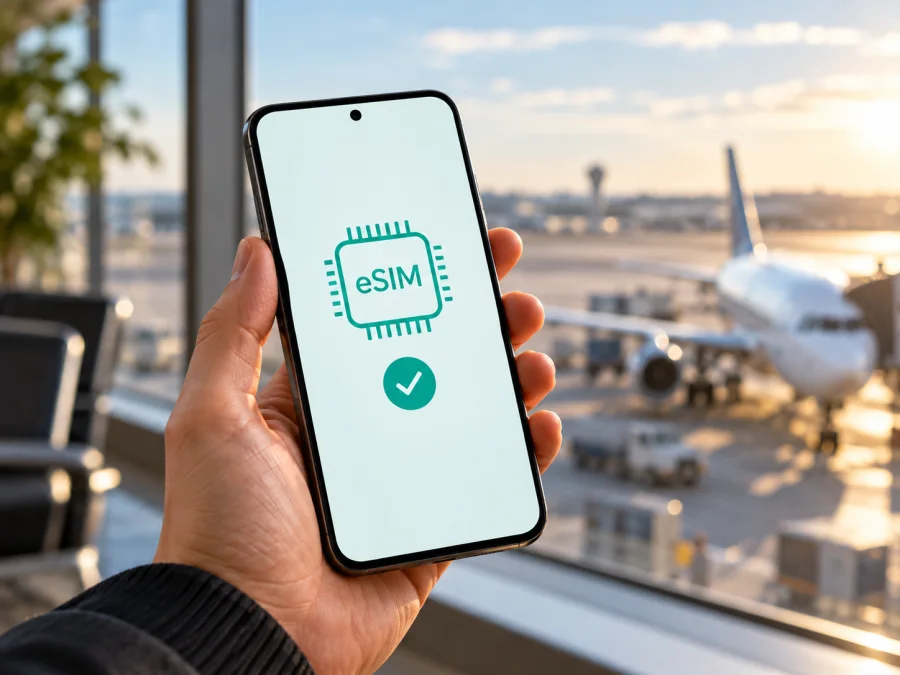
Samsung Galaxy S24 128GB eSIM: compatibility and setup guide
Short answer: Samsung lists the Galaxy S24 among its eSIM-capable phones, so the Samsung Galaxy S24 128GB is generally an eSIM-compatible configuration. However, “128GB” identifies storage capacity, not the phone’s sales region or exact model variant. Samsung says eSIM availability can depend on the country of origin, and carrier support and software can also affect the options shown. Before choosing a travel plan, confirm eSIM on the individual handset in Settings and check that it is not carrier-locked.
This guide explains how to check your specific phone, add an eSIM, select it for mobile data, and troubleshoot common setup issues. It does not assume that every regional version sold under the Galaxy S24 name has identical connectivity features.
Samsung Galaxy S24 128GB eSIM at a glance
| Item | What to know |
|---|---|
| Device | Samsung Galaxy S24 128GB |
| eSIM support | Samsung lists Galaxy S24 as eSIM-capable; regional availability still matters |
| What 128GB identifies | Storage capacity, not region or eSIM status |
| How to verify | Look for an EID and Settings → Connections → SIM manager → Add eSIM |
| Before purchase | Check carrier lock, destination, plan allowance, validity, and activation terms |
The Galaxy S24 is eSIM-compatible in supported regional configurations. The digital profile is downloaded to the phone; it does not require a plastic SIM. Supported dual-SIM options and menu wording depend on the regional model, carrier, and software.
“128GB” alone cannot identify the market version. Samsung lists Galaxy S24 in its eSIM guidance but cautions that country of origin may affect support. Treat the listing as a starting point and confirm the individual handset before buying a plan.
Does Samsung Galaxy S24 128GB support eSIM?
Generally, yes, but verify the exact regional handset. Samsung lists Galaxy S24 among eSIM-capable models. Its guidance also warns that eSIM may not be supported for some countries of origin, and that SIM screens can differ by carrier, software, and model. Imported, used, carrier-branded, or locally sold phones should be checked directly.
Storage does not determine eSIM capability. The model code, market configuration, firmware, and carrier restrictions matter more. If purchasing, ask for the full model number and sales region, and request a view of the EID or SIM Manager. “Unlocked Galaxy S24 128GB” by itself is not sufficient confirmation.
Regional and carrier versions
Regional variants can differ in supported features, firmware, and enabled menu options. A carrier lock is separate from eSIM hardware support: a phone may have eSIM but still reject a profile from another provider until unlocked. Conversely, if the regional configuration does not expose eSIM, another carrier’s support cannot add that function.
There is no country rule that can be inferred from “Galaxy S24 128GB.” Check the actual phone. Ask the seller for its model code and sales market, the Settings → Connections → SIM manager screen, and confirmation that it is unlocked. If those details are unavailable, consider compatibility unconfirmed until you can inspect the device or obtain a clear return option.
Check eSIM compatibility on your own phone
Check the handset itself, rather than relying on its box, a marketplace listing, or another Galaxy S24 owner’s experience. The EID is an identifier associated with eSIM hardware; SIM Manager shows whether setup is available. Menu wording can vary by One UI version and carrier.
Quick compatibility checklist
- [ ] In the Phone app, enter
*#06#and look for EID among the device identifiers. Do not share it; treat it as private device information. - [ ] Open Settings → Connections → SIM manager and look for Add eSIM.
- [ ] Check Settings → About phone for the full model number and confirm its sales market if unclear.
- [ ] Install available software updates over Wi-Fi, restart, then check SIM Manager again.
- [ ] Confirm the phone is unlocked for the profile you intend to use.
An EID is useful, but do not use it as the only test. The most practical confirmation is an EID together with a working Add eSIM option. If an EID appears but the option is missing, carrier or regional software may restrict it; ask Samsung or the original carrier to confirm. If neither appears after updating and restarting, do not assume the phone can accept a travel eSIM. On some software builds, you may also find the identifier under Settings → About phone → Status information. If the dial code does not open a screen, check that settings page instead; the presence or absence of a dial-code response alone should not decide compatibility.
If you are uncertain, check your device before choosing a plan. This matters especially for imported and refurbished phones, because name and storage size do not establish regional configuration.
Before you buy a travel eSIM plan
Compatibility is only one part of the decision. Check the destination, plan terms, and how you will use your existing SIM to avoid unexpected roaming charges.
- Confirm the destination. Make sure every country on your itinerary is covered; a country plan may not include neighboring destinations.
- Read the allowance and validity. Match data and duration to your trip, accounting for navigation, video calls, backups, and hotspot use.
- Check activation timing. The plan may start at purchase, installation, or first connection. Follow its stated conditions.
- Check the phone. Confirm eSIM is available on this exact handset and that it is not carrier-locked.
- Plan your SIM settings. Choose the data line and check your home carrier’s roaming terms.
- Keep Wi-Fi available. A reliable connection helps download the eSIM profile.
Many travel eSIMs are data-only and do not include a regular number, calls, or SMS unless the terms say so. Messaging and calling apps can use data, subject to their requirements. Check how your usual number will receive important verification codes abroad.
How to install and activate an eSIM on Samsung Galaxy S24 128GB
Before starting, confirm Add eSIM appears, connect to Wi-Fi, and have the provider’s QR code or activation details ready. Samsung’s usual path is Settings → Connections → SIM manager → Add eSIM; labels can vary. Use the installation method supplied for your plan.
QR-code setup
- Open SIM Manager: go to Settings → Connections → SIM manager.
- Tap Add eSIM and keep the phone on Wi-Fi.
- Choose Scan QR code if this is the supplied method.
- Scan the code and follow the prompts. If the code is on the Galaxy S24 screen, display it on another device or use manual entry if supported.
- Confirm installation and wait for the profile to download. This may take a few minutes.
- Name the line something recognizable, such as “Travel”.
- Choose the data line when you are ready to use the plan; follow its activation terms if you are not at the destination yet.
- Restart if prompted, then return to SIM Manager to confirm the profile appears.
For manual setup, select the corresponding entry option and copy the supplied details exactly. Activation codes may be single-use. Do not share the QR or activation code, and do not repeatedly retry a failed installation; contact the plan provider to check whether the code has been used.
See the Android eSIM installation instructions. The iPhone eSIM instructions are for Apple devices, but may help other travellers in your group.
Installation places the profile on the phone; the plan may activate later, for example on connection to a supported destination network. Read the plan conditions. If you need data only after arrival, install in advance where allowed, then enable and select the profile according to those conditions. Providers can use different activation timing.
Use the eSIM for mobile data while travelling
At the destination, select the travel profile for mobile data in Settings → Connections → SIM manager. Then check: the eSIM is on; mobile data is assigned to it; roaming is enabled on that profile if the provider requires it; and network selection is automatic unless support directs otherwise. Allow a few minutes to register, then test with a simple web page.
If your home SIM remains on for calls or messages, check its data and roaming settings separately. A travel eSIM does not suspend home-carrier charges. You can turn off the home line when you do not need it.
Estimate data use based on your plans. Offline maps and Wi-Fi can reduce mobile-data use; video calls, cloud backups, and hotspot sharing can use more. Check whether tethering is allowed by the selected plan, and disable automatic backups or app updates if you need to conserve its allowance.
Kaspersky eSIM Store is an app and website where you can choose, complete checkout for, and activate an eSIM with a mobile-data plan for an international trip. Plan terms and eligible destinations belong to the selected plan and the local networks it can use. To review current options, browse the Kaspersky eSIM Store homepage. It is a starting point for checking destinations and conditions, not a promise that a particular country tariff is available.
Common problems and what to check
“Add eSIM” is missing
Check SIM Manager, update software over Wi-Fi, restart, and look for an EID using *#06#. Confirm the model and sales region with Samsung or the seller. If the option remains absent, regional configuration or carrier restrictions may apply; do not buy based on another Galaxy S24 variant’s menu.
The QR code will not scan
Brighten the screen showing the code, clean the camera lens, and make sure the code is complete. If displayed on this phone, use a second screen or manual entry if offered. Verify that it is the eSIM installation code.
The profile will not download
Check the Wi-Fi connection and that Airplane mode is off, then restart and try once more. If the code may have been used already, stop and contact the provider; deleting or repeatedly reinstalling a single-use profile can complicate recovery.
The eSIM is installed but has no service
Confirm the profile is on, the destination is covered, and the plan’s activation condition has been met. Select it for mobile data and enable its data roaming if instructed. Toggle Airplane mode, restart, and allow a few minutes to register.
The phone connects but apps have no internet
Check that mobile data is enabled and assigned to the eSIM. Briefly turn Wi-Fi off to test cellular data, then check plan validity, remaining data, and any device data limits.
The home SIM appears to be roaming
Set the eSIM as the data line and check roaming for each profile separately. Disable data roaming or mobile data on the home SIM if you want to avoid using that carrier abroad. Ask that carrier about billing.
A plan works on another phone but not this one
Re-check this handset’s EID, Add eSIM option, lock status, software, and profile state. Share the error with the plan provider; ask Samsung or the original carrier about regional restrictions if the identifier or menu is missing.
Frequently asked questions
Is Samsung Galaxy S24 128GB eSIM compatible?
Generally yes: Samsung lists Galaxy S24 as eSIM-capable. The 128GB label does not identify the regional variant, so check EID and Add eSIM on the handset before buying.
Does 128GB mean the phone supports eSIM?
No. It names storage capacity. Support depends on the particular regional model, software, and any carrier restriction.
Can I use a physical SIM and eSIM together?
Supported Galaxy S24 configurations can manage a physical SIM and eSIM in SIM Manager. Available active-line combinations vary; check the phone’s own controls.
Will a travel eSIM replace my number?
Not necessarily. Many travel plans provide data only. Your usual SIM may remain available for calls or messages, subject to device and carrier rules; check roaming charges.
Should I install it before travelling?
Often you can install over Wi-Fi in advance, but read when validity begins. Follow the provider’s instructions for activating after arrival if required.
Can I move the profile to another phone?
Do not assume so. Transfer and reinstallation rules depend on the provider; check before deleting a profile or changing phones.
Does eSIM guarantee 5G or a particular speed?
No. Network generation, coverage, and speed depend on the plan, local network, regional bands, location, and current conditions.
Final check: confirm the phone, then choose for the trip
Samsung lists Galaxy S24 as supporting eSIM, but your handset still needs verification: 128GB does not reveal its market, carrier configuration, or software state. Before checkout, look for an EID, confirm Add eSIM in SIM Manager, and establish that the phone is unlocked for your chosen profile.
Match the plan to your destination and check allowance, validity, activation timing, and tethering conditions. Install over reliable Wi-Fi, select the travel eSIM for mobile data when appropriate, and review roaming separately for each line.
When ready, use the Kaspersky eSIM Store website or app to review destinations and displayed plan terms, then choose an eSIM for mobile data on your international trip. If a setting or activation message differs, pause before deleting the profile and ask the relevant device, carrier, or plan support team to check the exact handset and error.


