Travel connectivity guide
Samsung Galaxy S24 FE 256GB eSIM: Setup & Compatibility
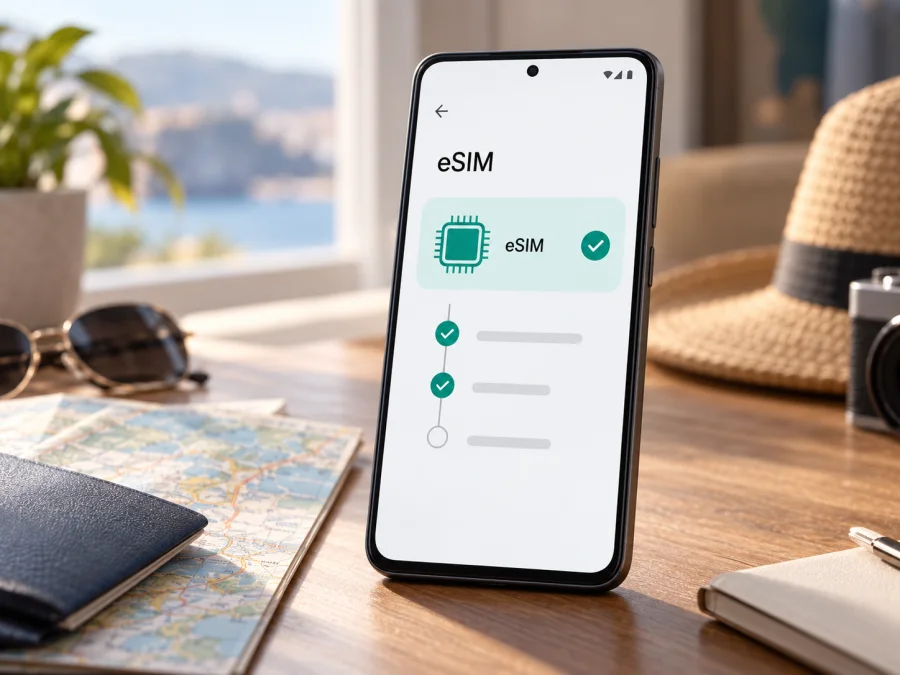
Samsung Galaxy S24 FE 256GB eSIM: compatibility and setup guide
The Samsung Galaxy S24 FE 256GB can use an eSIM in regional versions that include the embedded SIM hardware and software. Samsung product specifications for 256 GB configurations in several markets list an embedded SIM and combinations such as one physical SIM plus eSIM, and in some markets dual eSIM. However, “256GB” alone does not identify a complete regional model number. Do not assume every handset with this name has the same SIM configuration: confirm the exact device in Settings and with the seller or carrier before choosing a travel plan.
This guide explains what the available evidence establishes, how to check your own phone, and how to install and use an eSIM for mobile data while travelling. The check is important even when a product listing says “eSIM compatible”: a regional software build, a carrier restriction, a device lock, or a plan that is unavailable in the destination can change the result.
Does Samsung Galaxy S24 FE 256GB support eSIM?
In supported regional variants, yes. Samsung’s specifications for 256 GB Galaxy S24 FE configurations sold in markets including Germany, Mexico, and India describe an embedded SIM alongside a nano-SIM. Depending on the regional listing, Samsung gives supported configurations as a physical SIM with an eSIM, two physical SIMs, or dual eSIM. These published examples establish that eSIM-capable 256 GB versions exist; they do not prove that every device sold under the same retail name has eSIM enabled.
The precise answer for your handset depends on its full model code, country or market of sale, software, and carrier status. Storage capacity is not an eSIM identifier. A seller may describe a phone simply as “Samsung Galaxy S24 FE 256GB” while omitting a suffix that distinguishes its sales market. Ask for the model code shown on the box or in Settings → About phone, then compare it with the Samsung support page for that market. If you are buying from a carrier, ask whether that specific unit can add a third-party travel eSIM, not only whether it supports that carrier’s own eSIM service.
Samsung also explains that Galaxy eSIM service can vary by country and carrier, and that some phones purchased in certain countries may have eSIM use disabled. Keep these two questions separate:
- Does this exact phone have working eSIM hardware and an available eSIM menu? This is a device and regional-software question.
- Will this particular eSIM plan work on it in the destination? This depends on the plan’s eligibility, network arrangements, and any device lock or carrier restriction.
A compatible phone does not guarantee that every operator or travel plan will work. Conversely, a plan being offered for a country does not establish that an individual phone can install it.
At a glance
| Item | What to know |
|---|---|
| Exact name covered | Samsung Galaxy S24 FE 256GB |
| eSIM answer | Supported in documented regional variants; verify the exact handset before purchase |
| Storage variant | 256 GB; storage capacity alone does not determine eSIM support |
| Physical SIM | Samsung listings for supported regional configurations include a nano-SIM option |
| Possible SIM combinations | Regional product listings may specify SIM 1 + eSIM, two physical SIMs, or dual eSIM; check the model sold in your market |
| Best device checks | Look for an EID and Add eSIM in SIM Manager; confirm with the full model code and seller |
| Travel use | Use the installed travel profile for mobile data only if the selected plan and destination support it |
Regional versions, carrier markets, and model codes
“Samsung Galaxy S24 FE 256GB” identifies the product family and storage size, not one universal SIM configuration. Samsung’s regional pages associate 256 GB versions with different sales-market model codes; eSIM-capable examples exist, but their SIM combinations are not necessarily identical. Ask for the full model code printed on the box or shown in Settings → About phone, then check the Samsung specifications for that market.
Three factors can differ:
- SKU and hardware: the code identifies the regional configuration. Network bands and SIM combinations may differ.
- Regional software: some country versions may restrict eSIM, and a software update cannot add eSIM hardware to an unsupported unit.
- Carrier and plan rules: a local operator can accept its own customers’ eSIMs but restrict other profiles. Travel plans have separate device and destination requirements.
The country where you are travelling is not the phone’s sales region or the operator market for a plan. Confirm that every destination on your route is explicitly listed, then check validity, data allowance, and activation rules. If the phone is imported or operator-sold, ask whether it is unlocked and whether third-party travel eSIMs are allowed. Confirm this for the exact handset before relying on it abroad.
Check compatibility before buying a plan
Check the phone you will take on the trip; a similar model or a generic store listing is not enough.
- [ ] Find the EID. Open Settings → About phone → Status information (or About phone → Status, depending on software). Samsung says the EID may also be on the phone’s box. Make sure it belongs to this handset.
- [ ] Open SIM Manager. Go to Settings → Connections → SIM manager and look for Add eSIM or Add mobile plan.
- [ ] Verify the model code. Note the full number in About phone and compare it with the Samsung specification for the sales region. Ask Samsung or the seller if unclear.
- [ ] Confirm the phone is unlocked. Ask the original carrier or seller whether a third-party travel eSIM is permitted.
- [ ] Check the exact plan. Verify destination countries, validity, data allowance, hotspot terms, and when installation or activation must occur.
An EID is useful evidence, but does not guarantee that every plan can be installed. The strongest practical check is an EID, an active Add eSIM option, and confirmation of the model code and lock status. If both EID and the menu are missing, ask Samsung or the seller before paying.
Check your device against these steps first. If anything is unclear, share the model code and the wording shown in SIM Manager with Samsung or the seller; do not post your EID publicly.
Before installation: prepare the phone and plan
Read the plan instructions before scanning. Many QR codes are single-use, so keep yours private. If the code arrives on the phone being set up, use a supported manual-entry option or display the code on another screen.
Have a reliable Wi-Fi connection, the QR or activation code, and the plan’s destination, validity, data limit, and activation terms ready. Install with enough time to troubleshoot, and do not delete a downloaded profile unless the provider confirms it can be reinstalled.
For the Samsung setup flow, see Kaspersky eSIM Store’s Android installation instructions. Labels may vary by One UI version. The iOS installation instructions are for travellers setting up an Apple device, not this Samsung phone.
How to install an eSIM on Samsung Galaxy S24 FE 256GB
Option A: Scan a QR code
- Connect to Wi-Fi and keep the QR code visible on a separate device or printed page.
- On the Samsung phone, open Settings → Connections → SIM manager.
- Tap Add eSIM or Add mobile plan. If there is no such option, stop and repeat the compatibility checks rather than trying to force a setup.
- Choose Scan QR code or Scan carrier QR code, then point the camera at the code supplied for your plan.
- Review the destination or plan name if the phone displays it. Follow the prompts to download and add the profile.
- Wait for the phone to finish. Keep it connected to the internet and do not close settings or restart midway unless instructed.
- When asked, choose a clear label such as Travel data. This makes it easier to distinguish the new profile from your home SIM.
- Decide whether to enable the profile now or leave it off until the plan’s stated activation point. Some plans start their validity at installation; others start on first network connection. Follow the plan’s terms.
Option B: Enter activation details manually
If the provider supplies a manual activation code and the phone offers that option, open Settings → Connections → SIM manager → Add eSIM. Choose the option to scan or enter an activation code, select manual entry, and type the details exactly as supplied. Check upper- and lower-case characters and any server address. Do not invent a server address or reuse details from a different plan. Complete the on-screen confirmation and wait for the profile to download.
Option C: Automatic setup
Some carriers can send or pre-assign a plan to a Galaxy phone. If your provider explicitly supports this for the exact phone and market, open SIM manager → Add eSIM and follow its prompts. Automatic setup availability is carrier-dependent; its presence in a Samsung guide does not mean it is available in every country or for every travel plan.
After the profile downloads
Open SIM Manager and confirm that the new plan appears. Give it a useful name and make sure it is switched on when you are ready to use it. For mobile data, select the travel eSIM as the data SIM if the plan’s instructions say to do so. Keep your home SIM active for calls or messages only if you need it and understand your home carrier’s roaming charges. A data-only travel profile may not provide a regular phone number, voice service, or SMS; check the specific plan terms instead of assuming those features are included.
Use the eSIM for mobile data on a trip
Install at a time that suits the plan’s validity rules. Some plans start on purchase or installation; others start at first connection. The plan terms decide whether installing at home preserves any validity. Save instructions and support details offline, label the profile, and decide which SIM handles calls and which handles data.
After landing, turn off Airplane mode, enable the travel profile, and select it as the mobile-data SIM in Settings → Connections → SIM manager (or the equivalent preferred-SIM setting). Turn on data roaming for that profile only if its provider instructs you to. Keep the home SIM for calls or texts only if needed, and check its roaming charges. A data-only profile may not include a regular number, voice service, or SMS; confirm the plan terms.
For a multi-country route, verify every country is included rather than inferring coverage from a nearby destination or a region name. Check hotspot rules if you plan to share a connection. Network access, speed, and available features depend on the current plan terms and local network.
Common travel setups look like this:
- Keep your home number: leave the home SIM available for calls or texts if needed, but choose the travel eSIM for data and check home-carrier roaming charges.
- Use data only: disable the home SIM if you do not need it and select the travel profile for mobile data; internet messaging apps can still work over data.
- Cross a border: confirm each country on the route is included. A country-specific plan may stop connecting after you leave that country.
Kaspersky eSIM Store is an app and website where travellers can choose, arrange, and activate an eSIM with a mobile-data plan for an international trip. Browse the current travel plans for your destination and review data and validity details; the homepage is a general starting point, not a country-specific tariff.
Common problems and what to check
“Add eSIM” is missing
Check the model code and region, install available updates over Wi-Fi, restart, and reopen Settings → Connections → SIM manager. If the option remains missing, the regional model may not have eSIM enabled. Ask Samsung or the seller; an app cannot add unsupported hardware.
There is no EID
Check About phone → Status information or About phone → Status, then compare with the matching box. If neither shows an EID, ask Samsung or the seller to identify the exact model. Do not substitute another phone’s EID.
The QR code will not scan
Increase screen brightness, clean the camera, and confirm the code belongs to this plan and has not been used. Display it on another screen if necessary. Use manual entry only when the provider supplies an activation code; ask for a replacement if the code expired or reached its installation limit.
The profile downloaded but has no service
Make sure it is enabled and the destination is included. Check that the plan’s activation time has arrived, toggle Airplane mode, and allow time for registration. Confirm which SIM is selected for data and whether roaming must be enabled on the travel profile. Use manual network selection only as the provider directs.
Mobile data is not being used
Turn on Mobile data, select the travel eSIM for data, and briefly disable Wi-Fi to test it. Check the plan’s remaining data and validity. Avoid deleting and reinstalling the profile because many QR codes cannot be reused.
Calls work but data does not, or the reverse
Review the preferred SIM for calls, messages, and data separately. A data-only plan may not provide calls or SMS; the home SIM may still provide those services. Check the data line and roaming setting before changing other options.
The phone rejects the profile
Confirm the country-specific model code, unlock status, and plan eligibility with the provider or seller. Check that the code is intended for Android and has not already been used. Keep the error message for support, but do not share the QR code or full EID publicly.
Frequently asked questions
Does 256GB mean the phone has eSIM?
No. It is the storage capacity. Samsung documents eSIM-capable 256 GB variants in several markets, but the model code and device settings decide whether a particular handset supports it.
Can two eSIMs be active at once?
Some regional specifications list dual eSIM, but combinations vary. Check the exact model and the options in SIM Manager. Stored profiles and simultaneously active profiles are not necessarily the same.
Does an EID prove a plan will work?
No. Also check the Add eSIM menu, regional restrictions, carrier lock, and plan eligibility for the destination.
Do I need a physical SIM to install an eSIM?
Usually not; setup can be completed over Wi-Fi. The device must still support eSIM, be unlocked where required, and follow the provider’s instructions.
Will a travel eSIM replace my number?
Not necessarily. A data-only profile may not include a regular number, voice service, or SMS. Check its terms and your home carrier’s roaming charges.
When should I install it, and should I remove it later?
Install over reliable internet when you have time, but first check when validity begins. Turn off an unused profile after the trip; remove it only when the provider confirms that it can be safely reinstalled or is no longer needed.
Final check before your trip
For Samsung Galaxy S24 FE 256GB, the answer is conditional: Samsung lists eSIM-capable 256 GB variants, but storage size does not identify your phone’s market version. Check its EID, confirm Add eSIM appears, verify the full model code and unlock status, then check the plan’s destinations, activation timing, validity, data allowance, and setup requirements.
Install over Wi-Fi, label the profile, and select it for mobile data when ready. Enable data roaming only as the plan instructs. If compatibility remains unclear, ask Samsung or the seller before purchase. You can review current travel plans and match the details to your route; the app and website help travellers choose, arrange, and activate an eSIM for mobile data abroad.
Final check before your trip
For Samsung Galaxy S24 FE 256GB, the useful answer is conditional: Samsung lists 256 GB eSIM-capable variants, but “256GB” does not reveal the exact market version of your phone. Check its EID, confirm that Add eSIM appears in SIM Manager, match the full model code to the correct regional specification, and verify the phone is unlocked. Then check the plan’s exact destination, activation timing, validity, data allowance, and setup requirements before purchase.
Once those checks pass, install the profile over Wi-Fi, label it clearly, choose it as the mobile-data SIM when you are ready to travel, and enable data roaming only as the plan instructs. If any compatibility check fails, ask Samsung or the seller to confirm the exact device and consider another unlocked eSIM-capable phone before paying for a plan. For a trip, review current travel plans and match the plan details to your route; the site and app help you choose, arrange, and activate an eSIM for mobile data abroad.


