Travel connectivity guide
Samsung Galaxy S24+ 128GB eSIM Compatibility
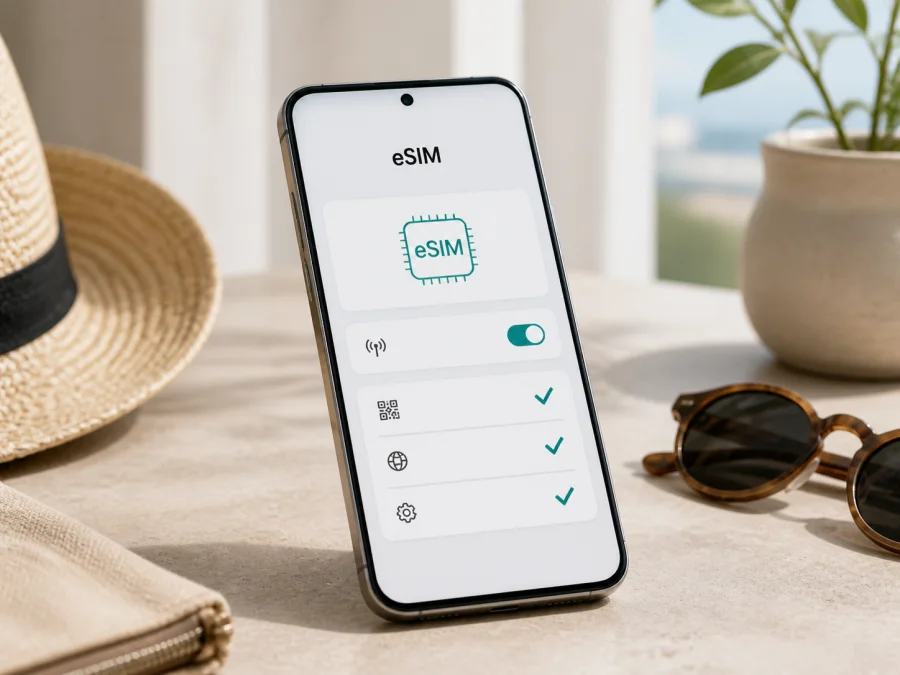
Samsung Galaxy S24+ 128GB eSIM compatibility and setup guide
If you are preparing a trip and want to keep your usual SIM available while using mobile data abroad, the Samsung Galaxy S24+ 128GB is a strong eSIM candidate. The important qualification is the exact regional version. Samsung lists Galaxy S24+ among its eSIM-capable Galaxy devices, and regional Samsung specifications describe an embedded SIM with combinations such as SIM 1 + eSIM or Dual eSIM. Samsung also warns that eSIM service varies by country, carrier and model. The name on a shop listing is not enough on its own: check the model code, software and SIM Manager before choosing a travel plan.
Quick answer
Yes, a supported regional version of the Samsung Galaxy S24+ 128GB can use an eSIM. The 128GB storage label does not decide whether the embedded SIM is enabled. eSIM capability belongs to the phone’s hardware and regional software configuration. A phone sold under the same family name may have a different model code, SIM configuration or carrier restriction in another market.
The practical result is compatible after device verification, not an unconditional promise for every listing called Samsung Galaxy S24+ 128GB. If the phone shows Add eSIM and has an EID, it has the device-side support needed to download a profile. The selected plan must still cover your destination.
At-a-glance characteristics
| Item | Samsung Galaxy S24+ 128GB page target | What to verify |
|---|---|---|
| Device name | Samsung Galaxy S24+ 128GB | The name and model code in About phone |
| Platform | Samsung Galaxy smartphone with Android | Software version and SIM Manager labels |
| Storage | 128GB, as stated in the target name | That the received phone matches the listing |
| RAM | Not specified in the target name | The exact regional model sheet; do not infer it |
| Mobile networks | S24+ family versions include 5G | 5G/LTE bands and local carrier support |
| SIM options | Regional specifications list nano-SIM plus embedded SIM; some list Dual eSIM | EID, Add eSIM and lock status |
| eSIM result | Supported on listed S24+ versions, subject to region, carrier and model | Complete the on-device check |
Why region and carrier matter
An eSIM is a digital SIM profile stored in the phone’s embedded SIM component. The phone needs compatible hardware, firmware that exposes the feature, and a provider or travel-plan system that can issue a profile for the device. Samsung’s official guidance covers Galaxy S24+, while explicitly noting that eSIM service can vary according to country and carrier.
The same family name can hide important differences:
- A model intended for one market can use a different regional model code from an import.
- A carrier can restrict eSIM on a sold, financed or managed handset.
- Firmware, QR-code routes and SIM combinations can vary by market.
The safest conclusion for Samsung Galaxy S24+ 128GB is: the Galaxy S24+ platform supports eSIM, but accept a specific 128GB unit for a travel eSIM only after the EID and Add eSIM checks succeed. If the menu is absent, do not force the installation with an unrelated QR code. Ask the seller or carrier for the exact model code and market availability.
Compatibility check before you buy a plan
<a id="kesim-device-compatibility"></a>
Use this check while you have the phone in hand. It is more reliable than a generic compatibility list.
1. Find the EID
Open Settings > About phone > Status information and look for EID. On some Samsung software versions, the wording or path can differ slightly, so use Settings search for “EID” if necessary. EID is the identifier associated with the embedded SIM; it is not the IMEI, serial number or phone number.
When supported, enter *#06# in the dialler to view identifiers. Keep the EID private. Its presence suggests eSIM hardware, but the menu test is still important because firmware or a carrier can affect availability.
2. Look for Add eSIM
Open Settings > Connections > SIM manager and look for Add eSIM. Depending on the software language, the action may have a slightly different translation, but it should let you download an eSIM. Samsung documents three routes: carrier-supported simple setup, QR-code scanning and manual activation.
Open Add eSIM without completing an installation and check that a QR or manual option is offered. If the item is missing, greyed out or replaced only by physical-SIM controls, pause the purchase and verify the model code and market.
3. Check the model and lock status
In Settings > About phone, note the model number and software information. Compare the model code with the invoice and Samsung information for the country where the phone was sold; “international” or “dual SIM” in an advertisement is not enough.
Ask the original carrier to confirm that the phone is not SIM-locked. A handset can show eSIM settings and still reject another provider’s profile. For a second-hand device, check that it is not blocked.
Compatibility checklist
- [ ] The device still matches Samsung Galaxy S24+ 128GB.
- [ ] An EID is visible in the information screens.
- [ ] SIM manager contains Add eSIM.
- [ ] The model code matches the market and seller description.
- [ ] The phone is unlocked for the intended plan.
- [ ] The tariff covers the destination and trip dates.
- [ ] Data allowance, activation rule and refund conditions are clear.
Check your device before selecting or paying for a travel eSIM. If any device-side item fails, check with Samsung or the carrier before paying for a profile that may not be downloadable or refundable.
Choose a travel eSIM carefully
After the device check is positive, use the Kaspersky eSIM Store app or website to choose and complete the purchase of an eSIM with a mobile-data tariff for your destination. Kaspersky eSIM Store is the app and site for selecting, arranging and activating an eSIM plan for an overseas trip; it is not your mobile operator and does not own the network used by the profile. Network access, coverage, speed and validity come from local operator arrangements and plan terms.
Compare destination, regional scope, data amount and duration. A country plan may suit one stop, while a regional plan may suit several; confirm every border crossing. Check when validity starts because some profiles begin at installation and others at first connection. The chosen plan’s terms decide, and an unused eSIM should not be assumed active indefinitely.
If the plan is data-only, your usual number can remain on the physical SIM for calls and SMS, subject to your carrier’s roaming settings. Maps, email, ride-hailing, translation and messaging apps can use the travel eSIM’s data. It does not automatically provide a second phone number or ordinary voice and SMS service.
Install and activate eSIM on the Galaxy S24+
Install before departure when allowed, or after arrival over dependable Wi-Fi. Keep the QR code on another screen or print it; the phone cannot scan its own screen. Charge the device, update it if practical and keep the activation email or in-app profile available.
Samsung setup steps
- Connect Samsung Galaxy S24+ 128GB to Wi-Fi and open Settings.
- Tap Connections, then SIM manager, then Add eSIM.
- Choose the available route. For simple setup, follow the on-screen carrier flow. For a QR profile, choose the scan option and point the camera at the supplied code.
- If the provider gives an activation code, choose manual entry and type it exactly; do not substitute the EID.
- Wait while the profile downloads. Keep Wi-Fi on and do not close the process unless asked.
- Give the line a label such as “Travel data” and confirm it appears in SIM manager.
- Under Mobile data, select the travel eSIM. If you need your usual line for calls and messages, keep it enabled for those functions but review its data-roaming setting.
- Turn on Data roaming for the travel eSIM only if the plan requires it. A travel profile may use a partner network.
- Turn off mobile data for the primary SIM, or disable automatic data switching if shown, to reduce accidental roaming charges.
- After landing, enable the travel line, wait for registration and test a webpage or map. The first connection may take a few minutes.
For the Android-oriented flow, see Samsung Galaxy eSIM instructions for Android. If you also carry an iPhone, the companion guide is eSIM instructions for iOS. The Samsung menu remains the authority for this Android phone; the iOS page is a separate reference for Apple hardware.
Using the travel eSIM during a trip
Install at home, use after landing
At home, complete installation over Wi-Fi if the plan permits early installation. Leave the travel line off or do not select it for data until ready, according to the activation terms. Before takeoff, save the destination address and an offline map. On arrival, enable the travel eSIM, select it for data and check that the primary SIM is not roaming.
Keep the normal number active
For a work trip, assign calls and SMS to the primary line and mobile data to the travel eSIM in SIM manager. Ask your regular carrier about charges for incoming calls or SMS abroad. A data-only tariff supports communication apps, but does not change your normal phone-plan terms.
Move between countries
For a multi-country route, confirm that the regional tariff covers each destination. At a border, keep the travel eSIM selected for data, allow registration with a permitted partner network and check the allowance. A country-specific tariff may require a new profile at the next stop. Do not assume 5G is available everywhere; local network, band, congestion and plan policy determine the result.
Manage data on the road
Use the data-usage screen to watch the allowance. Turn off background refresh, automatic updates and cloud photo backup if the plan is small. Download large media over Wi-Fi. A hotspot can consume data quickly and may be restricted by the plan.
Troubleshooting guide
Add eSIM is missing
Confirm Settings > Connections > SIM manager, search Settings for “eSIM” and restart the phone. Check for a software update and recheck the model number. If there is no EID and no Add eSIM entry, the unit may be a market-specific version without the feature, or the software may restrict it. Contact Samsung or the original carrier instead of installing an unknown profile.
The QR code will not scan
Increase the second screen’s brightness, clean the lens and show the entire code without notifications. If the code is on the Samsung phone, open it elsewhere. If manual activation is offered, enter the exact code. A used or expired code may not scan again; ask support about reissue rules.
The profile downloads but will not activate
Stay on Wi-Fi, set date and time to automatic, and check that the phone is unlocked. Read the plan conditions for the activation country and start trigger. Do not repeatedly delete and re-add the profile: a one-time QR code may become unusable. Give support the model code, EID and error message.
The eSIM is visible but there is no data
In SIM manager, make sure the travel profile is on and selected under Mobile data. Check destination, validity and allowance. Turn on data roaming for the travel profile if required, then toggle airplane mode or restart. Use manual network selection only when the plan names the permitted network. Keep the primary SIM’s data roaming off if you do not want it used.
FAQ
Does Samsung Galaxy S24+ 128GB support eSIM?
Yes, when the unit is a supported regional Galaxy S24+ version. Samsung’s current official Galaxy eSIM list includes Galaxy S24+, and regional S24+ specifications show embedded SIM options. Because the 128GB label does not reveal the model code, confirm EID and Add eSIM on the exact phone.
Does 128GB storage change eSIM support?
No. Storage is not the deciding feature. Regional model, firmware and carrier status matter more. Keep 128GB in the device name for accurate identification, but use EID and SIM manager to verify the unit.
Will a travel eSIM give me a phone number?
Not normally. An eSIM selected through Kaspersky eSIM Store is intended for mobile internet unless the specific tariff says otherwise. Use the primary line for ordinary calls and SMS, or use messaging apps over data.
Summary
Samsung Galaxy S24+ 128GB is eSIM-ready at the supported Galaxy S24+ family level, and Samsung documents the feature on current official support pages. Availability can still change by region, carrier and software. Before buying, find the EID, locate Add eSIM, match the model code, confirm the phone is unlocked and verify the tariff covers the trip.
Final device check and trip eSIM choice
Before you leave, repeat the decision in this order:
- Confirm that the phone is Samsung Galaxy S24+ 128GB, not a similarly named S24-series variant.
- Confirm an EID and Settings > Connections > SIM manager > Add eSIM.
- Confirm regional and carrier status, current software and no operator lock.
- Confirm destination, coverage arrangement, data allowance, validity start and activation rules for the selected eSIM tariff.
- In the Kaspersky eSIM Store app or website, choose and complete the eSIM purchase that fits the overseas trip, then install it over Wi-Fi.
- After arrival, select the travel eSIM for mobile data, enable data roaming only when the plan requires it and keep the primary SIM’s data roaming under control.
This final check turns “Samsung Galaxy S24+ 128GB eSIM support” into a practical answer for your phone and itinerary. If one fails, pause and ask Samsung, the original carrier or plan support to confirm the limitation.


