Travel connectivity guide
Samsung Galaxy S24 Ultra 12GB RAM eSIM Guide
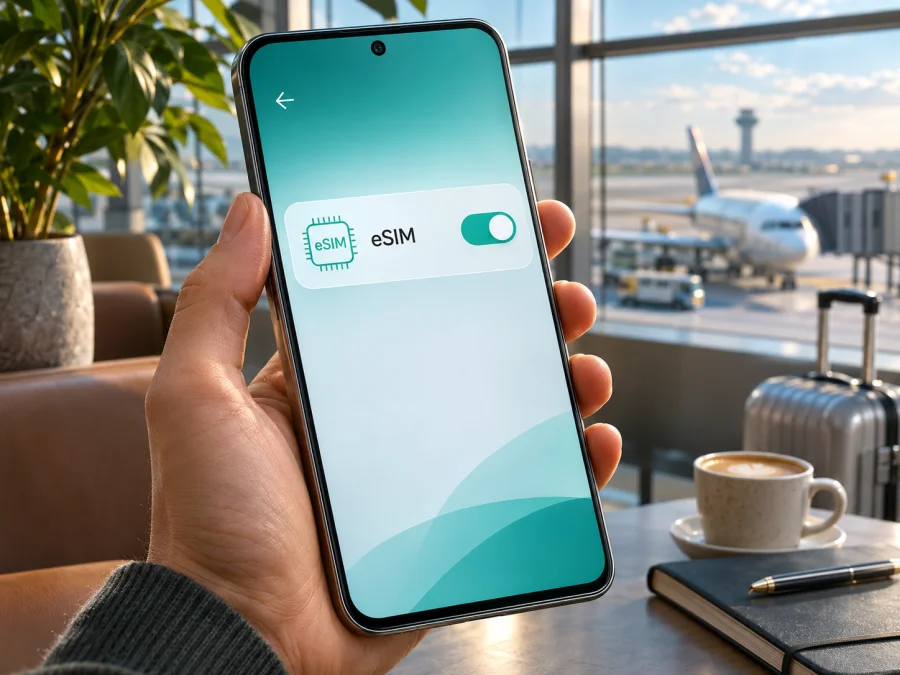
Does Samsung Galaxy S24 Ultra 12GB RAM support eSIM?
Short answer: Samsung lists the Galaxy S24 Ultra as part of the eSIM-capable Galaxy S24 series. The 12GB RAM configuration does not itself determine eSIM support. The exact answer for a particular handset still depends on its sales region, model number, firmware, carrier restrictions and current software. Before choosing a travel plan, check the phone itself for an EID or an Add eSIM option, and confirm that the device is unlocked.
Quick compatibility summary
| Check | What is known | What to confirm on your phone |
|---|---|---|
| Device family | Samsung includes Galaxy S24 Ultra in its Galaxy S24 eSIM support information. | Check the full model number and country of origin. |
| RAM variant | The named configuration has 12GB RAM. RAM capacity is not the eSIM control. | Do not use memory capacity as proof of eSIM support. |
| eSIM menu | Supported Galaxy phones commonly show Settings → Connections → SIM manager → Add eSIM. | Menu wording and availability may vary by region, software and carrier. |
| EID | An EID identifies the embedded SIM hardware and is a useful check. | Look in About phone or status information; absence of a visible EID calls for further verification. |
| Travel data | A compatible, unlocked handset can usually install a travel data profile when the plan supports that phone and destination. | Check the plan’s destination, validity, data allowance, activation rules and device compatibility. |
Does Samsung Galaxy S24 Ultra 12GB RAM support eSIM?
At the family level, yes: Samsung’s current support information lists Galaxy S24 Ultra among Galaxy devices that support eSIM. Samsung also documents an Add eSIM option in the SIM manager for supported Galaxy phones. That is strong evidence that the product family is designed for eSIM, but it is not enough to certify an unknown individual handset. Samsung cautions that eSIM availability can depend on the country where a device originated, and its support pages note that screens and settings can differ by model, software version and wireless provider.
For a buyer, this means the useful answer is “the model family supports eSIM; verify the exact regional unit before purchase or installation.” The phrase “12GB RAM” identifies the memory configuration, not a separate cellular edition with a guaranteed eSIM feature. RAM size does not add or remove an eSIM component. Regional model codes, firmware configuration and carrier lock status are the details that matter for an individual phone.
Before you rely on the phone for a trip, check all of these separately:
- Hardware and software: Does this exact handset expose an EID and eSIM controls after its current software update?
- Sales region: What country or market was the phone made for? Ask the seller for the full model number and original market, especially for imported or refurbished stock.
- Operator status: Is the handset unlocked? A SIM lock can prevent a profile from another provider from working even where eSIM hardware is present.
- Plan market: Does the eSIM plan cover the country or region you will visit, and is it compatible with Samsung devices?
- Activation method: Does the issuer provide a QR code, an app-based flow, or another supported installation method? Have a reliable internet connection available during setup.
Regional versions and operator restrictions
The Galaxy S24 Ultra is sold through different markets and channels. Model codes, firmware and regulatory configurations can vary, even when a shop uses the same broad product name and RAM figure. Some regional variants may show different SIM options, and Samsung explicitly cautions that support can vary according to country of origin. Carrier-branded devices can also have restrictions or customized software. Consequently, do not transfer a result from one country’s product page to every Galaxy S24 Ultra 12GB RAM unit.
Ask the seller for the complete model code shown on the box or in Settings → About phone. Compare it with Samsung’s support information for the handset’s country of origin, not just the market where you plan to travel. If the phone is second-hand, imported, or carrier-supplied, check its unlock status and verify that its software is current. A previous owner’s working profile is not proof that a new profile can be added now: profiles can be tied to the issuer’s activation rules, and the former owner may have removed or transferred one.
The issuing operator market matters as well. eSIM is a device capability and a service the profile issuer must support; one does not guarantee the other. A local carrier or travel-plan issuer may have its own compatibility list, activation conditions, or restrictions. If support staff ask for an EID or IMEI, provide it only through the provider’s legitimate support channel. Do not post these identifiers publicly.
If you are buying the phone specifically for travel eSIM use, request written confirmation that the exact model code is eSIM-capable in its original market and that it is unlocked. If the seller cannot confirm, use the checks below before buying a plan. Check your device before choosing an eSIM tariff.
How to check EID and eSIM settings
Start with the phone in hand. Menu names can shift slightly with Android and One UI updates, so use Settings search if the exact wording differs.
Check for an Add eSIM option
- Connect the Galaxy S24 Ultra to Wi-Fi and install any available stable system update. Restart after an update if prompted.
- Open Settings.
- Tap Connections, then SIM manager.
- Look for Add eSIM. On some versions, tapping it opens choices such as scanning a QR code or searching for a plan.
- If the item is present, you have a direct indication that the current software exposes eSIM setup. You still need an eligible plan and an unlocked device.
- If Add eSIM is missing, do not conclude immediately that the hardware cannot support eSIM. Confirm the full model code, update status, region and carrier configuration with Samsung or the seller.
Find the EID
An EID is the identifier associated with embedded SIM functionality. On many Samsung phones, it can be found under Settings → About phone → Status information or within SIM manager, though the exact location varies by software and region. You can also search Settings for EID. On some devices, dialing *#06# displays device identifiers, potentially including the EID; availability of that screen varies, so use Settings as the first check.
If you find an EID, record it privately and compare the result with the eSIM issuer’s device requirements. The presence of an EID is a useful sign that embedded SIM hardware is available, but installation can still be blocked by firmware, carrier lock, an unsupported provider flow or plan restrictions. If no EID appears, check the model code and SIM manager, then ask Samsung support or the retailer to verify the exact SKU. Avoid publishing the EID or IMEI in a forum or public post.
Compatibility checklist before purchase
- [ ] The full name and model code match the phone you will actually use.
- [ ] An EID is visible, or Samsung/the seller has confirmed eSIM for that exact regional unit.
- [ ] Add eSIM appears in SIM manager, where available on the current software.
- [ ] The phone is unlocked and not restricted by an operator or corporate policy.
- [ ] The issuer supports the Samsung model and the installation method you will use.
- [ ] The destination is covered, and the package’s data amount, duration and start conditions fit the trip.
- [ ] You can connect to Wi-Fi or another internet source while downloading the profile.
- [ ] You know which SIM will handle mobile data and whether data roaming must be enabled for the travel profile.
Using eSIM for mobile data on a trip
A travel eSIM can be useful when you want mobile data for maps, transport, messages, bookings and other online tasks while away from home. It avoids inserting another plastic SIM, and it can often be installed before departure. The profile’s connection still depends on the plan’s partner networks, local coverage, compatible radio bands and service conditions. A supported phone does not guarantee a signal at every location.
If you want to keep your regular number available, set the travel eSIM as the mobile-data line and keep calls and messages on the primary SIM as desired. The exact choices depend on the installed lines and regional device configuration. Check your home operator’s roaming terms before leaving: keeping a line enabled for calls or texts may create charges even if the travel eSIM handles data. You can turn off data roaming for the home SIM while leaving the line available, if that matches your needs and provider settings.
Kaspersky eSIM Store is an app and website where travelers can choose, arrange and activate an eSIM with a mobile-data plan for an overseas trip. Before selecting a destination, verify device compatibility and unlock status, then compare the current plan’s coverage area, data allowance, validity and activation conditions with your itinerary. Plan availability and terms can change, so check the destination and package details when you are ready to travel.
A practical setup schedule
A few days before departure: confirm the model, EID, Add eSIM menu, unlock status, destination coverage and plan conditions. Update the phone over Wi-Fi and make sure you can access the QR code or installation instructions on a second screen if required.
At home or at the airport: install the profile only when the plan instructions say it is appropriate. Label it clearly, for example “Travel data,” so it is easy to recognize beside your usual SIM. Keep the QR code and activation details private. Do not delete the profile after a temporary connection problem unless the issuer tells you to; reinstallation may require a new code.
After arrival: enable the travel line, choose it for mobile data and follow the issuer’s instructions for data roaming. Wait briefly for network registration, then test a simple webpage with Wi-Fi turned off. If it does not connect, check the troubleshooting steps below before changing several settings at once.
How to install and activate an eSIM
The steps below describe a common Samsung Galaxy flow. The exact screens depend on software, market and plan issuer. Keep the phone connected to Wi-Fi, have the issuer’s installation details ready, and do not erase the profile once installed unless instructed.
- Check before starting. Confirm the phone has an EID or the eSIM controls, is unlocked and supports the plan. Review whether installation or first network connection starts the plan’s validity period.
- Open SIM manager. Go to Settings → Connections → SIM manager → Add eSIM.
- Choose the issuer’s method. If you received a QR code, select Scan QR code and scan it. If the plan is supplied through an app or another method, follow that issuer’s steps instead. A code displayed on the same phone may need to be opened on another screen or entered manually if the provider offers that option.
- Download the profile. Confirm the prompt and wait for the download to finish. Keep a stable Wi-Fi connection active. Do not close the setup process or restart unless the phone or issuer asks you to.
- Name and enable the line. Choose a label you will recognize, such as “Trip data.” Set calls, texts and mobile data according to your intended use. You can usually keep the home line for calls and messages while assigning data to the travel profile.
- Set roaming only as directed. Some travel eSIMs require data roaming on for that eSIM to connect to a partner network. Check the plan instructions and ensure the setting is applied to the correct line. This does not mean you should enable roaming indiscriminately on your home SIM.
- Test the connection. At the destination, turn off Wi-Fi, confirm the travel line is selected for data, and load a basic webpage. Allow time for network registration. If the plan is not meant to start until arrival, wait until you are in its coverage area.
For screenshots and current menus, see the Android eSIM installation guide. The iOS eSIM installation guide is useful if you are comparing setup instructions for another device; the Galaxy S24 Ultra runs Android, so use the Android steps for this phone.
Common problems and what to check
“Add eSIM” does not appear
Search Settings for “eSIM” and check About phone for the full model code. Install a stable software update, restart, and inspect SIM manager again. If the phone was imported or sold by a carrier, ask Samsung or the seller whether eSIM is enabled for that specific country variant. Check for an EID. If both the menu and EID are absent, pause before buying a plan and request verification of the exact handset rather than relying on a generic Galaxy S24 Ultra listing.
The QR code will not scan or the download fails
Check that the code is legible, belongs to the plan you purchased and has not already been used. Increase screen brightness on the device displaying the QR code, clean the Galaxy camera lens and hold the phone steady. Use Wi-Fi with a stable connection and disable any captive portal that requires a sign-in. If the code is shown on the Galaxy itself, display it on another device. Avoid repeated attempts if the issuer limits downloads; contact the provider for the supported recovery or manual installation method.
The eSIM installs but shows no service
Confirm that the profile is enabled and that the phone is in the plan’s covered destination. In Settings → Connections → SIM manager, select the travel eSIM for mobile data. Turn off Wi-Fi briefly to test cellular data. Check whether the plan requires data roaming on for its line, and verify that airplane mode is off. Restart once after installation if prompted. If manual network selection is offered, first try automatic selection; use a named network only when the issuer’s instructions specify it.
Data does not work but the line is visible
Check that mobile data is assigned to the travel profile rather than the home SIM. Confirm the plan has started, has remaining data and is within its validity period. Review the issuer’s APN instructions if provided, but do not invent APN values. Check for a data limit, disabled line or software restriction. Test in another location, because indoor reception or local coverage can affect connection. Ask the plan issuer to check the profile status if the basic settings are correct.
The phone appears locked or the plan is rejected
An EID does not remove a network lock. Contact the original carrier or seller to confirm the unlock status; a profile from a different issuer may not work until the restriction is removed. Also confirm that the plan supports the device model and the country where activation is taking place. Do not assume a failed installation means the Galaxy model never supports eSIM: distinguish device capability, regional configuration, lock status, plan eligibility and temporary network conditions.
Frequently asked questions
Does 12GB RAM mean that this version supports eSIM?
No. RAM describes memory capacity. Samsung lists Galaxy S24 Ultra in its eSIM-capable S24 series, but the exact handset still needs to be checked by model code, region, firmware and SIM settings.
Is every Samsung Galaxy S24 Ultra 12GB RAM unit eSIM-ready?
Do not assume that every regional or carrier-supplied unit exposes identical functions. Check the EID and Add eSIM menu on the phone, and confirm regional support and unlock status with the seller or Samsung where needed.
Can the phone use a physical SIM and an eSIM together?
Samsung documents hybrid eSIM dual-SIM support for the Galaxy S24 family. The available combination and active-line behavior may vary by region and software. Check SIM manager on your device and follow its displayed limits.
Can I install the eSIM before I travel?
Often, yes, if the issuer allows advance installation and the phone is online. Check when the plan’s validity begins. If it starts at installation, you may prefer to wait; if it starts at first connection in the destination, advance installation may be convenient. The issuer’s current instructions decide this.
Does a travel data eSIM replace my normal number?
Usually, a data-only travel profile does not provide a replacement number for ordinary calls and SMS. Your existing SIM can remain available according to the phone’s settings and your home operator’s terms. Messaging and internet calling apps can use data where their services are available.
Final checks before choosing a travel eSIM
The Samsung Galaxy S24 Ultra 12GB RAM belongs to a phone family Samsung identifies as supporting eSIM, but the exact unit is what counts. Check the EID or Add eSIM in settings, confirm the phone’s regional model and unlock status, and make sure the issuer supports your installation method. Then match the plan’s destination, data allowance, validity and activation timing to your trip.
Once compatibility is clear, use the Kaspersky eSIM Store website or app to review destinations and current plans, then choose, arrange and activate a suitable eSIM for mobile data abroad. Confirm the latest terms before completing setup, install the profile using the Android instructions, and select the correct line for data when you arrive. This simple sequence helps you travel prepared without treating the device name alone as a guarantee.


