Travel connectivity guide
Samsung Galaxy S25 128GB eSIM: Setup & Compatibility
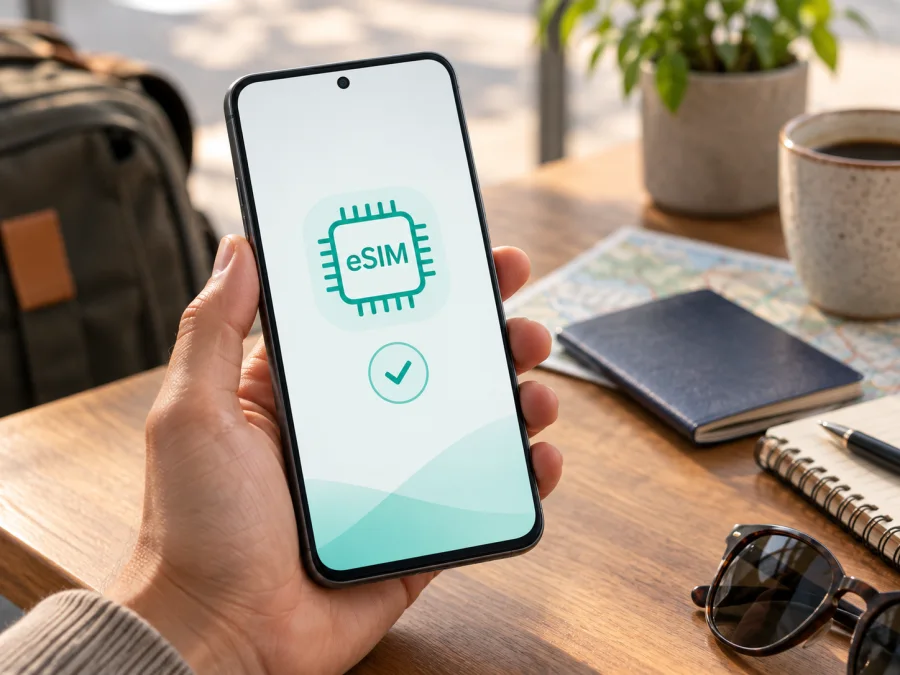
Samsung Galaxy S25 128GB eSIM compatibility and setup
The Samsung Galaxy S25 128GB supports eSIM in markets and model variants where Samsung enables the feature. Samsung lists the Galaxy S25 family among its eSIM-capable devices, and official regional specifications for the 128 GB Galaxy S25 show SIM configurations that include one physical SIM with an eSIM or two eSIMs. Still, “Samsung Galaxy S25 128GB” describes storage capacity, not the complete regional model code. A phone sold for a particular country, supplied by a carrier, or running region-specific software may have different options. Check the phone itself before choosing a travel plan.
For a supported, unlocked handset, an eSIM can provide mobile data abroad while your usual number remains on a physical SIM or another active line. The exact menu names, supported profiles and available network bands can depend on the model code, market, carrier and software. The steps below help you verify those details before travel.
At a glance
| Item | What to know |
|---|---|
| Device variant | Samsung Galaxy S25 128GB |
| eSIM status | Supported on compatible regional versions; verify the exact handset |
| Where to confirm | Settings > Connections > SIM manager; look for “Add eSIM” |
| EID | Check Settings > About phone > Status information, or dial *#06# |
| Typical travel use | Keep your regular line available and select the travel eSIM for mobile data |
| Main purchase checks | eSIM menu or EID, network unlock, destination coverage, plan terms |
The 128 GB label is storage capacity, not RAM, and does not itself determine eSIM support.
Does Samsung Galaxy S25 128GB support eSIM?
In general, yes: Samsung’s current support information includes the Galaxy S25 among Galaxy phones that support eSIM. Samsung product specification pages for regional 128 GB Galaxy S25 versions also list eSIM SIM combinations, including “SIM 1 + eSIM” and “Dual eSIM.” That makes the model family a sound candidate for a travel eSIM, but the retail name alone cannot prove that a particular unit has eSIM enabled.
Samsung notes that eSIM availability and service may differ by country and carrier. Regional variants can use different model codes, network configurations and software; some carrier-supplied phones may have restrictions or require a software update. Carrier locking is a separate issue: a device can have eSIM hardware and still be restricted from adding a profile from another provider. Confirm both eSIM availability and network-unlock status on the phone you own or plan to buy.
Think of the answer in two parts: the Galaxy S25 family supports eSIM, while a specific Samsung Galaxy S25 128GB must be checked for its own EID, SIM manager options and network restrictions. If those checks do not match the instructions below, ask the seller or carrier to confirm the exact model code and country configuration before paying for a plan.
Check your exact phone before purchase
<a id="kesim-device-compatibility"></a>
Use this checklist on the handset, not only on a product listing. A seller may use “Samsung Galaxy S25 128GB” for several market versions, and a listing may omit the model code.
- Open SIM manager. Go to Settings > Connections > SIM manager. Look for Add eSIM or Add mobile plan. Labels can differ slightly by One UI version and region.
- Check the EID. Open Settings > About phone > Status information and look for an EID. On many Galaxy phones, dialing *#06# also displays device identifiers, including EID when available. Do not share the EID publicly; it is a device identifier used for eSIM provisioning.
- Confirm the model code. In Settings > About phone, note the model number, not just the marketing name and storage size. Ask Samsung support or the carrier to confirm eSIM support for that exact code and sales market.
- Check the software. Install available official system updates, restart the phone, and look again in SIM manager. A menu can change after an update, but an update cannot add eSIM support to a hardware or regional variant that lacks it.
- Check the network lock. Ask the original carrier whether the handset is unlocked for another carrier’s eSIM. A working domestic SIM does not automatically prove that a travel profile will be accepted.
- Check the trip plan. Confirm that the destination or countries on your route are covered, the plan is for mobile data, and its validity period and data allowance fit your itinerary.
Check your device compatibility again before ordering if the handset was refurbished, imported, purchased through a carrier, or recently reset. When a menu or EID is missing, treat support as unconfirmed until Samsung or the seller identifies the exact regional version.
Install and activate a travel eSIM
Before starting, use a reliable Wi-Fi connection, keep the phone charged and have the activation details ready. Depending on the plan, installation may use a QR code, an activation link, or manual details. Follow the instructions provided for that particular plan. Some QR codes can be used only once, and some profiles begin their validity as soon as they are installed or first connect.
- Review the plan details. Check the destination list, data allowance, validity period, supported network type and activation rules. Make sure the package is for mobile data if that is what you need.
- Open SIM manager. Go to Settings > Connections > SIM manager > Add eSIM. If the option is not available, stop and recheck device compatibility rather than repeatedly attempting installation.
- Add the profile. Select the QR-code option and scan the code from another screen or printed page. If scanning is unavailable, choose the manual entry option only when the plan instructions provide the required activation details.
- Confirm the download. Follow the on-screen prompts to download and add the mobile plan. Keep Wi-Fi connected until the profile is installed. A successful download does not always mean the plan is already active for use.
- Name the line. Give it a clear label such as “Travel” or the destination name. This helps distinguish it from your regular SIM when choosing a line for calls, texts or data.
- Choose data settings. In SIM manager, select the travel eSIM for Mobile data when you are ready to use it. Keep your usual line enabled if you need to receive calls or messages, but review roaming settings for that line to avoid unexpected charges.
- Enable data roaming if required. Some travel eSIM plans require roaming on for their profile to connect to a partner network. Follow the plan’s instructions for the travel eSIM specifically; do not switch on roaming for your regular line unless you intend to use it and understand its charges.
- Connect at the right time. Some plans activate on installation; others start when the eSIM first connects in the destination. Follow the plan’s stated timing. At arrival, turn on the travel profile and mobile data, then allow the phone a few minutes to register.
- Test the connection. Turn Wi-Fi off briefly and open a page or app that uses data. Check the status bar and the selected mobile-data SIM. Turn Wi-Fi back on after the test if needed.
Samsung menu labels can shift between software releases or languages. For a device-specific walkthrough, see the Android eSIM installation instructions. If you are helping a companion with an Apple phone, the separate iOS eSIM installation instructions describe that process; they do not apply to this Samsung handset.
Use the eSIM while travelling
A practical setup is to keep your usual line for the number you need and select the travel eSIM for mobile data. Available dual-SIM combinations vary by regional model and software. At arrival, enable the travel profile, choose it for data and enable roaming for that profile only if its instructions require it. A data-only plan usually does not include a new phone number, voice service or SMS; messaging and internet calls can work through apps.
Common trip scenarios:
- Short city break: Install over Wi-Fi if the plan permits, then use the eSIM for maps, transit and messages. Keep large downloads on Wi-Fi.
- Multi-country route: Verify every stop is covered by the same regional plan; neighboring countries may use different partner networks.
- Work and personal lines: Choose the travel eSIM for data and check roaming, voicemail and call-forwarding terms with your regular carrier.
- Longer stay: Monitor data and expiry. Before topping up or installing another plan, check whether the current profile can be reused.
Kaspersky eSIM Store is an app and website where you can choose, arrange and activate an eSIM with a suitable mobile-data plan for an international trip. Compare the destination, data amount, validity and price shown for the specific option. The plan’s own terms determine activation and use. After confirming that your exact Samsung Galaxy S25 128GB can add an eSIM, review the final trip checklist before choosing a travel eSIM.
Troubleshooting
If the profile is installed but there is no mobile data, check the following in order:
- Confirm the destination and timing. The plan may not include the country you are in, or it may not begin until arrival or first network connection.
- Check SIM manager. Make sure the travel eSIM is enabled and selected as the mobile-data SIM. A profile can remain installed while its line is switched off.
- Check roaming for the travel profile. Turn it on only if the plan instructions require it. Leave roaming off on your regular line if you want to avoid using that carrier’s roaming service.
- Refresh the connection. Turn airplane mode on for about 15 seconds, turn it off, and wait for the phone to register. Restarting can also help after changing SIM settings.
- Check network selection. Leave network selection on automatic first. If the provider’s instructions name a supported network and automatic selection fails, select that network manually if it appears.
- Check mobile-data settings. Turn off Wi-Fi temporarily to test cellular data. If the plan specifies an access point name (APN), enter it exactly as provided; do not copy an APN from an unrelated plan.
- Check the profile and plan status. Verify that the eSIM is not paused, expired or out of data. Contact the plan’s support channel if the phone shows an activation or registration error.
- Confirm unlock and regional support. If the phone reports that the plan is not allowed or cannot be added, ask the original carrier whether the device is network locked, and verify eSIM support for its model code and market.
If calls or SMS on your usual number stop working, check that the regular line remains enabled and is still selected for the service you need. Dual-SIM behavior varies; data selection does not necessarily change the line used for calls or texts. If you receive unexpected roaming charges, disable data roaming on the regular line and contact your usual carrier to review its billing terms.
Frequently asked questions
Does the 128 GB version support eSIM?
Samsung regional specifications list eSIM configurations for Galaxy S25 128 GB versions. Storage capacity alone does not confirm support on an individual phone; check its EID, SIM manager and regional model code.
Can I install an eSIM without “Add eSIM” in settings?
First update and restart the phone, then verify the model number. If the EID and eSIM option are still missing, ask Samsung or the seller to confirm the exact regional unit before buying a plan.
Can my regular SIM and travel eSIM be active together?
Compatible versions allow combinations such as a physical SIM with eSIM, but active-line options vary by model, software and carrier. Review SIM manager and your regular carrier’s roaming terms.
Does a travel eSIM include calls and SMS?
A data-only plan generally provides mobile internet, not a new phone number, standard voice service or SMS. Internet calling apps can use the data connection subject to their own terms.
When should I install the profile?
Follow the plan’s activation rules. Installation over Wi-Fi before departure can simplify setup, but some plans start validity when installed or first connected.
Quick takeaways
Samsung Galaxy S25 128GB is generally eSIM-capable, but the storage label does not identify every regional model or carrier restriction. Verify Add eSIM, look for an EID, confirm the exact model code and make sure the phone is unlocked before purchasing a travel plan. Install the profile over a reliable connection, follow its activation timing, and select it as the mobile-data line when you are ready to use it abroad.
<a id="before-you-travel-check-the-phone-and-choose-a-trip-esim"></a>
Before you travel: check the phone and choose a trip eSIM
- Confirm eSIM support on your own Samsung Galaxy S25 128GB in SIM manager and, where available, through its EID.
- Confirm that the device is unlocked and that its regional model works with the plan’s activation method.
- Check destination coverage, data allowance, validity, activation timing and any roaming or APN instructions.
- Choose an eSIM with Kaspersky eSIM Store through its app or website, then install and activate it according to the plan details.
A few minutes spent checking the exact handset and trip conditions can prevent a last-minute setup problem. Keep your normal line’s roaming settings under control, keep the travel eSIM installed while you need it, and test mobile data after arrival.


