Travel connectivity guide
Samsung Galaxy S25 256GB eSIM: compatibility and setup
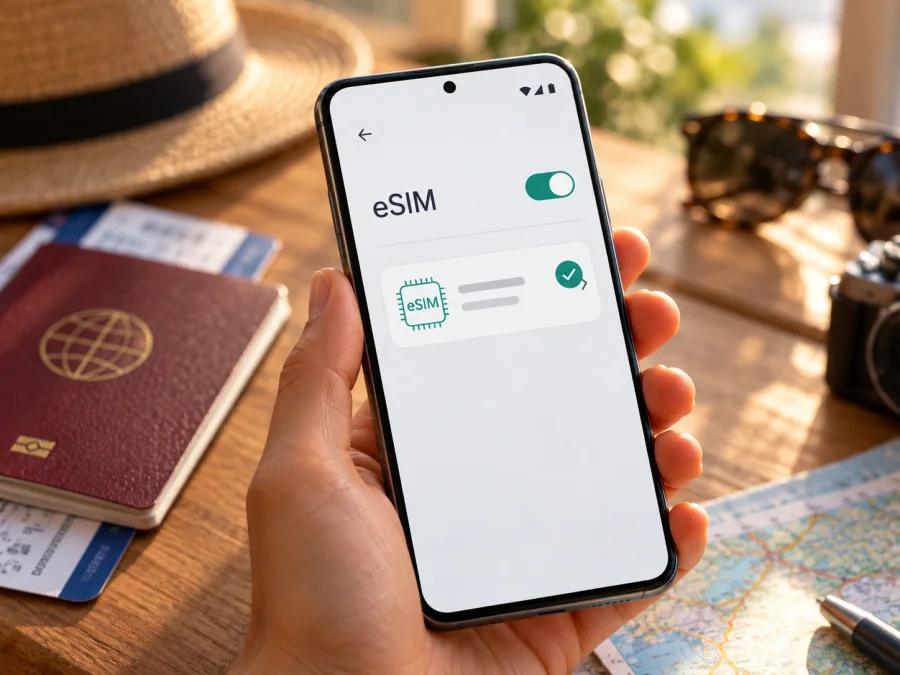
Samsung Galaxy S25 256GB and eSIM: compatibility and setup
The Samsung Galaxy S25 256GB can use eSIM in supported regional versions. Samsung confirms eSIM for the Galaxy S25 family in several markets, but the storage capacity does not identify the phone’s regional model. Samsung also warns that eSIM availability depends on the country of origin. Check the model code and the phone itself before choosing a travel data plan; a listing that says only “Galaxy S25 256GB” is not enough to guarantee compatibility.
For many travelers, eSIM is a convenient way to add mobile data for a trip without removing a home SIM. You can install the travel profile before departure, then select it for mobile data when you reach its destination. This guide explains what the model name does and does not tell you, how to check your individual handset, and how to set up an eSIM without changing the line you use for calls or messages.
Quick answer
Does Samsung Galaxy S25 256GB support eSIM? In markets where Samsung sells an eSIM-capable Galaxy S25, yes. Samsung’s regional support information lists the S25 family as eSIM-compatible in markets such as the United Kingdom and Canada. However, Samsung’s Hong Kong support page describes support for Hong Kong products separately and does not list the S25 among its currently supported eSIM devices. Samsung’s US support material also cautions that a phone’s country of origin can affect eSIM support. Treat the answer for an unspecified 256GB unit as usually supported in many markets, but not confirmed until you check its exact version.
The “256GB” part describes storage. It does not tell you whether the phone has an eSIM, whether its firmware exposes eSIM settings, whether it is carrier-unlocked, or whether the provider you plan to use supports that device. A Galaxy S25 purchased in one country can therefore behave differently from a similarly named phone sold elsewhere. Confirm the regional model code and the menu described below before paying for a plan.
| Item | What to know |
|---|---|
| Device name | Samsung Galaxy S25 256GB |
| eSIM answer | Supported on many regional versions; verify the exact handset |
| What 256GB means | Internal storage capacity, not an eSIM variant identifier |
| Main checks | Model code, EID, Add eSIM menu, carrier lock, local provider support |
| Travel use | Choose the travel eSIM as the mobile-data line at your destination |
| Calls and texts | A travel data plan may not include a normal phone number or SMS; check its terms |
Why the exact regional version matters
A retail name can be shared by phones configured for different markets. Mobile device makers may vary cellular features, SIM arrangements, firmware, and supported carrier services by market. This is separate from whether a mobile network in a destination country offers eSIM service: there are two compatibility questions, one about the handset and one about the plan or network.
Samsung’s current product information in Canada says the Galaxy S25 supports eSIM, and its UK support list includes the S25 family while warning that the country of origin matters. Regional specifications show why the market must be identified: Samsung Taiwan lists the Galaxy S25 12GB/256GB model with two Nano-SIM slots (SIM 1 + SIM 2), without listing eSIM. Samsung’s Hong Kong support page likewise has a separate eSIM device list that currently names newer S26 models rather than the S25. These official pages describe specific markets; do not generalize one market’s configuration to every S25. Check the exact model code and the phone’s settings.
For a phone bought in mainland China, Hong Kong, Macao, or Taiwan, or imported from one of these markets, be especially careful. The exact code in Settings → About phone → Model name and the presence of an EID are stronger checks than the seller’s short title. Ask for them before buying the handset or travel plan.
Operator configuration is another layer. A compatible handset may be locked to the original carrier, restricted by an account or payment status, or unable to download a profile from a particular provider. A carrier can also limit eSIM activation to certain plans or require an identity check. These are not the same as the phone lacking eSIM hardware. If you bought the device through a carrier, ask whether it is unlocked for use with another provider’s eSIM and whether any activation restriction remains.
Check the exact phone before you buy a plan
Use these checks on the handset you intend to travel with. If you are shopping for a device, ask the seller to demonstrate them on the actual unit or provide a clear photo of the model information and SIM settings. Do not use a screenshot from a different S25 as proof for your phone.
- [ ] Find the model code. Open Settings → About phone and record the model name or model number. The product name alone may be shared across markets. Keep the code available when asking Samsung, the seller, or your mobile provider about support.
- [ ] Look for an EID. On many Samsung phones, open Settings → About phone → Status information and look for EID. Depending on software and market, it may also appear in Settings → Connections → SIM manager or under About phone directly. An EID is the identifier associated with the embedded SIM. If it is absent, do not assume the device is compatible; confirm with Samsung for your model code.
- [ ] Check for Add eSIM. Open Settings → Connections → SIM manager. Look for Add eSIM or a similar option. Menu wording can vary by software version and region. The presence of the option is a strong practical indication that the phone can add a profile, but you still need to confirm that the device is unlocked and accepted by the plan provider.
- [ ] Check carrier lock status. If the phone was sold with a mobile plan, ask the original provider whether another provider’s eSIM can be installed. A SIM manager menu does not remove a network lock.
- [ ] Confirm the destination plan’s terms. Check that the destination or region is included, when the validity period starts, how much data is included, and whether the plan is data-only. Provider rules and availability can change. Confirm that the plan allows installation on your exact Galaxy S25 version.
If you want a separate device-level check, check whether your device is compatible before selecting a travel data plan. Keep in mind that a compatibility checker cannot override a device lock, a market restriction, or a provider-specific activation rule.
What you need before installation
Prepare the phone while you have a reliable internet connection, preferably Wi-Fi. You will need access to the eSIM profile or QR code supplied after purchase, the account or app where the profile is available, and enough battery to complete setup. Keep your primary SIM active if you still need its number for calls, bank messages, or account verification.
Read the plan details before installation. Some profiles can be installed in advance and begin using data only when they connect in the covered destination; other plans may start validity or usage at a different point. Follow the instructions shown for the exact plan. If the terms are unclear, ask the provider before installing. Do not scan a QR code repeatedly if the first attempt reports that it has already been used; many QR codes are single-use or tied to one installation.
Installing a profile and using it for mobile data are separate steps. The profile can appear in SIM manager while mobile data still uses your home SIM. Make a note of the profile label you choose so that you can select the right line later and avoid unplanned roaming charges from your usual provider.
How to install eSIM on Samsung Galaxy S25 256GB
Samsung’s standard Galaxy path is Settings → Connections → SIM manager → Add eSIM. Labels can differ with software version, language, and region. If this menu is missing, return to the compatibility checks above instead of assuming that a QR code can make an unsupported version work.
- Connect to the internet. Use Wi-Fi or another connection that will remain available during setup. Do not depend on the new eSIM for its own download.
- Open SIM manager. In Settings, tap Connections, then SIM manager. Choose Add eSIM.
- Choose a setup method. If Samsung offers a provider or automatic setup, use it only when the provider supplied that method. Otherwise tap Scan QR code and scan the QR code associated with your plan. Some providers may let you enter activation details manually; use those details only when they were specifically supplied for your purchase.
- Review the profile. Follow the prompts to download and add the eSIM. Give it a recognizable label such as “Travel data” so it is easy to distinguish from your home SIM.
- Choose the line for each service. In SIM manager, leave calls and texts on the line you want to use for those services. Set the travel profile as the mobile-data SIM only when you are ready to use it. The exact available choices depend on the active SIMs and software.
- Wait for registration. The phone may take a few minutes to download the profile or register on a supported network. Restart the phone if the installation screen or provider instructions recommend it.
- Test carefully. When you are at the destination and ready to connect, enable the travel eSIM, select it for mobile data, and check whether data roaming must be enabled for that profile. Keep roaming disabled on your home line if you want to avoid using its roaming allowance.
For screenshots and current menu guidance, see the Android eSIM installation instructions. The iOS installation instructions are for Apple devices and do not describe the Galaxy S25 menu, but may be useful if you also set up a plan on an iPhone or iPad.
Use the eSIM for mobile data on a trip
Before departure, decide which line should handle each service. Many travelers keep a home SIM available for calls or verification messages and use the travel eSIM for data. Whether both lines can remain enabled at once depends on the phone configuration and carrier. You can also switch off the home line while abroad if you do not need it, but first make sure you will not miss important calls or authentication messages.
After arrival, open Settings → Connections → SIM manager and select the travel profile for mobile data. Then check Mobile networks or the eSIM’s settings for data roaming. Some travel profiles require roaming to be enabled to connect to their partner network. This setting refers to how the eSIM accesses a network outside its home network; charges and included usage depend on the plan terms. Check the plan details rather than assuming that the word “roaming” means an extra charge or that it is always free.
If the provider allows installation before the trip, that can reduce setup time after landing. The eSIM may not connect until you reach a covered country or region. Keep the profile installed unless the provider instructs you to remove it; deleting a profile can make reinstallation difficult or require a new activation code. Use Wi-Fi at the airport or hotel for any remaining account steps if the eSIM has not registered yet.
A data-only eSIM usually does not replace your ordinary phone number and may not include standard calls or SMS. You can continue using messaging or calling apps over mobile data if their accounts are already set up, subject to the relevant app and local rules. Check the specific plan description for voice, SMS, hotspot, speed, validity, and fair-use details rather than assuming every travel eSIM has the same terms.
Kaspersky eSIM Store is an app and website where travelers can choose, arrange, and activate an eSIM with a plan for mobile data abroad. Once you have confirmed that the handset is compatible and unlocked, you can browse current destinations and plan options and review the terms for your route. The homepage is a starting point for checking current options; it is not a country-specific price or coverage promise.
Three practical travel scenarios
- Before departure: Verify the model code and EID, then install over Wi-Fi if the plan allows it. Keep your home line selected until you are ready to use travel data.
- After landing: Select the travel eSIM for mobile data and enable its roaming setting if the provider requires it. Confirm the destination is covered and allow time for registration.
- Keeping your usual number: Leave the home SIM available for calls or messages if needed, but check that mobile data stays assigned to the travel eSIM and that data switching is off.
Common eSIM problems and checks
Add eSIM is missing
Check the full model code and country of origin first. Confirm that software is current, restart, and check SIM manager again. An update may correct a menu or carrier configuration issue, but cannot guarantee support for a regional version. If EID is missing too, contact Samsung with the exact model code.
The QR code will not scan or the profile will not download
Keep the code bright and fully in frame, or use the provider’s in-app installation method if the code is displayed on this phone. Confirm that the QR code belongs to this plan and has not already been used. For a download failure, check your internet connection, date and time, then reopen SIM manager → Add eSIM. Do not share an activation code publicly. If the QR code has been used or a transfer is pending, ask the provider whether the profile can be installed again.
The profile is installed, but there is no service or data
Make sure the profile is switched on and selected for mobile data. Confirm that the plan covers your current country or region, has available data, and has reached its start time. Some travel profiles require data roaming on the eSIM line; follow the provider’s setup details. Toggle airplane mode once, wait for registration, and restart if needed. Check APN values only against instructions from the provider.
The home SIM is using data
Review the mobile-data default in SIM manager and turn off automatic data switching if available. Disable data on the home line if you do not need it, while keeping calls or messages enabled only if desired. Check your primary carrier’s roaming terms separately.
Activation is rejected or the phone is locked
An operator lock, provider eligibility rule, or regional restriction can block activation even when Add eSIM appears. Ask the original carrier to confirm unlock status and give the provider the exact model code and error message. Contact support before deleting a profile, because some eSIMs cannot be installed again with the same code.
FAQ
Does every Samsung Galaxy S25 256GB support eSIM?
No single storage label proves that. Samsung lists eSIM support for S25 models in several markets, but regional versions can differ. Check the exact model code, EID, and Add eSIM menu on your phone, then confirm the carrier or plan provider accepts it.
Can I install a travel eSIM while keeping my physical SIM?
Often, yes, if the regional phone configuration and carriers support the combination. You can usually choose separate default lines for calls, texts, and mobile data. Check which SIM is selected for data and review your home carrier’s roaming terms.
Do I need to enable data roaming?
Sometimes. Some travel eSIMs need roaming enabled on the eSIM line to connect to a local partner network. Follow the plan’s setup instructions and keep roaming on your home SIM under control to avoid unexpected charges from your regular carrier.
Does the eSIM plan include calls and SMS?
Not necessarily. Travel plans are often data-only, but terms vary. Check the selected plan before purchase. Internet calling and messaging apps may work over data if configured in advance.
Can I delete and reinstall the eSIM if setup fails?
Do not delete it as a first troubleshooting step. Some profiles cannot be installed again with the same QR code. Contact the provider and follow its instructions before removing a profile, especially if it has already been activated.
Will a Galaxy S25 from one country work with an eSIM in another country?
Possibly, if the handset supports eSIM, is unlocked, and the selected provider accepts its model and supports the destination. The phone’s original sales market, the mobile provider’s rules, and the plan’s destination coverage are separate checks.
Before your trip: verify, then choose
For Samsung Galaxy S25 256GB, make the decision from the individual handset rather than the storage label. Record the model code, look for an EID, confirm Add eSIM in SIM manager, and check that the phone is unlocked. Then confirm that the chosen provider accepts that regional model and that the plan covers the destination and fits your data needs.
Once those checks are complete, choose a suitable eSIM plan for your trip, install it using the provider’s instructions, and select it for mobile data when you are ready. Kaspersky eSIM Store can help you browse current destination options and arrange an eSIM plan for travel data; availability and terms are shown for the selected option. If the model code or eSIM status remains unclear, ask Samsung or the seller before relying on it abroad.


