Travel connectivity guide
Samsung Galaxy S25 Edge 256GB 5G eSIM: Setup
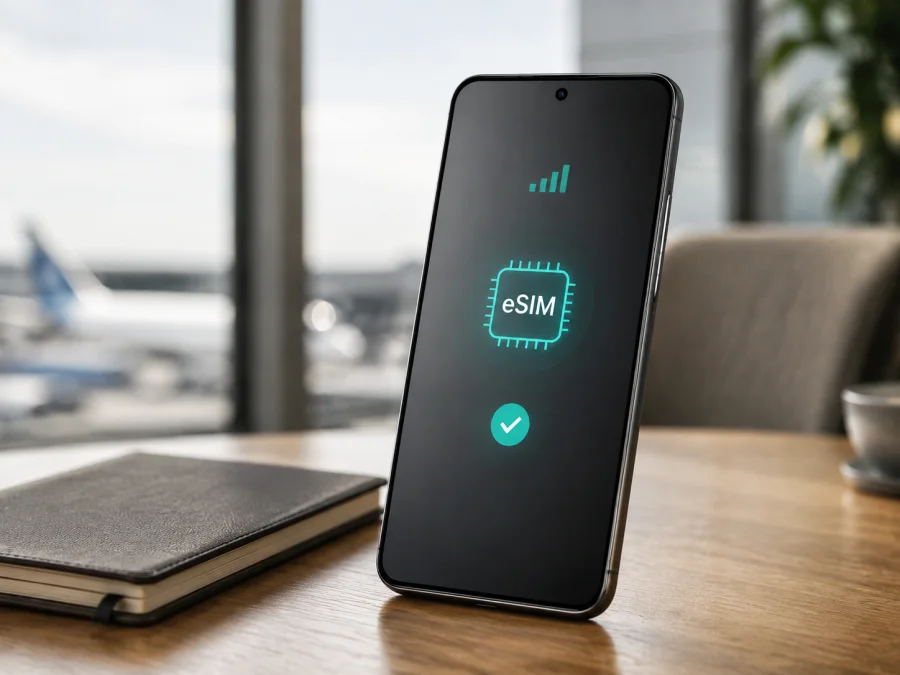
Samsung Galaxy S25 Edge 256GB 5G eSIM compatibility and setup
If you need mobile internet abroad without removing your everyday SIM, the Samsung Galaxy S25 Edge 256GB 5G is generally a suitable eSIM phone. Samsung's current official specifications for this 256GB configuration list “SIM 1 + eSIM / Dual eSIM.” This means a supported handset can use a digital SIM profile alongside a physical SIM, or use supported eSIM profiles without inserting another card.
The exact sales region, model code, carrier software, network lock and firmware can affect eSIM availability. Samsung says eSIM service and menus may vary by country, service provider, software version and device model. The practical answer is: yes, Samsung documents eSIM support for this variant, but verify the individual phone before ordering a travel eSIM tariff.
Quick answer
Samsung's official 256GB product pages in several markets, including the United States, South Korea, Germany and the United Kingdom, show a dual-SIM specification with “SIM 1 + eSIM / Dual eSIM.” They list 256GB storage and 12GB of memory for the configuration shown. This supports the relevant variant, but does not guarantee identical settings on every imported or carrier-customised handset.
An eSIM is a digital SIM profile downloaded to the phone's built-in eSIM component. In the Kaspersky eSIM Store travel scenario, it is intended for mobile internet abroad. It does not automatically provide a normal telephone number, voice calls or SMS; those are included only if the selected tariff explicitly says so. Internet messengers can work over the active data connection.
Samsung Galaxy S25 Edge 256GB 5G: key details
| Item | What to know |
|---|---|
| Exact device | Samsung Galaxy S25 Edge 256GB 5G |
| Storage | 256GB |
| Memory on the Samsung 256GB pages checked | 12GB |
| Mobile generation | 5G, with 4G LTE also available where supported |
| SIM arrangement on listed regional versions | SIM 1 + eSIM / Dual eSIM |
| Travel use | A separate eSIM profile for mobile data while your usual line remains available |
| Main condition | Region, carrier, model code and firmware can change availability |
A listing for the Galaxy S25, the 512GB version or another regional model is not automatic proof for this exact device.
Does it support eSIM in every region?
The manufacturer evidence is positive for multiple regional versions. Samsung US carrier pages, the Korean specifications page, and Samsung Germany and UK pages all list the relevant eSIM arrangement. That is why the Samsung Galaxy S25 Edge 256GB 5G is generally compatible with an eSIM travel profile.
However, hardware capability and service availability are different questions. A carrier may restrict activation, require an account-based setup, or issue different firmware. A local network or prepaid product may not support eSIM activation for every model. The menu may also be called “Add eSIM,” “Add mobile plan” or “Add mobile network plan.” Refurbished and imported phones need the same check as new retail devices.
Do not assume that every Galaxy S25 Edge works in every country. Treat the model as confirmed only when the phone shows an EID or an Add eSIM control and the selected provider supports activation in the destination. If those checks fail, ask the seller or original carrier for the exact model code and eSIM status. Do not try to enable the feature with an unofficial modification.
What to check before buying an eSIM tariff
The following checks are easiest while you still have a stable connection and a return option:
- Confirm that the phone is exactly the Samsung Galaxy S25 Edge 256GB 5G, not a nearby model or storage variant.
- Open SIM manager and look for Add eSIM, Add mobile plan or an equivalent option.
- Find the EID in Status information. It is a useful sign of eSIM capability, although the provider must still support activation.
- Check the model code and sales region in About phone.
- Confirm that the device is not locked to an operator.
- Install pending system updates over Wi-Fi and check the menu again.
- Read the tariff conditions: destination, data allowance, validity, activation moment, top-up and refund rules.
- Keep the QR code or activation details on a second screen and prepare Wi-Fi for installation.
- Check tethering and data-roaming requirements if you plan to share the connection.
How to find the EID
The EID is the identifier used when an eSIM profile is assigned to a device. It is different from the IMEI and should not be posted publicly.
- Open Settings.
- Tap About phone.
- Tap Status information.
- Look for EID.
Labels can differ with language, region and One UI version. If the EID is missing, restart the phone, apply updates and look again. If it remains absent, treat compatibility as unconfirmed and ask Samsung, the seller or the original carrier.
Also check the eSIM control:
- Open Settings.
- Tap Connections.
- Tap SIM manager.
- Look for Add eSIM, Add mobile plan or Scan QR code.
When Add eSIM is present, the software exposes an eSIM installation path. When it is missing, a QR code cannot be assumed to activate the feature; Samsung notes that an unsupported configuration cannot be enabled by the end user.
For the key device check, Check your device before choosing a travel eSIM.
How to install an eSIM on the Galaxy S25 Edge
Before starting, connect to reliable Wi-Fi, charge the phone, keep the QR code or activation code nearby, and make sure you can unlock the screen. Do not delete an existing profile just to retry an installation: some profiles cannot be downloaded again after activation.
1. Confirm compatibility
Open Settings, Connections and SIM manager, then verify that Add eSIM is available and that the phone is unlocked for the intended service.
2. Open the eSIM installer
Tap Add eSIM. If your software uses another label, choose the option for adding a mobile plan.
3. Select QR-code setup
Tap Scan QR code or Scan QR code from service provider. Display the QR code on another screen.
4. Scan the code
Point the camera at the supplied QR code and wait for the phone to recognise the activation details.
5. Download the profile
Review the plan information and confirm the download while Wi-Fi remains connected.
6. Enter details manually when required
Choose manual entry only when the eSIM provider has supplied the required activation information. Copy each value exactly.
7. Name the line
Give the profile a clear label, such as Travel data, so it is easy to identify in SIM manager.
8. Select mobile data
Set the travel eSIM as the preferred SIM for mobile data when you want it to carry internet traffic.
9. Decide what to do with the regular SIM
Keep the physical SIM active for calls or SMS if needed. To avoid accidental roaming charges, disable mobile data on that line or follow your home operator's instructions.
10. Wait for activation
Allow several minutes for registration. If you want to use the tariff later, leave the profile installed only if its conditions permit it; validity may start at installation, activation or first network use.
For the Android walkthrough, see the Android eSIM installation instructions. The iOS eSIM installation instructions are for Apple devices and may help when preparing profiles for more than one traveller. The Galaxy should follow the Android path.
Using eSIM mobile data during a trip
Installing before departure over Wi-Fi is usually convenient. Check that the profile is listed and label it. Keep your regular line available if needed, but review its data-roaming setting. Select the travel eSIM for mobile data when ready, unless the tariff says to activate earlier.
After arrival, turn off airplane mode and wait for registration. Check the signal and open a simple webpage. If instructions require data roaming, enable it for that eSIM only; check the selected SIM first.
When both lines are active, use SIM manager to choose the travel eSIM for mobile data. Review automatic data switching and disable it if you do not want the phone to fall back to another line. The line selected for calls is not necessarily the line selected for data.
Short holiday
Install the profile at home, then enable it on arrival if the tariff allows delayed use. Keep the physical SIM for your usual number and turn off its data roaming. Use the eSIM for maps, translation, bookings and messaging.
Business trip with two lines
Keep the regular line ready for important calls and make the travel eSIM the data line. A data-only travel profile does not replace the number on the business line. Use internet messengers for calls where appropriate.
Multi-country route
Confirm that the tariff covers every country or region on the itinerary, not only the first stop. On a border crossing, check the destination, network selection, data line and remaining allowance again.
The Kaspersky eSIM Store app and website help you choose, order and activate an eSIM with a suitable mobile-data tariff for an overseas trip. They are not a mobile operator, network owner or coverage provider. Read the selected tariff's network, coverage, data, duration and activation conditions before confirming the order.
Troubleshooting
Add eSIM is missing
Recheck Settings > Connections > SIM manager, restart the phone and install updates. Confirm the model code, region and EID. If both EID and Add eSIM are absent, pause the purchase and ask the seller or carrier to verify the configuration.
The QR code will not scan
Increase the brightness of the second screen, remove glare and hold the phone steady. Use the code supplied for this order and confirm it has not already been used or expired. If manual details were supplied, use manual entry instead.
The profile will not download
Test Wi-Fi, restart the phone and retry from SIM manager. A captive hotel portal or unstable connection can interrupt the download. Confirm that the order is assigned to this device. Do not delete a partly installed profile or request repeated downloads until support confirms the tariff rules.
The profile is installed but there is no network
Confirm that the eSIM is enabled and selected for data, airplane mode is off and automatic network selection is active. Enable roaming for the travel eSIM only if required. Restart and wait several minutes; an installed profile does not guarantee service where the destination or tariff has no supported network.
The wrong SIM uses data
Return to SIM manager and select the travel eSIM for mobile data. Check automatic data switching. On a dual-SIM phone, the call line and data line can be different.
Data is slow or stops
Check the remaining allowance, validity and destination where the tariff is managed. Toggle airplane mode, move to better coverage and restart. Change APN values only when the provider specifically requires it.
Calls, SMS or hotspot do not work
That may be expected for a data-only travel eSIM. Voice and SMS are not included unless the selected conditions say so. For hotspot, confirm that data uses the travel profile and tethering is allowed. If restricted, contact support.
FAQ
Does the Samsung Galaxy S25 Edge 256GB 5G support eSIM?
Yes. Samsung's current regional specifications list “SIM 1 + eSIM / Dual eSIM” for the 256GB Galaxy S25 Edge. Confirm the specific phone with an EID or Add eSIM option, and confirm that the provider supports activation in your market.
Can I use a physical SIM and eSIM together?
Usually, yes, on a supported configuration. Samsung lists SIM 1 + eSIM and dual eSIM options for relevant regional versions. Active combinations and preferred lines can vary by model, carrier and software.
Does a travel eSIM give me a phone number?
Not necessarily. Kaspersky eSIM Store travel use is generally for mobile data and does not include a normal number, voice calls or SMS unless the tariff states otherwise.
Can I move the profile to another phone?
Do not assume so. Many eSIM profiles have device-specific activation or reinstallation limits. Ask support before deleting a profile or changing phones.
What if the seller says eSIM is supported but my menu does not?
Check the model code, region, firmware, EID and SIM manager. A carrier or regional version may differ. If Add eSIM and EID remain absent, treat compatibility as unconfirmed and request clarification before purchasing.
Summary
Samsung's official specifications support eSIM on multiple regional versions of the Samsung Galaxy S25 Edge 256GB 5G, including “SIM 1 + eSIM / Dual eSIM.” Check the individual phone for an EID and Add eSIM, confirm it is unlocked, then install over Wi-Fi, select the travel profile for data and enable roaming only when required. Allow time for registration and test data before relying on it.
Final device check and trip eSIM plan
Before completing an order, confirm:
- The phone is exactly the Samsung Galaxy S25 Edge 256GB 5G.
- An EID and Add eSIM or an equivalent option are visible.
- The regional or carrier version is unlocked and updated.
- The tariff covers every country or region on your route.
- You understand its data allowance, validity, activation, top-up and refund conditions.
- You know which SIM will handle mobile data and whether roaming is required.
- You have the QR code or activation details and reliable Wi-Fi.
When these checks pass, use the Kaspersky eSIM Store app or website to choose a suitable eSIM tariff for the destination, complete the order and activate the profile on your compatible phone. This keeps mobile internet preparation clear while the limits of the device, network and selected tariff remain visible before the trip.


