Travel connectivity guide
Samsung Galaxy S25 Edge 256GB eSIM
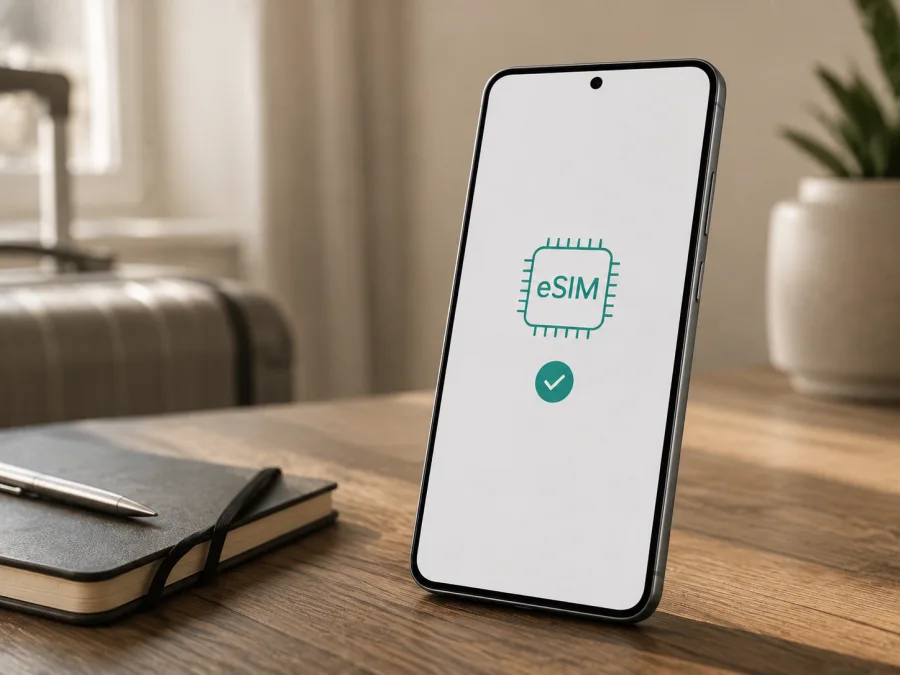
Samsung Galaxy S25 Edge 256GB eSIM: compatibility, setup and travel internet
If you have a Samsung Galaxy S25 Edge 256GB and are planning an international trip, an eSIM can help you use mobile internet without replacing your physical SIM card. Samsung Galaxy S25 Edge 256GB supports eSIM in configurations for which Samsung lists SIM 1 + eSIM or Dual eSIM. The sales market, model code, carrier lock and software version can change which SIM options appear on an individual phone.
This page covers this exact variant. A 512GB version or another Galaxy generation is not a substitute for checking your handset. Find the EID or eSIM-addition option before arranging a plan.
Does Samsung Galaxy S25 Edge 256GB support eSIM?
Yes. Samsung’s official regional specifications for Samsung Galaxy S25 Edge 256GB list eSIM. Official product cards show configurations such as SIM 1 + eSIM / Dual eSIM, while some regional descriptions also list two physical SIM options. This means the relevant hardware capability is documented for the corresponding products, but the same SIM combinations should not automatically be assumed for every handset sold in another country.
There are three layers of support:
- Hardware support. The phone has an embedded eSIM module and an EID.
- Software and market support. One UI exposes eSIM setup, and the regional version does not restrict the feature.
- Carrier support. The carrier or profile provider permits eSIM activation for your model, country and plan.
So the accurate answer is: Samsung Galaxy S25 Edge 256GB supports eSIM in documented regional configurations, but confirm the function on the exact device before purchase. The same product name in different markets does not guarantee identical SIM capabilities.
Specifications that matter for eSIM use
| Item | What it means for a trip |
|---|---|
| Device | Samsung Galaxy S25 Edge 256GB |
| Technology | eSIM, an embedded digital SIM |
| SIM configuration | Official cards list SIM 1 + eSIM / Dual eSIM; the available combination depends on market |
| Storage | 256GB of internal storage; this is the exact long-tail variant covered here |
| Mobile network | 4G LTE and 5G Sub6 are listed in supported bands; local availability depends on the network |
| Data profile | Suitable for an eSIM plan with mobile internet when the profile supports the phone and destination |
| Voice and SMS | Not assumed for a travel data profile unless its terms say otherwise |
Why Samsung Galaxy S25 Edge 256GB versions can differ
Samsung sells one series in different countries and through different carriers. Model codes, frequency bands, SIM trays and regional defaults can differ. A carrier edition may be tied to a network, enterprise management can limit controls, and One UI labels can change after an update. A missing option cannot be fixed by buying another plan, so first identify whether the issue is at device, regional, carrier or software level.
Do not rely on a box photo or an advertisement that says “Galaxy S25 Edge”. Compare the exact model code, sales region, lock status and EID. If the phone is refurbished or imported, ask the seller to confirm eSIM for that exact unit.
What to check before buying an eSIM plan
This short check reduces the risk of discovering a problem after payment. Use this checklist:
- [ ] Open Samsung Galaxy S25 Edge 256GB settings and look for an eSIM-addition option.
- [ ] Check whether an EID appears in phone status or on the device-identification screen.
- [ ] Record the exact model code and compare it with the purchase documentation.
- [ ] Confirm that the phone is not locked to a particular carrier.
- [ ] Install an available official system update if the phone has not been updated recently.
- [ ] Connect to stable Wi‑Fi before installing a profile.
- [ ] Check that the plan covers the country or region on your itinerary.
- [ ] Match the data allowance and validity period to the route, not just the flight date.
- [ ] Read the terms for activation, data usage, top-ups and possible refunds.
- [ ] Confirm whether the selected data profile requires any separate local registration.
If the eSIM option is present and the phone displays an EID, that is a strong sign of compatibility. Still check carrier lock status, plan terms and destination networks. 5G support does not mean 5G will be available in every country or on every plan.
<a id="kesim-device-compatibility"></a>
This check confirms the phone, not just the product family, before you commit to a plan. Keep the model code and regional purchase details nearby when comparing the result.
If a setting is unavailable or differs from this path, pause the purchase and confirm the regional version with the seller or carrier.
Before you continue, check your device one more time if you have not confirmed EID, Add eSIM and carrier unlock status.
How to check the EID and eSIM option
Start in Settings because this shows the feature directly in the phone interface.
- Open Settings.
- Select Connections.
- Open SIM manager.
- Look for Add eSIM or a similar command for adding a mobile plan.
- Return to Settings and open About phone.
- Select Status or the identification section if it is shown separately.
- Find EID and compare it with information requested by the carrier or activation service.
One UI labels can vary slightly by software and region. If EID is not visible in Status, open the Phone app and dial *#06#. On a compatible phone, EID may appear with the other identifiers; do not confuse it with IMEI or share it publicly.
If both Add eSIM and EID are missing, restart after an official update, compare the model code with Samsung’s regional specification and contact the seller or carrier. Managed phones may have SIM restrictions. Do not factory-reset the phone just to make eSIM appear: a reset cannot create hardware support and may erase data.
How to install eSIM on Samsung Galaxy S25 Edge 256GB
Before you start, prepare the QR code or profile details, charge the phone and connect to Wi‑Fi. Open the code on another screen because the phone cannot reliably scan a code displayed on itself. If a carrier has already assigned a plan, the steps may look different.
Install with a QR code
- Open Settings.
- Go to Connections.
- Tap SIM manager.
- Select Add eSIM.
- Choose the QR-code scanning option.
- Point the camera at the code from your order profile or email.
- Wait while the mobile plan downloads.
- Confirm the profile and wait for installation to finish.
- Give the profile a clear name, such as “Trip”, so you do not confuse it with another line.
- Keep your main number enabled or turn it off according to your needs.
If the QR code cannot be scanned, use manual entry only with provider-issued SM-DP+ and activation details. Do not guess values or scan a one-time code on several devices; the profile may prohibit transfer.
For the general Android flow, see the eSIM installation instructions for Android. The eSIM installation instructions for iOS can help if you are preparing a profile for another phone or comparing the flow with an iPhone. On Samsung, follow the controls actually shown on your screen.
Activate the profile and choose the data line
Installing a profile and starting its service can be separate events. After the download, choose which line will carry mobile data:
- Open Settings → Connections → SIM manager.
- Turn on the installed eSIM profile.
- Set that eSIM as the mobile-data line.
- Leave automatic data switching off if you do not want the main SIM to use data accidentally.
- Turn on mobile data.
- If the profile terms require it, enable Data roaming for the eSIM.
- Check for a network indicator and load a simple web page.
Data roaming lets the eSIM register with a partner network outside its home country. It is not the same as roaming on your main SIM. Turn off data roaming on the main line if you want to prevent unexpected charges there.
Using eSIM on a trip
A reliable setup starts before departure. Check Samsung Galaxy S25 Edge 256GB, choose the destination and estimate data needs for maps, messages, bookings and work. In the Kaspersky eSIM Store app or site, choose, arrange and activate an eSIM with a plan for mobile internet during an international trip, then review its terms, validity and allowance. If validity starts on first connection to a destination network, keep the eSIM off until arrival; otherwise follow the stated start point.
Scenario 1: a holiday in one country
Install the profile over Wi‑Fi before boarding and name it after the destination. After landing, enable the eSIM, select it for mobile data and turn on data roaming if required. Keep the main SIM for calls and SMS only after checking roaming charges.
Scenario 2: several countries on one itinerary
Check whether the plan covers every country on the route or whether a regional option is needed. Crossing a border can change the network and terms, so keep order details offline and check the data line, network name and allowance in each country. Do not delete a regional profile just because service is temporarily unavailable.
Scenario 3: work and hotspot use
For video calls, cloud documents and navigation, estimate usage with headroom. Hotspot use may be restricted, so check the terms, protect it with a password and watch that the phone has not switched to the main SIM. A suitable allowance is more predictable than public Wi‑Fi.
Common problems and settings checks
The QR code will not scan
Increase brightness, remove glare and hold the phone steady. Confirm that the code is for eSIM activation, has not expired and is shown on another screen. Use manual entry only with provider-issued values.
The profile will not add
Check Wi‑Fi, battery, storage and Add eSIM. Restart and try once more. The error may mean that the profile is already installed, the code is one-time, the device is locked or eSIM is restricted in that region. Save the message for support.
The eSIM is installed but there is no service
Confirm that the profile is on, selected for mobile data and not blocked by Airplane mode. Check data roaming when required, wait a few minutes and restart. Outside the package country, service will not appear even with a valid EID.
Data is being used by the main SIM
Select the eSIM again for mobile data. Turn off automatic data switching and data roaming on the main line, review background updates and run a short browser test.
The signal is present but speed is lower than expected
Check whether the plan limits speed, allowance or hotspot use. 5G depends on coverage, bands, local conditions, load and profile terms; stable LTE may work better in a weak-signal area. Samsung Galaxy S25 Edge 256GB support for 5G does not guarantee a specific speed.
Calls or SMS do not work
An internet eSIM profile normally does not add a regular phone number or include voice and SMS unless its terms say so. Keep your main line for its number and check roaming charges; use internet apps when available.
FAQ
Does Samsung Galaxy S25 Edge 256GB support eSIM?
Yes. Samsung lists eSIM for this 256GB version, including SIM 1 + eSIM and Dual eSIM configurations. Check EID and Add eSIM on your own phone because region, carrier edition and software can limit the feature.
Can I keep my main number and add a travel eSIM?
Yes, on a supported configuration. Set the eSIM as the mobile-data line, check the line for calls and SMS, and keep automatic data switching off unless needed.
Do I need to enable data roaming?
Sometimes. Many international data profiles require it on the eSIM line to register on a partner network. Enable it only on the intended profile and follow the plan terms.
What is Kaspersky eSIM Store?
Kaspersky eSIM Store is an app and site where users can choose, arrange and activate an eSIM with a suitable plan for mobile internet during an international trip. It is not a carrier, network owner or mobile-internet provider. An eSIM plan is generally for data; a phone number, calls and SMS depend on the terms of the specific profile.
Conclusion
Samsung Galaxy S25 Edge 256GB is an eSIM-compatible device in the regional configurations Samsung lists in its current specifications. For a confident start, check EID, Add eSIM, unlock status and the profile terms. After installation, set the eSIM as the mobile-data line, and enable data roaming only on that line when required.
Do not purchase a plan until you have checked your own phone: one model name does not capture market, device code, carrier and software differences. Prepare over Wi‑Fi, check the data line after arrival and contact support with the model code and error message if needed.
Final device check and travel eSIM
Before payment, confirm every item:
- [ ] Your Samsung Galaxy S25 Edge 256GB displays an EID.
- [ ] Settings → Connections → SIM manager includes Add eSIM.
- [ ] The phone is not carrier-locked, and its regional version permits eSIM.
- [ ] The selected plan covers every country needed on the itinerary.
- [ ] The data allowance and validity period fit maps, messages and work tasks.
- [ ] You know when activation and data usage begin.
- [ ] You have Wi‑Fi for installation and support access.
- [ ] After arrival, the eSIM is selected for mobile data and the main SIM is not using data by accident.
Once this checklist is complete, the Kaspersky eSIM Store app or site lets you choose a destination and arrange a suitable eSIM plan for mobile internet during an international trip. Check the device, review the terms, install the profile and activate it at the right moment.


