Travel connectivity guide
Samsung Galaxy S25 Edge 512GB 5G eSIM Compatibility
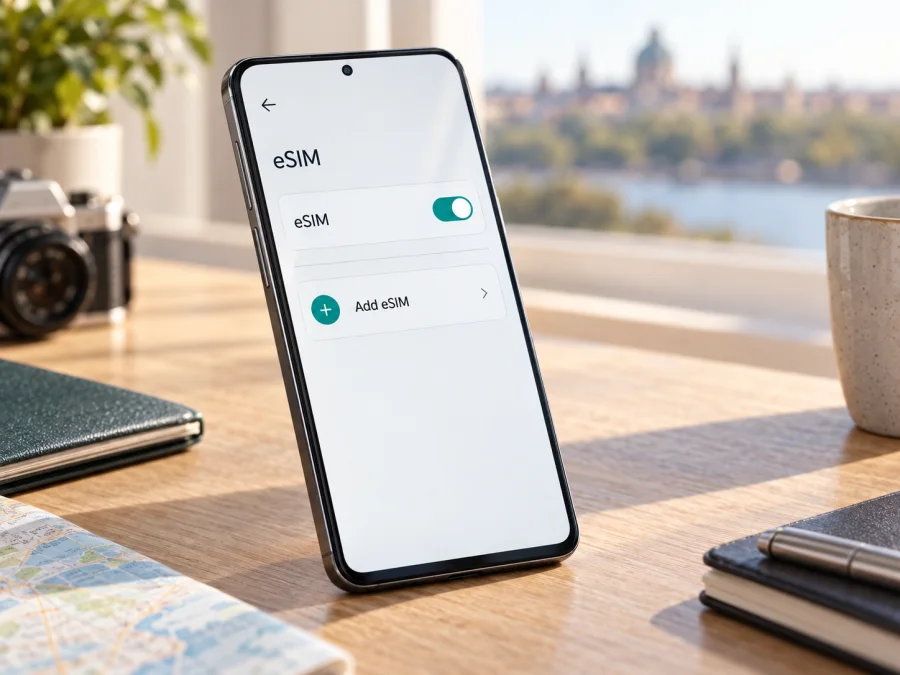
Samsung Galaxy S25 Edge 512GB 5G eSIM compatibility and setup
The Samsung Galaxy S25 Edge 512GB 5G supports eSIM according to Samsung’s current Galaxy eSIM support information, which lists the Galaxy S25 Edge among compatible models. That answers the model-family question, but it does not guarantee that every handset sold in every market has eSIM enabled. Samsung notes that support can depend on the country of origin, and the mobile carrier, device software and exact regional variant can also affect the available options. Before choosing a travel plan, verify eSIM directly on your own phone by checking for an EID and an option to add an eSIM.
This guide covers model compatibility, EID and settings checks, installation, activation and travel use. An eSIM is a digital profile stored in the phone; it can be used alongside a home SIM if the device configuration and plan allow it.
At a glance
| Item | What to know |
|---|---|
| Exact device variant | Samsung Galaxy S25 Edge 512GB 5G |
| eSIM support | Samsung lists the Galaxy S25 Edge as eSIM compatible |
| Storage in this variant name | 512GB; this is storage capacity, not a statement about RAM |
| Network label | 5G; actual network access depends on local coverage, the plan and supported bands |
| Important caveat | Features may vary by country of sale, carrier, software and device configuration |
| Best check before purchase | Confirm an EID and “Add eSIM” on the handset you will travel with |
| Typical travel use | Select the travel eSIM for mobile data and keep the home line enabled only as needed |
Does Samsung Galaxy S25 Edge 512GB 5G support eSIM?
Yes, the Galaxy S25 Edge model family is listed by Samsung as supporting eSIM. Samsung’s support information includes “Galaxy S25 Edge” in its list of Galaxy devices with eSIM. The 512GB storage designation and 5G capability do not, by themselves, indicate that eSIM has been removed. They identify the storage/network variant; eSIM availability still needs to be confirmed on the individual unit.
A family name on a product page does not reveal every regional or carrier difference. Imported or carrier-branded handsets may have different SIM features or setup flows, and the carrier or plan provider must support provisioning for the service you intend to use.
Use Samsung’s list as model-level confirmation, then check the actual phone. When shopping, ask for the regional model code and confirmation of eSIM availability. If EID or Add eSIM is absent, confirm the market variant with the seller or Samsung support and check for a carrier lock.
5G is separate from eSIM. The phone’s 5G capability does not guarantee 5G access on every plan or in every destination; network, coverage, bands and local conditions matter. 4G can still provide data where 5G is unavailable.
Check compatibility on your own phone
Menu wording can vary with One UI version, region and carrier; check both the identifier and SIM controls where possible.
1. Look for an EID
Open Settings → About phone → Status information and look for EID. Some software versions place it in a SIM status screen. You can also enter *#06# in the dialler; supported software may show EID with other identifiers. Do not share it publicly.
2. Look for the eSIM control
Open Settings → Connections → SIM manager. Look for Add eSIM or a similar option. If available, open the flow far enough to confirm that the phone offers an eSIM setup method, such as scanning a QR code or searching for a mobile plan. You do not need to install a profile just to check whether the menu exists; exit without confirming any download or activation.
3. Confirm the carrier lock status
An eSIM-compatible phone may still be carrier-locked. Confirm it is unlocked and that the plan covers your destination. Add eSIM shows a setup path, but does not guarantee support for every plan or network.
Compatibility checklist
- [ ] The phone is the Samsung Galaxy S25 Edge 512GB 5G, not a different Galaxy S25 variant.
- [ ] An EID appears in Settings or the device identifier screen.
- [ ] Settings includes Add eSIM in SIM manager.
- [ ] The phone is unlocked for the network or plan you intend to use.
- [ ] The plan covers every country or region on your itinerary.
- [ ] You have a stable internet connection and access to the installation details.
- [ ] You have reviewed plan activation, validity, data allowance and supported network conditions.
Use the checklist as a two-part check: the EID and settings menu confirm that the handset can add a profile, while the lock status and plan terms determine whether it can be used for your route. These checks answer different questions, so complete each one before arranging a travel plan. For a quick device check, use Check your device.
Before installing: prepare the phone and plan
Update and restart the phone before travel. Decide which line should handle calls, messages and data. You may be able to keep the home number enabled and select the travel eSIM for data; home-line roaming fees may apply.
Read the plan’s instructions first. Setup may use a QR code, an app or manual details. QR codes are often single-use, so do not repeatedly scan one or try to add the same profile to multiple phones. Keep it private and display it on another screen if needed.
Check when validity begins. Installing the profile and activating the plan can be separate steps; some plans can be installed ahead, while validity for others begins at installation or first connection. Follow the selected plan’s terms.
How to install and activate an eSIM
Use a stable Wi‑Fi connection for setup. Keep the phone charged and do not delete an installed profile if activation fails; deleting it can make a single-use QR code unusable. For the full platform walkthroughs, see the Android eSIM installation instructions and the iOS eSIM installation instructions. Samsung Galaxy S25 Edge uses Android, so follow the Android flow and the instructions supplied with your selected plan.
- Confirm the basics. Check for an EID and Add eSIM option, confirm the phone is unlocked, and make sure the plan covers your destination. Connect to Wi‑Fi.
- Open SIM manager. Go to Settings → Connections → SIM manager → Add eSIM. The exact label can vary. Choose the available option to scan a QR code or enter activation details manually.
- Add the profile. Scan the provider’s QR code or follow its app-based flow. Review the displayed plan information before confirming. Wait for the phone to download and add the profile; do not close Settings while the process is running.
- Name the line. Give the new profile a clear label such as “Travel” or the destination name. This makes it easier to select the right line later. Keep your home line’s existing name intact.
- Choose when to enable it. If the plan’s terms permit pre-installation, you can add the profile before travel and leave it switched off until you need it. If its instructions require installation on arrival, follow that timing instead. Avoid guessing, because validity may begin at different points for different plans.
- Set mobile data. In SIM manager, select the travel profile as the line for mobile data when you are ready to use it. If you want to avoid accidental home-line data roaming charges, check that mobile data is not assigned to the home SIM and review the home carrier’s roaming settings.
- Allow roaming if instructed. Some travel eSIM profiles require data roaming to be enabled on that profile to connect to a partner network. Turn it on only for the intended travel line and only when the plan instructions call for it. Data roaming on your home line may incur charges.
- Check the connection. After landing or when the plan becomes active, wait for the phone to register, then open a familiar webpage with Wi‑Fi turned off. Check that mobile data is using the travel profile. Restart the phone if the profile was added but the network does not appear.
A profile alone does not guarantee service: the plan must be active, settings correct and a compatible network available. Follow the provider’s activation timing.
Use the eSIM for mobile data while travelling
Before departure, read the activation instructions and, if allowed, install the profile over Wi‑Fi. Label it, confirm it appears in SIM manager and leave it disabled until the plan’s advised start time. Keep essential travel details available offline.
On arrival, enable the travel eSIM and select it as the line for mobile data. Keep the home SIM active only if you need your usual number for calls, messages or account verification. Calls and texts may use a separate line. Data-only plans do not include calls or SMS unless stated; messaging apps can use mobile data where available.
For a multi-country itinerary, confirm every stop is covered. Match the data allowance and validity to expected use such as maps, messaging, bookings and calls. Check plan terms before relying on hotspot use.
Monitor data use in Settings or the provider’s account. To conserve it, limit automatic updates, backups and high-resolution video. After travel, switch data back to the intended line and remove the profile only if you understand whether it can be reinstalled.
Kaspersky eSIM Store is an app and website where you can choose, arrange and activate an eSIM with a mobile-data plan for an international trip. Review its destination, data allowance, validity and terms. Connectivity depends on the plan’s supported networks.
Troubleshooting: if the eSIM will not install or connect
“Add eSIM” is missing. Restart the phone and check for a software update, then look again in Settings → Connections → SIM manager. Confirm that the device has an EID. If both the EID and eSIM option are absent, the regional version, carrier restrictions or software may be the reason. Contact Samsung or the seller with the exact model code and country of purchase before buying a plan.
The QR code cannot be scanned. Increase its screen brightness, clean the camera lens and avoid a blurry or cropped image. Use manual setup only if the provider allows it. If the code was used already, ask whether it can be replaced; do not delete an existing profile without instructions.
The profile downloads but there is no service. Check that the travel profile is enabled and selected for mobile data. Confirm that the plan’s activation conditions have been met and that you are in a covered destination. Turn airplane mode on briefly and off again, then restart the phone. If required by the plan, enable data roaming for the travel profile. Make sure you have not enabled roaming on the home line by mistake.
Signal appears but apps are offline. Turn Wi‑Fi off, confirm mobile data uses the travel eSIM, and check any provider-specified APN. Try another location and confirm the plan remains valid and has data left.
The phone keeps using the home SIM. Reopen SIM manager and set the travel eSIM as the mobile-data line. If available, turn off automatic data switching while travelling. Calls and texts can remain assigned to the home SIM; that does not mean mobile data is using it. Review your home carrier’s roaming conditions before leaving that line enabled abroad.
The line works at one stop but not another. Check that the next country is included and the plan remains valid. Network selection may take several minutes after a border crossing. Follow the plan’s instructions before trying manual selection.
For support, have the model code, software version, country of purchase, eSIM status and destination ready. Share an EID only through secure support if requested; never post a one-time password or activation QR publicly.
Frequently asked questions
Is eSIM built into Samsung Galaxy S25 Edge 512GB 5G?
Samsung lists the Galaxy S25 Edge as eSIM compatible. Check EID and Add eSIM on the specific 512GB 5G handset, since support may vary by country of origin.
Does the 512GB version support eSIM differently from other storage options?
512GB describes storage, while Samsung lists eSIM support for the Galaxy S25 Edge family. Confirm your unit in Settings and check its regional model code.
Can the phone use a physical SIM and an eSIM together?
SIM combinations and carrier support vary. Check SIM manager and confirm dual-SIM use with your carrier; regional versions may differ.
Does a travel eSIM give me a phone number?
Many travel eSIMs are data-only unless the plan explicitly includes a number, calls or SMS. Internet apps can use data where available.
Should I install the eSIM before leaving?
Follow the plan instructions: installation and validity start times differ. Keep Wi‑Fi available for setup.
Do I need to turn on data roaming?
Some travel profiles need roaming enabled. Follow the provider’s instructions and avoid enabling roaming on the home line unintentionally.
Will 5G be available everywhere I travel?
No. 5G depends on the plan, network, coverage, bands and local conditions; 4G may be used instead.
Final device check and travel eSIM choice
Before arranging a plan, check the Samsung Galaxy S25 Edge 512GB 5G itself: confirm EID and Add eSIM, verify that it is unlocked, and match coverage and validity to your itinerary. If the phone is imported and eSIM controls are missing, confirm its variant with the seller or Samsung support.
When the phone is confirmed, choose a plan for the countries you will visit and expected data use. Check when validity begins, whether roaming is required and whether hotspot use is allowed. Kaspersky eSIM Store helps you choose, arrange and activate an eSIM for mobile data abroad; check the selected profile in Settings before departure.


