Travel connectivity guide
Samsung Galaxy S25 eSIM: Compatibility and Setup
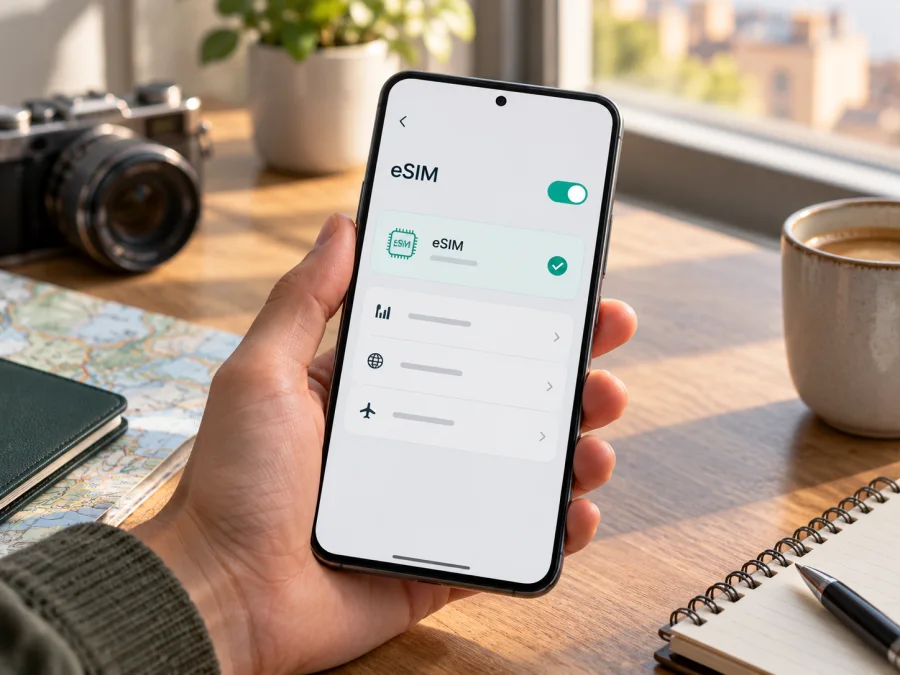
Samsung Galaxy S25 eSIM: compatibility and setup guide
The Samsung Galaxy S25 supports eSIM, so you can add a digital SIM profile and use it for mobile data while travelling without swapping out your physical SIM. Samsung lists the Galaxy S25 among its eSIM-capable Galaxy devices, and its product specifications for several sales markets show SIM configurations that include a physical SIM with eSIM or dual eSIM. The important qualification is that eSIM availability can still depend on the phone’s exact regional variant, its software and the operator or plan you want to use. Before choosing a travel plan, check the settings on your own phone and confirm that it is not carrier-locked.
An eSIM is a SIM profile stored digitally on the phone. It does not automatically provide a phone number, voice calls or SMS: a travel data plan is generally for mobile internet unless its terms explicitly say otherwise. You can keep a physical SIM active for calls or messages and select the travel eSIM for data, subject to the SIM combinations supported by your specific model and carrier.
Does the Samsung Galaxy S25 support eSIM?
Yes. Samsung identifies the Galaxy S25 as an eSIM-supported device. Samsung’s regional specifications also document eSIM-capable SIM configurations, including SIM 1 + eSIM and Dual eSIM. This is a general model-family answer, not a guarantee for every handset sold under the Galaxy S25 name in every market. Samsung notes that eSIM service may vary by country and carrier, and that a device’s origin market can affect whether the feature is available.
| Item | What to expect on Samsung Galaxy S25 |
|---|---|
| eSIM hardware and software support | Supported on the listed eSIM-capable Galaxy S25 variants |
| Typical menu | Settings → Connections → SIM manager → Add eSIM |
| EID | Check Settings → About phone → Status information; the retail box may also show it |
| SIM arrangement | Depends on the variant; Samsung specifications list physical SIM plus eSIM and dual-eSIM options for supported configurations |
| Travel data | Select the eSIM profile for mobile data; data roaming may need to be enabled for that profile |
| Important checks | Country of origin, exact model code, software, carrier lock, destination and plan terms |
Why the exact regional version matters
“Samsung Galaxy S25” names a product family, while the phone in your hand is a particular regional model with a model code, firmware configuration and sales history. Samsung’s global support information names the Galaxy S25 as eSIM-capable, but its own regional support pages caution that a listed device may not support eSIM in every country of origin. The SIM tray, supported network bands, operator configuration and available settings can vary between market versions. A feature appearing on a product page for one country therefore does not by itself confirm that an imported handset has the same eSIM options.
Carrier restrictions are a separate issue from eSIM hardware. A phone can have eSIM capability yet be locked to the operator that sold it. In that case, a profile from another operator may not activate until the original operator unlocks the device. Ask the seller or original carrier about the lock status if the phone was bought on a contract, refurbished, or imported. A travel eSIM also needs an eligible network partner in the destination; device compatibility alone does not guarantee service in every place.
The cleanest check is to combine three pieces of evidence: the exact model code, the EID or Add eSIM option on the handset, and confirmation that the selected plan can be used on this device in the destination. If these disagree, pause before purchase and ask Samsung or the seller to confirm the specific unit. Do not rely only on a generic listing that says “Galaxy S25.”
Check eSIM compatibility before choosing a plan
Use the phone itself as the first check. Menu labels may differ slightly by One UI version or language, but the location is usually consistent.
- Open Settings.
- Tap About phone.
- Open Status information and look for EID. Samsung also says the EID may be printed on the phone’s retail box.
- Return to Settings and open Connections.
- Tap SIM manager and check whether Add eSIM is available.
An EID is the identifier associated with the phone’s embedded SIM capability. Its presence is a strong sign that the handset has an eSIM component, but you should still check that the Add eSIM control is present and that your exact model and plan are eligible. If neither the EID nor Add eSIM appears, install available official software updates, restart the phone and check again. If they are still missing, do not assume that a QR code will make the feature available: confirm the regional model with Samsung or the seller first.
Before you proceed, use this checklist:
- [ ] The phone shows an EID or an Add eSIM option.
- [ ] The exact model code matches the eSIM-capable version sold for its market.
- [ ] The handset is unlocked for use with another operator or travel profile.
- [ ] The phone is connected to reliable Wi-Fi or another working internet connection for profile installation.
- [ ] The plan covers the destination or every country on your route.
- [ ] The data allowance, validity period, activation conditions and any roaming requirement fit your trip.
- [ ] You understand whether the plan is data-only and how to contact support if installation fails.
Check your device against these points before ordering a plan. If you are buying a used or imported Samsung Galaxy S25, ask the seller for the model code and confirm the eSIM menu on the actual handset rather than relying on a photo of another unit.
Installing an eSIM on Samsung Galaxy S25
Have the QR code or activation details ready and keep the phone online. A code may be for one installation, so do not reuse it or remove a profile unless the plan instructions allow this. Kaspersky eSIM Store is an app and website where you can choose, arrange and activate an eSIM with a mobile-data plan for an international trip.
Add the profile with a QR code
- Connect the Samsung Galaxy S25 to Wi-Fi.
- Open Settings → Connections → SIM manager.
- Tap Add eSIM.
- Choose the option to scan a QR code. Depending on the software version, it may appear after tapping Scan QR code or Add using QR code.
- Point the camera at the QR code provided for your plan. If the code is displayed on the same phone, use another screen or the provider’s manual activation option if available.
- Review the plan information and confirm the download. Keep the phone connected while the profile is installed.
- When the profile appears in SIM manager, give it a clear label such as “Travel data” so you can distinguish it from your home SIM.
- Choose whether to enable the profile now or leave it off until you are ready to use it, following the plan’s activation instructions.
Enter activation details manually
If your plan includes an activation code, open Settings → Connections → SIM manager → Add eSIM, choose manual entry and enter the supplied details exactly. Do not use codes from another order. If manual entry is unavailable, use QR setup or check Samsung’s Android instructions for current menu wording.
For step-by-step device guidance, see the Android eSIM installation instructions. If you are moving a profile from an iPhone or setting up a second device, the iOS eSIM instructions may help with the source-device side; eSIM transfers are not always available, and some plans require a new profile rather than a transfer.
Confirm that installation is complete
After setup, confirm that the profile appears in SIM manager and select it for data when ready. If the plan activates on arrival or first network connection, follow its timing instructions: downloading the profile and starting validity are not necessarily the same event.
Using the Galaxy S25 for travel data
You can keep your home SIM available for calls and messages while using the travel eSIM for data. In Settings → Connections → SIM manager, review preferred SIMs and choose the travel profile for mobile data when ready. Check automatic data switching and your home operator’s roaming terms to avoid unintended use.
Some travel plans require Data roaming to be enabled on the travel profile, even though you are using the eSIM in another country. This setting authorizes the profile to connect through a partner network; it does not change the plan’s data allowance or make an unsupported destination eligible. Check the plan instructions, and enable roaming only for the intended eSIM profile. Keep roaming on your home SIM governed by your home operator’s terms.
A simple trip sequence is: before departure, verify compatibility and destination coverage, choose a suitable plan and install the profile over Wi-Fi if allowed. On arrival, enable the travel profile, select it for data and turn on its roaming setting if required; registration may take a few minutes. During the trip, monitor use and keep support details available. Afterwards, return data to your home SIM and check the plan terms before deleting the profile, since it may not be reinstallable.
Check the full route, because a country-specific plan may not include a neighboring stop. Match the destination list and validity rules to your itinerary, then estimate data use: maps and messaging usually need less than video, cloud backups or hotspot use.
A travel data eSIM is not automatically a replacement for your regular number. Calls and SMS may remain on your home SIM under its roaming terms; internet messaging apps can use the selected data connection. Check plan details if you need traditional calls or SMS.
Common problems and what to check
“Add eSIM” is missing
Check Settings → About phone → Status information for an EID, verify the regional model and install official updates. Restart and check again. If both the EID and menu remain absent, ask Samsung or the seller about the model code; unofficial firmware changes are not a reliable fix.
The QR code will not scan
Increase screen brightness, clean the lens and confirm the code is for this plan and unused. Display it on another device or enter the supplied manual details if supported.
The profile does not download
Check Wi-Fi and manual details, and verify that this profile has not already been installed. A one-time QR code may not be reusable, so contact support before deleting a partial profile or retrying.
The eSIM is installed but there is no service
Turn on the profile, select it for data, confirm destination eligibility and enable its roaming setting if required. Turn off airplane mode and wait or restart; some plans connect only after arrival.
Mobile data works on the wrong SIM
Select the travel profile for mobile data in SIM manager and review automatic switching and your home operator’s roaming settings.
The phone says the eSIM is not supported or locked
Verify the model code and sales market, then ask the seller or original carrier about unlock status and eSIM availability. An unlock cannot add eSIM capability to a variant without it.
The profile was deleted or activation appears stuck
Do not repeatedly scan the original code. Deletion may not reset a one-time profile; check plan instructions and contact support with the order reference and model code. Share the EID only if requested.
FAQ
Can I use a physical SIM and an eSIM at the same time?
Samsung lists physical-SIM-plus-eSIM configurations for supported versions. The available combination depends on the regional model, software and operator, so check SIM manager on your phone.
Does the Samsung Galaxy S25 have an EID?
An eSIM-capable unit should show it in Settings → About phone → Status information; Samsung says it may also appear on the box. If absent, confirm the regional model with Samsung or the seller.
Will every Samsung Galaxy S25 accept a travel eSIM?
Samsung lists the model as eSIM-capable, but country of origin and carrier can affect availability. Check the EID, Add eSIM, model code and unlock status before choosing a plan.
Does an eSIM give me a new phone number?
Not necessarily. Travel data plans may not include a number, calls or SMS. Check the plan terms and your home operator’s roaming charges.
Should I enable data roaming?
Only if required by the plan, and only for the travel eSIM. It does not expand the plan’s destination list or limits.
Can I move the eSIM to another phone later?
Not always. Some profiles require a replacement or are limited to one installation. Check plan terms before changing phones or removing the profile.
Before you travel: verify the phone, then choose the plan
The Samsung Galaxy S25 is listed by Samsung as an eSIM-capable device, but the phone’s origin market, model code, software and carrier lock still matter. Look for the EID and Add eSIM option, confirm that the handset is unlocked, and check that the selected plan covers every destination on your itinerary. Do this before paying for a plan so that a regional variant or restriction does not surprise you during setup.
Once compatible, use Kaspersky eSIM Store, the app and website, to choose, arrange and activate an eSIM with a mobile-data plan for your trip. Check its destination, allowance, validity and activation conditions. Install over a reliable connection, select it for data when ready and follow the plan’s roaming instructions.


