Travel connectivity guide
Samsung Galaxy S25 FE 128GB eSIM Compatibility
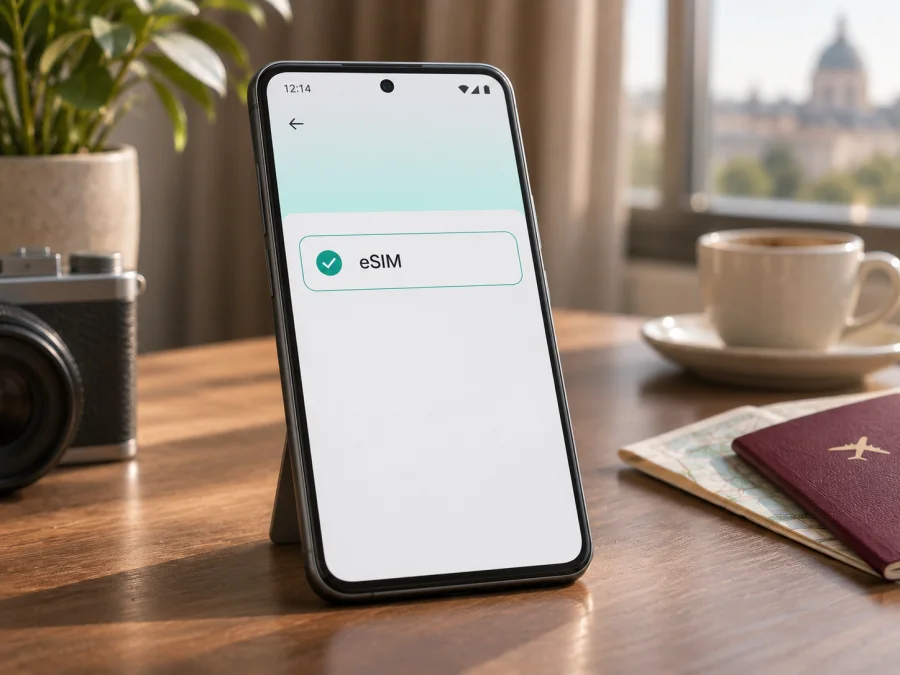
Samsung Galaxy S25 FE 128GB eSIM: compatibility and setup guide
If you are preparing for a trip, the Samsung Galaxy S25 FE 128GB can use an eSIM on supported regional versions. Samsung lists the Galaxy S25 FE among eSIM-capable Galaxy phones, and its UK specification page for a 128GB model lists an embedded SIM and SIM combinations that include one physical SIM plus an eSIM or two eSIMs. That is a useful confirmation for the published configuration, but it does not prove that every phone carrying the same retail name has identical software or carrier settings. Samsung cautions that eSIM availability can depend on the country where a device was purchased. Check the exact phone in Settings before buying a travel plan.
The storage figure in the name identifies the 128GB version; it does not by itself identify the market, model code, carrier status, or eSIM configuration. If a seller lists only “Samsung Galaxy S25 FE 128GB,” ask for the full model number and country of sale, then use the checks below. A missing eSIM menu or EID is a reason to pause and verify the device with Samsung or the seller, rather than assuming a travel eSIM will install.
Samsung Galaxy S25 FE 128GB eSIM compatibility at a glance
| Item | What to know |
|---|---|
| Exact device covered here | Samsung Galaxy S25 FE 128GB |
| eSIM answer | Yes on supported regional versions. Samsung lists Galaxy S25 FE as eSIM-capable; check the individual phone because regional availability can differ. |
| Published 128GB configuration | Samsung UK lists Embedded-SIM and SIM 1 + SIM 2 / SIM 1 + eSIM / Dual eSIM for its Galaxy S25 FE 128GB page. |
| Storage | 128GB of internal storage; storage capacity is not an eSIM identifier. |
| Network and carrier conditions | The phone must be compatible with the travel plan’s network and must not be restricted by a carrier or device lock. |
| Fastest on-device check | Open Settings > Connections > SIM manager and look for Add eSIM. You can also check whether an EID is shown in About phone or Status information. |
| Before purchase | Confirm the exact regional model, eSIM menu, unlocked status, destination, plan validity, data allowance and activation conditions. |
Why a regional version matters
A phone’s commercial name can stay the same across countries while the model code, supported network bands, firmware, SIM tray, carrier profile and available features vary. Samsung’s support information lists Galaxy S25 FE as an eSIM-capable model but notes that a device from some countries may not support eSIM even when the family name appears on the list. This is why a specification from one market should not be applied automatically to every import or carrier-branded unit.
Before purchase, ask the seller for the complete model code shown on the box or in the device settings, the original sales market, and confirmation that the handset is not carrier-locked. Then compare those details with Samsung support for that market. After you receive the phone, verify the eSIM controls directly on the handset. This two-part check is more reliable than relying on a listing title, an online compatibility table that does not identify a region, or the fact that another S25 FE owner has successfully installed an eSIM.
Check your Galaxy S25 FE 128GB before buying an eSIM
Run these checks on the phone itself. Menu wording can differ slightly by One UI version, region and carrier configuration, but the SIM manager is the usual starting point.
- Open Settings. Use the Settings app on the phone, not a seller’s screenshot or a copied specification.
- Go to Connections. Tap Connections, then open SIM manager. On some software versions the page may be named SIM card manager.
- Look for Add eSIM. An option such as Add eSIM or Add mobile plan indicates that the device exposes an eSIM setup flow. If you see only physical SIM controls, continue with the EID check and confirm the exact regional variant.
- Check for an EID. Open Settings > About phone > Status information or the relevant status/details screen. Some versions display an EID there. An EID is the identifier associated with the phone’s embedded SIM; its presence is a useful sign, while the absence of an EID or eSIM menu needs clarification from Samsung for that exact unit.
- Confirm the phone is unlocked. Ask the original carrier or seller whether another provider’s eSIM can be added. A device lock can prevent activation even when eSIM hardware is present.
- Check your destination and plan. Confirm that the chosen plan covers the country or region you will visit, the amount of data and duration suit your trip, and the plan supports your device and activation timing.
- Keep a connection available for setup. Downloading a profile may require Wi-Fi or another working internet connection. Do not remove your existing SIM or delete a profile while troubleshooting unless the provider instructs you to do so.
If you want a second compatibility check, check your device before ordering. Treat the result as guidance and compare it with your own model code and SIM manager. A compatibility checker cannot remove a carrier lock, make an unsupported regional phone expose eSIM controls, or guarantee that a destination network will accept every device configuration.
Add and activate a travel eSIM
Set up the profile while you have stable Wi-Fi, a charged phone, and access to the QR code or installation details. The exact screen names can vary by software version. For the vendor’s illustrated steps, see the Android eSIM installation instructions and, if you are helping someone with an Apple device, the iOS eSIM installation instructions.
Before you start
- Confirm the handset is the Samsung Galaxy S25 FE 128GB variant you checked and that Add eSIM is available.
- Make sure you have Wi-Fi or another internet connection for downloading the eSIM profile.
- Open the order or account details and find the QR code or manual activation information. Keep the QR code private and do not share a screenshot publicly.
- Review the destination, data allowance, validity period and activation start rule for this specific plan.
- Keep your physical SIM if you need its regular number, and choose which line handles mobile data after installation.
- Do not delete an installed eSIM as a troubleshooting shortcut; a QR code may be single-use.
Install with a QR code
- Connect the Galaxy S25 FE 128GB to Wi-Fi and open Settings.
- Tap Connections, then SIM manager.
- Select Add eSIM or Add mobile plan.
- Choose the option to scan a QR code. If prompted, allow the camera to scan the code displayed on another screen or printed on the supplied document.
- Follow the on-screen prompts to download and add the mobile plan. Do not close Settings while the profile is being installed.
- Give the line a clear label, such as Travel data, so you can distinguish it from your personal number.
- In SIM manager, choose the eSIM for Mobile data when you are ready to use the travel plan. Keep calls and texts assigned to your usual line if that is what you want.
- If you are still at home, leave the travel eSIM switched on only if the plan instructions call for it. Check the plan’s validity start rule so the trip does not use its active period earlier than intended.
- After arriving, enable Mobile data for the eSIM. If the plan instructions require data roaming for that eSIM, enable roaming for the travel line specifically and check that roaming remains disabled on your home SIM if you want to avoid home-carrier roaming charges.
- Wait for the phone to register on a supported local network. This can take a few minutes. Open a webpage or a map to confirm that data works, then check usage in your account or app.
Select the right SIM for data
After installation, the phone may continue using your physical SIM for mobile data until you change the preference. In SIM manager, choose the travel eSIM under Mobile data. Keep your home number selected for calls or messages if you need it, but check your home operator’s roaming terms before leaving that line enabled abroad. An eSIM data plan usually provides mobile data only; it does not automatically add a regular phone number, voice minutes or SMS. You can use messaging and internet calls through apps over the data connection, subject to each app’s requirements.
Use the Galaxy S25 FE 128GB while travelling
A travel eSIM is useful when you want mobile data without replacing your physical SIM. For example, you can keep your everyday number installed for account verification and incoming calls while setting the travel eSIM as the data line. This arrangement depends on the phone’s dual-SIM behavior, network availability and your home plan. Confirm any call-forwarding, roaming or dual-SIM charges with your existing operator before travel.
Before choosing a plan, match it to the itinerary rather than only the first airport. Check every country on a multi-country route, any regional coverage description, the data allowance and validity window. A city name in the itinerary does not always identify a separate plan area; use the destination coverage stated for the selected plan. Coverage and speeds depend on the local network and conditions where you are, so no device compatibility check can promise service in every location.
Estimate data use for navigation, messaging, browsing, work calls and media. If you expect to stream video or use your phone as a hotspot, check whether tethering is supported and whether your expected use fits the allowance and plan terms. Download maps, boarding passes and other essentials over Wi-Fi before leaving. This reduces data use and gives you an offline backup if a signal is temporarily unavailable.
Kaspersky eSIM Store is an app and website where you can choose, order and activate an eSIM with a suitable travel data plan. The plan’s mobile service is delivered through the relevant network arrangements; Kaspersky eSIM Store is not a mobile operator and does not own or operate the mobile network. To browse current destinations and plan terms, visit the Kaspersky eSIM Store website. Check the plan details for your actual itinerary rather than assuming a general destination page is a specific country tariff.
Troubleshooting: when eSIM does not install or connect
“Add eSIM” is missing
Restart the phone and check for a software update, then look in Settings > Connections > SIM manager again. Confirm the full model code and country of sale with Samsung or the retailer. The same Galaxy family name can cover regional configurations, and Samsung notes that eSIM may not be enabled on devices from every market. If the menu remains absent, do not purchase a plan until the exact handset is confirmed.
The QR code will not scan
Increase the brightness on the screen displaying the code, clean the camera lens and hold the phone steady. Make sure the entire code is visible and not cropped or blurred. If the Galaxy S25 FE 128GB is the device receiving the eSIM, display the QR code on another screen; a single phone cannot normally scan a code displayed on its own screen with its rear camera. If scanning still fails, use manual installation only when the provider has supplied valid manual details.
Profile download fails
Check the Wi-Fi connection, disable any setting that blocks access to the setup service, and try again after reconnecting. Confirm that the QR code or activation details belong to this order and have not already been used. Check that date and time are set automatically. If the profile was partially added, review SIM manager before retrying so you do not create duplicate profiles. Contact the plan provider with the error text and order reference; avoid sending your full QR code in a public channel.
The eSIM is installed but there is no data
Open SIM manager and select the travel eSIM for mobile data. Confirm that the eSIM is switched on, mobile data is enabled, and airplane mode is off. If the provider’s instructions require data roaming for this profile, enable it on the travel eSIM line only. Then check that you are in a supported destination, the plan is active, and the validity period has started. Restart the phone or briefly toggle airplane mode off and on to refresh registration.
If the network still does not connect, check whether network selection is set to automatic. If the plan provider supplies a specific access point name (APN) or network selection instruction, follow that information exactly; do not copy settings from an unrelated device or country. Confirm the phone’s software is current and that the handset is not carrier-locked. Ask the plan provider whether there is an outage or a local-network requirement before changing advanced settings.
The home SIM is using data or roaming unexpectedly
Return to SIM manager and confirm which SIM is selected for mobile data. Check the roaming switch for each line separately. If you want the travel eSIM to handle data, select that line and disable data roaming on the home SIM unless you deliberately want to use your home operator’s service. Your home carrier may charge for incoming calls, calls, texts or background data abroad according to its own terms, even when the travel eSIM is installed.
You cannot add a second eSIM
The phone’s available SIM combinations and software can affect how many lines are active at once. Samsung’s published 128GB specification lists several SIM arrangements, including dual eSIM, but your particular regional device and carrier may behave differently. Review the SIM manager and the model-specific user information. If a line is active or a device limit is reached, consult Samsung before deleting a profile; deleting an eSIM can make it difficult to restore.
The plan appears to have expired or used data early
Check the plan’s destination, activation date, validity rules and remaining allowance in the account where it was ordered. Installation, activation and first network connection are not interchangeable events: the start condition depends on the specific plan. Contact support if the displayed status conflicts with the terms you saw at checkout, and include the order details and a description of the phone settings without publishing activation codes.
Frequently asked questions
Does Samsung Galaxy S25 FE 128GB support eSIM?
Yes, Samsung lists Galaxy S25 FE among its eSIM-capable devices, and Samsung’s UK product page for a 128GB version lists Embedded-SIM. Support can depend on the exact regional handset and carrier configuration, so confirm Add eSIM or EID on your own device before ordering.
Is every Samsung Galaxy S25 FE 128GB compatible?
Not automatically. The 128GB label identifies storage, not the sales region or firmware. Samsung warns that eSIM may not be supported on devices from some countries. Check the full model code, country of origin, SIM manager and carrier-lock status.
Where do I find the EID on a Galaxy S25 FE?
Look in Settings > About phone > Status information or a similarly named status screen. Menu names may vary. You can also check Settings > Connections > SIM manager for Add eSIM. If neither is visible, ask Samsung to confirm the device using its full model code.
Does a travel eSIM give me a normal number for calls and SMS?
A data-only travel plan does not provide a regular phone number, voice calls or SMS unless the plan details explicitly say otherwise. Internet messaging and calls may work through apps using your data connection.
Should I install the eSIM before travelling?
You can often install it before departure while connected to Wi-Fi, but check when the plan’s validity begins. Some plans start on installation or activation; others start when they connect in the destination. If you are unsure, follow the specific plan instructions or contact support before installing.
Do I need to enable data roaming?
Some travel eSIMs require data roaming for the eSIM line to connect. Follow the plan’s setup instructions and make sure the correct line is selected. Keep roaming disabled on your home SIM if you do not intend to use your home operator’s roaming service.
Can I move the eSIM to another phone later?
Do not assume that you can. Some profiles or activation codes are bound to one device or can be used once. Check the plan terms and contact support before removing or replacing the profile. A physical transfer of the QR code does not guarantee that the eSIM can be installed again.
Final check before your trip
For a supported regional version, Samsung Galaxy S25 FE 128GB can use eSIM, and Samsung’s published 128GB specifications show an embedded SIM option. Your own handset still needs a device-level check: confirm Add eSIM or an EID, identify the full model code and original market, and make sure the phone is unlocked. If the information does not match, verify it with Samsung or the seller before paying for a plan.
Once compatibility is confirmed, choose a travel plan by destination, data allowance, duration and activation rules. Install it over a stable connection, select the eSIM for mobile data when appropriate, and follow the provider’s instructions for roaming. Check your device before purchase, then browse current travel eSIM options and their terms on Kaspersky eSIM Store for the countries or regions on your itinerary.


