Travel connectivity guide
Samsung Galaxy S25+ 256GB eSIM: setup guide
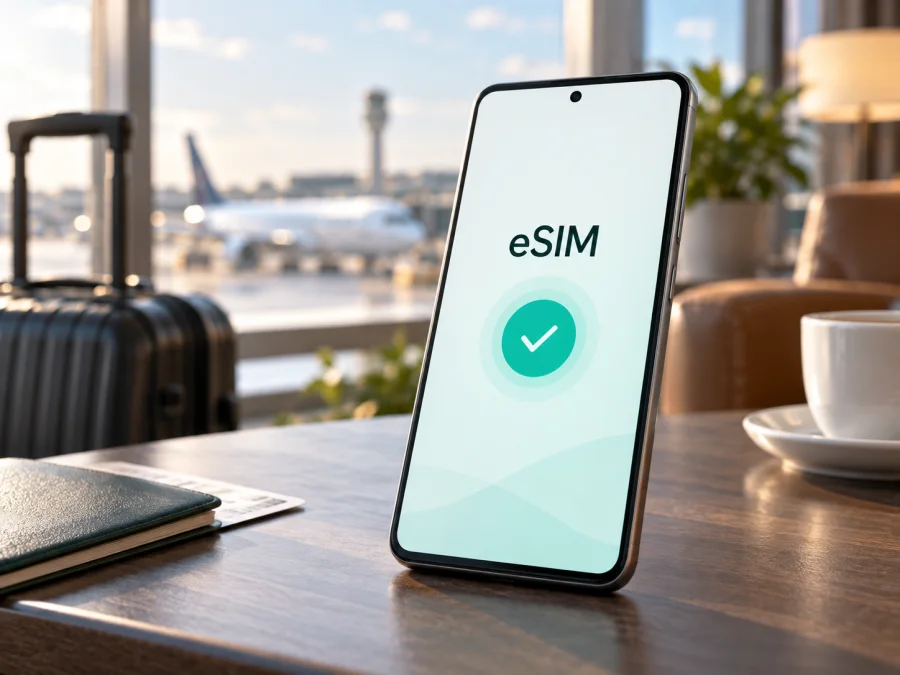
Samsung Galaxy S25+ 256GB eSIM: compatibility and setup
If you have a Samsung Galaxy S25+ 256GB and need mobile internet abroad, the short answer is yes in the supported regional version: Samsung lists this 256GB configuration with an embedded SIM, alongside Nano-SIM, and shows combinations such as SIM + eSIM and dual eSIM. That makes the phone a suitable candidate for a travel eSIM. It is not a guarantee for every retail unit, however. The original sales market, exact model code, software, carrier policy, and operator lock can change what appears in the menus and whether a profile registers.
This page keeps the complete device name exactly as supplied. Storage is part of the variant identity, but 256GB alone does not prove eSIM access. The final decision should be based on the EID and eSIM controls on your own handset, followed by a check of the selected plan and destination.
Quick answer
Samsung’s specifications for the 256GB Galaxy S25+ list Nano-SIM and eSIM, with SIM 1 + SIM 2, SIM 1 + eSIM, and dual-eSIM combinations in supported markets. Samsung’s support guidance also says that available settings can vary by carrier, software version, and device model, and that eSIM service can vary by country and network operator.
So the practical answer is:
- Expected support: yes, Samsung Galaxy S25+ 256GB is normally eSIM-capable.
- Regional condition: imported, carrier-specific, or otherwise market-limited units may differ.
- Your confirmation: look for an EID and Add eSIM or Add mobile plan in SIM Manager.
- Travel use: a travel eSIM generally supplies mobile data under its plan conditions; a phone number, voice calls, and SMS are not included unless expressly stated.
Key specifications for eSIM use
| Item | Samsung Galaxy S25+ 256GB | Why it matters |
|---|---|---|
| Device variant | Samsung Galaxy S25+ 256GB | Use the full name when checking a listing or support request. |
| Storage | 256GB | Identifies the requested version; it does not independently decide eSIM support. |
| SIM types listed by Samsung | Nano-SIM and embedded SIM | Indicates eSIM support for the relevant regional model. |
| Common combinations | SIM + SIM, SIM + eSIM, or dual eSIM | May allow a main line and travel data line together, subject to the unit and carrier. |
| Network support | 2G, 3G, 4G LTE, and 5G bands vary by market | The eSIM tariff must work with the networks available on your route. |
| Device identifier | EID, when enabled on the unit | Confirms the embedded-SIM identity and may be requested during activation. |
| Main uncertainty | Market, firmware, carrier policy, and operator lock | These can hide the menu or prevent registration. |
What eSIM support means on this phone
An eSIM is a programmable SIM built into the handset. Instead of inserting a plastic card, you download a digital profile for a mobile plan and manage it in the phone’s SIM settings. This can let you leave your everyday physical SIM in place while using a separate profile for mobile data abroad.
The manufacturer’s listing matters because it identifies eSIM as a supported SIM type and documents dual-SIM combinations. It does not mean every network supports every Galaxy model, and it does not remove an operator lock. Three checks remain separate: the phone must expose eSIM, the plan must be eligible for that device, and the destination network must be covered.
Regional and carrier versions
Samsung sells Galaxy phones for multiple markets. An imported phone can have a different model code, SIM arrangement, supported bands, firmware configuration, or carrier policy even when the retail name looks identical. Samsung’s support pages explicitly note that menus and settings vary by operator, software version, and model, and that eSIM service depends on country and carrier.
This matters most for a used, imported, or carrier-supplied handset. Some networks require an account, a particular activation method, or a carrier-approved model. A carrier lock can also stop a different provider’s profile from registering.
Before purchase, identify:
- The model code under Settings > About phone, not only the shop title.
- The country or market for which the phone was sold.
- Whether an EID and eSIM option are present in the current software.
- Whether the phone is unlocked for another provider’s eSIM.
<a id="kesim-device-compatibility"></a>
Check compatibility before buying an eSIM tariff
Open Settings > Connections > SIM manager and look for Add eSIM, Add mobile plan, or equivalent wording. Then open Settings > About phone > Status information and look for EID. Samsung notes that the EID may also be printed on the original box and may be requested by a provider.
For a quick reminder, Check your Samsung Galaxy S25+ 256GB before selecting a plan.
Device compatibility checklist
- [ ] The handset is Samsung Galaxy S25+ 256GB, not a different S25 model or capacity.
- [ ] The model code and original sales market are known.
- [ ] SIM Manager contains Add eSIM or Add mobile plan.
- [ ] An EID appears in Status information or on the box.
- [ ] The software is updated and the phone can connect to Wi-Fi.
- [ ] No operator lock prevents use of another provider.
- [ ] The plan covers every country or region on the itinerary.
- [ ] You know whether it is data-only and when validity starts.
If both are absent, pause the purchase and ask Samsung, the seller, or the carrier about the exact model code and market. Do not force a QR code onto an unverified phone.
Find the EID and eSIM menu
The EID is an embedded-SIM identifier, not the IMEI, serial number, or phone number.
- Open Settings.
- Tap About phone.
- Open Status information and find EID. The wording can move slightly after a software update.
- Return to Settings > Connections > SIM manager.
- Confirm that Add eSIM or Add mobile plan is available.
If the EID is not visible, check the box and protect it.
Install an eSIM on Samsung Galaxy S25+ 256GB
Install before departure while stable Wi-Fi is available. Keep the QR code or activation details on another screen. A QR code displayed on the same phone normally cannot be scanned by that phone’s camera.
For the complete installation flows, see the Android eSIM installation instructions or, for a transfer from an Apple device, the iOS eSIM installation instructions. This phone is Android; the iOS page is relevant only to a transfer or preparation scenario.
QR-code installation
- Connect to Wi-Fi.
- Open Settings > Connections > SIM manager.
- Tap Add eSIM or Add mobile plan.
- Choose Scan QR code.
- Scan the code supplied for the plan from another device or printed document.
- Review the plan name and confirm download.
- Wait for installation to finish, then restart if prompted.
Do not repeatedly scan a single-use code after an error; ask whether it remains valid first.
Automatic setup or manual activation
Some carriers pre-assign a plan to the phone. In SIM manager, choose Add eSIM and let the device search for an available plan. Review the details before accepting it. A blank search result can mean the carrier does not support that activation route; it does not by itself prove missing eSIM hardware.
If the provider gives an activation code, choose the manual option under Add eSIM and enter it exactly. Check for spaces and similar characters. Use a stable connection and keep the code private.
Activate the profile for travel data
After installation, the profile should appear in SIM Manager. Give it a label, such as “Travel,” then review these settings:
- Turn on the new eSIM.
- Select it as the preferred SIM for Mobile data when you are ready to use it.
- If you want to avoid home-network charges, disable data roaming on the everyday line or turn that line off. Remember that this can affect calls and SMS.
- Enable Data roaming for the travel eSIM if the plan requires it.
- Disable automatic data switching unless you deliberately want the phone to change lines when signal strength changes.
- After arrival, turn Wi-Fi off briefly and load a small webpage to test mobile data.
Validity can start on installation or on first connection to a covered network. Follow the tariff’s activation window and review destination, allowance, validity, and fair-use conditions in the app or website where you arranged it.
Travel scenarios
Keep your normal number
Leave the main SIM enabled for calls or messages if its roaming conditions are acceptable, but select the travel eSIM for mobile data. Internet-based messaging apps keep their existing account number.
Avoid accidental roaming
Label both lines before takeoff. On arrival, choose the travel eSIM and turn off data roaming on the main line; disabling that line also stops its calls and SMS until it is enabled again.
Cross several countries
Check that the tariff covers the complete route. A country-specific profile can stop at a border, so choose a regional option only when its coverage and validity match the itinerary.
Estimate data use
Maps, translation, ride-hailing, messaging, banking verification, and light email usually need less data than video calls, streaming, backups, or large uploads. Disable photo backup over mobile data and monitor the balance.
Kaspersky eSIM Store is an app and website that helps you choose, arrange, and activate an eSIM with a mobile-data tariff for a foreign trip. It is not a mobile operator, network owner, or internet provider. Use it to review destination and tariff conditions, then install the selected eSIM on a compatible, unlocked phone.
Troubleshooting
No Add eSIM option
Check the model code, original market, updates, and EID. Restart after an update and inspect SIM Manager again. If both EID and eSIM controls are absent, verify the exact regional version with Samsung, the seller, or the carrier. Do not rely on another owner’s menu.
QR code will not scan
Increase the brightness of the screen showing the code, remove glare, and open the scanner from Add eSIM, not the regular camera. Display the code on another device. For a one-time code, stop repeated attempts and ask whether it is still valid.
Profile downloads but there is no signal
Make sure the eSIM is enabled and selected for data. Check destination coverage, the plan’s validity, the required data-roaming setting, and automatic network selection. Toggle airplane mode and restart. A carrier lock or an unsupported destination can block a valid profile.
Signal appears but apps are offline
Turn Wi-Fi off for testing and confirm the travel line is the data SIM. Check the allowance, Android’s data limit, Data Saver, VPN, private DNS, and app restrictions. Change APN settings only when the plan’s instructions provide the values; random entries can create another fault.
It worked at home but not abroad
Confirm that the destination is covered and that data roaming is enabled for the travel line if required. Use automatic network selection first. If manual selection is necessary, use only a network listed in the plan instructions. Wait after a network change, then restart if needed.
You are changing phones
Do not assume an eSIM can be reused after deletion. Some profiles are transferable; others are tied to the first installation or require replacement. Check the plan conditions before removing the profile or resetting the phone.
FAQ
Does Samsung Galaxy S25+ 256GB support eSIM?
Samsung lists the 256GB Galaxy S25+ with Nano-SIM and eSIM in supported regional specifications, including SIM + eSIM and dual-eSIM combinations. The individual unit still needs checking because eSIM availability varies by country, carrier, software, and model.
Is 256GB the eSIM version?
No. 256GB identifies storage, not the complete SIM configuration. Confirm the EID, Add eSIM control, and regional model code on the phone.
Can I use a physical SIM and a travel eSIM together?
Supported variants list SIM + eSIM, but active combinations can depend on region, software, and operator. Set the travel eSIM as the data line and check which line handles calls and messages.
Will a travel eSIM replace my number?
Usually not. A travel plan for internet is commonly data-only. Your regular number stays with the regular SIM or eSIM, while data apps use the selected travel line.
Can I use it if the phone is carrier-locked?
Do not assume so. A carrier lock can prevent another provider’s eSIM from registering even when an EID is present. Confirm unlock status with the seller or carrier.
Final device check before your trip
For Samsung Galaxy S25+ 256GB, Samsung’s current specifications indicate eSIM capability in supported markets. Before buying, find the EID, open Settings > Connections > SIM manager, confirm Add eSIM, identify the model code and market, install available updates, and verify that no operator lock blocks another provider. Then match the tariff to every destination, its data allowance, validity, activation condition, and roaming requirement.
After those checks pass, Kaspersky eSIM Store can help you choose and arrange an eSIM with a suitable mobile-data tariff for a foreign trip through its app or website. Install it over Wi-Fi, activate it according to the plan instructions, select it as the travel data line after arrival, and keep the everyday SIM settings under control.
If the EID or eSIM menu is missing, pause the purchase and verify the exact regional version with Samsung, the seller, or the network provider. Confirm device compatibility before selecting a tariff; no product label can replace the final check on the handset in your hand.


