Travel connectivity guide
Samsung Galaxy S25+ 8GB RAM eSIM Guide
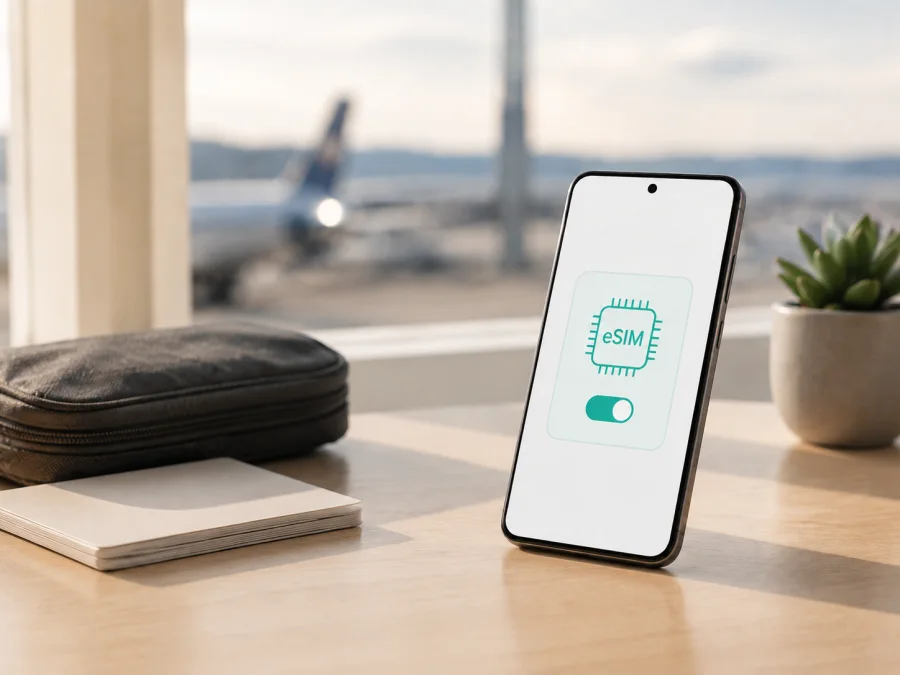
Samsung Galaxy S25+ 8GB RAM eSIM: compatibility and setup
The Samsung Galaxy S25+ 8GB RAM is an eSIM-capable Android phone in the Galaxy S25+ family, but a particular handset still depends on its regional SKU, country of origin, carrier configuration and software. Samsung’s current support guidance includes Galaxy S25+ among its eSIM-enabled Galaxy phones and documents Settings > Connections > SIM manager > Add eSIM. Regional product pages list an embedded SIM and physical-SIM-plus-eSIM or dual-eSIM combinations. That confirms family support, not every imported unit.
The 8GB RAM label is a memory configuration, not a separate eSIM technology. Keep it attached to the model name when comparing listings or asking for help, because another market may use a different product code or carrier policy. An EID and the Add eSIM control confirm the normal setup path. If either is missing, pause: the handset may be regionally restricted, carrier-customized or in need of an update.
Quick answer: does Samsung Galaxy S25+ 8GB RAM support eSIM?
Usually yes, when the exact regional version is one of Samsung’s eSIM-enabled Galaxy S25+ variants. Samsung lists Galaxy S25+ in its eSIM device guidance, and regional specifications describe an embedded SIM alongside Nano-SIM support. Samsung also warns that eSIM service can vary by country and carrier and that a listed Galaxy device may not support the feature in every country of origin. The most accurate answer is therefore: the platform supports eSIM, subject to the exact 8GB RAM SKU, market, carrier and software.
This distinction matters for an imported phone. Two devices with the same retail name can have different model codes, firmware and network policies. RAM capacity and 5G branding do not prove eSIM availability. Use these checks:
- Samsung documentation identifies your Galaxy S25+ family as eSIM-capable.
- An EID is visible in the phone’s device or status information.
- SIM manager offers Add eSIM or equivalent wording.
- The phone is not carrier-locked in a way that blocks the intended profile.
- The selected travel plan covers the destination and its supported networks.
If Samsung lists the family but your EID or menu is missing, treat the phone as unconfirmed. Check the product code with the seller or carrier and update the phone before trying an installation.
What the exact variant means
This guide keeps the full name Samsung Galaxy S25+ 8GB RAM; it is not interchangeable with Galaxy S25, Galaxy S25 Ultra, Galaxy S25 FE, a 12GB RAM S25+ or another storage configuration.
| Item | eSIM relevance |
|---|---|
| Device variant | Samsung Galaxy S25+ 8GB RAM |
| Platform | Android with Samsung One UI; menu names can change after updates |
| SIM capability | Supported regional specifications list Nano-SIM and embedded SIM |
| Possible arrangement | Physical SIM plus eSIM or dual eSIM, depending on region and software |
| Memory | 8GB RAM; this does not by itself enable or disable eSIM |
| Travel use | The eSIM can be selected as the line for mobile data after installation |
| Voice and SMS | A data-only travel plan normally does not add a regular number or include voice and SMS |
| Main uncertainty | Country of origin, exact model code, carrier lock, local support and firmware |
The table describes supported variants, not every imported unit. “Unlocked” refers to network access, so also confirm regional eSIM is enabled.
How to verify eSIM compatibility on the phone
Use the phone itself as the final checkpoint, not a marketplace title, generic “dual SIM” label or listing that combines memory versions.
1. Find the EID
Open Settings > About phone > Status information and look for EID. Depending on One UI, it may appear under Settings > About phone > Status. You can also enter *#06#; compatible phones commonly show an EID with the IMEI values. Do not publish it. The EID identifies the embedded SIM hardware; it is not a QR code or activation code.
An EID is strong evidence of an eSIM component, but check SIM Manager too because regional configuration can control availability. If it is absent, restart, update the phone, repeat the check and compare the model code with the box or invoice. If it remains absent, treat eSIM as unconfirmed.
2. Look for Add eSIM in SIM manager
Open Settings > Connections > SIM manager. A supported configuration normally includes Add eSIM, Add mobile plan or similar wording. Samsung’s setup flow uses Add eSIM, followed by QR-code scanning or manual activation-code entry.
Wording can change with language, One UI and carrier customisation. The important signal is an action that adds an embedded profile, not merely a screen showing two physical slots. If only Add SIM card appears, do not force a QR code into the process.
3. Record the model, software and lock status
From Settings > About phone, note the model code, One UI version and service provider software version. Keep the full description beside them: Samsung Galaxy S25+ 8GB RAM. Samsung uses different codes by country. Confirm with the original carrier that the phone is unlocked; a lock can block registration even when EID and Add eSIM exist.
4. Check the plan before purchase
Confirm that the eSIM plan covers the route, supports the needed network technology and is intended for mobile data. Read its activation window, validity, data allowance and tethering rules. A compatible phone does not make an incompatible plan usable.
Check your device before selecting a travel plan, especially when the phone was imported or refurbished.
Compatibility checklist before purchase
- [ ] The About screen identifies the expected Galaxy S25+ variant and the model code is available.
- [ ] An EID is visible in device or status information.
- [ ] SIM manager includes Add eSIM or equivalent wording.
- [ ] The handset is not locked to a carrier that blocks another profile.
- [ ] Android and One UI are updated, with enough battery and free storage.
- [ ] Wi‑Fi or another working connection is available for the initial download.
- [ ] The plan covers the trip and its data amount, validity and activation rules fit your needs.
- [ ] You know which SIM will handle calls and SMS and which profile will handle mobile data.
- [ ] Data roaming will be enabled only for the travel eSIM if the plan requires it.
If an essential box is unchecked, resolve the model-code or regional question before purchase.
Installing an eSIM on Samsung Galaxy S25+ 8GB RAM
Install on stable Wi‑Fi with a charged phone and the QR code or activation details on another screen. Do not delete a working physical SIM before the new profile appears.
QR-code method
- Open the Kaspersky eSIM Store app or website and access the travel eSIM and activation details. Choose the destination and plan for your route and data needs.
- On the Samsung phone, open Settings > Connections > SIM manager.
- Tap Add eSIM, then choose the QR-code scanning option.
- Display the QR code on a laptop or second phone and scan it with the Galaxy camera. If it is shown on the Samsung screen itself, use another screen or manual entry.
- Allow the phone to download the profile; keep the connection active and Settings open.
- When the new line appears, label it Travel data or another clear name. Do not delete it later unless the plan conditions allow reinstallation.
- Follow the confirmation screens. Downloading and starting validity can be separate events.
For a visual walkthrough, use the Android installation instructions. Button names may vary by One UI version.
Manual activation code
Return to SIM manager > Add eSIM, select the QR-code path and choose Enter activation code if offered. Enter the supplied code exactly. The EID identifies the phone; the activation code authorises the download. If rejected, check characters and the activation window instead of repeatedly starting installations.
Select the line for mobile data
After installation, keep the physical SIM for your normal number if needed. In SIM manager, select the travel profile for Mobile data. Keep calls and messages on the regular line unless the plan says otherwise, and turn off its data roaming.
If the plan requires partner-network roaming, enable Data roaming for that profile only. The requirement depends on the destination. For Apple devices, use the iOS installation instructions, not Samsung’s sequence.
When to activate before or during a trip
Timing depends on the plan. Some profiles start after first connection to an eligible network; others start when installed or first activated. Read the conditions in the Kaspersky eSIM Store app or website.
Prepare at home
Install over reliable Wi‑Fi if early installation is allowed. Leave the travel eSIM off or not selected for data until the right time. This gives you time to resolve problems while normal connectivity is available. Hide EID and QR details before sharing screenshots.
Connect after landing or cross borders
If activation should happen in the destination, keep the profile installed and turn it on after landing. Disable airplane mode, select the travel line for data and keep the physical SIM’s data roaming off. For a multi-country plan, check the next country’s coverage and validity before crossing. If it does not reconnect, toggle airplane mode once and check the data line. If tethering is allowed, turn on Mobile Hotspot only after data works.
Troubleshooting eSIM setup and data
Add eSIM is missing
Recheck model code, EID and software; update and restart. If EID is missing too, the handset may be a regional version without eSIM enabled. If EID exists but the menu is absent, regional firmware or carrier policy may limit it. Contact the seller or carrier with the model code; 8GB RAM alone is not enough.
The QR code will not scan
Increase the second screen’s brightness, remove glare, clean the lens and hold the code flat. Confirm it is the intended, unused profile. Use manual entry if offered; do not crop or redraw the code. Display an email containing it on another device.
The profile is installed but there is no signal
Confirm that the travel profile is enabled and selected for data. Check destination, network mode and required roaming, then toggle airplane mode once. A data-only eSIM can show no voice service and still work for internet traffic. Use manual network selection only when instructed.
Mobile data does not load
Turn off Wi‑Fi and verify that mobile data is assigned to the travel eSIM. Check data-saving settings, remaining data and validity. Change APN only when the plan provides one; do not copy another provider’s APN. If the physical SIM is the data line, APN changes will not help.
Calls, SMS or locking cause confusion
A travel data eSIM normally does not replace the physical SIM’s number or include voice and SMS. Keep the regular line for calls and messages while the travel eSIM handles data. If the phone is carrier-locked or company-managed, ask the carrier or administrator to resolve it; reinstalling the QR code will not help.
FAQ
Is 8GB RAM enough for eSIM on Samsung Galaxy S25+ 8GB RAM?
Yes. RAM is not the deciding factor. eSIM depends on regional hardware and software, so the phone still needs an EID, an eSIM option and an unlocked supported configuration.
Can two eSIMs be active at once?
Samsung regional specifications describe physical-SIM-plus-eSIM and dual-eSIM combinations for supported models. Saved profiles and active lines are different things, so check the phone and carrier conditions.
Can I move the eSIM to another phone?
Do not assume that you can. Many profiles are bound to the first device or require a new activation after deletion. Keep it on Samsung Galaxy S25+ 8GB RAM unless the plan explicitly describes a transfer.
Does a travel eSIM provide a normal phone number?
Not usually. It is intended for mobile internet; voice and SMS are included only when the plan says so. Internet calls and messages can use data.
Is an EID enough to guarantee that a plan works?
No. Regional support, carrier policy, destination networks and activation rules still matter.
Key takeaways
Samsung Galaxy S25+ 8GB RAM is an eSIM candidate because Samsung lists Galaxy S25+ among supported devices and documents Add eSIM. The answer is conditional: verify EID and SIM Manager, confirm model code and market, check the lock and choose a plan for the trip. Keep 8GB RAM in the name, but do not use it as proof of compatibility.
Kaspersky eSIM Store is an app and website for choosing a destination, reviewing an eSIM tariff for mobile internet abroad, completing the order and accessing activation details. It is not the operator, network owner or mobile-internet provider; service depends on the tariff and local conditions.
Final device check before choosing a travel eSIM
Before departure, perform this check on the actual Samsung Galaxy S25+ 8GB RAM you will carry:
- In About phone, confirm the model code and EID.
- In Connections > SIM manager, confirm Add eSIM is available.
- Confirm that the phone is unlocked and updated.
- Compare the route with the plan’s coverage, data, validity and activation rules.
- Install over Wi‑Fi, label the profile, select it for data and disable regular-SIM data roaming.
- Save activation details without sharing your EID or QR code publicly.
When these checks pass, use the Kaspersky eSIM Store app or website to choose and arrange an eSIM for the trip, then activate it on the compatible phone according to the plan instructions. If any check fails, pause and confirm the exact regional version before purchasing.


