Travel connectivity guide
Samsung Galaxy S25 Ultra 1TB eSIM: Setup Guide
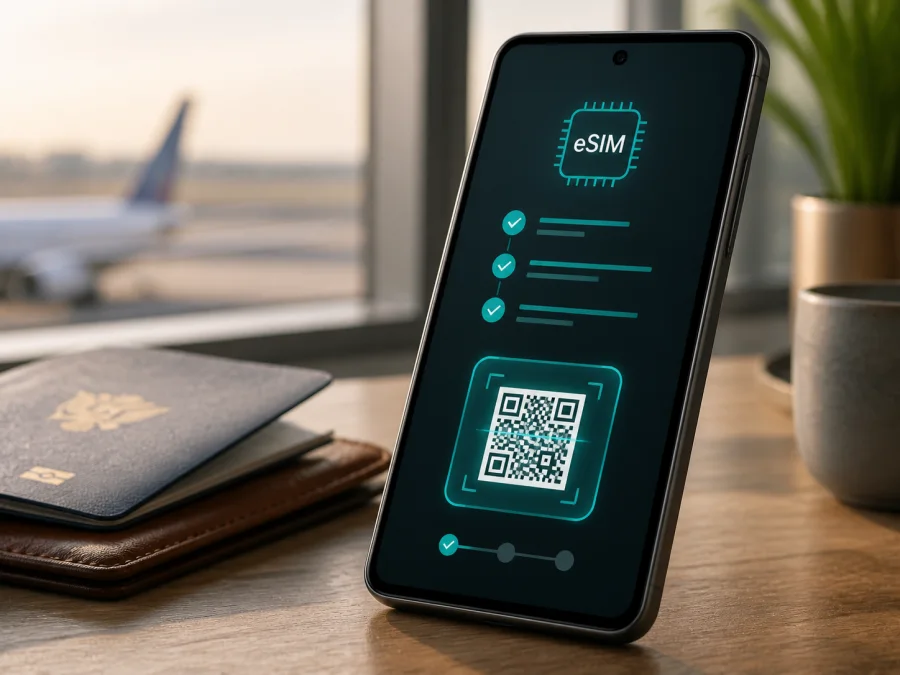
Samsung Galaxy S25 Ultra 1TB eSIM: compatibility and setup
If you are preparing for an international trip with a Samsung Galaxy S25 Ultra 1TB, an eSIM can be a practical way to arrange mobile data without replacing your physical SIM card. The important point is to check the exact handset in your hands, not only the family name on a product page. Samsung sells regional and carrier variants with different model codes, SIM arrangements, firmware, and network bands.
Quick answer
Yes, the Samsung Galaxy S25 Ultra 1TB supports eSIM in the regional versions documented by Samsung. Current official specifications for 1TB variants in several markets list an embedded SIM and a SIM configuration such as SIM 1 + eSIM or Dual eSIM. Samsung support also describes adding a plan by QR code, automatic plan discovery, or manual activation code.
That answer is not a blanket guarantee for every handset sold under the same family name. eSIM availability can depend on the country of sale, model code, carrier restrictions, software version, and whether the phone is network-unlocked. Before purchasing a travel eSIM, confirm that your individual phone shows an eSIM option or an EID in Settings. If those checks fail, do not assume that a large storage capacity or 5G label makes the device compatible.
What the 1TB variant means for eSIM
The “1TB” part of Samsung Galaxy S25 Ultra 1TB identifies the storage configuration. It does not by itself activate or disable eSIM. Samsung’s regional specification pages for the 1TB model also list 12 GB of RAM and dual-SIM capability, but the exact model code and network configuration still matter more than the storage size when you are checking mobile connectivity.
| Item | What to expect | Why it matters |
|---|---|---|
| Device variant | Samsung Galaxy S25 Ultra 1TB | Keep this exact variant in the purchase and compatibility check. |
| Storage | 1 TB | Storage capacity is not the same as eSIM availability. |
| RAM | Regional 1TB specifications commonly list 12 GB | RAM does not determine whether an eSIM menu appears. |
| Mobile networks | 4G LTE and 5G bands vary by market | The eSIM profile and the destination network must both be usable. |
| SIM configuration | Many official regional pages list SIM 1 + eSIM or Dual eSIM | The physical tray and active-profile combinations may vary. |
| EID | Should be visible on an eSIM-capable handset | EID is a strong device-level check before purchase. |
| Carrier lock | Must not prevent another plan from being used | A locked phone may reject a travel eSIM even when eSIM hardware exists. |
| Software | Settings names and activation flow can change | Update the phone and follow the menu shown on your version of Android. |
Regional and carrier differences
Samsung publishes specifications by market, and the entries are not identical everywhere. One official 1TB regional page may show SIM 1 + eSIM / Dual eSIM, while another market may describe the tray or supported bands differently. Samsung’s support information also states that eSIM service can vary by country and carrier. This is why a result found for a friend’s Galaxy S25 Ultra, or for an imported phone with a similar name, is not enough to approve your own device.
Check the following before you rely on the phone abroad:
- the model code in Settings > About phone, and the country where the phone was sold;
- whether Settings contains SIM manager and Add eSIM, Add mobile plan, or an equivalent option;
- whether an EID is shown in About phone > Status or under SIM status;
- whether the phone is unlocked for another carrier’s plan;
- whether your destination and selected eSIM provider support the device’s relevant LTE or 5G bands;
- whether the current software is up to date;
- whether the plan is data-only and what its activation conditions say.
An eSIM-capable phone still needs a compatible service. The travel profile and local partner network must support the destination. A QR-code scanner proves only that the software has an eSIM workflow; it does not guarantee service in every country.
Check EID and the Add eSIM menu
Do this check while you have Wi-Fi and before buying a plan. Menus can vary slightly by One UI version, language, and carrier customisation, so use the closest matching label on your phone.
- Open Settings.
- Tap About phone and look for Status information, SIM status, or a field named EID.
- If an EID is displayed, note that it is a device identifier for the embedded SIM. Do not publish it or send it to an unknown person.
- Return to Settings and open Connections.
- Open SIM manager.
- Look for Add eSIM, Add mobile plan, or an option to scan a QR code.
- Open the option only far enough to confirm that the eSIM workflow exists; do not scan a profile until you are ready to install it.
If both the EID and add-eSIM option are missing, treat the phone as unverified. Check for a carrier-specific update, confirm the model code with the seller, and ask whether the variant is restricted. Do not buy a non-refundable plan assuming the menu will appear later. If the EID is present but the menu is missing, seek confirmation from the carrier or seller.
Check your device before you choose a travel eSIM. This quick check is more reliable than comparing storage names alone.
Compatibility checklist before purchase
Use this list for the exact Samsung Galaxy S25 Ultra 1TB in your possession:
- [ ] The phone is the exact Samsung Galaxy S25 Ultra 1TB variant you intend to use.
- [ ] An EID is visible in the phone’s status information, or the eSIM menu is available.
- [ ] The device is not locked to a carrier that blocks another eSIM plan.
- [ ] Android and Samsung system software are current enough for the carrier’s activation process.
- [ ] You have a stable Wi-Fi or mobile-data connection for downloading the profile.
- [ ] The destination is included in the selected plan’s coverage conditions.
- [ ] The plan’s data allowance, validity period, and start condition fit the trip.
- [ ] You know whether data roaming must be enabled for the travel eSIM.
- [ ] Your primary SIM and the QR code or activation details are ready for the setup you want.
How to install and activate an eSIM
Samsung’s menu wording may use Add eSIM or Add mobile plan. The flow below follows the common Galaxy path and keeps installation separate from choosing the line used for data.
1. Prepare the phone
Connect the Samsung Galaxy S25 Ultra 1TB to reliable Wi-Fi and install pending updates. Keep the activation email, QR code, or manual code on another screen; a QR code displayed on the phone usually needs another device or manual entry.
2. Open the eSIM manager
Go to Settings > Connections > SIM manager and choose Add eSIM or Add mobile plan. If the option is absent, stop and recheck compatibility rather than continuing with an unverified installation.
3. Choose an activation method
Select Scan QR code, automatic plan discovery, or manual activation code according to the plan. Enter codes exactly as supplied; do not add spaces or change letter case unless instructed.
4. Download the profile
Review the plan name and confirm the download while Wi-Fi remains connected. Installing the profile does not necessarily start the data package; follow its start condition.
5. Name and enable the line
Name the line Travel data and enable it when ready. Keep the physical SIM enabled if you need its number. A data-only plan should not be selected for voice calls.
6. Select mobile data
In SIM manager, set the travel eSIM as the preferred SIM for Mobile data. Disable automatic data switching if it could move traffic to the primary SIM. Turn on Data roaming for the travel eSIM when the plan requires it.
For device-specific steps, use the Android installation instructions. The iOS installation instructions can help if activation details are prepared on an Apple device. Kaspersky eSIM Store is an app and website that helps you choose, arrange, and activate an eSIM with a mobile-data plan for an international trip; it is not a mobile operator or network owner.
7. Test at the right time
Follow the plan’s advice about installing before departure or after landing. With the travel eSIM selected, turn Wi-Fi off briefly and test a webpage or map; confirm that the travel line is connected and its data counter changes.
Using the eSIM while travelling
Scenario: one phone number, one travel data line
Keep your home SIM enabled for calls and messages, but set the travel eSIM as the mobile-data line. Turn off data roaming on the home SIM. This arrangement can preserve access to incoming messages while reducing the chance that background traffic uses the home carrier abroad. Confirm how your home carrier bills calls, texts, and voicemail before departure.
Scenario: a work trip with messaging and maps
Choose the plan by expected activity, not by the phone’s 1TB storage. Maps, ride-hailing, translation, email, video calls, and backups use different amounts of data, so review background-data permissions. Storage capacity does not increase the allowance.
Scenario: a multi-country route
Check whether the plan covers the full route or only one country. A country-specific plan may stop outside its destination. Choose a regional plan only when its terms include each stop, and recheck the data line after a border crossing.
Troubleshooting guide
The QR code will not scan
Increase display brightness, clean the lens, show the full code, and open the eSIM menu from Settings. If manual activation is offered, enter the supplied code exactly and do not reuse a consumed code.
Add eSIM is not available
Confirm the model code and region, restart, update, and check for an EID. If the EID is absent, eSIM may not be enabled. If it is present but Add eSIM is missing, ask the original carrier or seller about a market or firmware restriction.
The profile downloads but there is no service
Enable the travel line and select it for mobile data. Confirm coverage, data roaming for that line when required, and airplane mode status. Restart, wait for local coverage, and change the APN only when the plan gives a value.
The phone uses the wrong SIM for data
Open Settings > Connections > SIM manager and inspect Mobile data. Disable automatic data switching, turn off roaming for the home SIM, and test with Wi-Fi disabled.
The plan seems to be inactive
Check the start condition, validity, and remaining data in the account or app. Set date and time to automatic, reconnect, and restart. If the plan is expired or exhausted, contact support with purchase details.
You want to remove the eSIM
Disable the travel line first and confirm that it is no longer needed. Removing a profile is not necessarily the same as cancelling a plan, and some profiles cannot be restored. Check the plan conditions or contact support before deletion.
FAQ
Does Samsung Galaxy S25 Ultra 1TB support eSIM?
Yes, current official Samsung specifications for multiple regional 1TB variants list an embedded SIM and SIM 1 + eSIM or Dual eSIM. Your device still needs an EID or Add eSIM option, and regional or carrier restrictions can change the result.
Does the 1TB storage version work differently from the 256GB or 512GB version?
Storage size alone does not determine eSIM support. The decisive factors are model code, region, firmware, carrier lock, and available service. Keep the exact Samsung Galaxy S25 Ultra 1TB name when checking a purchase.
Can I keep a physical SIM and use a travel eSIM?
Often yes. Samsung regional specifications commonly describe SIM 1 + eSIM, but active-line combinations vary. Set the travel eSIM as the data line and decide whether the physical SIM should remain enabled.
Does a travel eSIM provide a phone number?
Usually not. A travel eSIM arranged for mobile internet is generally data-only unless the selected plan says otherwise. Use internet-based messaging or calling apps when appropriate, and keep your regular line for ordinary calls and SMS if your carrier allows it abroad.
Do I need 5G for an eSIM to work?
No. eSIM is a SIM technology, while 5G is a network standard. The phone can use a compatible LTE or 5G network according to the device, plan, and destination. A 5G label does not guarantee eSIM availability or coverage.
Can I install the eSIM before travelling?
Often yes, if the phone has internet access and the plan allows pre-installation. Activation and validity can begin at different times, so follow the plan conditions to avoid starting data use early.
What should I do if the phone is imported?
Identify the exact model code and original sales market, then check EID and Add eSIM on the phone itself. Compare the result with Samsung’s regional specifications and ask the original carrier about a lock. Imported devices can have different trays, supported bands, firmware, or service limitations even when the product family name is identical.
Final check before your trip
The Samsung Galaxy S25 Ultra 1TB is a strong candidate for eSIM travel data because Samsung’s current regional documentation lists eSIM support for 1TB variants. Verify the exact phone’s EID or Add eSIM menu, carrier-unlock status, destination, plan conditions, data line, and roaming settings.
Before you purchase, check your device once more. Choose a plan for your country, region, or route, install it over a reliable connection, and test the travel line before relying on it. Kaspersky eSIM Store is an app and website that helps you choose, arrange, and activate an eSIM with a suitable mobile-data plan for an international trip. Confirm compatibility first, then choose the eSIM for your journey.


