Travel connectivity guide
Samsung Galaxy S25 Ultra eSIM Compatibility
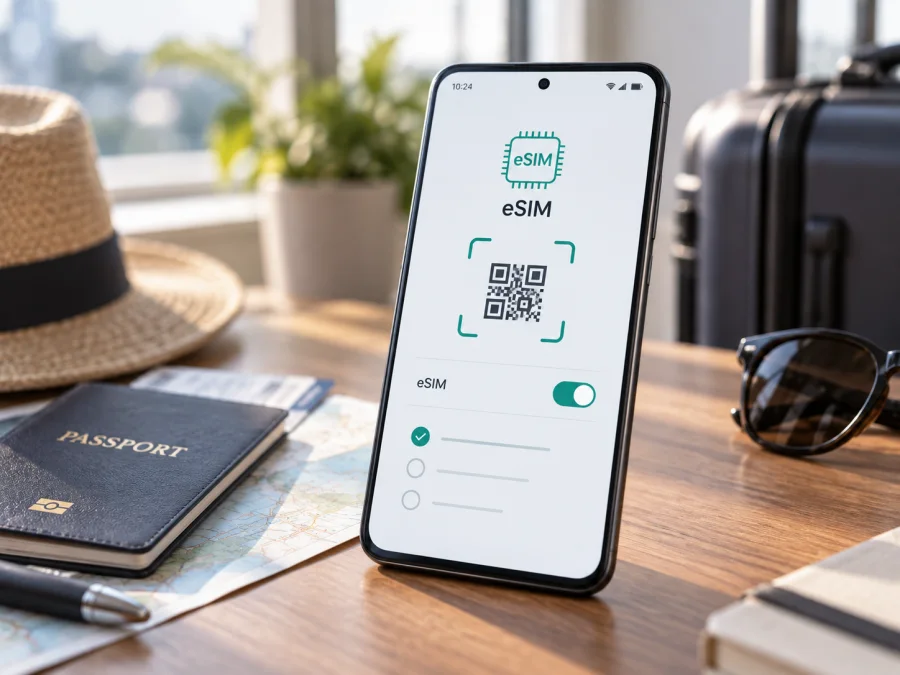
Samsung Galaxy S25 Ultra eSIM: compatibility and setup guide
The Samsung Galaxy S25 Ultra supports eSIM in many markets, and Samsung includes the model in its official Galaxy eSIM guidance. That does not guarantee that every regional version, carrier-branded unit, or software configuration will expose the same options. Before buying a travel plan, check the exact phone in Settings and confirm that it is unlocked and accepted by the plan provider.
An eSIM is a digital SIM profile stored in the phone. It can provide mobile data without inserting another physical card, which is useful when you want a separate data line for a trip while keeping your usual number available. The phone’s support for eSIM is only one part of compatibility: the regional model, carrier restrictions, the eSIM plan, and local network coverage also matter.
Samsung Galaxy S25 Ultra eSIM at a glance
| Item | What to know |
|---|---|
| Device checked | Samsung Galaxy S25 Ultra |
| eSIM capability | Supported by the model family in Samsung’s current guidance; confirm on the specific handset |
| Where to check | Settings → Connections → SIM manager; look for Add eSIM |
| Identifier | An EID should be available on eSIM-capable configurations |
| Mobile data while travelling | A travel eSIM can be selected as the data line when its plan covers the destination |
| Main caveat | Availability and menus can vary by country, carrier, exact model, and software version |
Does the Samsung Galaxy S25 Ultra support eSIM?
Yes, the Samsung Galaxy S25 Ultra is an eSIM-capable model. Samsung’s current support information names the Galaxy S25 series, including the Ultra, and shows the Galaxy Settings path for adding a profile. Samsung’s regional product specifications also list configurations such as SIM 1 + eSIM and Dual eSIM. Treat that as confirmation for the model family, not a promise that every retail unit worldwide has identical eSIM support.
Samsung cautions that eSIM may not be supported depending on the country of origin and that menus can differ by model, software version, or wireless carrier. A phone bought in one country may therefore behave differently from an identically named phone sold elsewhere. Carrier firmware or a locked device can also limit which profiles are accepted. The word “Ultra” alone does not identify the phone’s region or prove that its eSIM function is enabled.
The practical answer is: the Samsung Galaxy S25 Ultra can use eSIM when the exact handset has eSIM hardware and software enabled, is not restricted by a carrier lock, and the plan’s provider supports that device. Check the phone itself before purchase. If you are buying a used or imported device, ask the seller for its full model code and verify it rather than relying only on the product title or box.
Regional versions and carrier restrictions
Samsung sells phones for different markets, so SIM combinations, firmware, and carrier services can vary. A physical SIM tray does not rule out eSIM, and a “dual SIM” listing does not prove that eSIM is enabled. Samsung lists physical SIM plus eSIM and dual eSIM configurations for supported markets; check the exact handset.
Carrier-branded phones deserve an additional check. Some operators sell unlocked models, while others apply a network lock or impose eligibility requirements. A locked device can reject an eSIM from another provider even when the phone supports eSIM in principle. Ask the original carrier or seller to confirm the device is unlocked for use with another provider. A SIM unlock does not override a regional hardware or software limitation.
Check the EID and eSIM controls before you buy
The EID is the identifier associated with the phone’s embedded SIM hardware. On a supported S25 Ultra, you can usually find it in one of these places:
- Open Settings.
- Tap About phone and then Status information (the exact labels can vary).
- Look for EID. Depending on software, it may also appear under Settings → Connections → SIM manager or device information.
- Alternatively, open the phone dialer and enter
*#06#; if the phone exposes an EID, it may appear with the IMEI details. - Return to Settings → Connections → SIM manager and check for Add eSIM.
An EID is a useful sign of embedded SIM capability, while Add eSIM shows the feature is exposed in the current software. Check both. If neither appears, restart, update over Wi-Fi, and check again; a QR code cannot add missing device support. Ask the carrier whether eSIM is disabled or the phone must be unlocked.
Compatibility checklist
<a id="kesim-device-compatibility"></a>
Before selecting a plan, work through each item. A successful check on one item does not replace the others.
- [ ] Exact handset: confirm the phone is a Samsung Galaxy S25 Ultra and note its model code and country of purchase.
- [ ] eSIM controls: find an EID and the Add eSIM option in SIM Manager.
- [ ] Carrier status: confirm the phone is unlocked and not restricted to its original network.
- [ ] Plan eligibility: check that the eSIM provider accepts this model and that the profile can be installed in your destination.
- [ ] Travel coverage: confirm the plan includes every country or region on your route, along with its validity period and data allowance.
- [ ] Other SIM use: decide which line will handle calls or messages and which line will use mobile data.
- [ ] Connection requirements: make sure you can use Wi-Fi during installation and know whether the plan requires data roaming after arrival.
Install and activate an eSIM
Add the profile in Samsung Settings
- Open Settings → Connections → SIM manager.
- Tap Add eSIM. If the option is not shown, revisit the compatibility checks above before proceeding.
- Choose the method offered by your plan. If using a QR code, tap Scan QR code and position the code inside the frame. If the provider supplies manual details, select the relevant manual entry option and enter them exactly as issued. Some carriers offer a plan-discovery or download flow instead.
- Review the plan name and follow the on-screen prompts to download the profile. Keep the phone online until installation finishes. The wording and order of screens can vary by software and provider.
- When prompted, choose a clear label such as Travel so you can distinguish the new profile from your regular SIM.
- In SIM manager, check that the new profile is enabled. Set your usual SIM for calls and texts if you want to retain that service, and choose the travel profile for mobile data when appropriate.
- Restart if the phone or provider requests it. Confirm that the plan’s activation conditions are met before relying on the connection.
Samsung’s general eSIM setup guidance uses the path Settings → Connections → SIM manager → Add eSIM, then Scan QR code or another carrier-provided method. Screens may differ. For illustrated walkthroughs, see the Android eSIM installation instructions and the iOS eSIM installation instructions.
Installation is not always the same as activation
Downloading a profile places it on the phone, but the plan may not start counting down until a defined event, such as first connection to a supported network. Other plans have different activation rules. Read the plan details before installation so you know whether to add it at home, enable it on arrival, or wait until a particular date. An installed profile can be switched off, but deleting it may make it impossible to reinstall without help or a replacement code.
When you reach the destination, turn on the travel eSIM in SIM Manager and select it for Mobile data. Enable Data roaming for that eSIM only if its provider’s instructions require it. Keep roaming disabled on your regular SIM if you want to avoid unintended charges from your home operator. Check the on-screen line names carefully; activating a profile does not necessarily make it the data line automatically.
Using the S25 Ultra eSIM on a trip
Keep your normal number, use travel data
If the handset and plan support it, leave your regular SIM available for calls or messages and select the travel eSIM for mobile data in SIM Manager. Check your home operator’s roaming terms, since charges may apply to calls, texts, or background services. Internet messaging apps can use data, but do not assume the travel eSIM includes a phone number, SMS, or cellular voice unless its plan says so.
Multi-country route
For a multi-country trip, confirm that every stop is included and review data limits, validity, and any network conditions. A plan name alone is not enough. At a border, allow time for registration; if service does not return, verify the destination and briefly toggle airplane mode before changing settings.
Kaspersky eSIM Store is an app and website where travellers can choose, arrange, and activate an eSIM with a mobile-data plan for an international trip. Compare the destination, data amount, and validity shown for the plan, and check this phone’s compatibility before completing the purchase. It is not a mobile operator and does not itself provide network coverage.
Troubleshooting: what to check first
There is no Add eSIM option. Confirm the exact model code and country of purchase, install available updates, and restart. Check for an EID. If the menu is still missing, ask Samsung or the selling carrier whether that regional version supports eSIM and whether carrier settings restrict it. Do not buy a plan on the assumption that a QR code will add missing device support.
The eSIM installed but has no service. Open SIM Manager and make sure the travel profile is enabled and selected for mobile data. Check that the destination is covered, airplane mode is off, and the provider’s roaming instruction is followed. Restart or briefly toggle airplane mode. If network selection is set to automatic, allow the phone time to register. Manual network selection should be used only as directed by the provider.
Mobile data works on the wrong SIM. Go to Settings → Connections → SIM manager and select the intended profile under Mobile data. Review the call and text defaults separately. Disable data switching between SIMs if the phone offers that option and you want to prevent it from falling back to your home line. Menu names vary by software version.
I cannot reinstall after deleting a profile. Some activation codes are single-use. Do not delete a working profile to troubleshoot unless the provider tells you to. If it has been removed, use the plan’s support channel to check whether it can be reissued or restored. Keep purchase confirmation and relevant error text, but do not share passwords or one-time credentials.
Frequently asked questions
Can I use a physical SIM and an eSIM together?
Samsung lists physical SIM plus eSIM among supported configurations for S25-series devices in applicable markets. Which combinations can be active at once depends on the exact regional model, software, and carrier. Check SIM Manager for the profiles available on your own phone and consult the plan’s conditions.
Will my eSIM give me a new phone number?
A travel data plan should be treated as mobile internet only unless the plan details explicitly include calls, SMS, or a number. Messaging and calling apps can use an internet connection. You may keep a home SIM active for your usual number, but your home operator’s charges and roaming rules still apply.
What if the EID is present but Add eSIM is missing?
The EID alone is not a complete activation guarantee. Update and restart the phone, then check SIM Manager again. If the option remains absent, contact Samsung or the original carrier with the model code and country of purchase. Regional firmware or carrier policy may affect the available controls.
Final device check before your trip
Before choosing a travel eSIM, verify the EID and Add eSIM option on your Samsung Galaxy S25 Ultra, confirm that the handset is unlocked, and check that the plan accepts the exact model and covers every destination on your route. Review when validity begins, how much data is included, and whether data roaming must be enabled for that profile. Install and label the eSIM while you have reliable Wi-Fi, then select it as the mobile-data line when you are ready to use it.
Once those checks are complete, use the Kaspersky eSIM Store app or website to choose and arrange an eSIM plan for the trip, then follow the installation and activation instructions for that plan. A few minutes spent checking the phone and plan before departure can help you avoid an unexpected compatibility issue when you need mobile data most.


