Travel connectivity guide
Samsung Galaxy Z Flip 256GB eSIM Compatibility
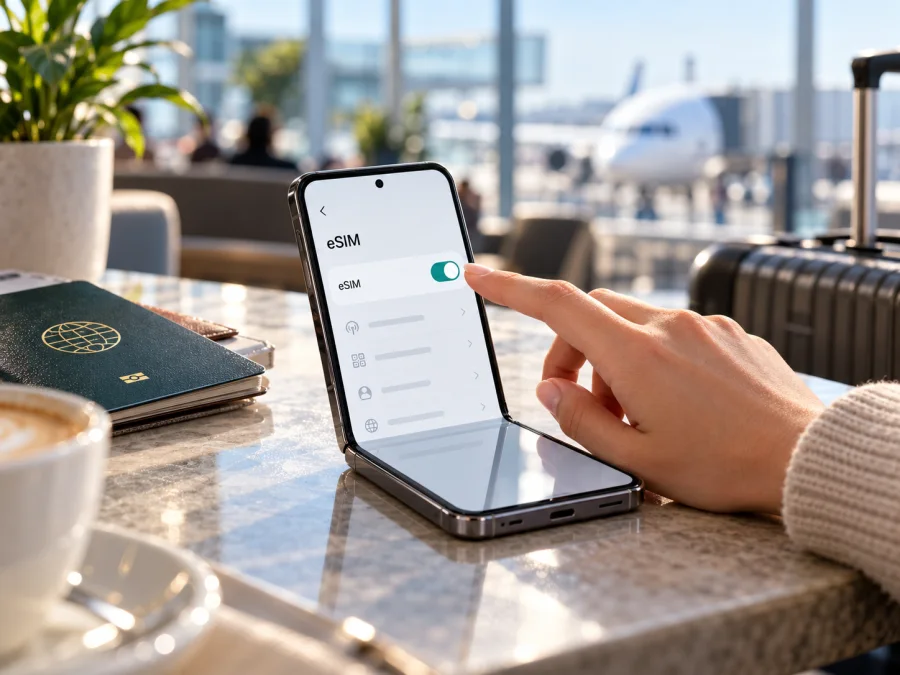
Samsung Galaxy Z Flip 256GB eSIM: compatibility and travel setup
The short answer is conditional: Samsung’s current support information includes Galaxy Z Flip among eSIM-capable Galaxy devices, but the name “Samsung Galaxy Z Flip 256GB” does not identify one regional hardware and software configuration. Samsung’s US product sheet for the original Galaxy Z Flip lists one nano-SIM and does not list eSIM, while Samsung’s wider compatibility guidance names Galaxy Z Flip as supported. The storage size does not settle which version you have. Check the actual phone before buying or installing a travel plan.
This guide refers only to the original Samsung Galaxy Z Flip 256GB named in the query. It does not assume the device is a Galaxy Z Flip 5G, Z Flip3, Z Flip4, or another later model. Those names describe separate generations and must not be used to infer this phone’s capabilities.
Quick specification and eSIM summary
| Item | What can be said about this exact name |
|---|---|
| Device named here | Samsung Galaxy Z Flip 256GB |
| Model identity | The name and storage alone do not reveal the regional model number or carrier firmware. Find the model code in Settings or on the box. |
| Storage | 256GB is part of the requested variant name. It does not prove eSIM support. |
| eSIM status | Samsung’s current general support list includes Galaxy Z Flip. Availability can still depend on the precise model, sales market, carrier configuration, and software. |
| U.S. documentation | Samsung’s U.S. datasheet for the original Galaxy Z Flip lists a single nano-SIM slot and no eSIM specification. Treat a U.S. unit as unconfirmed until the phone itself shows an EID and an eSIM add option. |
| Practical decision | Look for an EID and an “Add eSIM” or equivalent control on the device. If both are absent, do not assume that a software update or a 256GB label will enable eSIM. |
| Data-plan use | A travel eSIM can provide mobile data when the handset and plan are compatible. The eSIM Store travel plans are data-only unless a specific plan says otherwise. |
Why the answer depends on the exact version
Samsung sells devices under names that can look nearly identical while having different model codes, radio configurations, firmware, or carrier restrictions. A phone sold in one market may include an embedded SIM and its management menu, while a unit sold elsewhere may rely on a physical SIM only. Network operators can also determine which eSIM functions they support on a given model. Software menus may differ by One UI release, carrier build, and country.
The original Galaxy Z Flip and Galaxy Z Flip 5G are distinct products. Samsung’s U.S. specification sheet groups the two names in one document, and it lists 8GB memory and 256GB storage for both; that does not make them the same device or establish eSIM for every country version. The sheet’s SIM section lists a single nano-SIM for both U.S. configurations. Samsung’s broader support list, by contrast, names the original Galaxy Z Flip among devices supporting eSIM. These sources describe different scopes: a general family-level compatibility list and a U.S.-market product configuration. Neither lets us conclude that every 256GB handset worldwide has identical eSIM hardware and carrier enablement.
The useful distinction is between device capability and service availability. An embedded SIM must exist and be enabled in the specific handset. Then the provider whose profile you want to install must support eSIM on that device and in the relevant market. A compatible handset can still fail to add a plan if it is carrier-locked, has outdated software, is restricted by its original carrier, or cannot connect to the provider’s activation service. Samsung’s current regional support page explicitly warns that eSIM can be unavailable depending on the country of origin even when a device family appears on its list, and that service varies by country and carrier. Its carrier directory therefore cannot, by itself, confirm support for every operator-branded Galaxy Z Flip. Check the handset’s original sales market and the specific carrier or travel-plan activation rules.
Identify the phone you actually have
Before using a compatibility checker, write down the model code. On the phone, open Settings > About phone and record the model name and model number. The model code is usually a combination of letters and numbers; do not rely only on a seller’s title, box sticker, or a listing that says “256GB.” Compare the code with Samsung’s support information for the country where the device was originally sold. If you bought it second-hand, ask the seller or original carrier which market configuration it is and whether it is unlocked.
Next, inspect the SIM settings and device status. On many Samsung phones the path is Settings > Connections > SIM manager. Look for Add eSIM, Add mobile plan, Add mobile data plan, or a similar option. The exact label varies. Also check Settings > About phone > Status information for an EID (Embedded Identity Document number). The EID is the identifier associated with the embedded SIM hardware; it is not the same as an IMEI, serial number, or phone number. On some Galaxy software versions it may appear under a different status submenu. Samsung also notes that the EID can be printed on the device box.
An EID is strong evidence that the handset has eSIM hardware. An “Add eSIM” option is a useful operational check that the installed software exposes eSIM setup. If either item is present, continue by checking carrier lock and plan compatibility. If both are absent, pause. Update the phone using its normal software update screen, restart it, and check again, but do not buy a plan on the assumption that an update will add eSIM support to a model that lacks the necessary hardware or regional enablement. If the device still has no EID or eSIM control, ask Samsung or the original carrier to verify the model code.
A compatibility result should match all of these details: the exact model number, the country or region where the phone was sold, the carrier or unlocked status, and the software version. A product-family name by itself is not a complete check. Likewise, a successful eSIM setup on another Galaxy Z Flip 256GB does not prove your unit has the same configuration.
Check your device before purchasing a travel plan. Confirm that eSIM is available on this exact handset and that the device is not locked to a carrier that blocks other profiles. You can also use the Kaspersky eSIM Store compatibility checker and travel-plan home page to begin checking options for your destination; it is a general store page, not a country-specific tariff listing.
Compatibility checklist
Use this list while holding the phone, rather than relying on a product listing:
- [ ] The model number is recorded from Settings > About phone.
- [ ] The model code is confirmed for its original sales region, not inferred from the 256GB capacity.
- [ ] An EID appears in the phone’s status information or on the original box.
- [ ] SIM manager includes an Add eSIM or equivalent setup command.
- [ ] The phone is unlocked or the original carrier confirms that another provider’s eSIM can be installed.
- [ ] Android and Samsung software are current enough for the available eSIM setup flow.
- [ ] The intended travel plan covers the destination and supports the device’s network bands and activation method.
- [ ] You have a stable Wi-Fi or mobile-data connection available during installation.
An EID and menu option are encouraging, but they do not guarantee that every plan, destination, or mobile network will work. The provider may have device or activation restrictions, and a plan’s coverage depends on its local network partners and the destination. Confirm the product terms for the exact travel route before purchase.
Add and activate an eSIM on a compatible Galaxy Z Flip
Use the Android eSIM installation guide for Samsung-specific screens. Menu names can differ on an older or carrier-customized Z Flip. The iOS eSIM installation guide is for iPhone users and is not the setup path for this Samsung phone.
Before installation
- Confirm the model number, EID, and eSIM menu; resolve any carrier-lock question before purchase.
- Check that the destination is covered, then review data allowance, validity, and when the plan begins.
- Connect to reliable Wi-Fi. Keep the activation code available on another screen or in the app if you need to scan it.
- Treat the QR code as private. Many codes are single-use; do not delete a working profile casually, as reinstallation may require provider help.
Install the profile
- Open Settings > Connections > SIM manager and tap Add eSIM or Add mobile plan.
- Choose Scan QR code and scan the code supplied with the plan. If its app provides a direct Install option, follow the on-screen prompts instead.
- If scanning is unavailable, use manual entry only when the provider issued an activation code and the phone offers that method. Enter it exactly as provided.
- Stay online while the phone downloads the profile. Confirm the prompts, wait for it to appear in SIM manager, and restart if requested.
- Give the profile a clear label such as “Travel data.” Enable it when you are ready, and select it as the mobile-data line.
Adding a profile and starting data use can be separate events. Check whether validity starts at installation, first connection, or a scheduled time. If installing before departure, follow the plan’s timing instructions; turning a profile off does not necessarily pause validity.
Configure data after arrival
In SIM manager, choose the travel eSIM for mobile data. Turn on data roaming for that profile if the plan instructions require it. Disable data roaming on the home SIM, or turn that line off if you do not need it, to reduce the chance of unintended home-carrier data use. If you need the home number for calls or verification texts, check its roaming charges first.
Test with a basic web page or messaging app and check that the travel line shows a network. For a multi-country trip, confirm every stop appears in the plan’s covered-country list. A data-only travel eSIM usually does not include a phone number, standard calls, or SMS; internet calling and messaging apps can use existing accounts where available.
Using Samsung Galaxy Z Flip 256GB for mobile data while travelling
A foldable phone’s form factor can be convenient on a trip, but it does not change eSIM compatibility. Install the profile over dependable Wi-Fi, select the travel line for mobile data when appropriate, and verify it connects after arrival.
For a short city visit, estimate likely use: maps, translation, ride-hailing, email, and occasional browsing differ from frequent video calls or streaming. Choose a package by its stated data allowance and validity, and download offline maps or tickets before departure when useful. For a multi-country trip, confirm every stop is on the plan’s country list; regional labels do not guarantee coverage in every territory. Check renewal, expiry, top-up, and activation timing.
If you keep a home SIM active, set the travel eSIM as the data line and turn off automatic data switching if available. Disable data roaming on the home SIM if you want to avoid unintended data use. Calls and SMS on the home line may still have separate roaming costs, so check with your home operator. A data-only eSIM normally does not provide a new phone number or standard voice and SMS service; internet calling and messaging apps can use your existing accounts where available.
Kaspersky eSIM Store is an app and website where travelers can choose, arrange, and activate an eSIM plan for mobile data abroad. It is not a mobile network operator and does not own the local network. Availability and performance depend on the plan terms and the local network used.
Troubleshooting: what to check first
“Add eSIM” is missing
Check the model code and original sales region, then look for an EID in status information or on the box. Install an official software update and restart. If the EID and eSIM command remain absent, ask Samsung or the original carrier to verify the configuration. Do not assume a firmware modification will add missing hardware support.
The profile will not download
Confirm Wi-Fi works, date and time are automatic, and the phone has not blocked the activation page. Scan the QR code from another screen with adequate brightness, or use a manual activation code only if the provider issued one. A used, expired, or device-bound code may not work again; contact the provider rather than repeatedly scanning it. Treat the QR code as private account information.
The profile appears but data does not work
Make sure the eSIM is enabled and selected for mobile data. Enable data roaming for that profile if its instructions require it. Check airplane mode, destination coverage, and remaining data; then restart or briefly toggle airplane mode. Enter an APN only when the provider specifies one, using the supplied value exactly. Start with automatic network selection unless the provider recommends a supported network manually.
The phone connects but pages do not load, or home-SIM charges appear
Check that the plan is active and that the correct SIM is selected for data. If needed, test a basic website and messaging app. Disable data roaming on the home SIM or turn that line off if you do not need it; inspect both SIM settings because some builds separate their controls. A signal indicator alone does not confirm usable data. Ask the home carrier about call and SMS charges while roaming.
Setup menus look different
One UI labels and menu locations can vary by software, region, and carrier. Search Settings for “eSIM” or “SIM manager,” consult Samsung guidance for the exact model, and provide the model code when contacting support. Do not assume instructions for a later Z Flip generation apply to this original model.
Frequently asked questions
Does Samsung Galaxy Z Flip 256GB support eSIM?
Samsung’s general support information includes the original Galaxy Z Flip, but the requested name does not identify a market or carrier version. Samsung’s U.S. datasheet lists a single nano-SIM for its original model. For an individual phone, check the model code, EID, and eSIM menu before purchase.
Is the 256GB version more likely to support eSIM?
Storage capacity does not establish eSIM support. Samsung lists 256GB configurations in its U.S. sheet and specifies a single nano-SIM there. Check the particular handset rather than inferring support from capacity.
Does Galaxy Z Flip mean Galaxy Z Flip 5G?
No. The original Galaxy Z Flip and Galaxy Z Flip 5G are separate models. This guide retains the requested product name and does not assume it means the 5G variant. Use the phone’s model number to identify it.
Can I install before departure, and will the eSIM replace my regular SIM?
Advance installation may be possible if the handset is compatible and the plan allows it. Read when validity begins: installation, first connection, or a scheduled time. The travel profile can coexist with a physical SIM on a supported phone, letting you select the data line. A data-only plan generally does not provide ordinary calls or SMS.
Does compatibility guarantee service everywhere, and can I move the eSIM later?
No. The destination must be covered, the plan must be valid, and the local network must be supported. Coverage and performance vary. Do not assume an installed profile can be transferred: some activation codes are single-use or tied to the first device. Review transfer and reinstallation rules before deleting a profile or changing phones.
Final check before choosing a travel eSIM
For Samsung Galaxy Z Flip 256GB, verify the exact model number, find the EID, and confirm that SIM manager offers Add eSIM. Make sure the phone is unlocked for the plan you intend to use, and check that its regional configuration and software expose eSIM setup. If these checks fail, contact Samsung or the original carrier before purchase; a 256GB label alone cannot resolve the question.
Once compatibility is confirmed, compare the plan’s destination coverage, data amount, validity, activation timing, and roaming instructions against your itinerary. Install it over a stable connection, select the travel eSIM for mobile data when you are ready, and protect your home line from unintended data roaming. Use the Kaspersky eSIM Store to check currently available travel options for your destination, then review the exact plan terms before choosing. The device check comes first; the right travel eSIM is the one that both works with this specific handset and matches where and how long you are travelling.


