Travel connectivity guide
Samsung Galaxy Z Flip 5G 128GB eSIM Guide
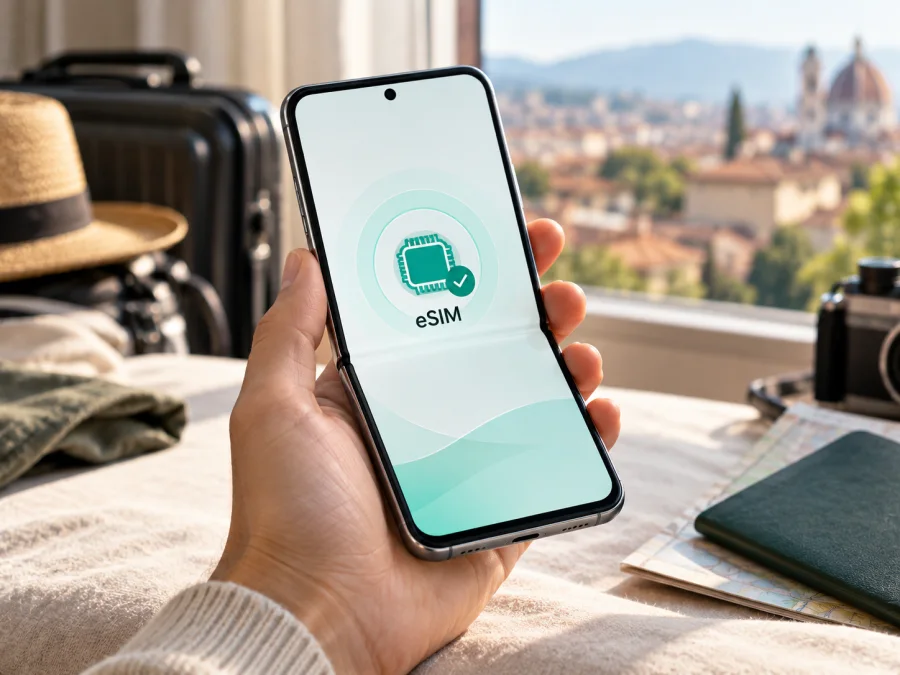
Samsung Galaxy Z Flip 5G 128GB eSIM: compatibility and setup guide
The Samsung Galaxy Z Flip 5G is listed by Samsung among Galaxy phones that support eSIM, and Samsung's launch specifications for the Galaxy Z Flip 5G describe one eSIM alongside one nano-SIM. There is one important qualification for this exact search: Samsung's published launch and US product specifications describe 256GB storage, so they do not confirm an official configuration called Samsung Galaxy Z Flip 5G 128GB. A 128GB listing may use an incorrect capacity, refer to another regional or refurbished product, or identify the device imprecisely. Storage capacity alone does not establish whether eSIM is enabled.
In practical terms, the Galaxy Z Flip 5G model family can use eSIM where the specific regional and carrier version, its software, and the mobile service all support it. Do not treat the words “128GB” in a listing as proof of compatibility. Check the model number, look for an EID and an eSIM option in the phone, and confirm that the device is unlocked before choosing a travel plan.
Quick specification and compatibility summary
| Item | What to know |
|---|---|
| Exact device searched | Samsung Galaxy Z Flip 5G 128GB |
| eSIM support for the Galaxy Z Flip 5G family | Samsung lists Galaxy Z Flip 5G as an eSIM-capable Galaxy model; Samsung's launch specifications state one eSIM and one nano-SIM. |
| Exact 128GB configuration | Not confirmed in Samsung's published specifications, which list 256GB storage for the Z Flip 5G. |
| What can vary | Country of origin, model number, carrier branding or lock, firmware, software version, and local eSIM service availability. |
| Best on-device checks | Find an EID and look for Settings → Connections → SIM manager → Add eSIM. Menu names can vary. |
| Typical travel use | Keep a home SIM active if desired and select the travel eSIM for mobile data, subject to the phone's SIM settings and plan terms. |
| Before buying | Verify eSIM support on this exact handset, unlock status, destination coverage, plan validity, data allowance, activation timing, and any roaming setting required. |
Does Samsung Galaxy Z Flip 5G 128GB support eSIM?
The Galaxy Z Flip 5G model family supports eSIM according to Samsung, but support for the exact “Samsung Galaxy Z Flip 5G 128GB” listing cannot be confirmed from that name alone. Samsung's current support information includes Galaxy Z Flip 5G in its list of eSIM-compatible devices. Its product launch specification lists a nano-SIM and an eSIM. Samsung also cautions that eSIM availability can depend on software version, country, and carrier. Those qualifications matter more than the storage label.
The 128GB part needs separate scrutiny. Samsung's published Galaxy Z Flip 5G specifications identify 256GB internal storage, not 128GB. This does not prove that no seller has ever used a 128GB description or identify the handset from a shop title; the exact storage variant remains unverified. Ask the seller for the full model code shown on the box or under Settings → About phone, and compare it with the device itself. If the phone is already in your hands, rely on its settings rather than a marketplace title.
Samsung model codes for this generation begin with SM-F707, with additional letters and digits identifying a market or carrier configuration. Record the full code, including every suffix. Two phones sold under the same family name can have different radio bands, software, carrier restrictions, or enabled SIM features. A model number is a useful identifier, but the final check is whether this handset exposes an EID and lets you add an eSIM.
If the seller cannot explain why the listing says 128GB when Samsung's published specifications show 256GB, pause before purchasing. Request a photo of About phone → Model number and ask whether the device is network-unlocked and can add an eSIM. A mismatch could be a simple listing error, but it should be resolved before you pay for a plan or depend on the device during a trip.
Check the EID and eSIM controls yourself
An EID is the identifier associated with the phone's embedded SIM hardware. It is a strong practical clue that the handset has an eSIM component, but still check that the eSIM menu is available and that the phone is not blocked by a carrier or software limitation. Conversely, if an EID is not shown, do not assume that a QR code will make eSIM work; first confirm the model and firmware with Samsung or the seller.
Use this checklist before buying a travel plan:
- [ ] Open Settings → About phone and write down the full model number.
- [ ] Open Settings → About phone → Status information or Status and look for EID. On some software versions, the EID may also be printed on the original box.
- [ ] Open Settings → Connections → SIM manager and check for Add eSIM or a similar option.
- [ ] Check Settings → Connections → SIM manager for the installed physical SIM and the available SIM slots or profiles.
- [ ] Ask the original carrier whether the handset is unlocked and whether it supports eSIM on this model code.
- [ ] Confirm that the exact travel plan supports Samsung Galaxy devices and is valid in every country on your route.
The checks are most reliable when performed on the actual handset rather than inferred from a box title or a seller’s specification table. If buying remotely, request a live settings screenshot showing the model code and SIM manager; conceal personal identifiers such as the full EID before sharing it. The seller should be able to confirm network-unlock status as well as the device name. These details help distinguish a software or regional limitation from a simple product-listing error.
Check your device before selecting a plan. If the model number, EID, or eSIM menu does not match, contact Samsung support or the seller with the complete model code. Avoid relying only on a generic “Galaxy Z Flip 5G compatible” statement: the regional handset version and carrier market may change what is enabled.
Install and activate an eSIM
Before starting, connect the phone to Wi-Fi or another working internet connection. Keep the eSIM QR code or activation details available on a second screen or printed copy if possible; a phone cannot scan a code displayed on its own screen with its main camera. Check whether the plan starts when it is installed, when it first connects to a supported network, or on a selected activation date. The start rule varies by plan.
Samsung's menu labels may differ slightly by Android and One UI version. If you cannot find an option, use Settings search for SIM manager or eSIM.
Add the profile using a QR code
- Confirm compatibility. Make sure the handset shows an EID and Add eSIM, and confirm it is unlocked.
- Connect to the internet. Use stable Wi-Fi before downloading the profile.
- Open SIM manager. Go to Settings → Connections → SIM manager.
- Choose Add eSIM. Select the option to scan a QR code, download a plan, or add a mobile plan. The wording can vary.
- Scan the provider's QR code. Follow the on-screen instructions. If scanning is unavailable, check whether the plan provider offers manual activation details.
- Wait for installation. Keep the phone connected and do not close the setup flow while the profile is downloading.
- Name the line. Use a clear label such as “Travel” so it is easy to distinguish from your home SIM.
- Choose the data SIM. In SIM manager, select the eSIM for mobile data when you want to use it. Keep your home line selected for calls or messages only if that suits your needs and charges are understood.
- Set data roaming if required. Some travel profiles need data roaming enabled on that eSIM. Follow the plan instructions and avoid enabling roaming on the home SIM unless you intend to use its roaming service.
- Test the connection. When the plan is due to work, turn Wi-Fi off briefly and check that a webpage loads over mobile data.
For additional device-specific instructions, see the Android eSIM installation guide or the iOS eSIM installation guide. The iOS guide is for Apple devices; the Android guide is the relevant starting point for a Samsung Galaxy phone. Follow the instructions shown for the selected plan, since the profile delivery method and activation timing can differ.
Select the right line for travel data
After installation, open Settings → Connections → SIM manager and set the travel eSIM as the mobile-data line. Keep the home SIM enabled only if you want it available for calls, SMS, or verification messages. Check your home carrier's roaming terms before leaving data enabled on that SIM. Disable automatic data switching if it could move data back to the home line unexpectedly. The exact control name and behavior depend on the software version and carrier settings.
A travel data eSIM usually provides data only unless the plan explicitly states otherwise. It may not include an ordinary phone number, cellular voice calls, or SMS. Internet-based calling and messaging apps can work over data, subject to the apps' own requirements. Keep access to account verification methods in mind before switching off a home SIM that receives security codes.
Using the eSIM on a trip
For a single-country trip, select a plan that explicitly covers that destination. For a multi-country itinerary, confirm every country is included; a regional plan may have different conditions from an individual-country plan. Check the allowance, validity period, whether the plan is prepaid, the activation rule, and whether hotspot or tethering is allowed. Those terms are set by the selected plan and can change, so review the current details before checkout.
When you land, turn on the travel eSIM line and select it for mobile data. If service does not appear immediately, allow a few minutes for network registration, then check the plan's instructions. In a dual-SIM setup, the home SIM can remain available for calls while the travel profile handles data, but simultaneous features depend on the phone's configuration. Watch which line is selected for each function.
5G is not guaranteed on every travel eSIM. Availability depends on the plan, local operator, coverage, supported bands, and device variant. If needed, try automatic network selection or LTE/4G.
Kaspersky eSIM Store is an app and website where you can choose, arrange, and activate an eSIM with a suitable mobile-data plan for an international trip. The service is not the mobile operator or owner of the destination network. Before selecting a plan, compare the listed destination, data allowance, validity period, and activation conditions against your itinerary. You can browse current travel plan options on the website; this general page is for browsing and does not represent a specific country's tariff.
Common problems and what to check
“Add eSIM” is missing
Check the complete model number and region of origin first. Then look for an EID under About phone → Status and install available official software updates. Restart and search Settings for “eSIM” or “SIM manager.” If the control is still absent, the device may be a regional or carrier configuration without eSIM enabled, or the listing may identify the phone incorrectly. Ask Samsung or the original carrier to verify the model code. Do not buy a plan on the assumption that a generic family name is enough.
The QR code will not scan or download
Use a stable Wi-Fi connection and check that the code belongs to the selected plan and has not already been used. Show it on another device if necessary. If it still fails, contact the plan provider before deleting a profile or requesting a replacement.
The eSIM is installed, but mobile data does not work
Make sure the eSIM is on and selected for mobile data, and confirm that the destination is included and the plan validity has begun. Enable data roaming on that eSIM only if its instructions require it. Restart the phone or briefly toggle airplane mode, then test with Wi-Fi off.
Calls or SMS are unavailable
Many travel eSIM plans are data-only. Check the plan terms for voice service or SMS; if they are not included, use internet messaging or keep the home SIM active after checking roaming charges.
Before you choose a travel plan
Use this final pre-purchase check:
- Device identity: Confirm that the handset is actually the Galaxy Z Flip 5G and save the full model code. Resolve the 128GB listing discrepancy with the seller.
- eSIM hardware and software: Find the EID and Add eSIM setting on the phone you will use.
- Network lock: Confirm with the original carrier that the device is unlocked for another eSIM profile.
- Destination: Verify the plan covers each country and territory on your route, including stopovers where you expect to use data.
- Plan terms: Review the data allowance, validity, activation trigger, speed conditions, hotspot rules, and any limits in the current description.
- Timing: Know whether validity starts at purchase, installation, a scheduled time, or first connection.
- Home number: Decide whether to keep the home SIM active and check its roaming charges and verification-message needs.
- Setup access: Keep a working internet connection and the QR code or activation details available during installation.
FAQ
Does Samsung Galaxy Z Flip 5G 128GB support eSIM?
Samsung lists Galaxy Z Flip 5G as an eSIM-capable model family, and the launch specification describes one eSIM plus one nano-SIM. However, the exact 128GB configuration is unverified: Samsung's published specifications list 256GB. Confirm the full model number, EID, and Add eSIM option on your handset before purchase.
Is the 128GB version an official Samsung configuration?
Samsung's published Z Flip 5G specification identifies 256GB storage and does not confirm a 128GB configuration. A seller may have made a listing error or may be describing a different handset, so ask for the model code and verify the device directly.
Where can I find the EID on a Galaxy Z Flip 5G?
Open Settings → About phone → Status or Status information and look for EID. Menu names vary. Samsung also notes that an EID may be printed on the phone's box. Check the Add eSIM control in SIM manager as a second check.
Can I keep my physical SIM while using an eSIM?
The Galaxy Z Flip 5G launch specifications describe a nano-SIM and an eSIM. A compatible, unlocked version may let you keep the physical SIM active while using the eSIM, subject to the carrier and software configuration. Choose which line handles mobile data and review your home carrier's roaming terms.
Does a travel eSIM include a phone number?
Not necessarily. Many travel plans are designed for mobile data and do not include ordinary voice calls or SMS. Review the individual plan terms and use internet-based calling or messaging where appropriate.
Final check: device first, plan second
The Samsung Galaxy Z Flip 5G family is listed by Samsung as eSIM-capable, but Samsung's published specifications do not confirm the Samsung Galaxy Z Flip 5G 128GB storage configuration. The handset's country of origin, carrier version, software, and unlock status can affect whether eSIM is available. Confirm its model code, EID, and Add eSIM menu before purchasing a travel plan.
Once the device check is complete, choose a plan for the countries on your itinerary and compare its data allowance, validity, and activation rule with your travel dates. Kaspersky eSIM Store's app and website help you choose, arrange, and activate an eSIM plan for mobile data on an international trip. Review the current terms, install the profile as instructed, and select it for travel data only when you are ready to use it.


