Travel connectivity guide
Samsung Galaxy Z Flip 5G 256GB eSIM
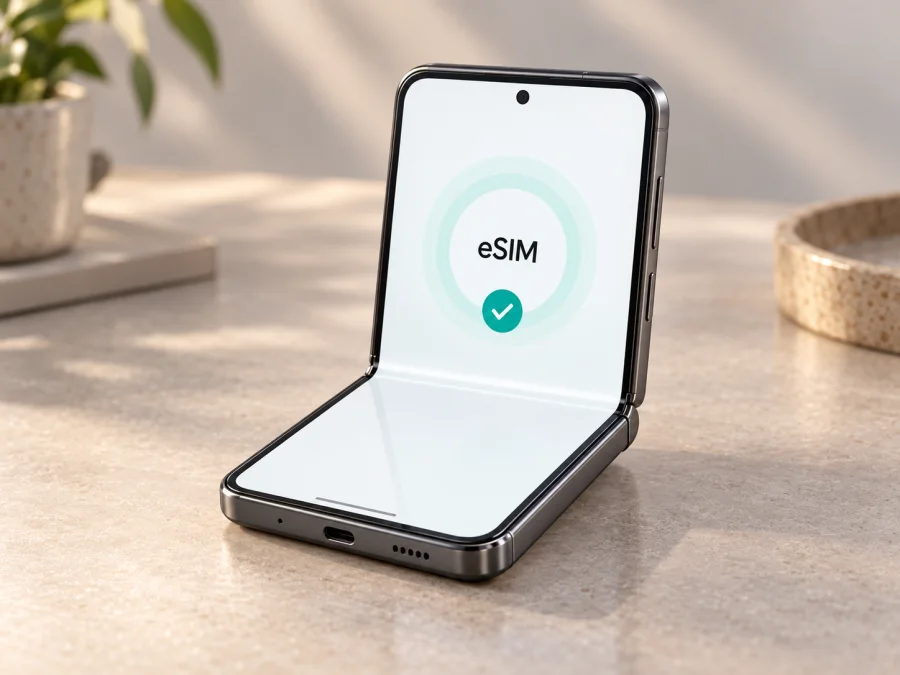
Samsung Galaxy Z Flip 5G 256GB eSIM compatibility and travel setup
The Samsung Galaxy Z Flip 5G 256GB is a foldable 5G smartphone with eSIM capability in supported versions. Samsung lists the Galaxy Z Flip 5G among its eSIM-capable devices and describes the hardware as supporting one eSIM alongside one Nano-SIM. That is a useful starting point, but it is not a guarantee that every phone sold under this name can add an eSIM today. Samsung notes that eSIM availability may depend on the software version, country, and carrier. The exact regional model number, carrier configuration, and current software on your own handset matter.
The “256GB” in the device name identifies its storage configuration. It does not make the eSIM function more or less likely by itself. Before planning a trip or choosing a data plan, confirm the model number and check the actual SIM options in Settings. If your phone has no EID and no option to add an eSIM, treat it as incompatible until Samsung or the carrier confirms otherwise.
Quick specifications
| Item | Samsung Galaxy Z Flip 5G 256GB |
|---|---|
| Device type | Foldable Android smartphone |
| Network generation | 5G-capable; available bands and network access depend on regional version and carrier |
| Storage variant | 256GB |
| Physical SIM | One Nano-SIM on the documented configuration |
| eSIM | Supported by Samsung-listed Galaxy Z Flip 5G variants, with regional, software, and carrier qualifications |
| Typical dual-SIM setup | One physical Nano-SIM plus one eSIM, where the software and local carrier configuration allow it |
| Best pre-purchase check | Find an EID and an “Add eSIM” option on the actual phone |
The checks below refer to the exact Samsung Galaxy Z Flip 5G 256GB. Confirm the model number on the handset, since listings may group variants.
Does the Samsung Galaxy Z Flip 5G 256GB support eSIM?
In principle, yes: Samsung’s product information for Galaxy Z Flip 5G specifies one eSIM and one Nano-SIM, and Samsung’s current device support information includes Galaxy Z Flip 5G in its list of eSIM-capable Galaxy phones. This verifies support for the model family. It does not certify every unit sold in every market. Samsung expressly says availability can vary by software version, country, and carrier; its support guidance also warns that a listed device may not support eSIM in the country where it was purchased.
Compatibility checklist
Use the following checks on the exact phone you intend to travel with:
- [ ] The model name in Settings identifies a Galaxy Z Flip 5G, not an earlier Galaxy Z Flip or another Z Flip generation.
- [ ] The model number and country of sale are known. Compare the number in Settings with the seller’s listing.
- [ ] Settings shows an EID, or SIM manager offers a working “Add eSIM” or equivalent command.
- [ ] The phone is not locked to a carrier that restricts adding another provider’s eSIM.
- [ ] The Android version and Samsung software are up to date, and the phone can connect to Wi-Fi for setup.
- [ ] The eSIM plan is valid for the destination and is intended for a compatible Samsung device.
- [ ] The terms state when the plan starts, how long it remains valid, and whether activation requires arrival in the destination.
- [ ] Your primary number can remain active on the physical SIM if you need it, and you know which line will use mobile data.
Check the EID and eSIM option yourself
An EID identifies the phone’s embedded SIM hardware. Its presence is a useful sign, but also confirm that the system exposes eSIM management. Menu labels can vary with carrier firmware and Android version.
- Open Settings → About phone and search for EID or check Status information. The EID is a long device identifier; avoid sharing it publicly.
- Open Settings → Connections → SIM manager and look for Add eSIM or Add mobile plan. Menu wording varies.
- If the option is missing, search Settings, restart, and install any official update available.
- Confirm the model number under About phone with Samsung or the original carrier. If EID and eSIM controls are both missing, do not buy a plan until support confirms compatibility.
Regional versions, carrier settings, and network lock
The global model name can conceal meaningful differences. Samsung’s specifications and support material identify the Galaxy Z Flip 5G as capable of a physical SIM plus eSIM, but Samsung also attaches country, carrier, and software qualifications. An imported device may have a different model code from a phone sold locally. Carrier firmware may omit or restrict eSIM controls, and a device locked to its original network may reject a travel profile even when the hardware can store one.
Before relying on the eSIM feature, check three separate things:
Hardware and regional model. Read the model number in Settings rather than assuming every Z Flip 5G has identical radio and SIM options. Country-specific variants can differ. Storage capacity is not a reliable way to distinguish eSIM-enabled from restricted versions.
Check your device before paying for a plan if any compatibility detail is uncertain.
Install and activate an eSIM
Complete the compatibility checks before starting. Keep access to reliable Wi-Fi, charge the phone, and have the QR code or activation details from your chosen plan ready. Most QR-based plans can be installed once; do not delete a profile or scan the code repeatedly if activation fails. Some providers issue a fresh code after a failed installation, while others require support to reset the activation.
- Check the plan details. Confirm destination coverage, data allowance, validity period, supported device type, activation timing, and whether the plan begins at purchase, installation, or first network connection.
- Connect to Wi-Fi. Use a stable connection. Leave the existing physical SIM in place until the new profile is downloaded and tested.
- Open SIM manager. On many Samsung software versions, go to Settings → Connections → SIM manager → Add eSIM. If menu labels differ, search Settings for “Add eSIM” or follow the provider’s current Android instructions.
- Choose the provider’s installation method. Scan the supplied QR code from another screen or printed copy, enter activation details manually if offered, or use the provider’s app-based flow. Keep the QR private.
- Wait for the profile to download. Leave Settings open and do not switch off Wi-Fi. When Android confirms that the plan is added, label the line clearly, such as “Travel data”.
- Select the line’s purpose. In SIM manager, choose the travel eSIM for mobile data when appropriate. Keep calls and texts on your regular number if that is what you want; review roaming charges with your home carrier.
- Set data roaming only as instructed. Some travel plans require roaming to be enabled on the travel profile so it can connect to a partner network. Follow the plan’s instructions; do not turn on roaming for your home SIM unless you accept its charges.
- Activate at the right time. If validity starts on first connection, you may install before departure and enable the line after arrival. If the provider says installation starts the validity clock, wait until the recommended time.
- Test the connection. Turn Wi-Fi off briefly, confirm that the travel line is selected for data, and open a simple web page. Restore your preferred SIM settings after the check.
For screenshots and the latest menu wording, use the Android eSIM installation instructions. The iOS guide is included for people preparing a second or backup device: iOS eSIM installation instructions. The Samsung Galaxy Z Flip 5G 256GB runs Android, so follow the Android flow for this phone.
Kaspersky eSIM Store is an app and website where you can choose, arrange, and activate an eSIM with a mobile-data plan for an international trip. Compare the destination, amount of data, validity, and activation conditions before completing the order. The plan’s details, rather than the phone’s storage size, determine how it can be used.
Using the travel eSIM on a trip
A travel eSIM is useful when you want mobile data without removing the home Nano-SIM. The two lines can serve different purposes where the specific handset and software allow dual SIM operation. For example, you may keep your usual number available for incoming messages while directing maps, transport apps, translation, and browsing through the travel data line. The ability to keep both lines active and the exact combination of voice, messages, and data depend on the phone’s configuration and the networks involved.
Before departure: install the profile while you have reliable Wi-Fi if the plan allows early installation. Save the provider’s setup details somewhere accessible offline. Set a recognizable line name and check whether the validity begins immediately after download. If the eSIM must be activated after arrival, leave it disabled until then. Keep your normal SIM’s roaming setting consistent with your home carrier’s instructions.
At arrival: enable the travel line, select it for mobile data, and allow it to register on a supported local network. If service does not appear immediately, wait several minutes, then toggle airplane mode or restart the device. Check the plan’s instructions for data roaming and network selection. Avoid manually selecting an unsupported network at random.
During the trip: monitor the plan’s data use and validity. Use hotel or trusted Wi-Fi for large downloads, map updates, and cloud backups. Mobile data can be shared through hotspot only if the specific plan and device allow it. Remember that data-only travel eSIMs generally do not provide an ordinary phone number, standard voice calling, or SMS unless the plan explicitly says so. Internet calling and messaging apps can work over data, subject to their own account and connectivity requirements.
Troubleshooting common problems
There is no “Add eSIM” control. Confirm that this is the Galaxy Z Flip 5G variant and check its model number. Search Settings for EID and SIM manager, restart after an official update, and verify the country and carrier configuration with Samsung or the original carrier. If the device has no EID and no eSIM menu, stop before buying a travel plan.
The profile downloads but shows no service. Confirm that the plan is active, covers your current country, and has not expired. In SIM manager, enable the profile and select it for mobile data. Check the plan’s roaming requirement, restart the device, and give it time to register. If the plan specifies a supported network, select it only as directed.
The eSIM connects but apps have no internet. Check that mobile data is assigned to the travel eSIM rather than the physical SIM, and verify APN details only if the plan’s instructions provide them. Turn off Wi-Fi to test cellular data, then temporarily disable any VPN or data-saving setting that may interfere. Restore those settings after testing.
Frequently asked questions
Is every Samsung Galaxy Z Flip 5G 256GB eSIM-compatible?
Samsung lists the Galaxy Z Flip 5G as eSIM-capable, with one eSIM and one Nano-SIM in product specifications. However, Samsung says availability varies by software version, country, and carrier. Verify the actual handset’s EID, SIM manager, model number, and network-lock status.
No. The 256GB figure identifies internal storage. It does not confirm whether the regional firmware and carrier configuration expose eSIM. Check the handset itself.
The documented configuration supports one Nano-SIM and one eSIM, subject to regional and carrier implementation. Which lines can remain active at the same time and which line handles data depend on the exact phone software and carrier setup.
Often yes, if the plan permits it and you have Wi-Fi. Check when validity begins. If installation starts the validity period, wait until the provider recommends; if validity begins on first connection in the destination, early installation may be convenient.
Usually a travel data plan is meant for internet access and does not include a regular phone number, voice calls, or SMS unless those features are explicitly included. Keep your physical SIM for your usual number if desired, and check with your home carrier about roaming charges.
No single compatibility statement guarantees every plan or destination. The phone must allow eSIM installation, be unlocked where required, support the plan’s activation method, and work with a network available at the destination. Confirm the plan conditions before payment.
Not immediately. First check that the profile is enabled, selected for data, and configured according to the plan instructions. Deleting it may require a new activation code. Contact the plan provider before removing a profile you may need.
Summary
Samsung identifies the Galaxy Z Flip 5G as eSIM-capable, with Nano-SIM plus eSIM, but country, carrier, software, and lock status can affect an individual phone. Check its EID, “Add eSIM” option, model code, and unlock status before choosing a travel plan.
Check your device and choose a trip eSIM
Before you travel, verify eSIM support on your Samsung Galaxy Z Flip 5G 256GB, confirm that the phone accepts a profile, and check the plan’s destination, data amount, validity, and activation rules. Then choose an eSIM in Kaspersky eSIM Store, the app and website for arranging and activating a mobile-data plan for an international trip. Install it over Wi-Fi, select the correct line for data, and keep your home SIM settings in view so your phone is ready when you arrive.


