Travel connectivity guide
Samsung Galaxy Z Flip 5G eSIM: Setup & Compatibility
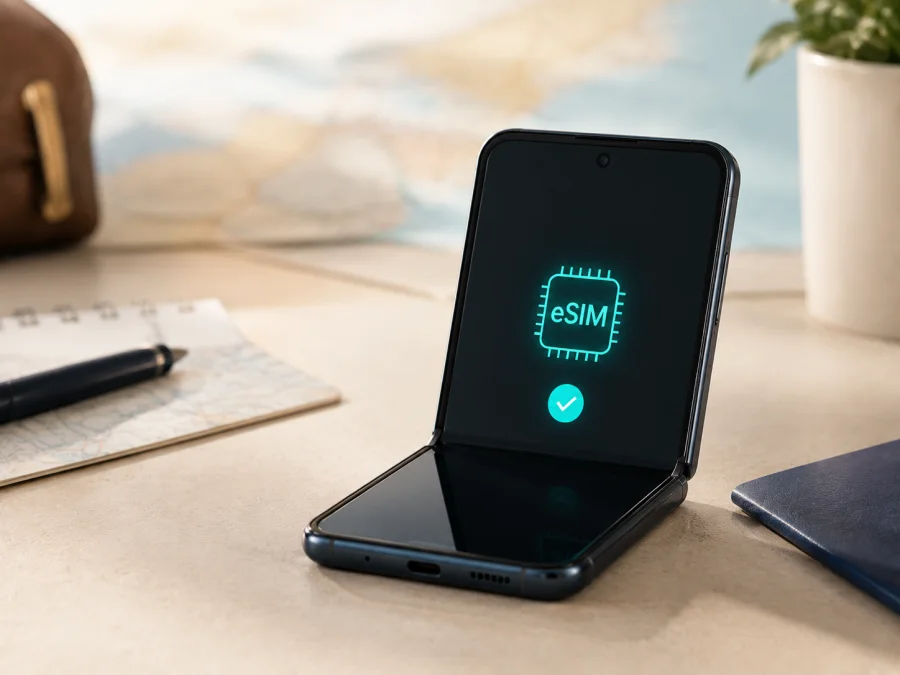
Samsung Galaxy Z Flip 5G eSIM: compatibility, setup and travel use
The Samsung Galaxy Z Flip 5G is listed by Samsung among Galaxy devices that support eSIM. Samsung specifications for selected operator versions also describe a physical SIM plus an embedded SIM. Samsung says service can vary by country of origin and carrier, so check the individual phone before buying a plan.
An eSIM is a digital SIM profile built into the phone. It can provide mobile data without replacing the Nano-SIM in the tray, allowing you to keep your normal number while using a separate data plan abroad. In the Kaspersky eSIM Store context, the eSIM is for mobile internet during a trip. It is not automatically a second phone number, and calls or SMS are not included unless the selected plan states that they are.
Quick answer for the exact device
For the exact device name Samsung Galaxy Z Flip 5G, the current Samsung Galaxy eSIM compatibility information includes this model. Samsung’s setup guidance uses Settings > Connections > SIM manager > Add eSIM. The same guidance warns that a listed device may still lack eSIM service in a particular market, or may be subject to carrier restrictions.
The practical answer is:
- The Samsung Galaxy Z Flip 5G hardware family is eSIM-capable according to Samsung’s current support information.
- An imported, carrier-branded or modified unit may expose different software controls.
- Add eSIM in SIM manager, or an EID in phone information, is the strongest on-device confirmation.
- The chosen travel plan must cover the destination and be allowed on an unlocked device.
This page covers the exact Samsung Galaxy Z Flip 5G, not the later Galaxy Z Flip5.
Samsung Galaxy Z Flip 5G: key facts
| Check | What it means |
|---|---|
| Exact device | Samsung Galaxy Z Flip 5G |
| eSIM | Listed by Samsung as supported for Galaxy eSIM |
| Physical SIM | Nano-SIM hardware is used; tray details can vary by region |
| Dual-SIM use | A compatible unit may combine physical SIM and eSIM |
| 5G | The phone is a 5G model; bands and roaming depend on the network |
| Confirmation | Settings > Connections > SIM manager > Add eSIM, plus EID if shown |
| Main limitation | Country, carrier, firmware and lock status can affect activation |
This table is a guide, not a promise that every used or imported handset will activate every profile. Refurbished units can have different firmware, and carriers can restrict eSIM functions.
Why region and carrier version matter
The product name alone does not identify every network configuration. Samsung and operators ship market-specific model codes, firmware and provisioning, so units with the same name can show different menus or activation choices.
Keep three questions separate:
- Is the embedded-SIM hardware present? Samsung includes Samsung Galaxy Z Flip 5G in its eSIM-capable Galaxy lists.
- Does this firmware expose it? SIM manager and the EID reveal whether the installed software recognizes the feature.
- Will the selected plan activate? A carrier lock, unsupported destination or operator policy can stop an otherwise compatible profile.
5G support does not prove eSIM support, and eSIM support does not guarantee 5G access on a travel plan. The plan, device bands and partner-network roaming must all match. Imported and second-hand devices deserve extra care.
How to verify eSIM support yourself
Do this before purchasing, preferably while connected to Wi-Fi.
Check SIM manager
- Open Settings.
- Tap Connections.
- Open SIM manager.
- Look for Add eSIM or a very similar option.
If Add eSIM is visible, the current software is presenting the embedded-SIM function. It may offer simple setup, QR scan or manual entry; you need not begin an installation just to confirm the option.
If the option is missing, check for a Samsung software update, restart the phone and look again. If it remains absent, treat eSIM as unverified. Ask Samsung or the original carrier about the exact unit and country of origin before buying a plan.
Check for an EID
An EID identifies the embedded-SIM component. Depending on the One UI version, it may appear under Settings > About phone > Status information or Settings > About phone > IMEI information. Menu names can vary.
An EID is strong evidence that the component is present, but still check SIM manager because provisioning and firmware affect actual use. Do not share the full EID publicly.
Check the original sales details
Record the model code, country of sale, carrier and software service provider. Samsung’s specifications for an operator version can show whether the SIM arrangement includes an embedded SIM. “Dual SIM” alone is not enough: it can mean two physical SIMs, physical SIM plus eSIM, or a carrier-specific setup.
Before purchase, Check your device and confirm that the intended plan accepts this regional variant. An eSIM profile may be issued for one device or become non-transferable after installation under the plan’s conditions.
Compatibility checklist before buying
Use this list for the Samsung Galaxy Z Flip 5G you will take:
- [ ] Add eSIM is visible in Settings > Connections > SIM manager, or an EID is shown.
- [ ] The phone is not carrier-locked, or the original carrier confirms that another eSIM can be used.
- [ ] Available Samsung software updates have been installed.
- [ ] The plan covers every country, city, region or route required.
- [ ] The traffic allowance and validity period fit the trip.
- [ ] Wi-Fi or another internet connection is available for downloading the profile.
- [ ] You know when validity begins and when data starts using the travel profile.
- [ ] You know whether data roaming must be enabled for that eSIM.
- [ ] You understand which line handles calls, messages and mobile data.
If one essential item is uncertain, pause the purchase: a carrier lock, unavailable destination or unsupported regional profile can prevent activation.
How to install an eSIM on Samsung Galaxy Z Flip 5G
The labels follow Samsung’s standard Galaxy path and may vary after a One UI update. Have the QR code or activation details ready. Do not delete a working profile while troubleshooting.
1. Prepare the phone
Connect to Wi-Fi, charge the phone and make sure Add eSIM is present. Open the QR code. If it is displayed on the same phone, use a second screen or manual entry.
2. Open the eSIM control
Go to Settings > Connections > SIM manager > Add eSIM. Choose simple setup, Scan QR code or manual entry according to the instructions supplied with the plan.
3. Scan or enter details
Show the complete QR code to the camera. If it fails, increase screen brightness, reduce glare and make sure the entire code is visible. For manual setup, enter every value exactly as supplied. Do not guess an activation code or SM-DP+ address.
4. Download the profile
Review the plan and destination, then confirm the download. Keep Wi-Fi connected. Downloading the profile is not the same as selecting it for data.
5. Select the data line
Name the profile Travel data. In SIM manager, select it for mobile data and choose separately which line handles calls and messages. A data-only plan does not become a phone number.
6. Enable roaming only for the needed profile
Open the travel eSIM’s settings and review Data roaming. Travel profiles often need roaming to connect through a partner network abroad. Enable it for the travel eSIM when required, and leave it disabled on the regular SIM if you want to reduce unexpected roaming charges.
For more help, see the Android installation instructions and the iOS installation instructions. Android is the relevant guide for Samsung Galaxy Z Flip 5G.
Activation and first connection
After installation, open Settings > Connections > SIM manager and confirm that the travel profile is on and selected for mobile data. Check Connections > Mobile networks and confirm the roaming setting if the plan requires it. Turn Wi-Fi off briefly in a safe place and wait for a network indicator.
Activation timing depends on the plan. It may begin at activation, first connection or only in the destination, so check the plan conditions.
If you want to use it later, keep the profile installed and turn off the travel line or leave it unselected for data when the plan allows that. Do not remove it just to stop usage: reinstallation may require a new issue from the provider.
Kaspersky eSIM Store is an app and website for choosing, arranging and activating an eSIM with a mobile-data plan for a trip abroad. It is not an operator, network owner or mobile-internet supplier. Check the selected plan’s destination, allowance, validity and activation rules.
Using eSIM for mobile internet while travelling
Open SIM manager and assign the travel eSIM to mobile data. Keep automatic data switching off unless you deliberately want the phone to move between lines; otherwise the regular SIM may resume roaming.
Install before departure
Install on Wi-Fi at home after checking the activation rule. If validity begins on first network connection, keep the travel line inactive for data until arrival. Then select it for data, enable roaming if required and allow a few minutes for registration.
Install after arrival
Use airport or hotel Wi-Fi to download the profile. Display a QR code from the phone on another device or use manual entry. Do not repeatedly scan a one-time code; contact support if it has been consumed.
Keep the home SIM active
You can often keep the physical SIM for calls and messages while routing data through the eSIM. Check roaming settings because the home operator may charge for activity abroad. A data-only eSIM does not replace the home number.
Cross several countries
Check whether the plan covers one country or a region. A 5G phone can fall back to 4G when local bands or coverage do not match; that is not necessarily an eSIM failure. Monitor video, navigation, backup and updates.
Common problems and practical checks
No Add eSIM option
Confirm model and country of origin, update Samsung software, restart and check SIM manager again. If there is still no option and no EID, treat the unit as unsupported or unverified. A carrier version may restrict the feature.
QR code will not scan
Use a second screen, increase brightness, remove glare and keep the complete code in frame. Confirm it belongs to the intended plan and is unused. If manual activation is offered, copy the details exactly and never share the QR code.
Profile downloads but there is no service
Check that the eSIM is on and selected for data. Verify destination, roaming and network mode. Turn Wi-Fi off, restart and allow several minutes for registration. Return network selection to automatic unless support says otherwise.
Signal appears but apps have no internet
Make sure mobile data is enabled for the travel eSIM and automatic switching is off. Check allowance and validity. If an APN is required, use only the provider’s value; an incorrect APN can block data despite signal bars.
Data worked at home but not abroad
Review destination and roaming conditions, enable roaming if required, and restart. If covered, contact support with the model, country and error message. Do not send your full EID publicly.
Calls or SMS do not work
The travel profile may be data-only with no phone number, voice service or SMS. Select the desired line for calls and messages and check the home operator’s roaming terms. Messaging apps can use the active data line when supported.
The phone is carrier-locked
An eSIM-capable phone can still reject another provider’s profile when locked. Ask the original operator whether the Samsung Galaxy Z Flip 5G is unlocked for other SIMs and eSIMs. A factory reset does not remove a network lock.
FAQ
Does Samsung Galaxy Z Flip 5G support eSIM?
Yes. Samsung’s current Galaxy compatibility information includes Samsung Galaxy Z Flip 5G. Confirm the individual unit because country of origin and carrier rules can change availability.
Is every Samsung Galaxy Z Flip 5G identical for eSIM?
No. Firmware, provisioning and network lock status can change the menu and activation behavior. Look for Add eSIM or an EID on the phone you will use.
Can physical SIM and eSIM work together?
Often, yes, on a compatible unlocked unit. Active lines and data selection depend on software and carrier rules.
Do I need to remove the physical SIM?
No. Keeping it can preserve your number, but check data and roaming selections.
When should I install the eSIM?
Install before departure on Wi-Fi when allowed. If validity starts at installation or activation, follow the plan’s timing instructions.
Can I move it to another phone?
Do not assume so. Transfer and reinstallation depend on the plan, and deleting a profile can make it impossible to install again without provider help.
Final check before a trip
For Samsung Galaxy Z Flip 5G, Samsung confirms the device family as eSIM-capable, but the final decision belongs to the individual unit, country of origin, firmware and carrier status. Open Settings > Connections > SIM manager and look for Add eSIM; check for an EID if the menu is unclear; confirm the phone is unlocked; and match the plan with every country on your route.
Once those checks pass, use Kaspersky eSIM Store as the app or website for choosing, arranging and activating an eSIM with a mobile-data plan. Compare destination, traffic, validity and activation conditions; then install on Wi-Fi, select the profile for data and enable roaming only when required. This helps you prepare to stay online abroad.


