Travel connectivity guide
Samsung Galaxy Z Flip eSIM: compatibility and setup
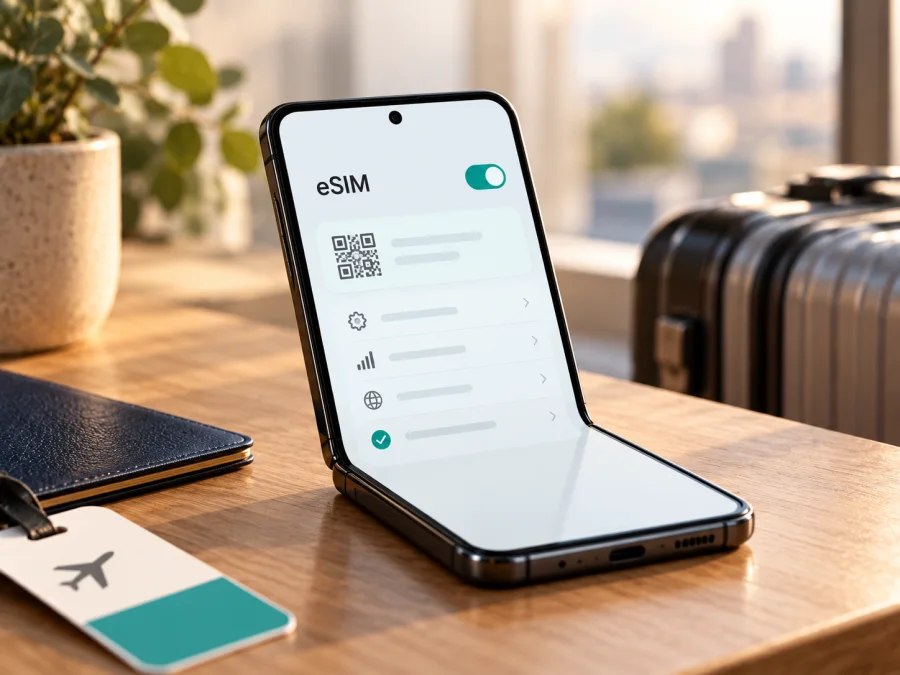
Samsung Galaxy Z Flip eSIM: compatibility, setup and travel guide
The original Samsung Galaxy Z Flip can support eSIM, but that answer does not apply to every phone sold under the same name. Samsung’s current compatibility guidance includes Galaxy Z Flip in its eSIM-capable list and also warns that eSIM may be unavailable depending on the country of origin. The exact regional model, carrier configuration and installed software therefore matter. Before choosing a travel plan, confirm that your particular phone shows an EID and an option to add an eSIM.
This guide is about the first-generation Samsung Galaxy Z Flip, not the later Z Flip 5G, Z Flip3, Z Flip4 or newer models. Similar names do not guarantee identical SIM hardware or software. If your phone does not expose eSIM controls, treat it as incompatible until Samsung or the carrier that supplied it confirms otherwise.
At a glance
| Check | What to know |
|---|---|
| Device covered | Original, first-generation Samsung Galaxy Z Flip |
| eSIM answer | Supported on compatible configurations; country of origin, model and carrier/software setup matter |
| Best confirmation | An EID and “Add eSIM” in the phone’s settings |
| Samsung menu | Settings → Connections → SIM manager → Add eSIM |
| Before purchase | Check unlock status, destination coverage and plan terms |
An eSIM is a digital SIM profile stored by compatible phone hardware. A physical SIM slot, dual-SIM wording or the Galaxy Z Flip name alone does not prove that your unit can download a profile.
Does the original Samsung Galaxy Z Flip support eSIM?
Sometimes, yes. Samsung’s present-day support information names Galaxy Z Flip among the Galaxy devices that support eSIM. Samsung’s regional guidance also says that a listed device can lack eSIM depending on its country of origin. That qualification is important for this first-generation phone: the device name alone does not identify whether a particular retail or carrier version has eSIM enabled.
The practical answer is therefore tied to the individual handset. If your phone displays an EID and lets you open “Add eSIM” in SIM manager, it has the on-device capability needed to continue. If both are absent, do not assume that a software update or a travel-plan QR code will add the missing capability. Ask Samsung support or the seller to confirm the full model code and market configuration before relying on eSIM.
The model name in this article must not be confused with “Samsung Galaxy Z Flip 5G.” That is a distinct variant with its own model codes and regional availability. The later Z Flip generations also have separate specifications. Guidance for one of those phones cannot settle compatibility for the original Galaxy Z Flip.
Why can two phones with the same name behave differently?
Samsung sells regional and carrier configurations with different SIM capabilities. A carrier-branded phone may also be locked or restricted, while a compatible unlocked retail model can have a different setup. Carrier support for activating an eSIM is separate from the phone’s hardware capability.
Use the full model code under Settings → About phone when checking local Samsung specifications or asking the original carrier. A software update can change menus or enable supported functions in some markets, but it cannot be assumed to make every regional variant compatible. Update official software, restart, then check SIM manager again. If the options remain absent, verify the exact model with Samsung before relying on eSIM.
Check your exact phone before you buy
Connect to Wi-Fi and check the settings. Menu wording may vary by One UI version.
- Find the model code. Open Settings → About phone and record the complete model number.
- Look for an EID. Check About phone or Status information. The EID identifies eSIM hardware; it is not an installation QR code.
- Open SIM manager. Go to Settings → Connections → SIM manager and look for “Add eSIM” or a similarly named add-plan option.
- Confirm unlock status. Ask the seller or original carrier whether the device can accept another provider’s profile.
- Check the plan. Make sure the destination, validity and activation rules fit your trip.
An EID and an Add eSIM control together are the clearest practical checks. If the EID appears but the add option is missing, restart, update official software and check again. If it is still absent, ask Samsung or the carrier about the full model code; do not assume a QR code or later update will resolve it.
Compatibility checklist
- [ ] I recorded the full model code and original market.
- [ ] Settings shows an EID and an Add eSIM control.
- [ ] The phone is unlocked for another provider.
- [ ] The plan covers my destination and dates.
Check your device before selecting a plan, especially if the phone is imported, carrier-branded or second-hand. If a check fails, confirm with Samsung or use a phone with verified eSIM support.
Choosing a travel eSIM plan
Choose a plan for the full route. Confirm the included country list for every stop, especially with regional packages. Compare the data allowance with your expected use: maps, messaging and email differ from video calls, uploads and streaming. Check validity, when it begins, top-up availability and hotspot rules before checkout.
Kaspersky eSIM Store is an app and website where you can choose, arrange and activate an eSIM with a mobile-data plan for an international trip. It is not a mobile operator, network owner or mobile-internet provider. Since this guide has no specified destination, use the store homepage to browse current destinations and plans; it is a general starting point, not a country-specific tariff: Browse destinations and check current plans.
A travel eSIM can provide data without replacing your physical SIM. Many travel plans are data-only and do not include a regular phone number, calls or SMS. You may be able to keep your home line for calls and use the eSIM for data, depending on the regional phone configuration. Check your home carrier’s roaming rules.
Install and activate the eSIM on Samsung Galaxy Z Flip
Install over stable Wi-Fi, ideally before departure. Keep the QR code or activation details on another screen. Follow the plan’s own instructions if they differ. Kaspersky eSIM Store’s Android installation guide describes Samsung menus; the iOS guide is for Apple devices.
Step-by-step setup
- Confirm support and unlock status. Verify the EID, Add eSIM option and network-unlocked status.
- Connect to Wi-Fi. Keep it active during download and make sure the phone has sufficient battery.
- Open SIM manager. Go to Settings → Connections → SIM manager.
- Add the profile. Tap Add eSIM and scan the supplied QR code, or enter manual details if the plan issuer provides them. Do not share the code publicly.
- Wait for download. Follow the on-screen confirmation; downloading a profile and registering on a network are separate steps.
- Label the line. Use “Travel” or the destination name so it is easy to identify.
- Choose mobile data. Select the travel eSIM when you are ready to use the plan. Keep calls and messages on your usual line if desired.
- Check roaming and APN. Enable data roaming for the travel eSIM only if its instructions require it. Enter an APN only when the plan issuer supplies one.
- Test at your destination. Turn off Wi-Fi briefly, select the travel eSIM for data and allow a few minutes to register.
Menu wording varies by Android version. The store’s Android guide notes that its steps are specific to Samsung. Do not delete a downloaded profile as a troubleshooting step unless the issuer confirms it can be reinstalled; some codes are single-use or tied to one device.
Install before travel or after arrival?
Installing at home over Wi-Fi gives you time to resolve download problems. Check when the plan’s validity starts before installing early: installation and data use are not always the same event. If validity starts on first connection in the destination, you may be able to install ahead and leave the profile off until arrival. At the destination, enable it, select it for data and test a page while keeping Wi-Fi available as a fallback.
Using the Galaxy Z Flip on a trip
A common setup is to keep the home SIM for calls or messages and select the travel eSIM for mobile data. The combination of active lines depends on the regional phone configuration, so check SIM manager rather than assuming both can remain active. Confirm the full route is covered; a regional or global label alone does not guarantee that every stop is included.
At a border, allow time for registration on a supported local network. Coverage, speed and indoor reception depend on local networks, signal conditions, plan terms and the phone’s supported bands. Save tickets, maps and addresses offline as a backup. If you plan to use a hotspot, check the plan’s tethering rules and monitor data use; video calls and laptop downloads can consume an allowance quickly.
Practical travel scenarios
- One-country break: verify the destination and validity, install on Wi-Fi, then select the eSIM for data after arrival.
- Multi-country itinerary: compare each stop with the plan’s country list and check whether validity continues across borders.
- Work trip: confirm hotspot rules, test the profile before an important meeting and keep trusted Wi-Fi as a fallback.
- Imported or used phone: confirm market, model code, EID, Add eSIM and unlock status before buying a plan.
Troubleshooting: when eSIM will not install or connect
“Add eSIM” is missing. Check the exact model code and country of origin, install official updates, restart and revisit Settings → Connections → SIM manager. If the control is still absent, ask Samsung or the supplying carrier whether that configuration supports eSIM. A QR code cannot add capability to an unsupported variant.
The EID is missing. Check About phone and Status information, then confirm the model code with Samsung. If neither an EID nor add-profile control is available after updates, do not assume compatibility; ask the seller for the original specifications.
The QR code fails. Use stable Wi-Fi, display the code on another screen and confirm it has not already been used. Enter manual details only if supplied by the plan issuer. Avoid repeated attempts or deleting a partly installed profile; contact support with the error.
The profile installed but has no service. Check that the plan is valid for your current country and activation timing. Confirm the eSIM is on and selected for data, enable roaming for that profile if required, toggle airplane mode, then wait a few minutes. Check automatic network selection and any supplied APN settings.
The phone connects but data does not work. Turn off Wi-Fi for the test, confirm mobile data is assigned to the travel line and compare the APN with the issuer’s instructions. Do not guess APN values. If the home line is using data, recheck the selected SIM and data-switching setting to avoid unintended roaming.
Service stops in another location. Verify that the destination is included, then check signal and network selection. Local coverage and outages are outside the phone’s control. If the plan includes the location and settings appear correct, contact its support with your location, model code and troubleshooting steps.
Keep the EID private in screenshots. Do not share an installation QR code publicly; it may contain details that allow a profile to be installed.
Frequently asked questions
Can every Samsung Galaxy Z Flip use eSIM?
No. Samsung lists the model family as eSIM-capable but warns that country of origin affects support. Check your specific device and model code.
Is Samsung Galaxy Z Flip the same as Samsung Galaxy Z Flip 5G?
No. They are separate variants. Use the model code and instructions for the exact phone you own.
Can I keep a physical SIM and add a travel eSIM?
If your regional configuration supports the required dual-SIM use, yes. Check which lines can be active together and select the intended data line.
Does a travel eSIM include calls and texts?
Not necessarily. Many travel plans are data-only. Check the selected plan’s terms; messaging and calls may work through apps over data.
Should I turn on data roaming?
Only on the profile and when its instructions require it. Confirm that mobile data is assigned to the travel eSIM so the home line does not incur unwanted charges.
Can I move the profile to a different phone?
Do not assume so. Some profiles or codes are single-use or device-bound. Check the terms and ask support before deleting or transferring one.
Before you travel
The original Samsung Galaxy Z Flip can be a travel-eSIM option when the specific regional configuration has eSIM enabled, the phone is unlocked, and its software exposes an EID and an Add eSIM command. The product name alone is not enough to establish all three conditions. Confirm them on your own device before paying for a plan.
Then check that the selected plan covers your route, suits the amount of data you expect to use, and has activation and validity terms that fit your dates. Install the profile on a reliable connection, label it clearly, and select it for mobile data when you are ready. If the phone fails the compatibility check, use a device whose eSIM support is confirmed. For a trip, browse destinations and review current eSIM plans after checking the handset; the homepage is a general store entry point, not a specific country tariff.


