Travel connectivity guide
Samsung Galaxy Z Flip3 128GB eSIM Guide
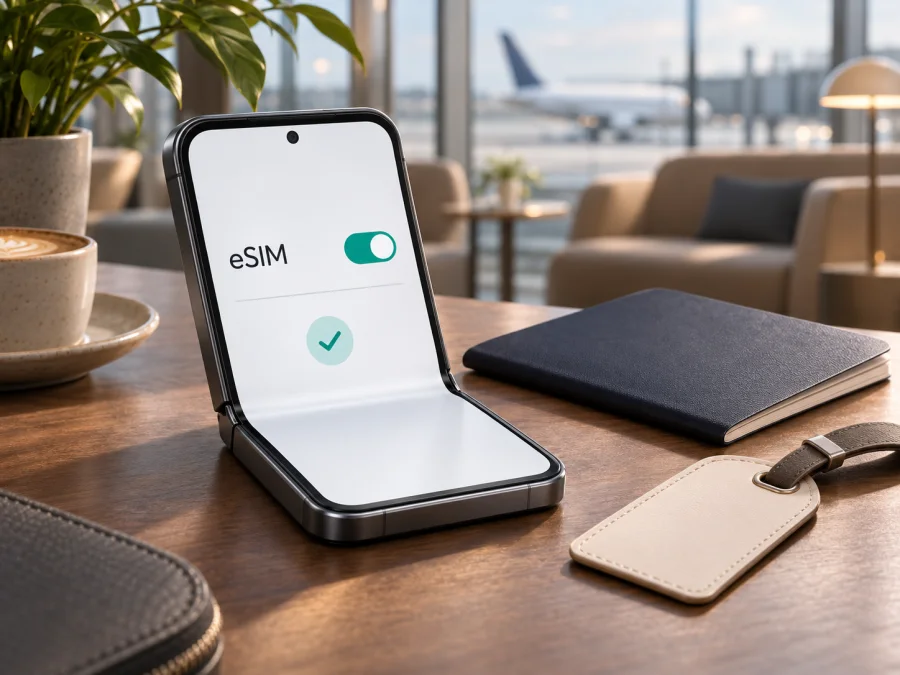
Samsung Galaxy Z Flip3 128GB eSIM compatibility and setup guide
Short answer: Samsung’s documentation lists the Galaxy Z Flip3 among Galaxy devices that support eSIM, and Samsung’s product information for the Galaxy Z Flip3 family describes one eSIM alongside a Nano-SIM. However, “Samsung Galaxy Z Flip3 128GB” identifies the storage configuration, not the full regional or carrier model number. eSIM availability can depend on where the phone was sold, its exact model code, carrier customisation and installed software. Treat this particular phone as compatible only after you confirm that its own settings show an EID or an option to add an eSIM.
That distinction matters when you are preparing for a trip. A phone can have the familiar Z Flip3 name and 128GB of storage yet behave differently from another unit sold in a different market. Use the steps below on the handset you plan to travel with; a general model-family listing is a useful starting point, not a substitute for checking the individual phone.
At a glance
| Item | What to know |
|---|---|
| Device in this guide | Samsung Galaxy Z Flip3 128GB |
| eSIM answer | Supported by the Galaxy Z Flip3 family in documented configurations; verify the individual regional and carrier variant |
| Storage | 128GB; storage capacity does not determine eSIM capability |
| Physical SIM | Samsung’s documented configurations include a Nano-SIM slot; tray and dual-SIM behaviour can differ by market |
| eSIM setup menu | Usually Settings → Connections → SIM manager → Add eSIM; names can vary with software |
| What to check first | EID in About phone/Status, or an Add eSIM option in SIM manager |
| Travel use | Select the travel eSIM for mobile data and follow the plan’s setup instructions; data roaming may be required for that eSIM |
Samsung calls the product family Galaxy Z Flip3 5G in its product material. This article keeps the requested retail name, Samsung Galaxy Z Flip3 128GB, intact: the “128GB” part identifies storage, while Samsung’s family name and eSIM feature wording may appear differently on the box, Settings screen or seller listing. Do not use the storage label alone to infer the phone’s region or capabilities.
Does Samsung Galaxy Z Flip3 128GB support eSIM?
The Galaxy Z Flip3 family supports eSIM in documented configurations, but this exact 128GB phone needs an on-device check. Samsung lists Galaxy Z Flip3 among eSIM-capable devices and describes configurations with one eSIM alongside a Nano-SIM. Samsung also cautions that eSIM availability depends on country of origin, carrier and software. These are family-level specifications, not proof that every unit sold under the “128GB” label has eSIM enabled.
Storage capacity does not identify the phone’s region or complete model code. Two 128GB units can have different market firmware, carrier customisation or network bands. A SIM tray does not prove or disprove eSIM support. The short answer for the phone in your hand is therefore conditional: confirm an EID or an Add eSIM option before selecting a travel plan.
No country of purchase or current operator was supplied, so there is no single market-specific answer for this listing. The exact SKU and the handset’s software determine whether the feature is exposed; the plan and destination determine whether it can be activated and used there. These checks are separate: an eSIM menu does not prove a phone is unlocked or that a particular destination plan is supported.
How to check this exact phone
- Open Settings → About phone, then look for Status or Status information. Wording varies by software version.
- Look for an EID entry. The EID is an identifier associated with the embedded SIM; it may also appear on the original box.
- Open Settings → Connections → SIM manager and look for Add eSIM or a similar option.
- If an EID and eSIM option appear, the software recognises eSIM on this handset. Still confirm the phone is unlocked and eligible for your chosen plan.
- If neither appears, install available software updates, restart and check again. If they are still absent, ask Samsung or the seller to verify the full model number and market configuration. Do not try to force the feature by changing firmware or region codes.
If you are buying a used or imported phone, ask the seller to show these screens and provide the full model number. Keep the EID private and share it only with a provider that needs it for activation.
Regional and carrier versions: why the model code matters
The storefront name is often shorter than Samsung’s support identity. Galaxy Z Flip3 units can have different regional model codes and carrier customisations. These can affect network bands, software menus, eSIM activation methods and whether a carrier has locked the handset. Samsung explicitly warns that country of origin can determine eSIM availability, even when the device family is on its supported list.
Find the model number under Settings → About phone → Model number and compare it with the packaging, if available. Give the complete code to Samsung or the seller when checking eSIM. Do not assume that two phones with the same storage and appearance have the same support. Software updates may alter menus, but they cannot be assumed to enable eSIM in a variant that does not support it.
Carrier lock is a separate question from eSIM capability. Ask the original carrier whether the phone is unlocked, and confirm that the selected plan accepts the handset and its activation method. A QR code, app installation or manual activation may each have separate requirements. An EID alone does not prove the phone is unlocked or that a plan works in every country.
Before travel, check four things independently: (1) the phone shows an EID or Add eSIM; (2) it can accept a plan from another provider; (3) the plan supports this model and activation method; and (4) the plan covers your destination and the phone’s network bands are suitable. A “yes” to one does not answer the others.
Compatibility checklist before buying a travel plan
Use this checklist with the actual Samsung Galaxy Z Flip3 128GB, not only the name in a shop listing:
- [ ] An EID appears in About phone/Status, or SIM manager offers Add eSIM.
- [ ] The phone is not locked to a carrier that blocks the plan.
- [ ] The full model code and regional configuration are confirmed if the menu is missing or unclear.
- [ ] The plan covers every country or region where you need data, including transit stops.
- [ ] You understand its data allowance, validity, activation timing, supported network and restrictions.
- [ ] You have Wi-Fi or another internet connection for installation and know whether setup uses a QR code, app or manual details.
- [ ] You know which line will handle mobile data and have saved the setup instructions for offline access.
Check your device’s compatibility before choosing a plan. Kaspersky eSIM Store is an app and website where you can choose, arrange and activate an eSIM plan for mobile data during an international trip. Travel data plans do not provide a regular phone number, voice service or SMS unless the specific plan terms say otherwise. When you are ready, you can browse current travel plans and review the destination, data, validity and activation terms. The homepage is a general starting point, not a country-specific offer.
How to install and activate eSIM on Samsung Galaxy Z Flip3 128GB
Before starting, confirm eSIM support and carrier unlock, connect to Wi-Fi and have the QR code or activation details ready. Read the plan’s validity rules first: installing a profile, enabling it and starting the plan may be different events. Some QR codes can be used only once, so do not delete a working profile just to scan again.
QR-code installation
- Open Settings → Connections → SIM manager.
- Tap Add eSIM. Some versions may say Add mobile plan.
- Choose Scan QR code (or Scan QR code from service provider) and scan the code from another screen or printed copy.
- Keep the phone connected to reliable internet while the profile downloads, then confirm the on-screen prompts.
- If the camera cannot read the code, check its clarity and use manual activation only if the plan supplies those details.
- Give the profile a clear label such as Travel data. Leave it inactive until needed if the plan’s rules make activation start its validity period.
Samsung menu wording can differ between One UI versions and markets. See the Android eSIM installation instructions for a visual walkthrough. The iOS installation instructions are for a compatible Apple device, not for this Samsung phone.
Select the eSIM for mobile data
- In Settings → Connections → SIM manager, turn on the travel profile.
- Select it as the line for Mobile data. Keep your home SIM for calls or messages if needed.
- To avoid unintended charges, check your home carrier’s roaming terms and disable data on the home line while abroad if appropriate.
- Enable Data roaming for the travel eSIM only if the plan’s instructions require it. This setting may be needed to register on a partner network; do not enable roaming data on your home SIM by mistake.
- Enter an APN only if the plan provides one, following its exact instructions. Leave other network values unchanged.
- After reaching a covered destination, allow time for registration. If the eSIM is enabled but has no service, briefly toggle Airplane mode or restart once.
A downloaded profile may appear before it can connect. If setup fails, confirm internet access, the plan’s supported installation method and whether the QR code has already been used. Avoid deleting the profile until support confirms that it can be installed again.
Using eSIM for mobile data on a trip
Once installed, the important setting is the line selected for mobile data. The Galaxy Z Flip3 may keep a home SIM available while a travel eSIM handles data, but active line combinations can vary by market, carrier and software. Check what SIM manager actually allows on your phone rather than relying on screenshots for another variant.
If the plan permits, install its profile before departure while stable Wi-Fi is available. Read its rules carefully: profile download, enabling the line, first connection in the destination and data consumption are not necessarily the same event. If you want to delay use, keep mobile data on your home line or leave the travel profile inactive until the plan instructions say to switch.
After arrival, confirm that the travel eSIM is on and selected for data. Turn on data roaming for that profile only if required. Keep roaming data off for the home SIM unless you deliberately choose your home operator’s roaming service. With Wi-Fi disabled, check the network indicator and load a simple webpage or map; successful installation alone does not confirm a connection.
For a short city break, you may keep the home number available for calls and texts while using the travel eSIM for data. On a longer trip, monitor the plan balance and validity in its account, and consider whether you need more data before the allowance runs out. For multi-country travel or a layover, verify that every destination is included instead of assuming a single-country plan works across borders.
A travel data eSIM may not include a new number, ordinary calls or SMS. Messaging and voice apps can use its internet connection, while the home SIM may continue to receive calls or verification texts if your carrier allows it. Check possible roaming costs if you rely on your home line. Hotspot use depends on the phone, plan and local network; confirm it is allowed and watch the data balance. Large app updates, cloud backups and video calls can consume data quickly.
Common problems and what to check
“Add eSIM” is missing
Check the EID and full model number, update software, restart and inspect SIM manager again. If the option remains absent, ask Samsung or the seller to verify the regional model. APN changes cannot create an eSIM option that the handset does not expose.
The QR code will not scan
Raise brightness on the screen showing the code, enlarge it, clean the camera lens and avoid glare. Confirm that the code belongs to this plan and has not expired or already been used. Use manual entry only if the plan provides activation details.
The profile downloads but there is no service
Confirm the eSIM is enabled and selected for mobile data, the plan is valid, and you are in a covered destination. Toggle Airplane mode briefly, wait a few minutes and restart once if needed. Enable roaming for the travel eSIM only if required, then check the plan’s network or APN instructions.
Data is using the home SIM
Select the eSIM under SIM manager’s mobile-data setting. Turn off automatic data switching if available and disable data roaming on the home line if you do not want to use it. Check the selected line label, not only the status icon.
An EID is present but the plan cannot be added
An EID does not prove carrier unlock or plan eligibility. Confirm the phone’s lock status, model and region, activation method and whether the QR code has already been used. If the device is carrier supplied, ask whether activation is restricted. Give support the error message and order details; do not post the full EID publicly.
The phone shows data service but apps do not load
Turn Wi-Fi off to confirm the intended line is carrying traffic. Check plan balance, validity, destination coverage and any required APN. If ordinary sites still fail, note the error and contact support rather than deleting and reinstalling the profile repeatedly.
FAQ
Is Samsung Galaxy Z Flip3 128GB eSIM compatible?
The Galaxy Z Flip3 family is listed by Samsung as eSIM-capable in supported configurations. The 128GB label does not identify the region or carrier variant, so confirm an EID or Add eSIM on your phone before buying a plan.
Does every 128GB unit have eSIM?
No universal guarantee follows from storage capacity. Country of origin, carrier customisation and software can affect availability. Check the full model number, Status screen and SIM manager.
Can I use a physical SIM and eSIM together?
Some configurations support a Nano-SIM with an eSIM, but the combination available on your handset depends on its variant, carrier and software. Check SIM manager before relying on dual-SIM use.
Where can I find the EID?
Look under Settings → About phone → Status or Status information. Samsung says the EID may also be on the original box. If it is missing, check SIM manager and ask Samsung or the seller to verify the regional model.
Does a travel eSIM replace my number or include calls?
Not necessarily. A travel data eSIM can handle mobile data while a compatible home SIM remains available. Plans in Kaspersky eSIM Store are intended for data and do not include ordinary calls or SMS unless their terms expressly say so.
Should I turn on data roaming?
Follow the selected plan’s instructions. Some travel eSIMs need roaming enabled to connect to a local partner network. Enable it for the travel profile, and leave it off for the home SIM unless you intend to roam on that line.
Can I reinstall a deleted eSIM?
Do not assume so. Activation codes may be single-use or device-specific. Check the plan terms or contact support before deleting a profile, resetting the phone or moving it to another device.
Will scanning the code make the plan work immediately?
Not always. The profile can download before connecting to a supported destination network. Activation, validity and data use depend on the plan’s terms; allow time for network registration.
Before you choose a travel eSIM
The practical answer for Samsung Galaxy Z Flip3 128GB is conditional: Samsung documents eSIM support for the Galaxy Z Flip3 family, but the 128GB name alone cannot confirm the specific regional or carrier variant. On the phone, look for an EID and Add eSIM, check the full model number, confirm that the handset is unlocked, and make sure the plan supports your device and destination.
Once those checks are complete, compare the current plan details for your trip: destination coverage, data allowance, validity, activation timing and any setup requirements. Kaspersky eSIM Store is the app and website for choosing, arranging and activating an eSIM plan for mobile data on an international trip. Browse the current travel options after confirming compatibility, then follow the plan’s instructions when you install the profile. This homepage is a general place to check available destinations; it is not a promise that a particular country plan or rate is available.


