Travel connectivity guide
Samsung Galaxy Z Flip3 5G 128GB eSIM
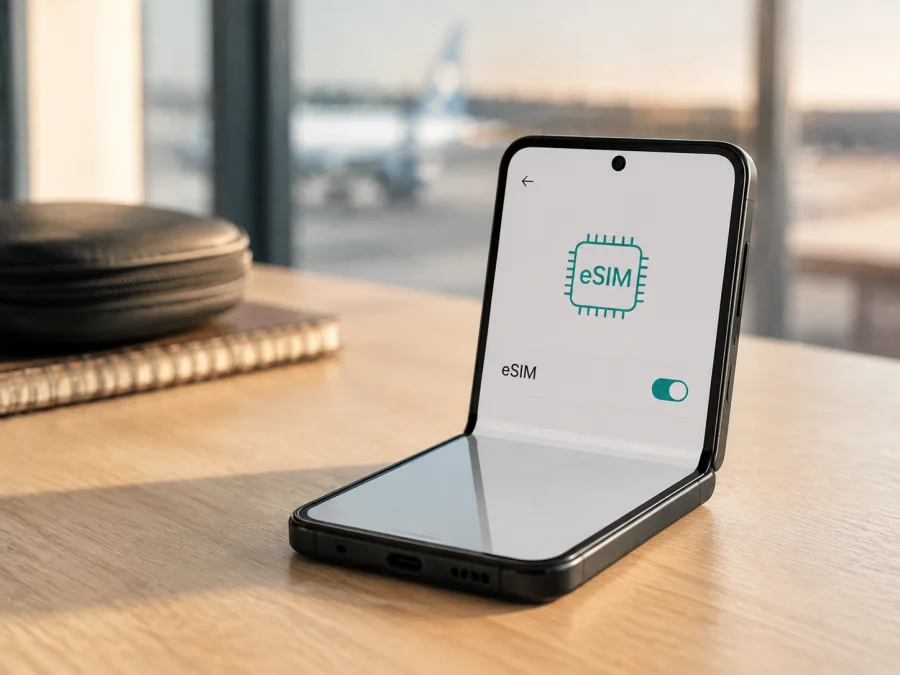
eSIM compatibility for Samsung Galaxy Z Flip3 5G 128GB
If you want mobile data on a trip without replacing your physical SIM, does Samsung Galaxy Z Flip3 5G 128GB support eSIM? Yes for eSIM-capable regional variants, but the model name alone cannot guarantee that every handset exposes the feature. Samsung documents eSIM support and states that functionality depends on the carrier. Your Settings menu, EID and carrier conditions are the final checks.
Quick answer: does Samsung Galaxy Z Flip3 5G 128GB support eSIM?
Samsung Galaxy Z Flip3 5G 128GB can support eSIM when the particular regional and operator version includes the embedded-SIM function. Samsung’s official product page for a 128GB SM-F711B configuration lists a dual-SIM arrangement with “SIM 1 + Embedded SIM”. Samsung’s official business specification describes the Galaxy Z Flip3 5G as eSIM capable and adds that functionality is dependent on the carrier.
For the phone in your hand, look for Add eSIM, Add mobile plan or similar under Settings → Connections → SIM manager, and look for an EID under Settings → About phone → Status. If both are present, the device exposes the embedded-SIM capability needed to download an eSIM profile. If they are missing, do not assume that a different tariff or a software update will create the function: the handset may be a market-specific or carrier-customized version.
What the 128GB variant tells you
The supplied device name is Samsung Galaxy Z Flip3 5G 128GB. The 128GB marker identifies storage, not the sales region, modem configuration or operator policy; Samsung lists 8GB for relevant SM-F711B 128GB configurations.
| Item | What to expect | eSIM relevance |
|---|---|---|
| Requested device | Samsung Galaxy Z Flip3 5G 128GB | Keep the exact variant when comparing listings or support answers. |
| Storage | 128GB | Capacity alone does not prove eSIM support. |
| Memory | Samsung lists 8GB for relevant SM-F711B 128GB configurations | RAM is not the compatibility test. |
| Physical SIM | Nano-SIM on documented configurations | It may remain the normal line while eSIM handles travel data. |
| Embedded SIM | Listed by Samsung for eSIM-capable configurations | The EID and SIM manager confirm the individual unit. |
| Network branding | 5G Galaxy Z Flip3 generation | 5G does not guarantee eSIM on every regional SKU. |
Why region and carrier can change the result
Galaxy Z Flip3 5G phones were sold in multiple markets and through different operators. Phones with the same family name, 128GB capacity and 5G branding can have different model codes, firmware, SIM menus or activation policies, especially when imported or refurbished.
Samsung’s documentation establishes the important distinction. The 128GB SM-F711B product page identifies an embedded SIM, while Samsung’s unlocked business data sheet qualifies eSIM capability as carrier-dependent. Samsung Support also notes that screens and settings can vary by wireless provider, software version and device model. Therefore, the family has eSIM-capable versions, but the exact unit still determines whether you can use one.
Keep these questions separate: the family includes eSIM-capable versions; this exact phone must expose an EID and add-eSIM menu; and the selected plan must support the destination and carrier. An EID confirms an eSIM identity but does not promise registration on every network. A carrier lock, unsupported destination or plan restriction can still prevent service.
Compatibility check before buying an eSIM plan
<a id="kesim-device-compatibility"></a>
Use this short decision check. Check your device before paying for a plan, especially if the phone is imported or used.
Compatibility checklist
- Confirm that the phone is the exact Samsung Galaxy Z Flip3 5G 128GB unit you intend to use, not another Galaxy Z Flip or storage version.
- Look for Add eSIM, Add mobile plan, Add mobile network plan or equivalent in SIM manager.
- Find the EID under the phone status information. It is useful evidence, but activation still depends on the plan and network.
- Check that the phone is carrier-unlocked. An eSIM can download and still fail to register on a locked device.
- Install available system updates over Wi-Fi, restart and check SIM manager again if the menu is missing.
- Confirm that the selected plan covers the countries or region on your route and is intended for compatible Android devices.
- Keep the QR code or activation details available on another screen; the phone cannot normally scan its own display.
- Review activation timing, validity, data allowance, tethering rules and any data-roaming requirement.
If a check is inconclusive, pause before purchase to avoid an unusable profile or a plan that starts before the trip.
How to verify the EID and eSIM menu
Samsung Support’s Galaxy eSIM guidance says that the EID can be printed on the box or found at Settings → About phone → Status. Wording varies with software language and version, so look for EID, eSIM ID or an embedded-SIM identifier. Do not post the full EID publicly.
Use this sequence on Samsung Galaxy Z Flip3 5G 128GB:
- Open Settings.
- Tap Connections.
- Open SIM manager or SIM card manager.
- Look for Add eSIM, Add mobile plan or Add mobile network plan.
- Return to Settings → About phone.
- Open Status or Status information and check for EID.
The combination of an EID and an add-eSIM option is the strongest on-device confirmation. If only one is visible, remember that a carrier build can hide a menu or a software release can use different wording. If neither appears, ask the seller or original operator about the exact model code and regional eSIM status before buying. Retain the full device name so the 128GB, 5G and generation details are not lost.
How to install and activate eSIM
Connect Samsung Galaxy Z Flip3 5G 128GB to Wi-Fi and have the eSIM profile, QR code or activation details ready. Keep a working physical SIM until the new data line is tested. Samsung’s labels may differ by software build.
For platform-specific preparation, see the Android installation instructions and the iOS installation instructions. The device here is Android; the iOS guide can help when the QR code is displayed on an iPhone or another separate device.
Step-by-step installation
1. Confirm the device
Check the EID and add-eSIM option. If the menu is absent, resolve the regional or carrier question before continuing.
2. Open SIM manager
Go to Settings → Connections → SIM manager or SIM card manager, then tap the option to add an eSIM or mobile plan.
3. Choose an activation method
Select Scan QR code when your chosen plan provides one. If the plan supplies an activation code or server details, use the manual option and enter only the supplied information. Automatic discovery is available only with supported carriers.
4. Download the profile
Display the QR code on another screen and scan it inside SIM manager. If scanning fails, raise brightness, remove glare and enlarge the code. Keep Wi-Fi on; installation and network registration are separate stages.
5. Enable and label the line
Give the profile a clear label such as Travel data. Turn it on in SIM manager. Samsung notes that a restart may be needed after adding the profile.
6. Select mobile data
Set the travel eSIM as the preferred line for Mobile data. If you want to keep calls and messages on the physical SIM, leave those defaults unchanged. Disable automatic data switching if you do not want the phone to fall back to the home SIM.
7. Activate at the correct time
Plans can start when installed, on first network connection or under other stated conditions. Check the plan before scanning; enable data roaming for the eSIM only when required and when the plan should begin.
8. Test the connection
Open a webpage or internet app and confirm that the travel line is selected for data. Wait for registration before troubleshooting; do not delete the profile as a first step.
How to use eSIM for mobile internet while travelling
Keep the physical SIM for your usual number and use the eSIM as the travel data line. Roaming charges still depend on the selected data line and home-operator settings.
Install before departure
At home, confirm the EID, install the profile over Wi-Fi and label it. At the destination, choose the travel eSIM for Mobile data, enable data roaming if required, and test it before relying on maps or a booking.
Install after arrival
If you prefer to avoid early activation, keep the QR code and account details available offline or on another device. Use airport or hotel Wi-Fi to add the eSIM and wait for registration; do not leave installation until you are already travelling without any connection.
Multi-country route
Confirm that the selected plan covers every country on the itinerary. A country-specific profile can stop working after a border crossing, while a regional plan still has validity, allowance and network conditions to match.
Calls, messages and hotspot
In this travel context, Kaspersky eSIM Store helps users choose, arrange and activate eSIM with a suitable plan for mobile internet abroad. It is an app and website, not a mobile operator, network owner or provider of mobile internet. Unless the chosen plan says otherwise, do not expect an ordinary phone number, voice calls or SMS. Messaging and calling apps can work over data, while hotspot use may be restricted by plan or network conditions.
When the checks are complete, use Kaspersky eSIM Store to choose a destination and review eSIM options by data allowance, validity and route. Select a plan that matches the journey.
Common problems and what to check
“Add eSIM” is missing
Check the model code, carrier lock, region of sale and updates. Restart and look again under Connections → SIM manager. If the EID is also missing, ask the seller or original operator to confirm the unit; 5G and 128GB are not proof by themselves.
The QR code will not scan
Use another screen, increase brightness, remove glare and scan from Add eSIM, not the ordinary camera app. Confirm that the code is current and never publish it.
The profile downloads but there is no service
Confirm that the eSIM is enabled and selected for data, that data roaming is on when required, and that the destination is covered. Check APN and network-selection instructions, toggle airplane mode once and restart if recommended. A carrier lock can reject a downloaded profile.
Data uses the wrong SIM
Open SIM manager and inspect Mobile data. Turn off automatic data switching if necessary, then check Data Saver, app restrictions and the data limit.
The connection is slow or intermittent
Move to a place with better signal, wait for registration and check country coverage. Record location, time, selected network and settings before contacting support; one congested venue does not establish incompatibility.
The eSIM was deleted
Do not delete a working profile as a first troubleshooting step: some QR codes are one-time or have limited downloads. Keep the confirmation and contact support with the model code and error message.
FAQ
Does Samsung Galaxy Z Flip3 5G 128GB support eSIM?
Yes, eSIM-capable versions exist, and Samsung’s 128GB SM-F711B product information lists an embedded SIM. Samsung also says functionality depends on the carrier, so verify the exact phone in Settings.
Is every 128GB Galaxy Z Flip3 5G identical for eSIM?
No. Storage capacity does not identify the sales region, carrier firmware or activation policy; check the model code, EID and SIM manager.
Where is the EID?
Find it at Settings → About phone → Status; Samsung says it may also be printed on the box. Search for EID or eSIM ID.
Can I use a physical SIM and eSIM together?
Yes, subject to region and carrier. Select the correct data line so the wrong SIM does not incur roaming charges.
Does an eSIM include a phone number?
Not necessarily. These travel plans are for mobile internet; voice calls, SMS and an ordinary number are excluded unless the plan says otherwise.
Why does an installed eSIM show no network?
Check that it is enabled, selected for data, allowed to roam when required and valid in the destination; then check carrier lock, APN, network selection and signal.
Final device check before a trip
Before choosing an eSIM for your trip, complete this sequence on the exact Samsung Galaxy Z Flip3 5G 128GB phone:
- Confirm the full device name, model code, 128GB capacity and 5G variant.
- Find an EID under Settings → About phone → Status.
- Confirm Add eSIM or Add mobile plan under Settings → Connections → SIM manager.
- Check that the phone is not carrier-locked and that its regional version is accepted for the intended plan.
- Choose a destination or regional option whose data allowance and validity match the itinerary.
- Install over reliable Wi-Fi, then set the eSIM as the mobile-data line when the plan should begin.
- Enable data roaming for the travel eSIM only when required and test a webpage before leaving Wi-Fi.
If the EID or add-eSIM menu is missing, verify the regional and operator version instead of guessing. If both are present, Samsung supports an eSIM-capable configuration, but the selected plan and destination still determine activation. Kaspersky eSIM Store then helps you select and activate an appropriate travel eSIM through its app or website.


