Travel connectivity guide
Samsung Galaxy Z Flip3 5G 256GB eSIM Guide
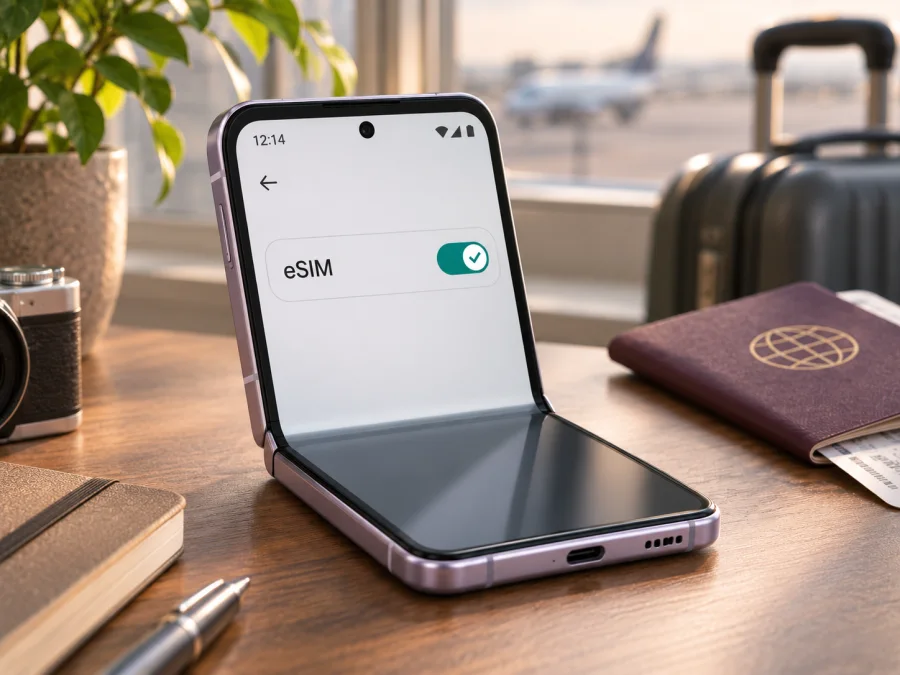
Samsung Galaxy Z Flip3 5G 256GB eSIM: compatibility and setup
The Samsung Galaxy Z Flip3 5G 256GB is listed by Samsung among Galaxy devices that support eSIM. That is a useful model-level answer, but it does not guarantee that every handset carrying this name can add an eSIM. Samsung cautions that support can depend on the country where a device originated, and its US specifications say eSIM functionality depends on the carrier. The phone’s exact regional and carrier version, software, and current network lock therefore matter more than its 256GB storage capacity.
Before buying a travel plan, check the phone itself. Look for an EID and an Add eSIM option in Settings. If either is missing, confirm the full model code and original sales market with the seller or Samsung support rather than assuming that every Z Flip3 has the same configuration. An eSIM plan also needs a compatible local network and must be permitted by the device’s carrier lock status.
Does the Samsung Galaxy Z Flip3 5G 256GB support eSIM?
Generally, yes: Samsung lists Galaxy Z Flip3 in its eSIM compatibility information. But the answer for a particular Samsung Galaxy Z Flip3 5G 256GB is conditional. The product name and storage size do not identify the regional SKU. An imported, carrier-branded, or market-specific phone may have different eSIM availability, and a carrier may restrict eSIM use even when the underlying model family is capable.
Samsung’s current support guidance includes Galaxy Z Flip3 in its compatible Galaxy lists. Samsung’s US product specification for the Galaxy Z Flip3 5G also describes it as eSIM-capable, with functionality dependent on the carrier. Samsung separately warns that a device listed as compatible might not support eSIM in every country of origin. Taken together, these sources support a clear but qualified conclusion: the Z Flip3 family has eSIM-capable versions; verify your own handset before purchasing a plan.
| Check | What it tells you |
|---|---|
| Device name | Samsung Galaxy Z Flip3 5G identifies the model family; the full model code is needed to distinguish a regional or carrier SKU. |
| Storage | 256GB is the storage variant. It does not independently confirm eSIM support. |
| Model-family support | Samsung lists Galaxy Z Flip3 as eSIM-capable, with region and carrier conditions. |
| EID | An EID shown in the phone’s status or SIM information is a strong sign that this handset has an eSIM component. |
| Add eSIM menu | The option in SIM Manager indicates that the software exposes eSIM setup on this handset. |
| Network and lock | Your intended plan must be supported for the destination, and the phone must not be restricted from using another provider. |
Why regional and carrier versions matter
Check compatibility before you buy
Use these checks on your Samsung Galaxy Z Flip3 5G 256GB before you select a travel eSIM:
- [ ] Open Settings → About phone and note the model name and full model number. Do not post the IMEI or EID publicly.
- [ ] Open Settings → Connections → SIM manager and look for Add eSIM or a similar option. Menu wording can vary by software version and region.
- [ ] In Settings → About phone → Status information, look for an EID entry. You can also enter
*#06#in the Phone app and see whether an EID is displayed alongside device identifiers. Do not share those identifiers with strangers. - [ ] If the EID is absent, restart the phone, install available official software updates, and check the menu again. If both the EID and eSIM option remain absent, ask Samsung or the seller whether this exact SKU supports eSIM in its original market.
- [ ] Confirm that the phone is not carrier-locked or otherwise restricted from adding a plan from another provider. If you are unsure, ask the carrier that sold or manages the phone.
- [ ] Check that the eSIM plan covers the country or region on your itinerary and that its requirements accept your handset and destination.
- [ ] Make sure you have a reliable internet connection for downloading the profile and enough battery to complete setup.
A visible EID is a useful device-side indicator, but it cannot confirm that a particular travel plan will work in a particular country. The provider, activation conditions, destination coverage, and phone lock status must also match. If the menu is present but setup fails, preserve the exact model code and the error text; they will make a support request more useful.
When checking a refurbished or imported phone, compare the model code shown in Settings with the code in the seller’s listing and the original box, if available. A mismatch can mean the listing describes a different market version. Ask whether the device has been unlocked for use with another provider, and check that the firmware is up to date. If you are buying remotely, request a screenshot of SIM Manager with personal identifiers hidden, or ask for a written confirmation tied to the exact model code. A screenshot can help clarify the menu, but it is not a substitute for checking the phone in person or confirming activation with the provider. This extra step is especially useful when the model name alone is all a listing provides. Confirm the plan provider accepts this device class before payment, because eSIM setup and destination access are separate checks.
Check your device before you choose an eSIM plan. Compatibility is specific to the handset, not just the name printed on its box.
How to add and activate an eSIM
Install the profile while connected to Wi-Fi or another dependable internet connection. Keep the QR code or activation details available on a second screen or printed copy if possible; a phone cannot scan a QR code displayed on its own screen. Do not scan a code until you are ready to install the profile, and follow the plan’s instructions if they say when activation or validity begins.
Samsung’s typical Galaxy path is Settings → Connections → SIM manager → Add eSIM. On some software versions, the button or submenu may have a slightly different label. If the Add eSIM option does not appear, stop and recheck compatibility rather than repeatedly attempting to scan a code.
- Check readiness. Confirm that eSIM is available on this exact phone, that it is not carrier-restricted, and that you have internet access. Read the plan’s installation and activation terms.
- Open SIM Manager. On the phone, go to Settings → Connections → SIM manager.
- Choose Add eSIM. Select Add eSIM. Depending on the version, the phone may offer a QR-code scan, automatic discovery, or manual activation details.
- Install the profile. Select Scan QR code and point the camera at the provider’s code. If you received a manual activation code instead, select the manual entry option and enter the details exactly as supplied.
- Wait for download. Keep the phone online and do not close the setup screen while the profile downloads. Follow any prompt to confirm or restart the phone.
- Name the line. If prompted, use a clear label such as “Travel data” so that you can distinguish it from your home SIM.
- Choose how to use it. In SIM Manager, select the eSIM for mobile data when you are ready to use the travel plan. Keep your home line selected for calls or messages if that is your preference and those services are available under its terms.
- Set data roaming only when instructed. Some travel eSIMs require data roaming to be enabled for that eSIM. Follow the plan’s instructions; do not assume the home SIM needs roaming enabled.
- Check the connection. When the plan is meant to be active, turn off Wi-Fi briefly and load a simple webpage. If the service does not connect, use the troubleshooting checks below before deleting the profile.
Samsung’s steps and labels can change with software versions and markets. For additional device-specific guidance, see the Android eSIM installation instructions and iOS eSIM installation instructions. The iOS page is useful if you are comparing setup flows across devices; it does not apply to installing an eSIM on this Samsung phone.
Use the eSIM for mobile data on a trip
Once the eSIM profile is installed, choose it as the mobile-data line when you are ready to use it. On Samsung Galaxy phones, open Settings → Connections → SIM manager and review the preferred SIMs for calls, messages, and mobile data. Select the travel eSIM for data if that is what the plan is intended to provide. The exact screen may vary by software version.
If you are still at home, you can prepare the profile in advance when the plan’s instructions allow it. Whether the plan starts immediately or only after a later network connection depends on its terms, so check the activation rule before installation. If you want to avoid using the travel allowance before arrival, leave the eSIM switched off or do not select it for mobile data until the right time, as permitted by the plan instructions.
After landing, enable the eSIM and select it as the mobile-data SIM. If the provider requires roaming for that profile, switch on Data roaming for the eSIM. Check the line name carefully so you do not enable roaming on your home SIM by mistake. A travel eSIM designed for data may not include an ordinary phone number, voice calls, or SMS; read the plan details and use internet-based messaging or calling apps when appropriate.
For a multi-country itinerary, verify whether the plan covers every destination rather than assuming a nearby country is included. At a border, the phone may need time to register on a supported network. Availability and performance depend on the local network and plan conditions, so do not treat a 5G logo on the phone as a promise of 5G access at every stop. Keep essential maps, tickets, and booking details available offline as a backup.
Kaspersky eSIM Store is an app and website where you can choose, arrange, and activate an eSIM with a mobile-data plan for an international trip. It helps you review the destination and plan terms before travel; it is not a mobile operator or the provider of the local network connection. To browse current destinations and check available plans, visit the Kaspersky eSIM Store homepage. Confirm the plan’s country coverage, data allowance, validity, activation rules, and any roaming requirement before choosing it.
Common problems and what to check
“Add eSIM” is missing
Check Settings → Connections → SIM manager, then look for an EID under About phone → Status information. Restart the handset and install any available official updates. If both indicators remain missing, the exact phone may be a regional or carrier version without usable eSIM support. Verify its model code with Samsung or the seller. Do not buy a plan based only on the generic product name.
The QR code will not scan
Increase screen brightness on the device displaying the code, clean the Z Flip3 camera lens, and hold the phone steady at a distance where the full code is visible. If possible, display the QR code on another device. Check whether the provider allows manual activation details. Make sure the QR code is intended for this installation and has not already been used; many eSIM codes are limited to a particular profile or installation attempt.
The profile will not download
Confirm that Wi-Fi or another internet connection is working, disable any captive portal that is blocking access, and check that the date and time are set automatically. Restart the phone and retry only if the provider’s instructions allow it. If the activation code reports that it is invalid or already used, contact the plan provider with the error message rather than deleting an existing profile.
The eSIM appears, but there is no mobile data
Open SIM Manager and make sure the profile is switched on and selected as the mobile-data line. Confirm that the plan is active for the current country and has not reached its usage or validity limit. Enable data roaming on the travel eSIM if the instructions require it. Turn Airplane mode on briefly, then off, or restart the phone so it can register again. If the line still has no service, ask the plan provider whether the destination network is available and whether manual network selection is needed.
The home SIM uses data instead
Check the preferred SIM for mobile data in SIM Manager. When two SIMs are enabled, a device setting may allow data switching or select the other line if the preferred one cannot connect. Turn off automatic data switching if it could create unexpected home-carrier roaming charges, then select the travel eSIM deliberately. Menu names differ by software version, so review the visible SIM labels rather than relying on a remembered path.
The phone says it is locked or rejects another provider
Contact the carrier that supplied the phone and ask whether it is network-unlocked and eligible for another eSIM profile. Samsung’s model-family support does not override a carrier lock or a provider’s activation restrictions. Do not reset the phone to try to remove a network lock; a reset does not guarantee that the device will become eligible.
Frequently asked questions
Does the 256GB version support eSIM?
Samsung lists Galaxy Z Flip3 among eSIM-capable devices, and its product specifications identify a 256GB storage option. Storage size itself does not turn eSIM on or off. Your regional model code, software, carrier support, and lock status determine whether you can use it.
Does 5G prove that my phone supports eSIM?
No. 5G is a mobile-network capability; eSIM is a separate SIM feature. Check for an EID and Add eSIM on the phone, and verify the exact regional SKU.
Can I use an eSIM and a physical SIM together?
The Galaxy Z Flip3 model family supports hybrid dual-SIM configurations in Samsung’s compatibility information, but actual availability can depend on the handset’s market and carrier. Check SIM Manager on your device and the specifications for its full model code. Also review which line is set for mobile data before travel.
Is an EID enough to guarantee that my travel eSIM will work?
No. An EID indicates eSIM capability on the handset, but the phone also needs to accept the profile, be free of relevant carrier restrictions, and connect to a supported network in the destination. Check the plan terms as well as the device.
Does installing the profile start the plan?
It depends on the plan. Installation, activation, and the start of the validity period may be separate events. Read the provider’s instructions before scanning the code, especially if you plan to install before departure.
Does a data travel eSIM replace my normal phone line?
Usually not. A data-focused eSIM can provide mobile internet without supplying a regular number for voice calls or SMS. Keep your existing line if you need those services, and check its roaming settings and charges with your home carrier.
Before you choose a plan
For the Samsung Galaxy Z Flip3 5G 256GB, the model-family answer is eSIM-capable, with important regional and carrier conditions. Confirm that your handset has an EID and an Add eSIM option, identify its full model code, and check its carrier-lock status. Then make sure the plan covers your destination and that its installation, validity, and roaming rules fit your itinerary.
Kaspersky eSIM Store helps you choose, arrange, and activate an eSIM with a mobile-data plan for a trip abroad. First verify the phone; then review current options for the countries you will visit and select a plan whose data allowance and validity match your needs. If any compatibility check is uncertain, ask Samsung, the seller, or your phone carrier to confirm the exact handset before you proceed.


